To register a client directly with Informatica’s internal authorization server, you need to add an OAuth client. Adding an OAuth client creates the client and registers it with the Informatica OAuth server.
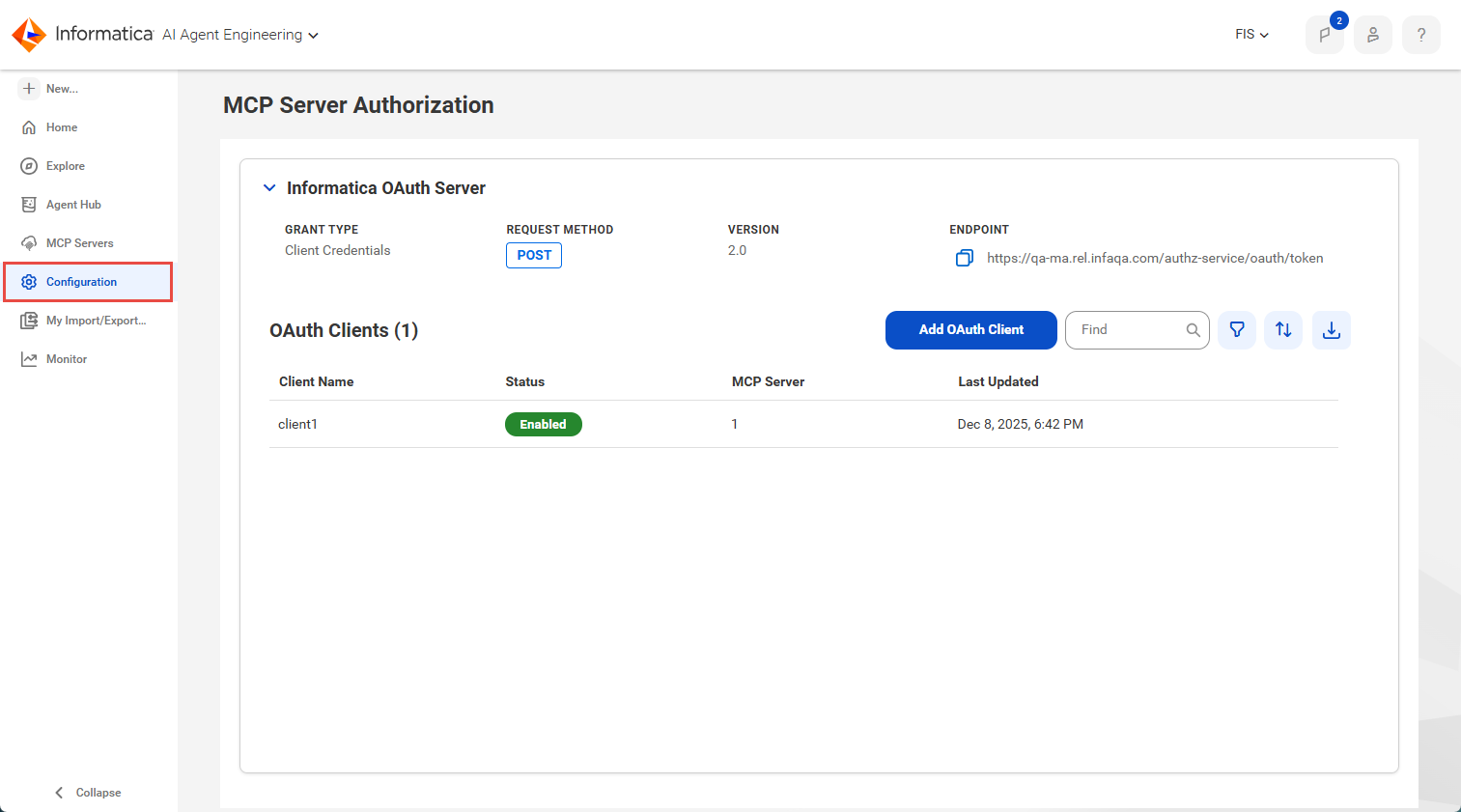
You can view the Informatica OAuth server information and add OAuth clients on the MCP Server Authorization page. You can access this page through the Configuration option in the left navigation menu.
The following image shows the MCP Server Authorization page:
Informatica OAuth server
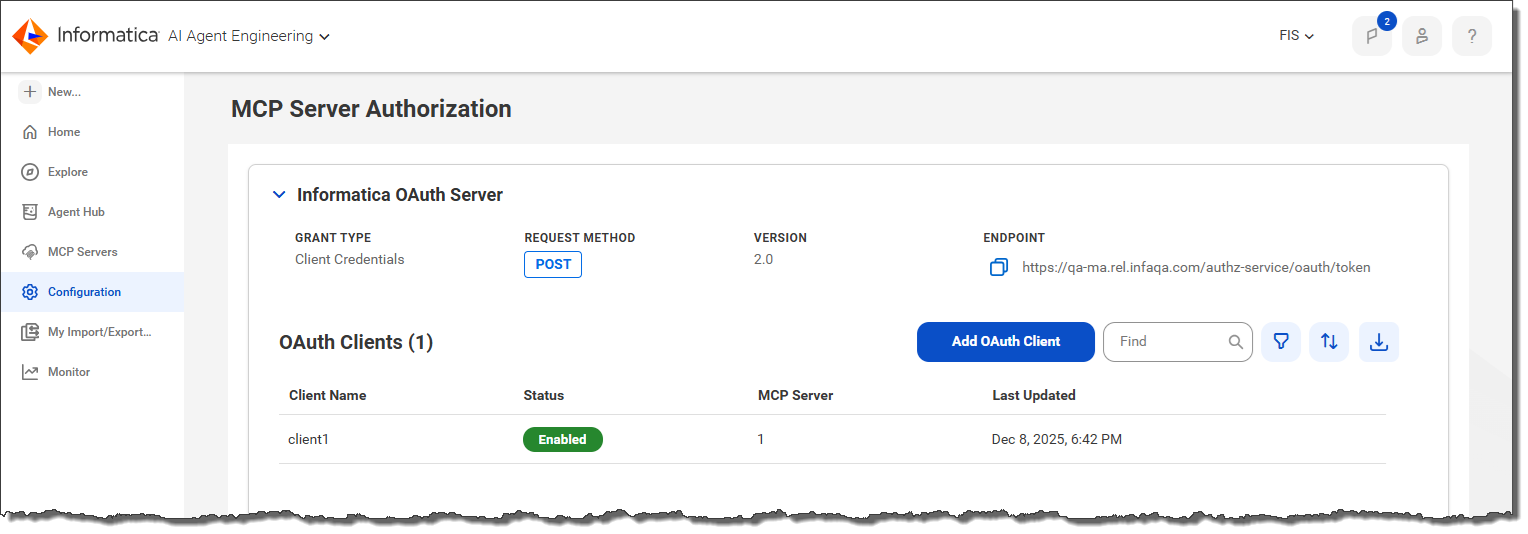
The Informatica OAuth Server manages permissions and access delegation for each OAuth client in your organization. You can view the OAuth server information on the MCP Server Authorization page.
The following image shows the Informatica OAuth server information on the MCP Server Authorization page:
The following information is displayed:
Grant type
The Informatica OAuth server uses the Client Credentials grant type. This grant type is commonly used for machine-to machine communication where the application requesting access acts on its own behalf without user involvement.
Request method
Request method that the application client must use to make token requests. The Informatica OAuth server supports the HTTP POST method.
Version
The OAuth version being used, currently OAuth 2.0.
Endpoint
The token endpoint URL.
The page also lists the OAuth clients associated with the server. Each client registers with the OAuth server to establish its identity and receive a unique client ID and secret. This enables your AI agents to access an Informatica MCP server without having access to your IDMC credentials.
OAuth clients
Create and register an OAuth client to allow your AI agent to access Informatica's MCP servers without having access to your IDMC user credentials.
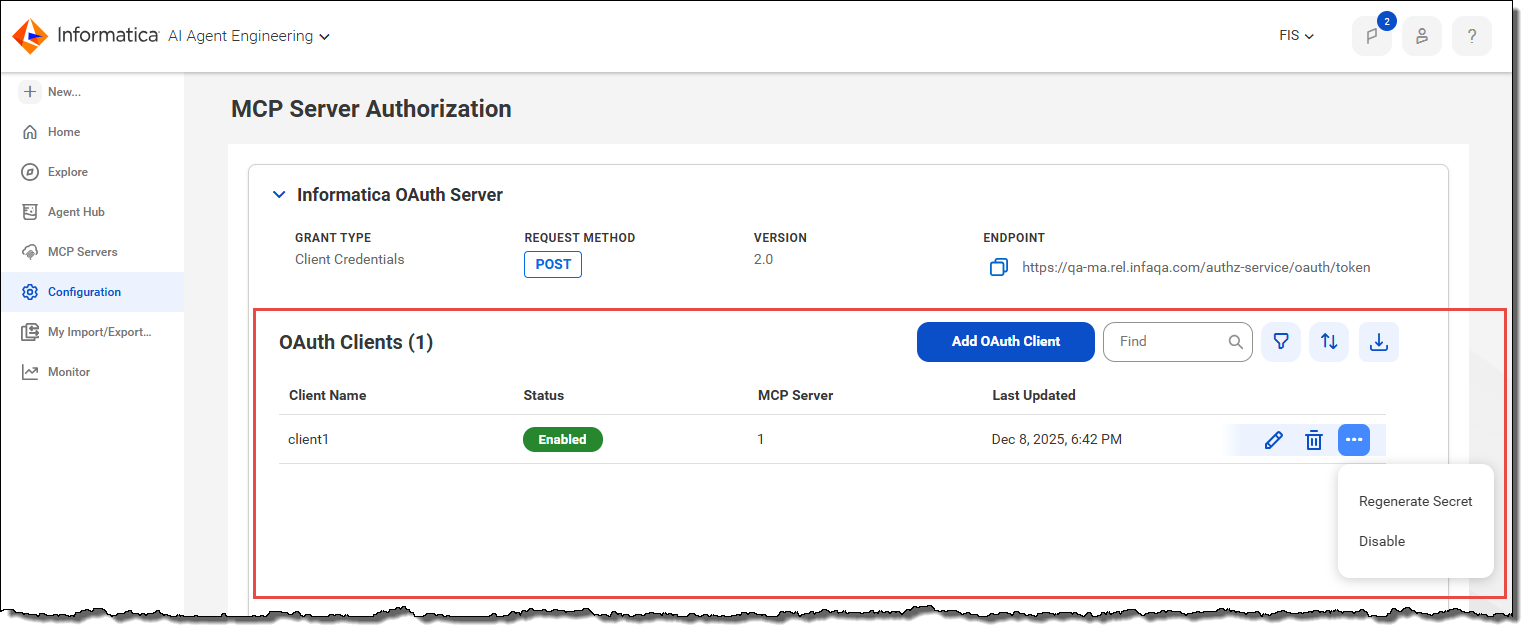
Create and update OAuth clients on the MCP Server Authorization page. The following image shows where to create and update OAuth clients:
You can perform the following actions for OAuth clients:
•Add new OAuth clients.
•Edit, delete, regenerate secrets for, and disable individual OAuth clients.
•Find, filter, and sort the list of OAuth clients.
•Download a report of all the OAuth clients.
Adding an OAuth client
Adding an OAuth client registers the client with the Informatica OAuth server. Adding an OAuth client generates the client ID and secret that the Informatica OAuth server uses to generate an authentication token. The credentials also include the authentication header value, which is the Base64 encoding of the client ID and secret.
1Click Configuration in the navigation menu on the left.
2On the MCP Server Authorization page, click Add OAuth Client.
The Add OAuth Client wizard opens.
3On the Authentication page, enter your IDMC user name and password and click Next.
4On the Details page, enter a name for the OAuth client, an optional description, and the access token timeout value and click Next.
The default value for the access token timeout value is 5 minutes. You can enter a value between 5 minutes and 1440 minutes (24 hours).
5On the Resources page, select the Informatica MCP servers you want to connect to and click Create.
6On the Generate Credentials page, copy either the OAuth 2.0 client ID and OAuth 2.0 client secret or the authentication header value.
You'll use these values to generate an authorization token for the MCP server.
Note:
The secret and authentication header values aren't available after you close the wizard. If you lose these values, you can regenerate the client secret.
7Click Finish.
Editing an OAuth client
Edit an OAuth client when you want to change the name, description, access token timeout value, or MCP servers you want to connect to.
1Click Configuration in the navigation menu on the left.
2On the MCP Server Authorization page, click the edit icon in the row that contains the client you want to edit.
The Edit OAuth Client wizard opens.
3On the Authentication page, enter your IDMC user name and password and click Next.
4On the Details page, update the OAuth client name, description, or access token timeout value and click Next.
The default value for the access token timeout value is 5 minutes. You can enter a value between 5 minutes and 1440 minutes (24 hours).
5On the Resources page, update the Informatica MCP servers you want to connect to and click Update.
6Click Finish.
Deleting an OAuth client
You can delete an OAuth client that's no longer needed.
1Click Configuration in the navigation menu on the left.
2On the MCP Server Authorization page, click the Delete icon in the row that contains the client you want to delete.
Regenerating client secrets
You can regenerate the client secrets if you want to change the credentials or if you failed to copy the secrets when you created the OAuth client.
1Click Configuration in the navigation menu on the left.
2On the MCP Server Authorization page, open the Actions menu in the row that contains the client and click Regenerate Secret.
The Regenerate Client Secret wizard opens.
3On the Authentication page, enter your IDMC user name and password and click Next.
4On the Generate Credentials page, copy either the OAuth 2.0 client ID and OAuth 2.0 client secret or the authentication header value.
You'll use these values to generate an authorization token for the MCP server.
Note:
The secret and authentication header values aren't available after you close the wizard. If you lose these values, you can regenerate the client secret.
5Click Finish.
Disabling and enabling an OAuth client
When you create an OAuth client, it's enabled automatically. You can disable an OAuth client to prevent it from getting tokens, for example, if the client becomes compromised. You can re-enable a disabled OAuth client.
1Click Configuration in the navigation menu on the left.
2On the MCP Server Authorization page, open the Actions menu in the row that contains the client and click Disable or Enable.
Downloading an OAuth client report
You can download a CSV file that contains the OAuth client information. The file lists the name, description, status, MCP servers, and last update date for each OAuth client.
The CSV file lists all OAuth clients in the organization. Any filters you apply on the MCP Server Authorization page don't apply to the download file.
1Click Configuration in the navigation menu on the left.
2On the MCP Server Authorization page, click the Download CSV icon.