File download and upload
You can use B2B Partners Portal to exchange files with the portal provider over an HTTPS server.
You can exchange files over an HTTPS server if the following conditions exist:
- •The portal provider enables the feature for you.
- •You receive a certificate from the portal provider and upload the certificate to the browser.
To receive files from the portal provider, download files that the portal provider uploads to the portal. To send files to the portal provider, upload the files to the portal.
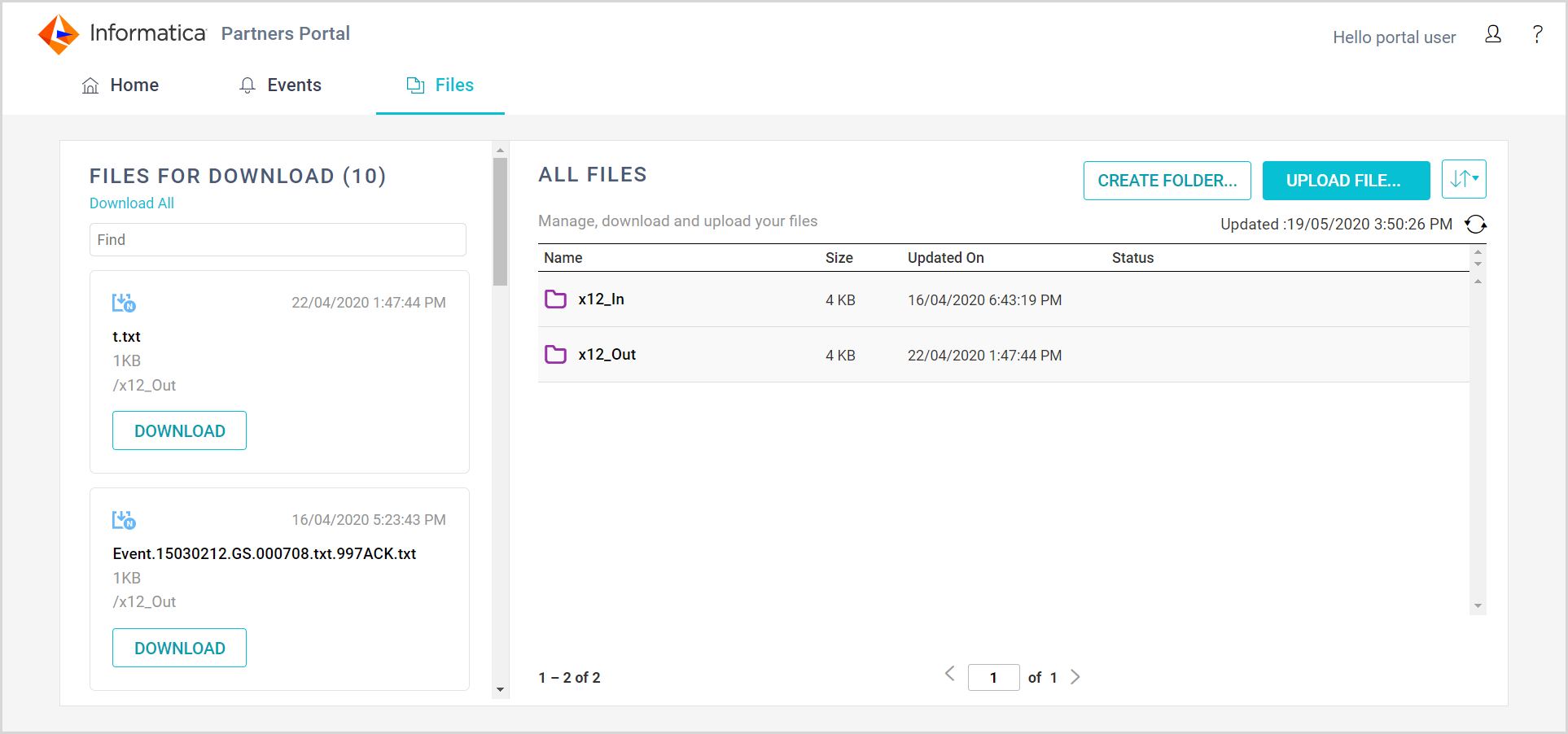
You download and upload files on the Files page, on the Files for Download area. You can view and track all the files that are available for download and upload on the All Files area. The following image shows a sample Files page:
Downloading files from the portal
Download files that the portal provider uploaded to the portal on the FILES FOR DOWNLOAD pane of the Files page.
 Perform one of the following actions:
 - - To download all the files that are available for download, click Download All, select the download location, and click Save.
- - To download a single file, perform the following actions:
- 1If the file is stored in a folder, select a folder to download the file from.
- 2Click DOWNLOAD below the file name, select the download location, and click Save.
Uploading files to the portal
Upload files to send files to the portal provider to the portal on the ALL FILES pane of the Files page.
Before you upload files, you can create a folder to upload the files to.
1Optionally, click CREATE FOLDER to create a folder to upload files to.
2To upload a file to a specific folder, select the folder.
3Click UPLOAD FILE, select the file, and click Open.