1On the Data Access Rules tab, view the existing and draft data access rules.
The following image shows the Data Access Rules tab with draft data access rules: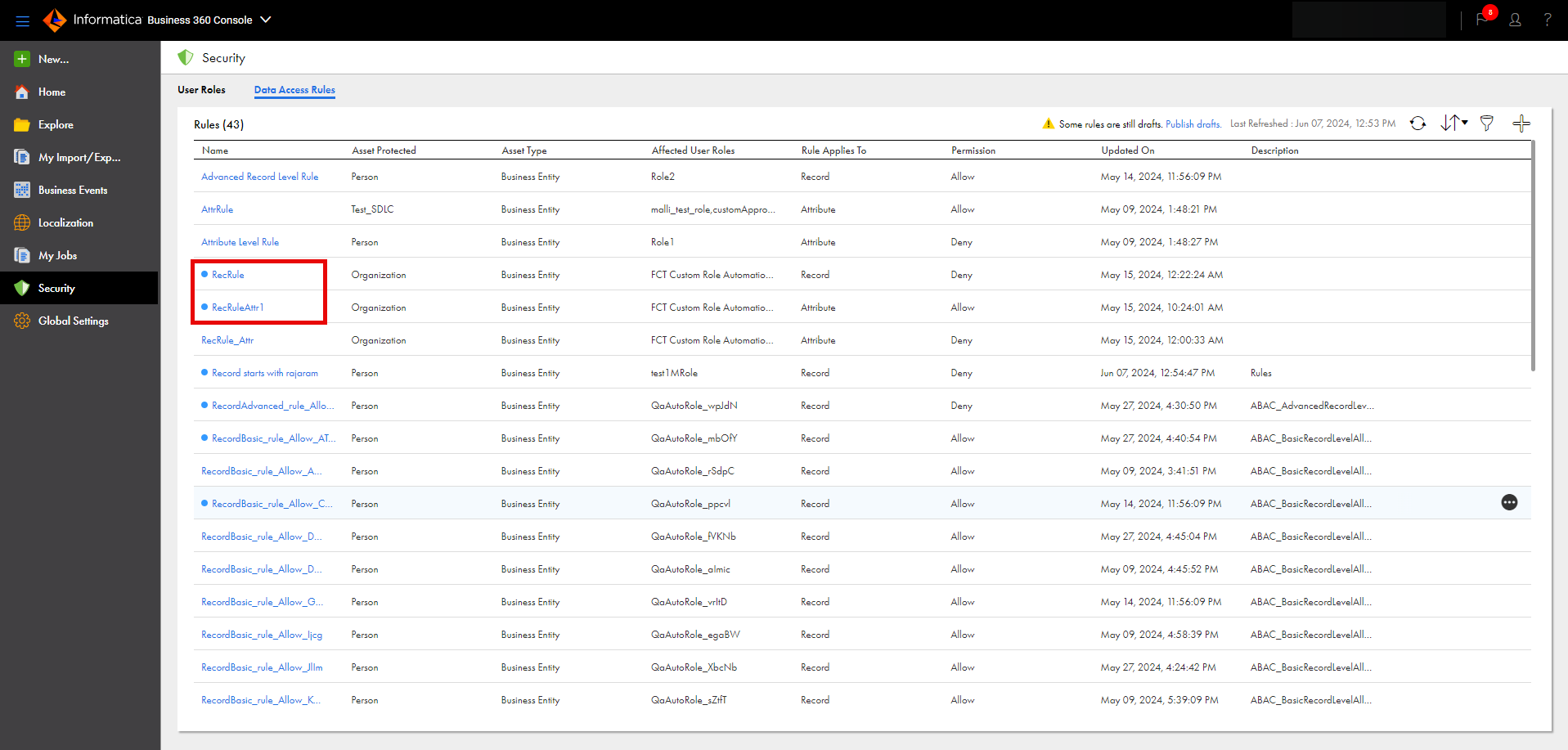
2To publish the draft data access rules, click Publish drafts.
The Review and Publish Data Access Rules dialog box appears.
3In the Review and Publish Data Access Rules dialog box, view the total number of draft data access rules in each business entity.
4To publish draft data access rules in a business entity, select the required business entity.
Note:
If an existing job is in progress or a publish data access rules job that ran earlier failed for a business entity, the business entity appears disabled.
To publish draft data access rules for a business entity that appears disabled, wait until the current job completes or restart the failed publish data access rules job from the My Jobs page.
5Click Publish.