When you create or edit records, Customer 360 SaaS saves your changes as drafts before you submit the record or send it for approval. You can view and manage all your drafts on the My Drafts page.
You can search for specific drafts, edit drafts, or discard drafts. Customer 360 SaaS discards drafts after 15 days if you don't submit them.
Note:
Effective in the July 2026 release, the ability to edit records in a table, save changes as drafts, and manage those drafts on the My Drafts page is available for preview.
Preview functionality is supported for evaluation purposes but is unwarranted and is not supported in production environments or any environment that you plan to push to production. Informatica intends to include the preview functionality in an upcoming release for production use, but might choose not to in accordance with changing market or technical circumstances. For more information, contact Informatica Global Customer Support.
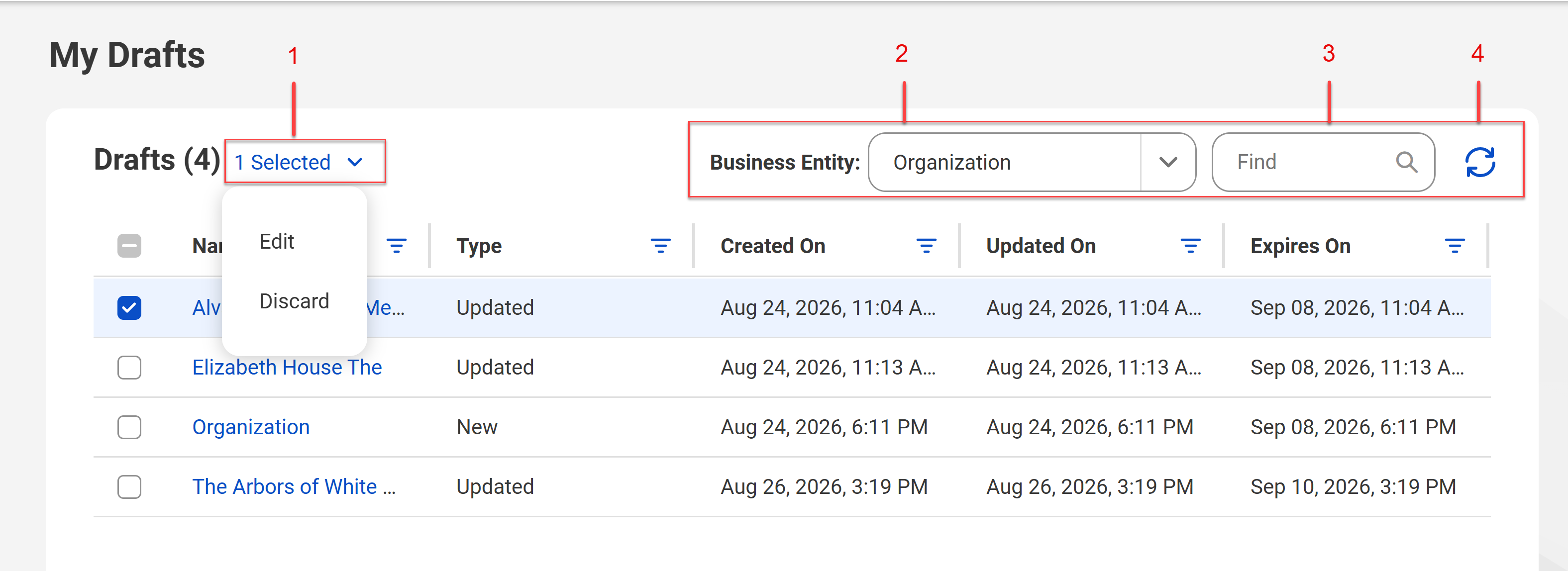
The following image shows a sample My Drafts page:
1Menu
2Business Entity
3Find
4Refresh
The following table describes the user interface elements that you can use:
User Interface Element
Description
Menu
Lists the actions that you can perform on the selected drafts. You can perform the following actions:
- Edit. Opens a dialog box where you can select whether to edit the draft records in a table or individually.
- Discard. Deletes the selected drafts.
Business Entity
Lists the business entities on which you can filter the drafts.
Find
Filters drafts based on a record name.
Refresh
Refreshes the page and clears all applied filters.
The following table describes the fields that appear on the My Drafts page:
Draft Detail
Description
Name
Name of the record.
Click the record name to navigate to the Record Details page.
Type
Type of the record. One of the following types appears for each record:
- New. Indicates a record that you created but didn't submit.
- Updated. Indicates an existing record that you changed but didn't submit.
- Submission Failed. Indicates a draft that failed submission due to an internal error.
Created On
Date when the record was created.
Updated On
Date when the record was last updated.
Expires On
Date when the draft expires. If you don't submit or send a draft for approval, it expires 15 days after the last update.
Note:
Drafts that failed submission have no expiry date. You can either submit or discard these drafts.