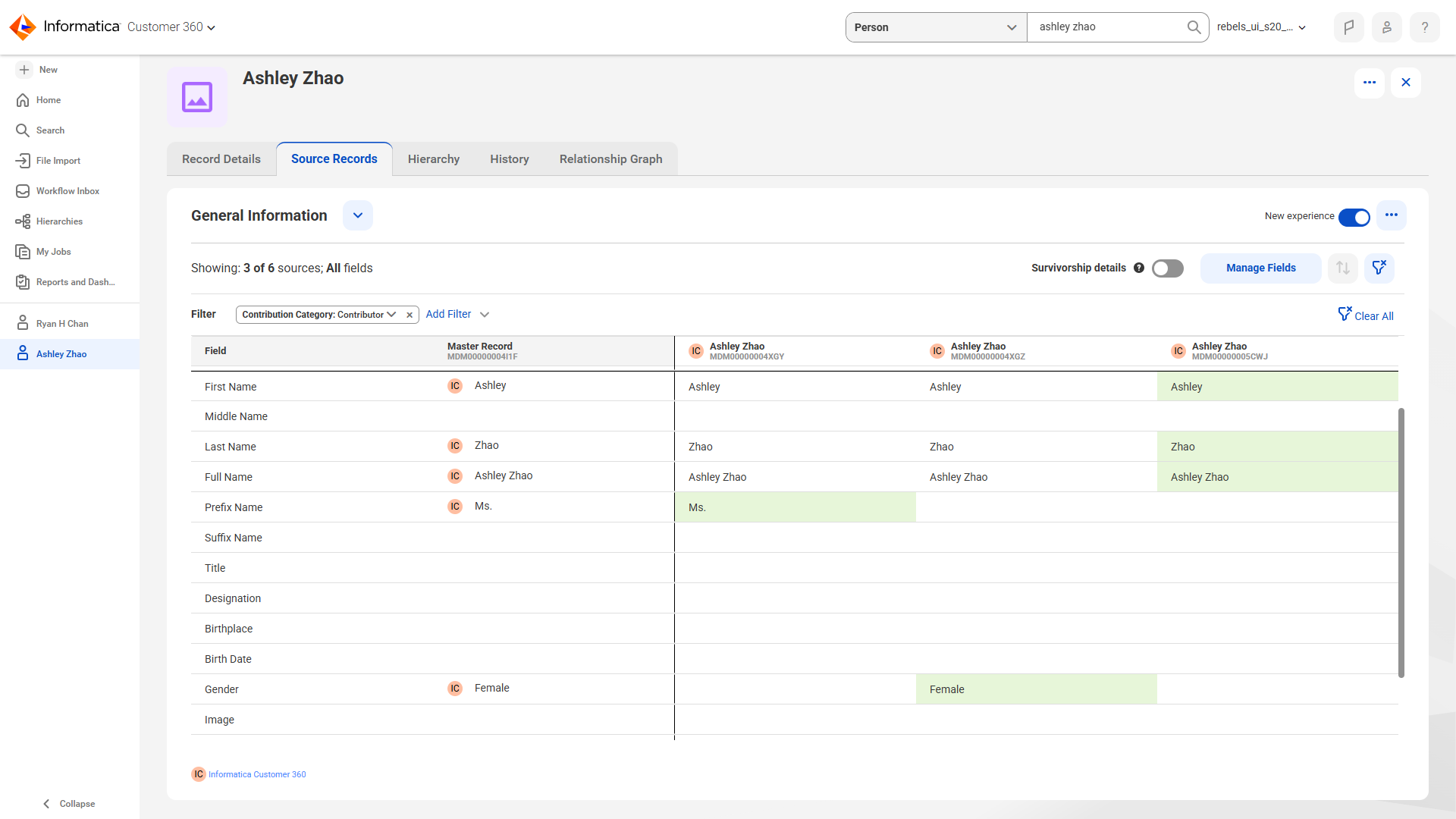
A master record contains field values from multiple source records. The field values are selected from source records based on the survivorship criteria.
You can manually override the surviving field values of a master record with field values of other source records. For example, based on the survivorship configuration a master record includes a phone number from the HR source system. You can manually select the phone number from the Sales source system for the master record.
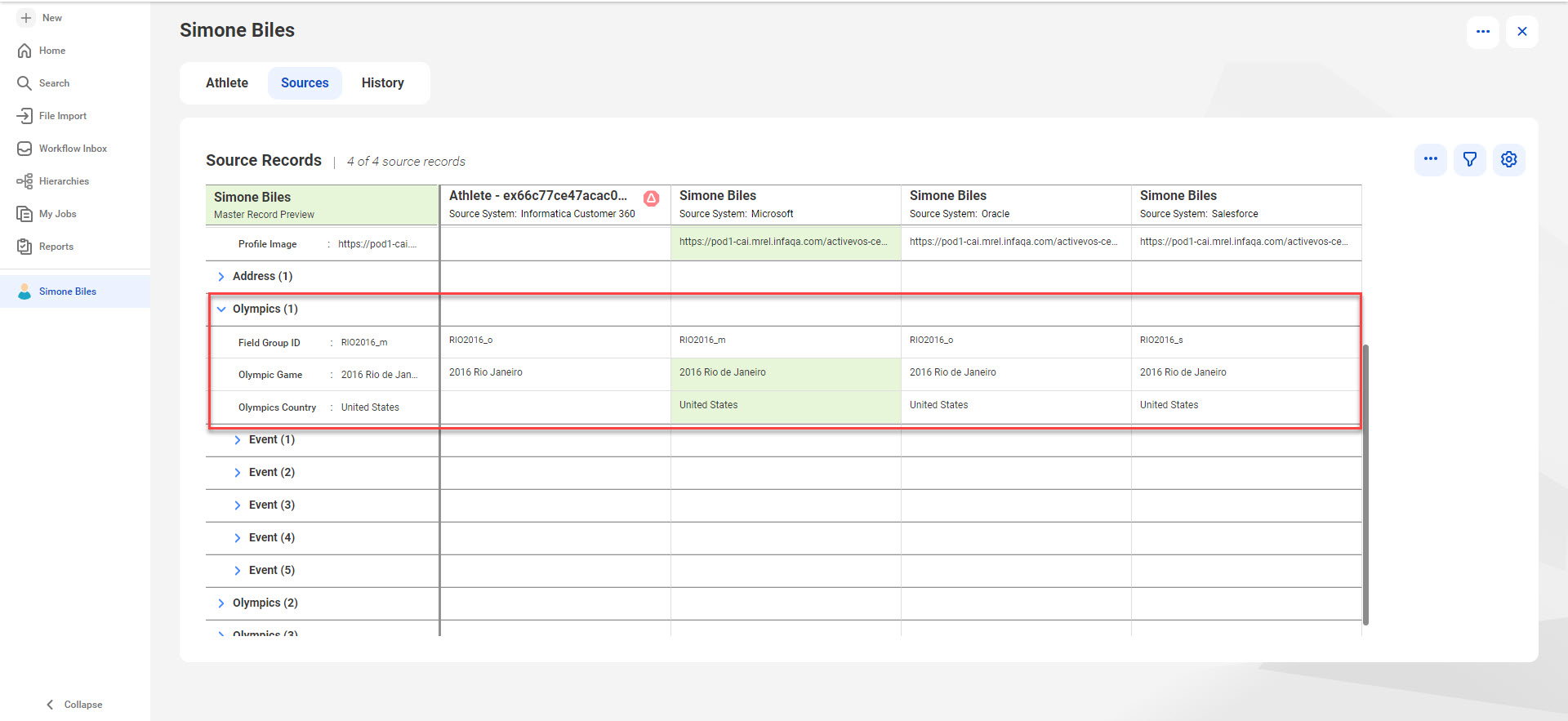
You can also override the trust score of fields within a field group or a nested field group. For example, when you have duplicate field group entries in different source records, you can override the trust score of the field group values.
You can override values of dynamic fields, including dynamic fields within field groups and nested field groups.
The following image shows duplicate field groups entries in different source records:
When you manually override a field value, the trust score of the selected field value is set to the highest value. The trust score does not decay over time, and the trust score of the field value is recalculated only when you manually remove the override. The trust score of the overridden field value remains the same when you update the overridden field or when you update other fields in the source record. The trust score of the overridden field value remains the same even when you merge the source records.
When you unmerge source records that contribute field values to override the master record field values, the new master record that's created retains the overridden values and the trust scores. The trust score is recalculated for the unmerged source records.
Overriding values of a master record
You can override the field values of a master record with field values from other source records.
1From the search results, open the record that you want to override.
The record appears on the Record Details page.
2Click the Source Records tab.
3To view source records that are contributors or not contributors and decide which values to override, use the Contribution Category filter.
The Source Records page displays contributing records after you apply the Contribution Category filter.
4Optionally, to view fields with no value that you can't override, select Override Status > Empty.
The Source Records page displays only the fields with no value.
5Select the field value or field group that you want to override.
If a field group is configured for deduplication, you can only override that field group as a whole entry. If the field group isn't configured for deduplication, you can override the field group values in the same way as general information fields.
6Select Override Surviving Value.
7In the confirmation dialog box, review the values to override, and click Override.
The selected field value or field group value overrides the existing field value or field group value in the master record.
The fields that were overridden display an override indicator with the message Overridden.
Removing an overridden field value
You can remove the overridden field values or field group values.
1 From the search results, open the record that contains manually overridden field values.
The record appears on the Record Details page.
2Click the Source Records tab.
3To view source records that contain an overridden value and decide which values to remove, filter by Override Status > Has Override.
4Hover over the field value or field group that was overridden, and select Actions > Remove Override.
The trust score is recalculated to identify the field value or field group values with the highest trust score. The values with the highest trust score contribute to the master record.