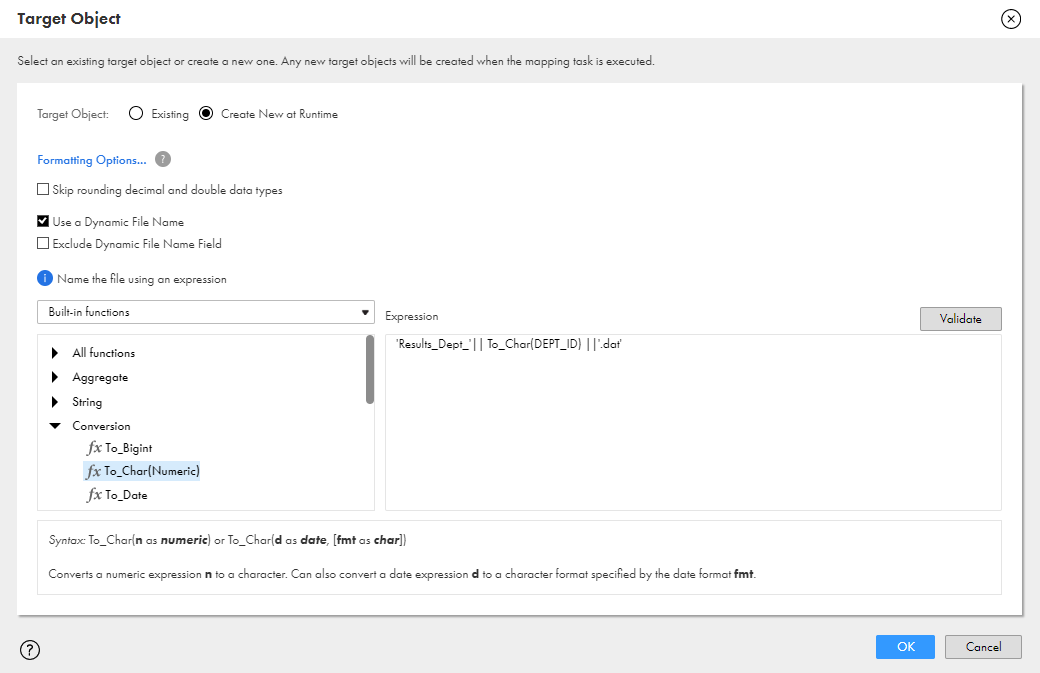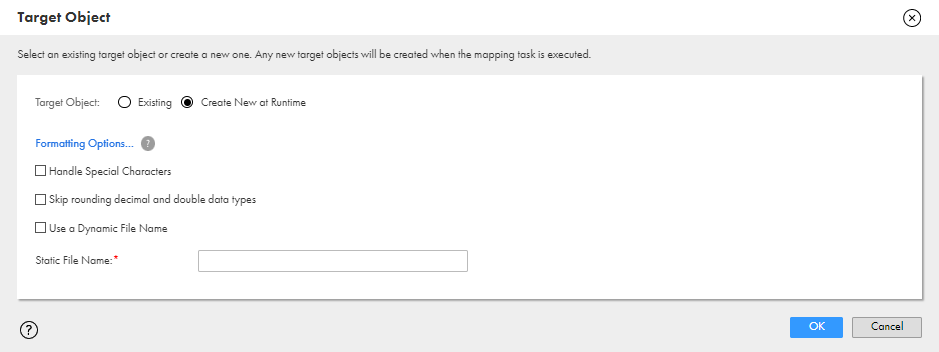
Property | Description |
|---|---|
Connection | Name of the target connection. |
Object Type | Type of target object. Either single object or parameter. |
Use a local file for target metadata | Applies to single objects with flat file connections. When you enable this property, Data Integration generates field metadata from a local file that you provide. Use this metadata to configure the mapping. At run time, Data Integration uses the metadata in the target object. |
Local File | Local file that Data Integration uses to generate target field metadata. The file must use UTF-8 encoding. You can use any file type except the following types:
Note: Selecting a local file overwrites any existing field metadata. |
Object | Name of the target object. In advanced mode, the object name cannot contain the dollar sign character, $. The dollar sign is a reserved character for parameters. |
Formatting Options | Flat file format options. Opens the Formatting Options dialog box to define the format of the file. You can choose either a delimited or fixed-width file type. Default is delimited. To write to a delimited flat file type, configure the following file format options:
Note: Linux machines write "\n" as the line-feed character. Windows machines write "\r\n" as the line-feed character. You can use a tab, space, or any printable special character as a delimiter. The delimiter can have a maximum of 10 characters. The delimiter must be different from the escape character and text qualifier. Note: Use caustion when updating the file formating options after you have updated the target field metadata. Changes to the formating options can synchronize fields with fields in the target object. For more information see Target fields. To write to a fixed-width flat file type, select the fixed-width file format to use. If the list includes multiple fixed-width file formats with the same name, use the project and folder location that's appended to the name to determine the appropriate file format to use. If you do not have a fixed-width file format, click New > Components > Fixed Width File Format to create one. |
Operation | For file targets, the operation is always Insert. |
Property | Description |
|---|---|
Forward Rejected Rows | Indicates whether the mapping task forwards rejected rows to the reject file. If you enable row error handling, the mapping task writes the rejected rows and the dropped rows to the row error logs instead of generating a reject file. If you want to write the dropped rows to the session log in addition to the row error logs, you can enable verbose data tracing. If you don't forward rejected rows, the mapping task drops rejected rows and writes them to the session log. |
Thousand Separator | Thousand separator character. Can be none, comma, or period. Cannot be the same as the decimal separator or the delimiter character. Field type must be Number. You might also need to update the field precision and scale. Default is None. |
Decimal Separator | Decimal character. Can be a comma or period. Cannot be the same as the thousand separator or delimiter character. Field type must be Number. You might also need to update the field precision and scale. Default is Period. |
Datetime Format | Optional. Overrides the datetime format specified in the flat file connection. Enter the datetimeformat to override. For example, YYYYMMDD. |
Append if Exists | Appends the output data to the target files and reject files for each partition. You cannot use this option for FTP/SFTP target files. If you do not select this option, the mapping task truncates each target file before writing the output data to the target file. If the file does not exist, the mapping task creates it. |
Create Target Directory | Creates the target directory if it doesn't exist as specified in the Output file directory field. |
Header Options | Creates a header row in the file target. You can choose the following options:
Default is No Header. |
Header Command | Command used to generate the header row in the file target. For example, you can use a command to add the date to a header row for the file target. |
Footer Command | Command used to generate the footer row in the file target. |
Output Type | Type of target for the task. Select File to write the target data to a file target. Select Command to output data to a command. You cannot select Command for FTP/SFTP target connections. |
Output File Name | File name or file name and path of the output file. By default, the mapping task names output files after the target object. Target objects must use one of the following file extensions: csv, dat, txt |
Output File Directory | Name of the output directory for a flat file target. By default, the mapping task writes output files to the target connection directory. You can also use an input parameter to specify the target file directory. If you use the service process variable directory $PMTargetFileDir, the task writes target files to the configured path for the system variable. To find the configured path of a system variable, see the pmrdtm.cfg file located at the following directory: <Secure Agent installation directory>\apps\Data_Integration_Server\<Data Integration Server version>\ICS\main\bin\rdtm You can also find the configured path for the $PMTargetFileDir variable in the Data Integration Server system configuration details in Administrator. |
Reject File Directory | Directory path to write the reject file. By default, the mapping task writes all reject files to the following service process variable directory: $PMBadFileDir/<federated task ID> If you specify both the directory and file name in the Reject File Name field, clear this field. The mapping task concatenates this field with the Reject File Name field when it runs the task. |
Reject File Name | File name, or file name and path of the reject file. By default, the mapping task names the reject file after the target object name: <target name>.bad. The mapping task concatenates this field with the Reject File Directory field when it runs the task. For example, if you have C:\reject_file\ in the Reject File Directory field, and enter filename.bad in the Reject File Name field, the mapping task writes rejected rows to C:\reject_file\filename.bad. |
Property | Description |
|---|---|
Input Type | Type of input to write to the target. Select one of the following options:
The available options depend on the incoming data from upstream transformations. Default is buffer. |
Acknowledgement Options | Options to save the acknowledgement. Select one of the following options:
|
Acknowledgement File Path | File path to write the acknowledgement if you save the acknowledgement to a file. |
Operation if File Exists | Operation to perform if the acknowledgement file already exists. Select one of the following operations:
|
Fail the job if acknowledgement is not AA/CA | Fails the job if the acknowledgement code is not AA or CA. |
Retry the job if acknowledgement is AR/CR | Tries to run the job again if the acknowledgement code is AR or CR. |
Message Retry Attempts | Number of attempts to try writing the message. |
Message Retry Interval | Time interval in seconds to try writing the message again. |
Validate Message | Indicates whether Data Integration validates the message. |
Forward Rejected Rows | Indicates whether the mapping task forwards rejected rows to the reject file. If you enable row error handling, the mapping task writes the rejected rows and the dropped rows to the row error logs instead of generating a reject file. If you want to write the dropped rows to the session log in addition to the row error logs, you can enable verbose data tracing. If you don't forward rejected rows, the mapping task drops rejected rows and writes them to the session log. |
Special Character | Description |
|---|---|
%d | Day as a two-decimal number, with a range of 01-31. |
%m | Month as a two-decimal number, with a range of 01-12. |
%y | Year as a two-decimal number without the century, with range of 00-99. |
%Y | Year including the century, for example 2015. |
%T | Time in 24-hour notation, equivalent to %H:%:M:%S. |
%H | Hour in 24-hour clock notation, with a range of 00-24. |
%l | Hour in 12-hour clock notation, with a range of 01-12. |
%M | Minute as a decimal, with a range of 00-59. |
%S | Second as a decimal, with a range of 00-60. |
%p | Either AM or PM. |