1Log in to CLAIRE GPT.
2Start a conversation to search for business entities in Customer 360 SaaS.
Enter the following prompt:
Find all business entities in Customer 360
The following image shows the response from CLAIRE GPT displaying all business entities in Customer 360 SaaS:
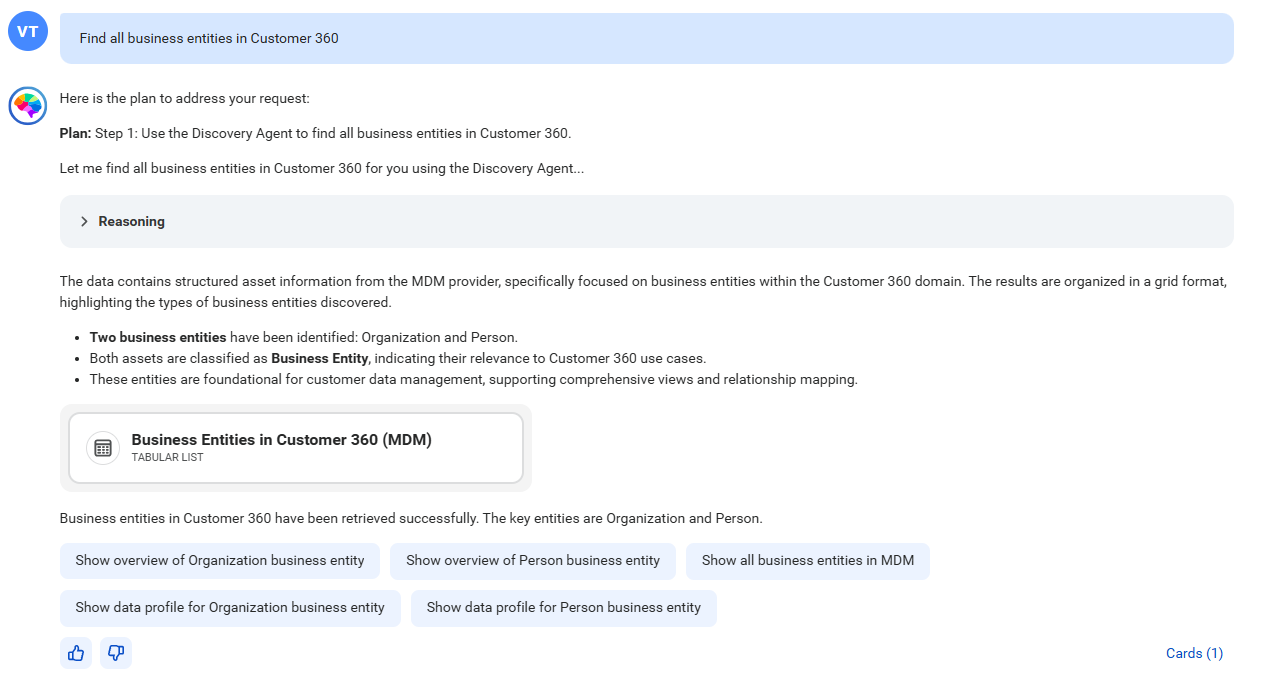
To view the business entities, click the card named Business Entities in Customer 360 (MDM). CLAIRE GPT uses the discovery agent and displays the reasoning within its responses that provides a deep insight into the response generation process. You can expand the reasoning to view the query analysis process of the discovery agent.
The following image shows the canvas with a tabular view of the business entities in Customer 360 SaaS: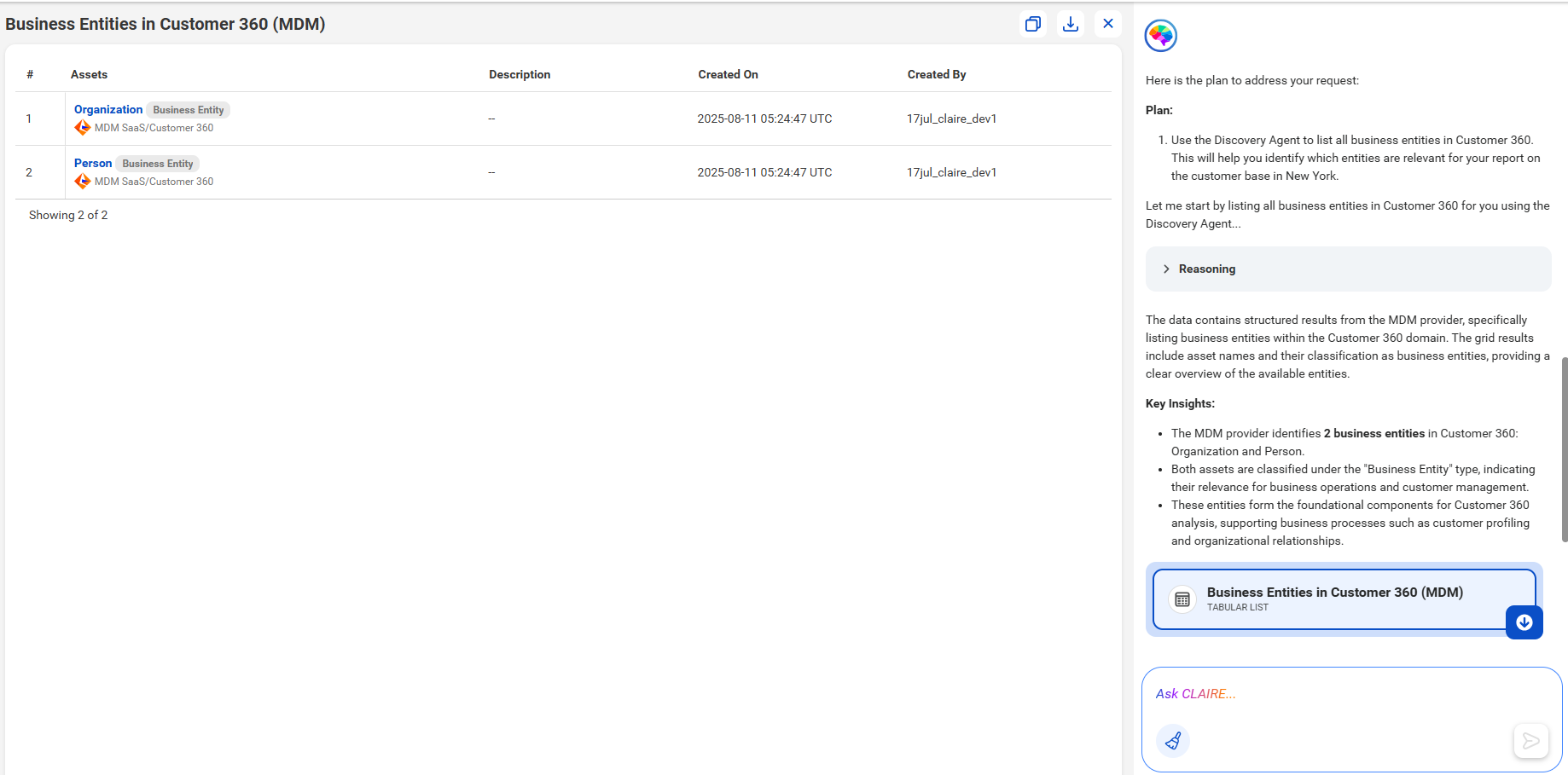
You can click a business entity to open it in Business 360 Console.
3To understand more about a business entity, you can explore the metadata and take a closer look at the Person business entity.
Enter the following prompt:
Show an overview of Person
You can either type the business entity name in the prompt or use @ to select the business entity from a list.
When you type @ in the prompt text box, a list of business entities that were recently discovered based on your conversation history appears. If you continue to type the business entity name, the list shortens, and you can select a business entity from this list.
The following image shows the response from CLAIRE GPT displaying an extensive overview of the Person business entity:
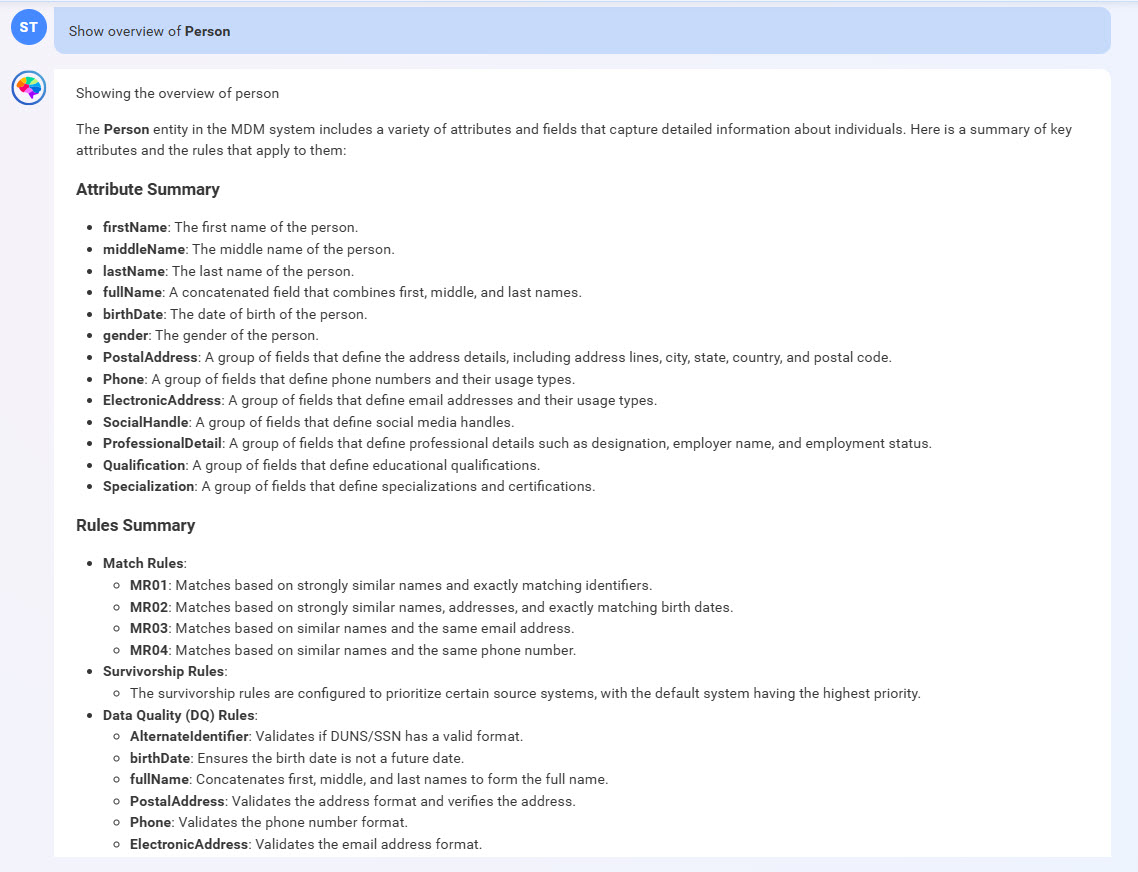
The overview includes a list of searchable attributes, match rules, survivorship rules, and data quality rules configured for the fields in the Person business entity.
Based on the response from CLAIRE GPT, you can understand the business entity and it's metadata details to further explore records in the business entity.
If you're looking for a different business entity, you can discover the business entity again at any point of time.
4To explore records, specify the prompts that include values from searchable attributes.
Enter the following prompt:
Show all customers who live in California in @Person
The following image shows the response from CLAIRE GPT displaying customer records from California in a card view: 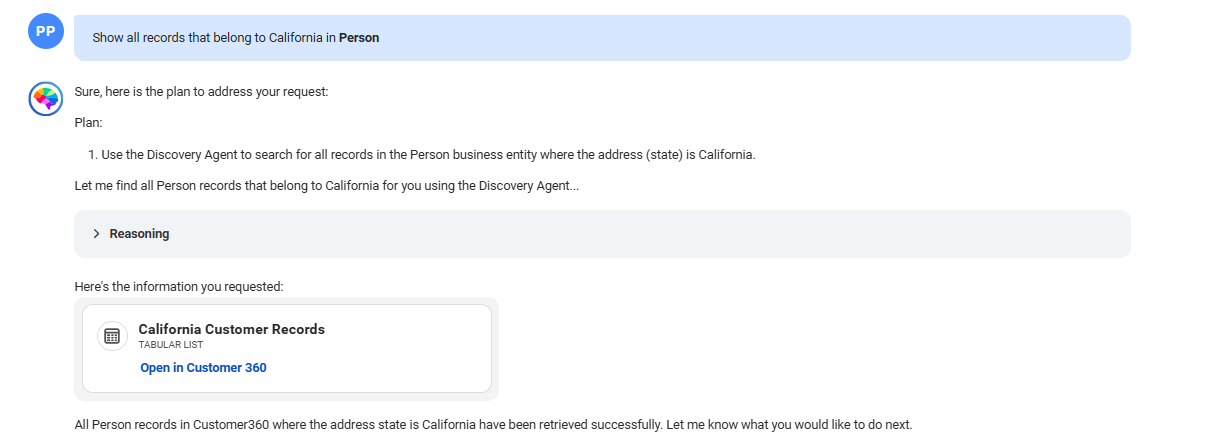
To preview records, click the card named California Customer Records. Additionally, you can click Open in Customer 360 to explore records from California in Customer 360 SaaS.
The following image shows the canvas with 25 customers who live in California:
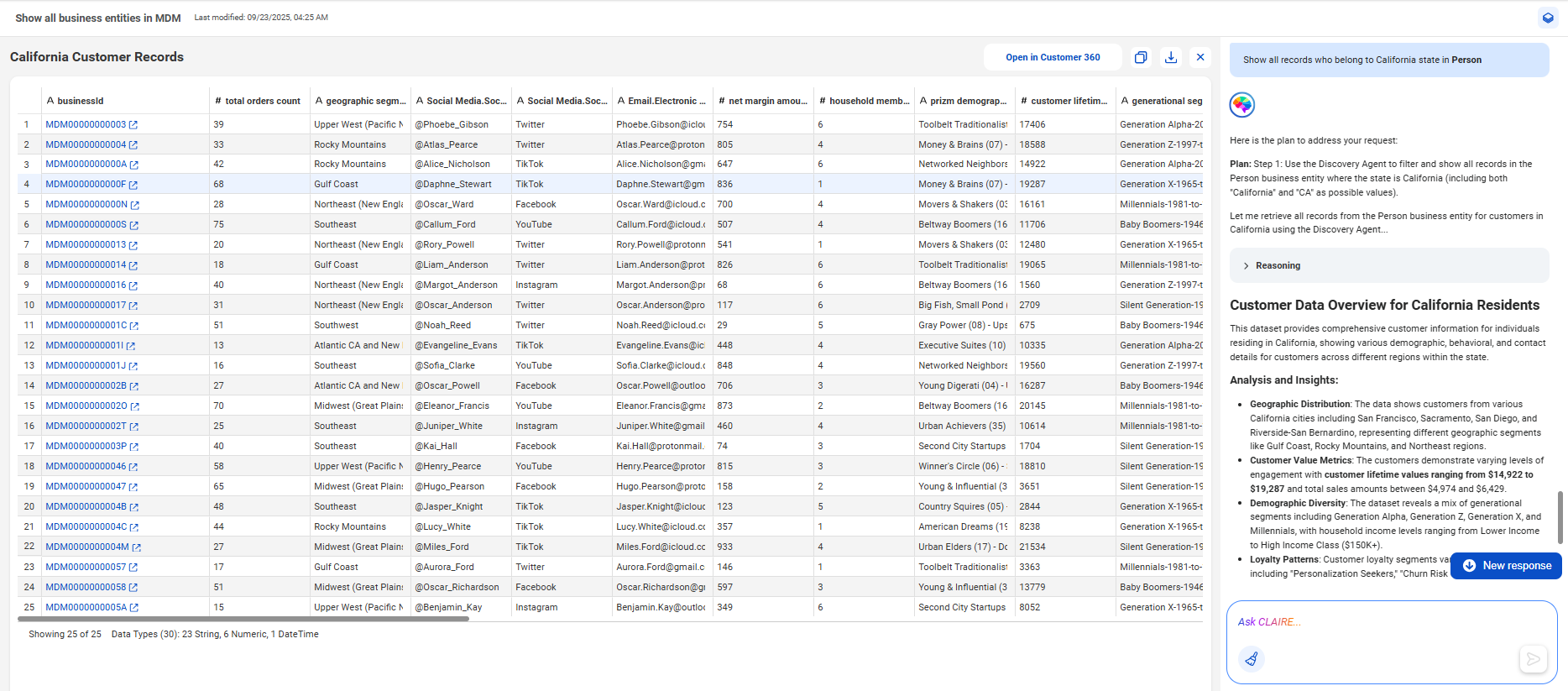
You can click a business ID to view the record in Customer 360 SaaS.
To copy and paste the sample data to a CSV file, click the Copy icon. To export the sample data to a CSV file, click Download.
5To visualize customer loyalty based on criteria, such as total sales over $1,000, order more than 50, and a net margin below $3,000, use the following prompt:
Create a pie chart representing customer loyalty segments for customers from California in Person who have total sales exceeding $1,000, order counts above 50, and a net margin amounting to $3,000.
The following image shows the response from CLAIRE GPT displaying a pie chart to visualize the customer loyalty segments for customers in California: 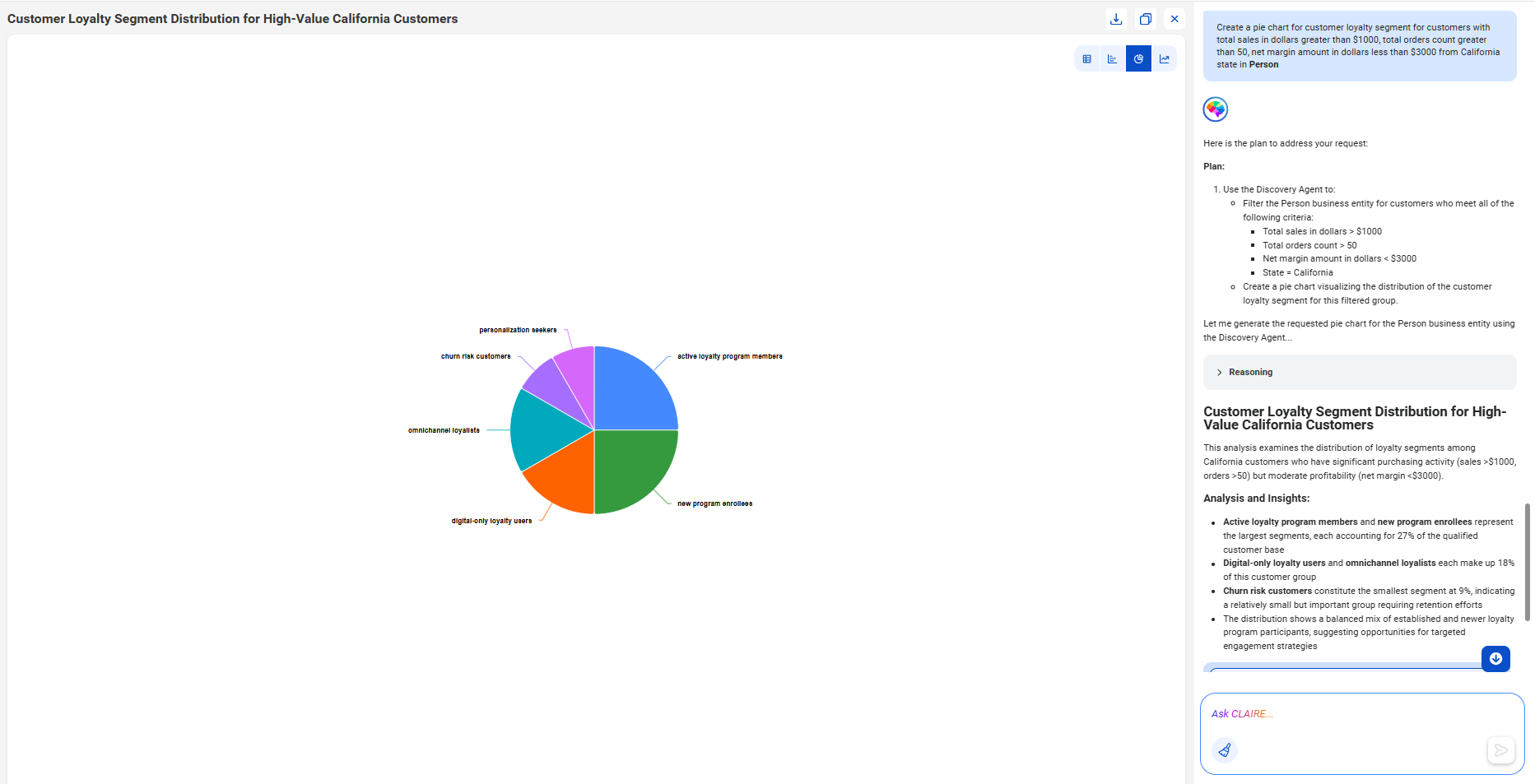
You can also switch between the table, bar chart, and line chart.