You can explore, view, and understand the metadata of an asset in MDM SaaS with CLAIRE GPT.
Prerequisites
Before you perform metadata exploration tasks in CLAIRE GPT for MDM SaaS, ensure that you perform the following tasks:
•Enable the MDM SaaS service for the runtime environment that your organization uses.
•Verify that business entities are available in MDM SaaS.
•Upgrade Customer 360 SaaS, Product 360 SaaS, and Supplier 360 SaaS to the latest version.
For information about how to set up CLAIRE GPT for users in your organization, see Administer CLAIRE GPT.
Sample conversation
Let's take a look at a sample conversation to help you get started on your MDM SaaS metadata exploration journey in CLAIRE GPT.
For example, as a data steward, you want to view an overview of a business entity and explore its attributes, data quality rule associations, survivorship rules, and match rules configured for the business entity. To explore the metadata assets, you can use the metadata exploration in CLAIRE GPT.
To achieve the goal, perform the following steps:
1Log in to CLAIRE GPT.
2Start a conversation to see the metadata assets of the Person business entity.
Enter the following prompt:
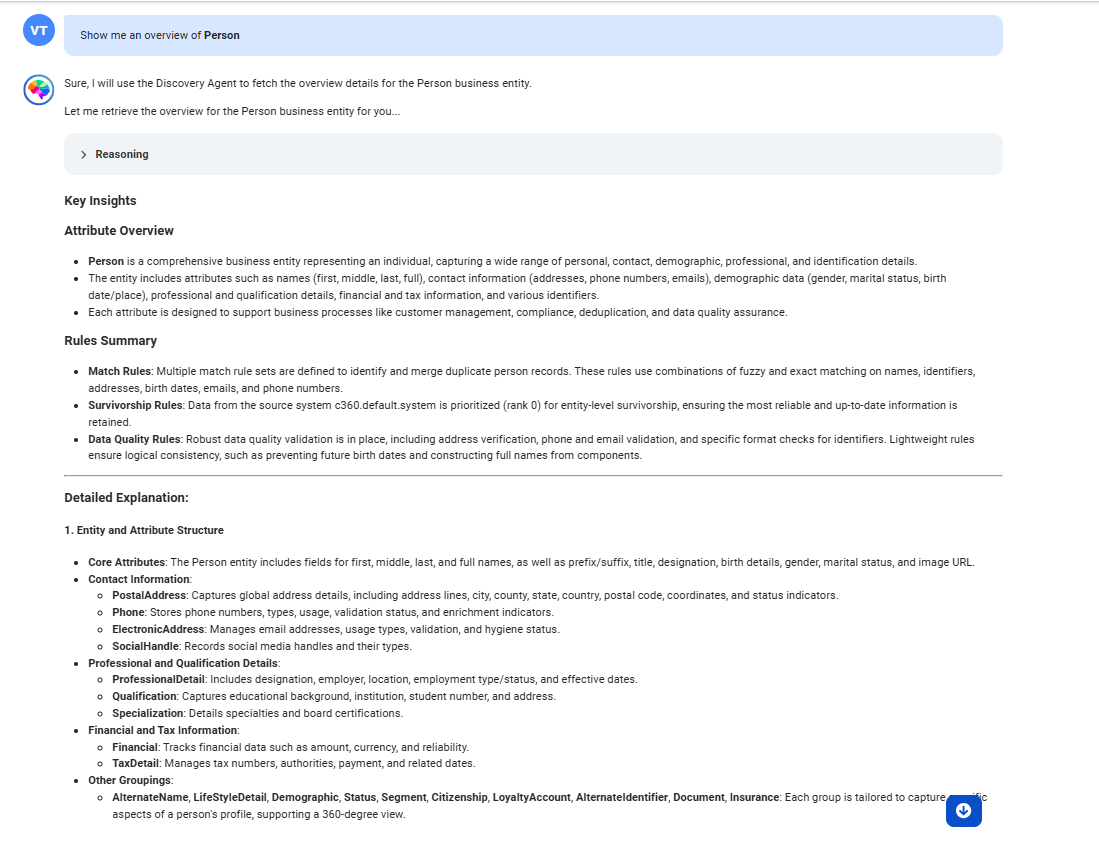
Show me an overview of Person
The following image shows the response displaying an overview of the Person business entity:
Using the discovery agent, CLAIRE GPT returns the description of the Person business entity, match rules, survivorship rules, and attributes.
Note:
CLAIRE GPT displays only the attributes that are configured as searchable in the business entity.
3To view all data quality rule associations configured in the Person business entity, you can enter the following prompt:
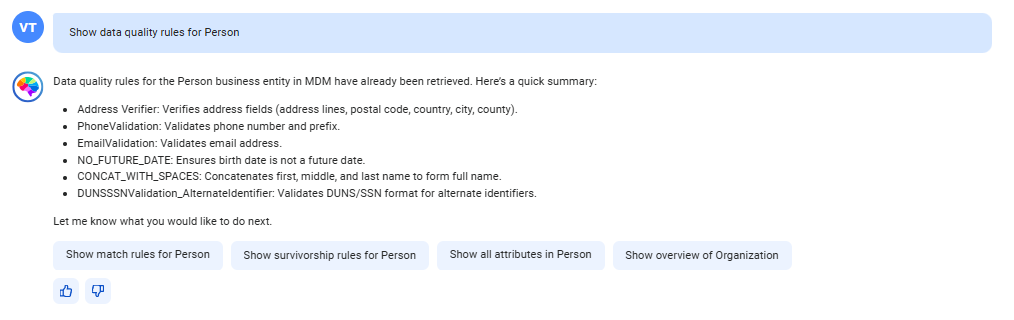
Show data quality rules for Person
The following image shows the response displaying all data quality rule associations that are configured in the Person business entity:
4If you want to view all attributes that you are allowed to edit in the Person business entity, you can enter the following prompt:
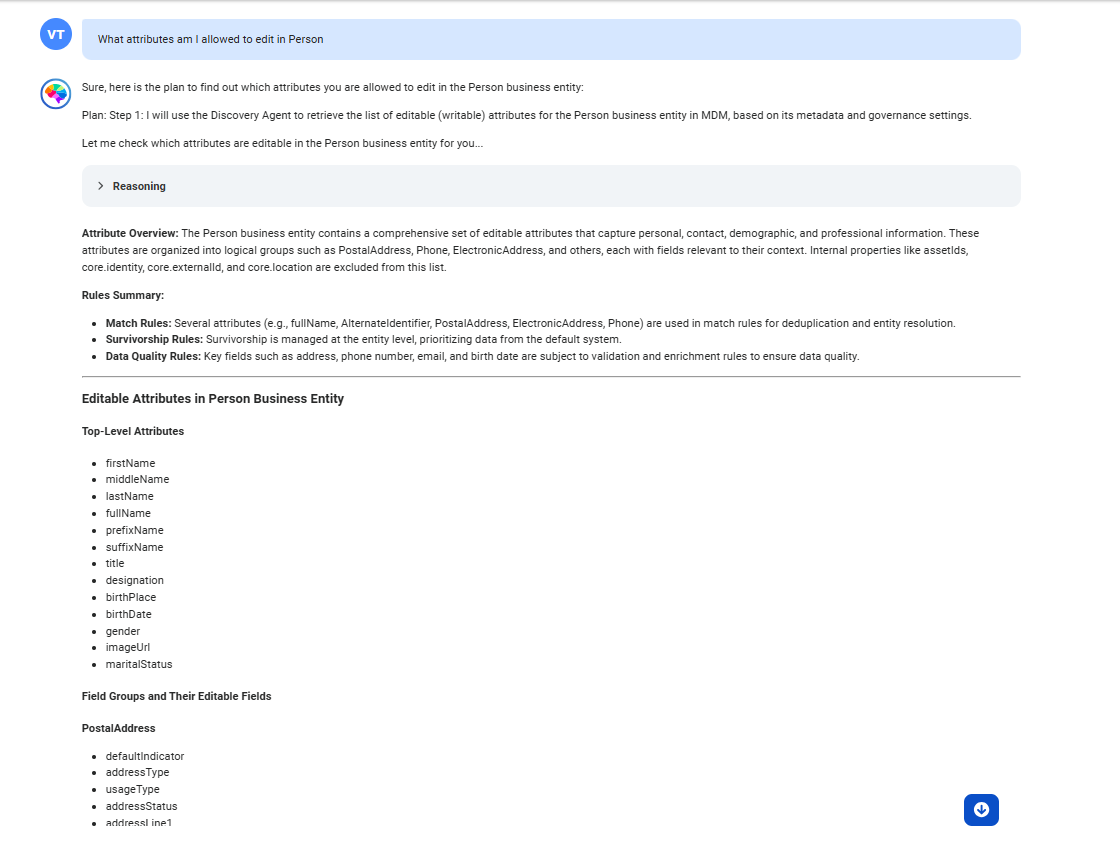
What attributes am I allowed to edit in Person?
The following image shows the response displaying all editable attributes in the Person business entity: