Let's take a look at a sample conversation to help you get started on your Data Governance and Catalog data transformation journey in CLAIRE GPT. The sample conversation show you how you can use CLAIRE GPT to create an ELT pipeline that transforms data.
When CLAIRE GPT creates an ELT pipeline, it appears in the form of a mapping in Data Integration. The mapping reads a source and writes the transformed data to a target.
CLAIRE GPT can create a mapping in the following ways:
•Based on a data exploration prompt followed by a data transformation prompt
Note:
A data exploration prompt might use a complex SQL query to return data. Data Integration might not be able to convert some complex SQL queries into a mapping.
•Based on a single data transformation prompt
To edit, save, and run the mapping, select Open in Data Integration. You can run the mapping as-is or using SQL ELT optimization. For more information, see the Data Integration help.
To achieve the goal, perform the following steps:
1Log in to CLAIRE GPT.
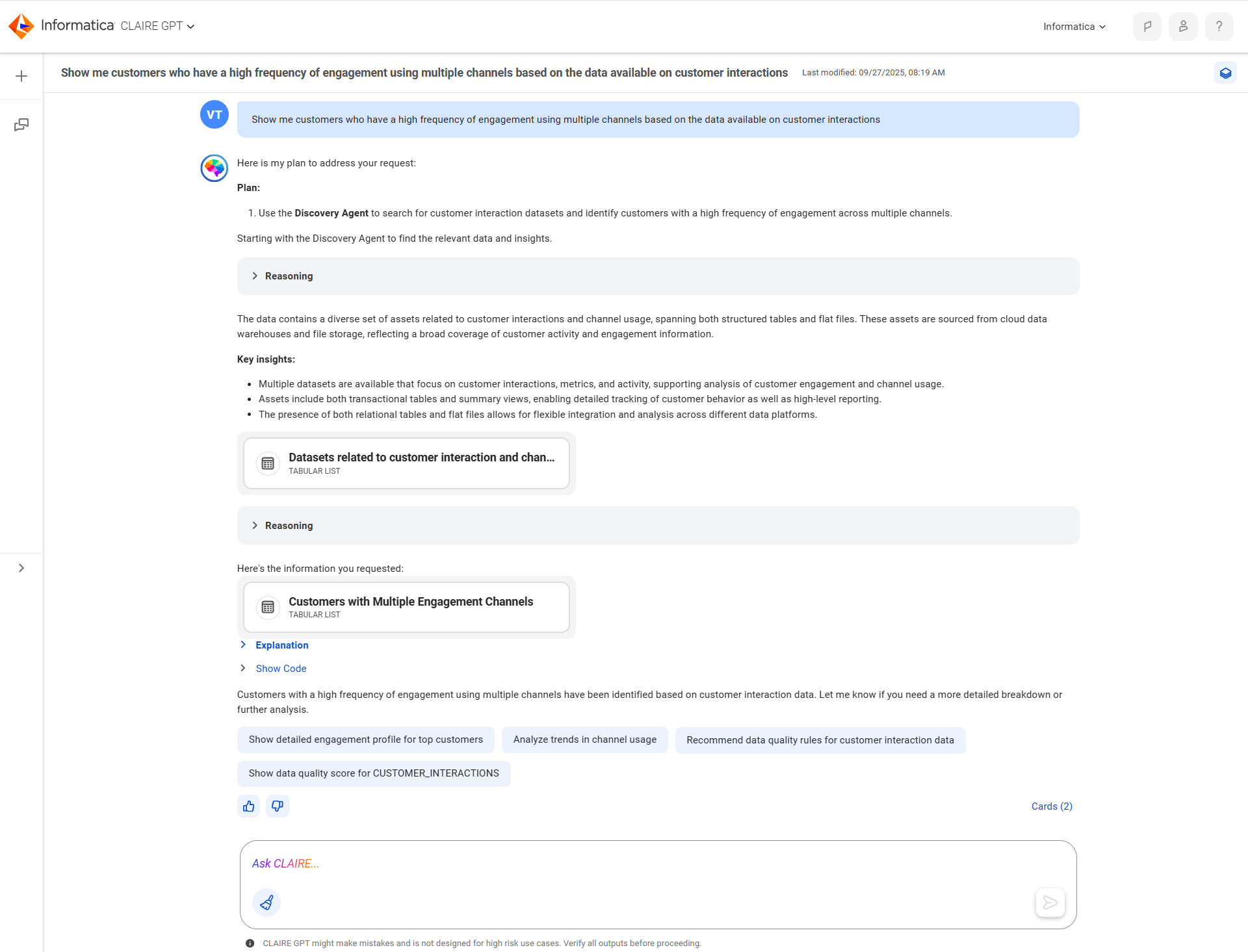
2Start a conversation by entering the following data exploration prompt:
Show me customers who have a high frequency of engagement using multiple channels based on the data available on customer interactions
The following image shows the response:
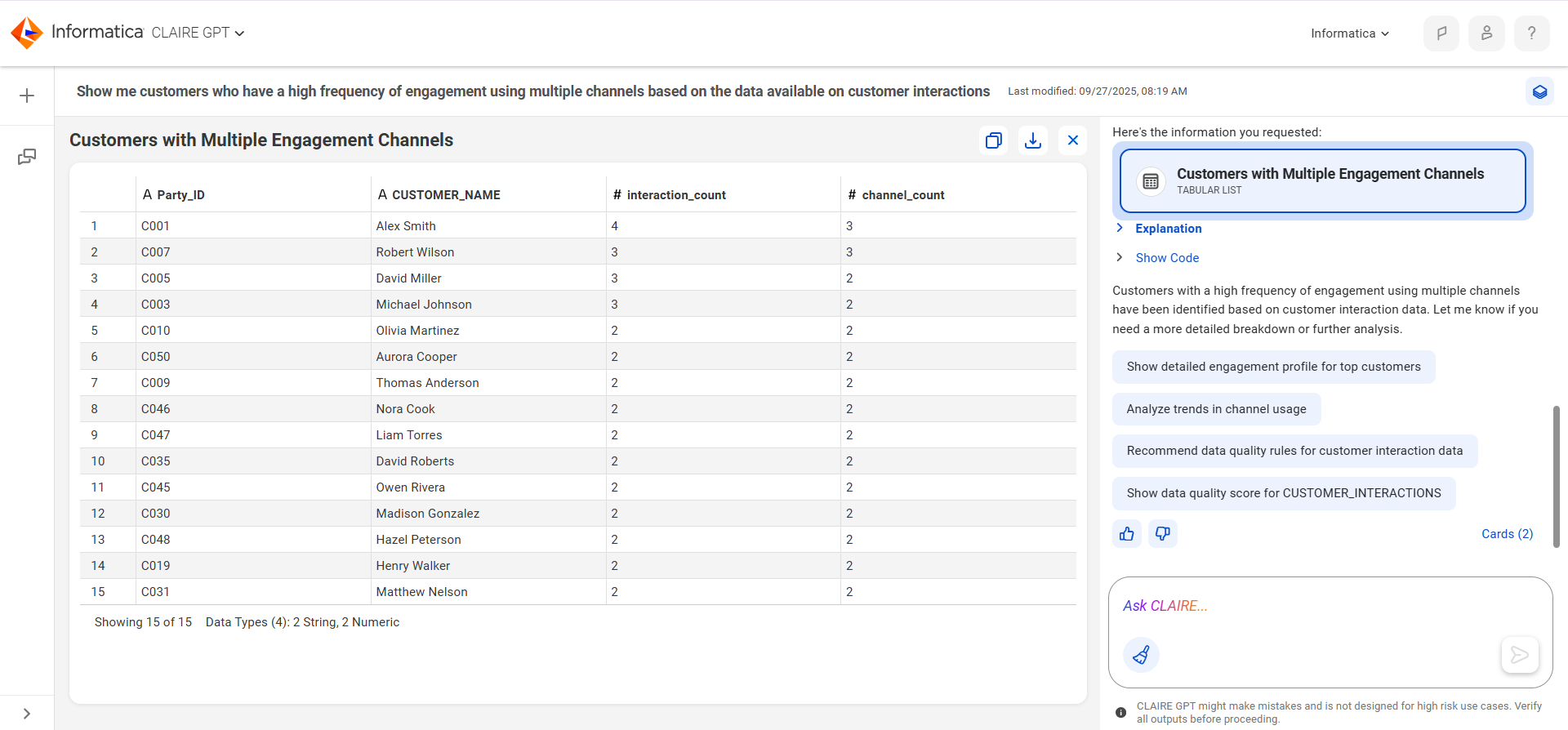
3To view the customers with a high frequency of engagement, select the card.
The following image shows the customer engagement data:
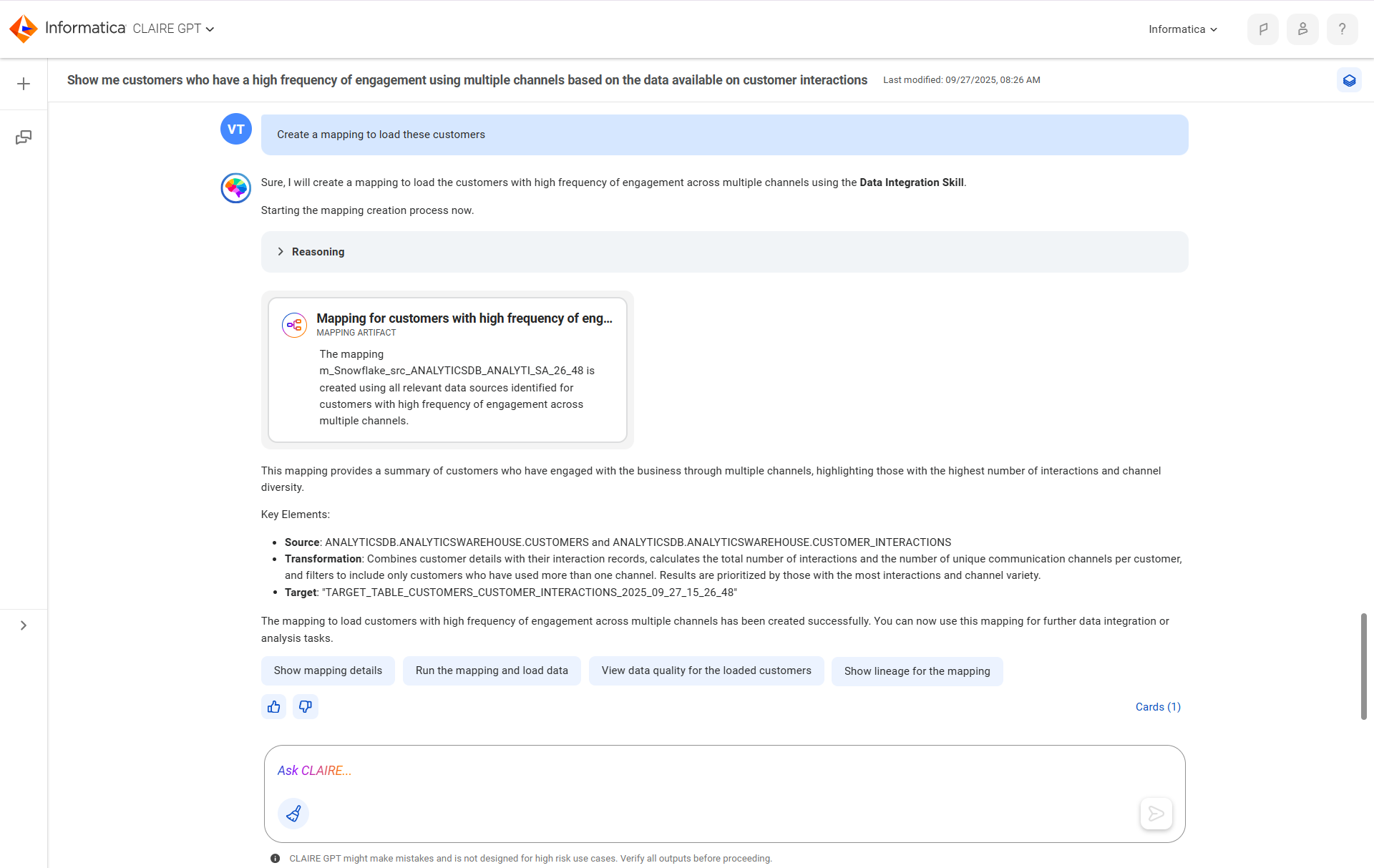
4To create a mapping to load the customers, enter the following data transformation prompt:
Create a mapping to load these customers
The following image shows the response:
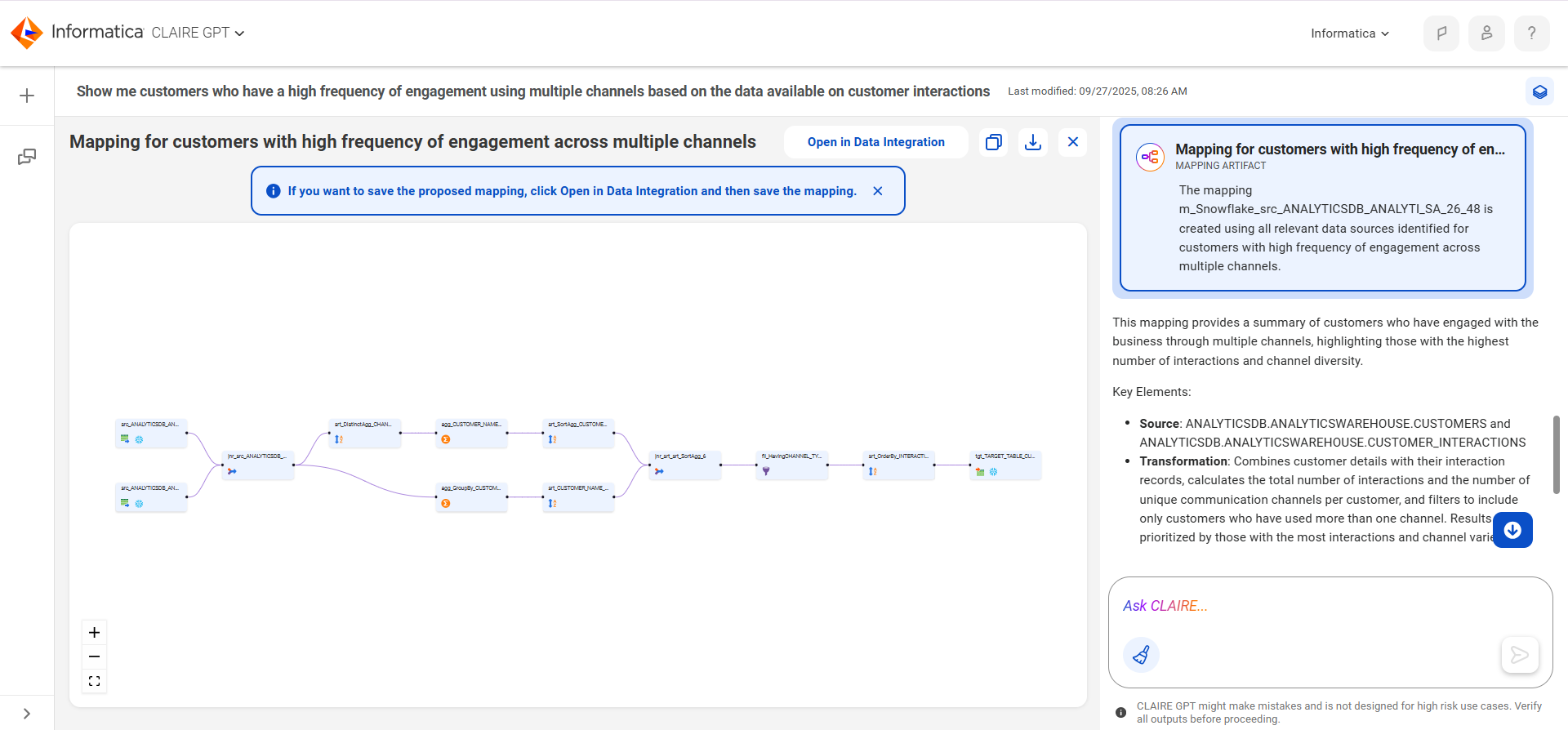
5To view the mapping, select the card.
The following image shows the mapping for customers with a high frequency of engagement:
6To open the mapping in Data Integration, select Open in Data Integration.
7To create a mapping to load customers with a low frequency of engagement in a single prompt, enter the following data transformation prompt:
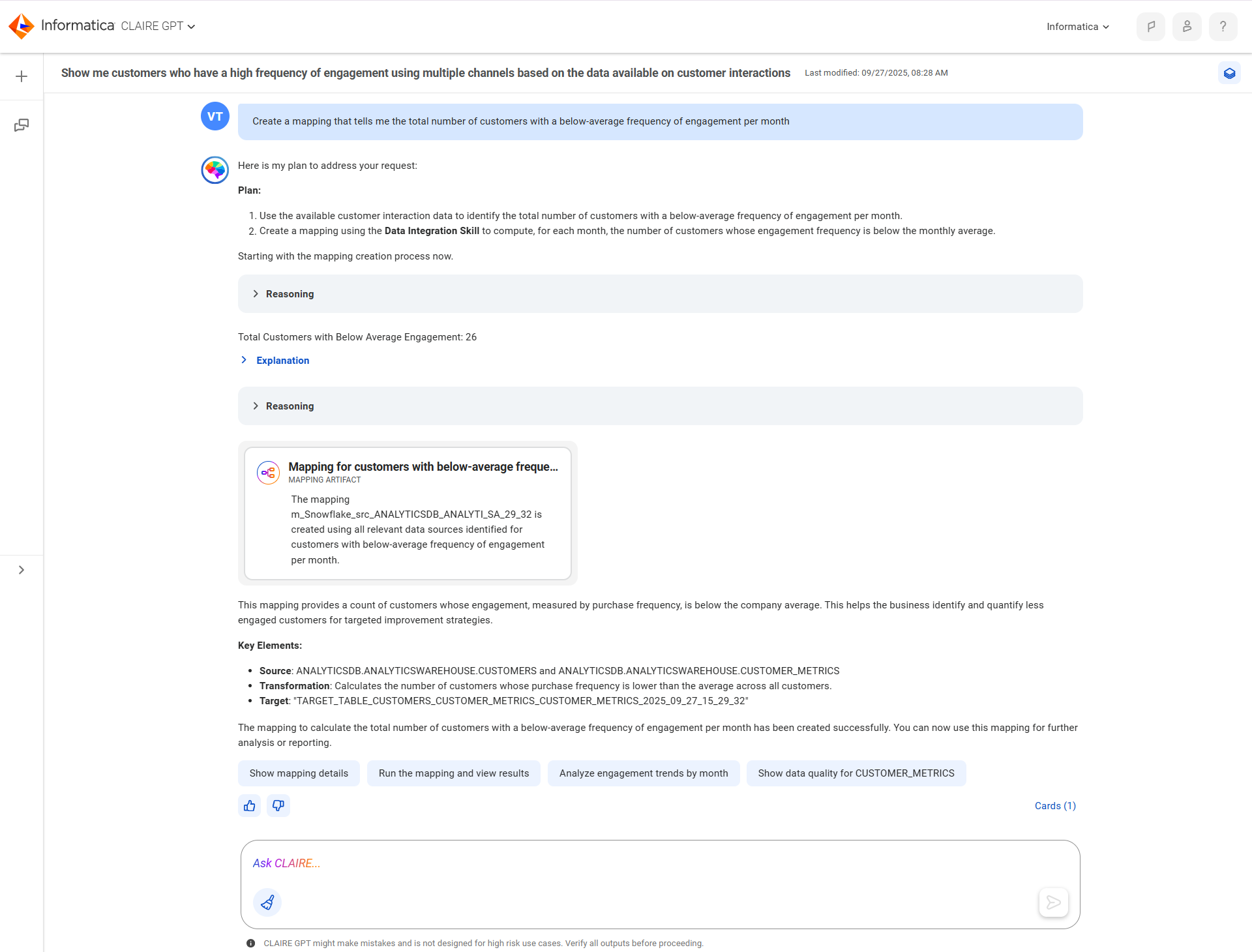
Create a mapping that tells me the total number of customers with a below-average frequency of engagement per month
The following image shows the response:
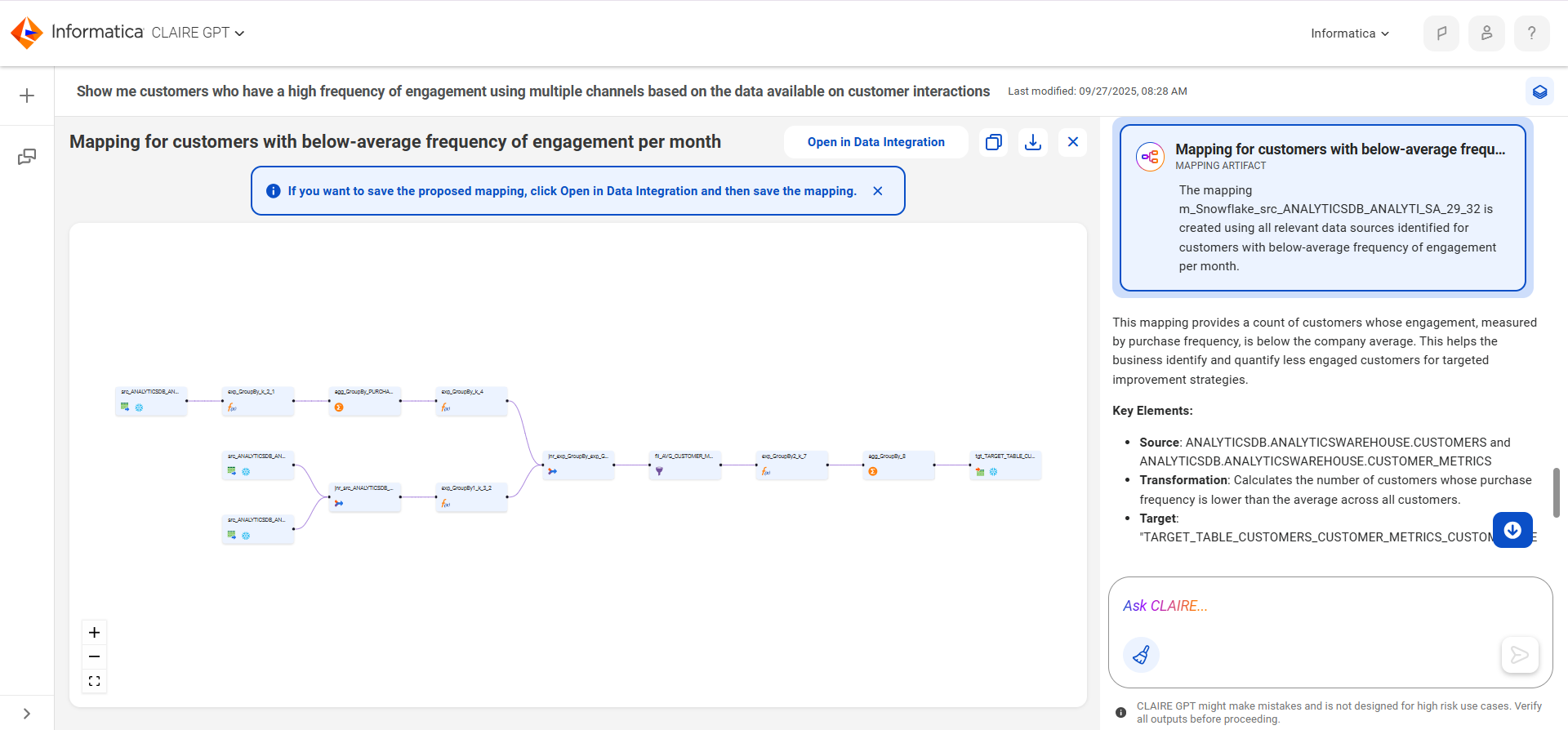
8To view the mapping, select the card.
The following image shows the mapping for customers with a low frequency of engagement:
9To open the mapping in Data Integration, select Open in Data Integration.