The product experience agent classifies records by assigning them to relevant hierarchies based on configured objectives and confidence scores.
When you ask CLAIRE Copilot to classify a record, the agent identifies the objectives that are configured for classification. You can select specific objectives or ask the agent to run all the objectives.
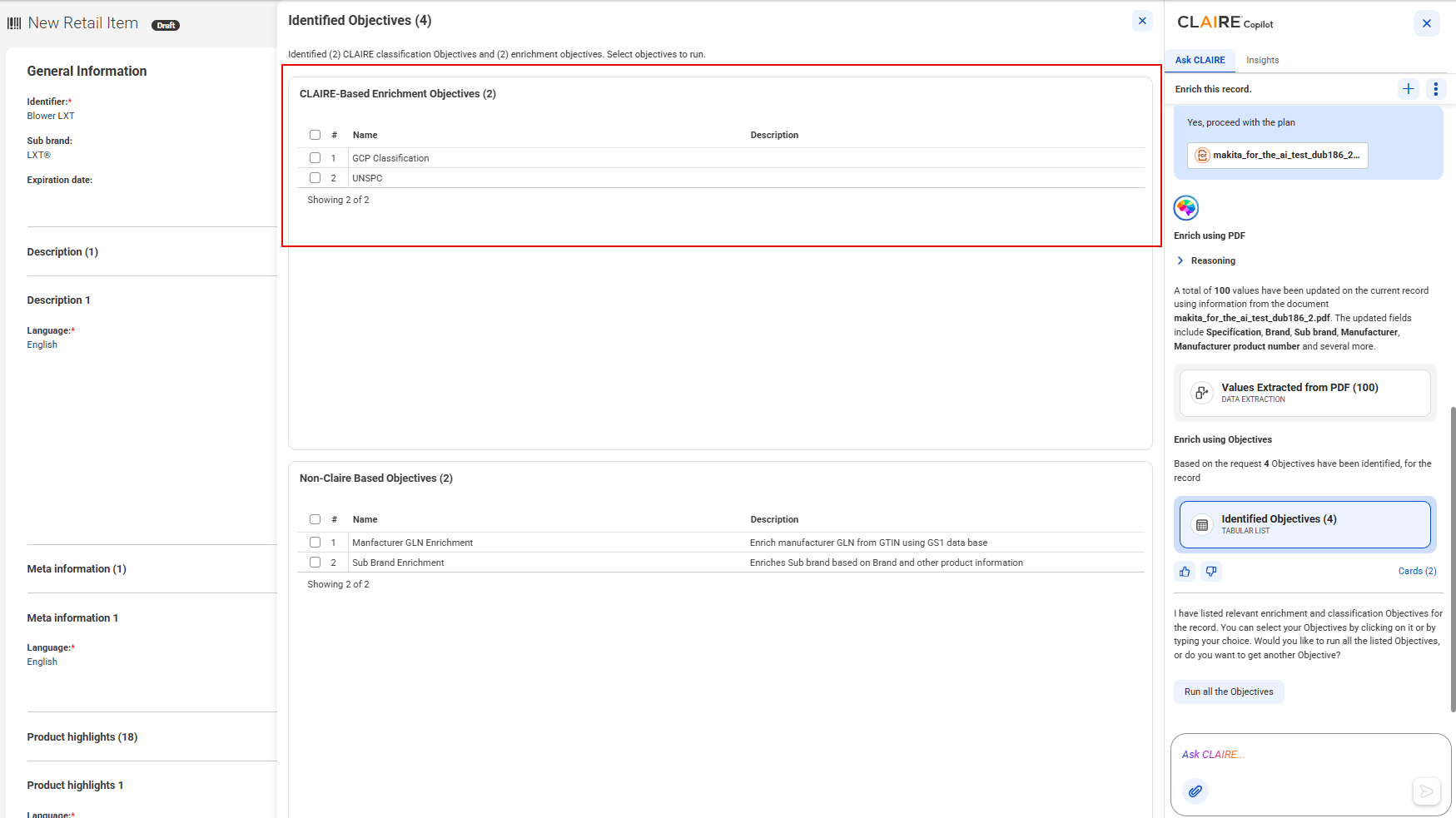
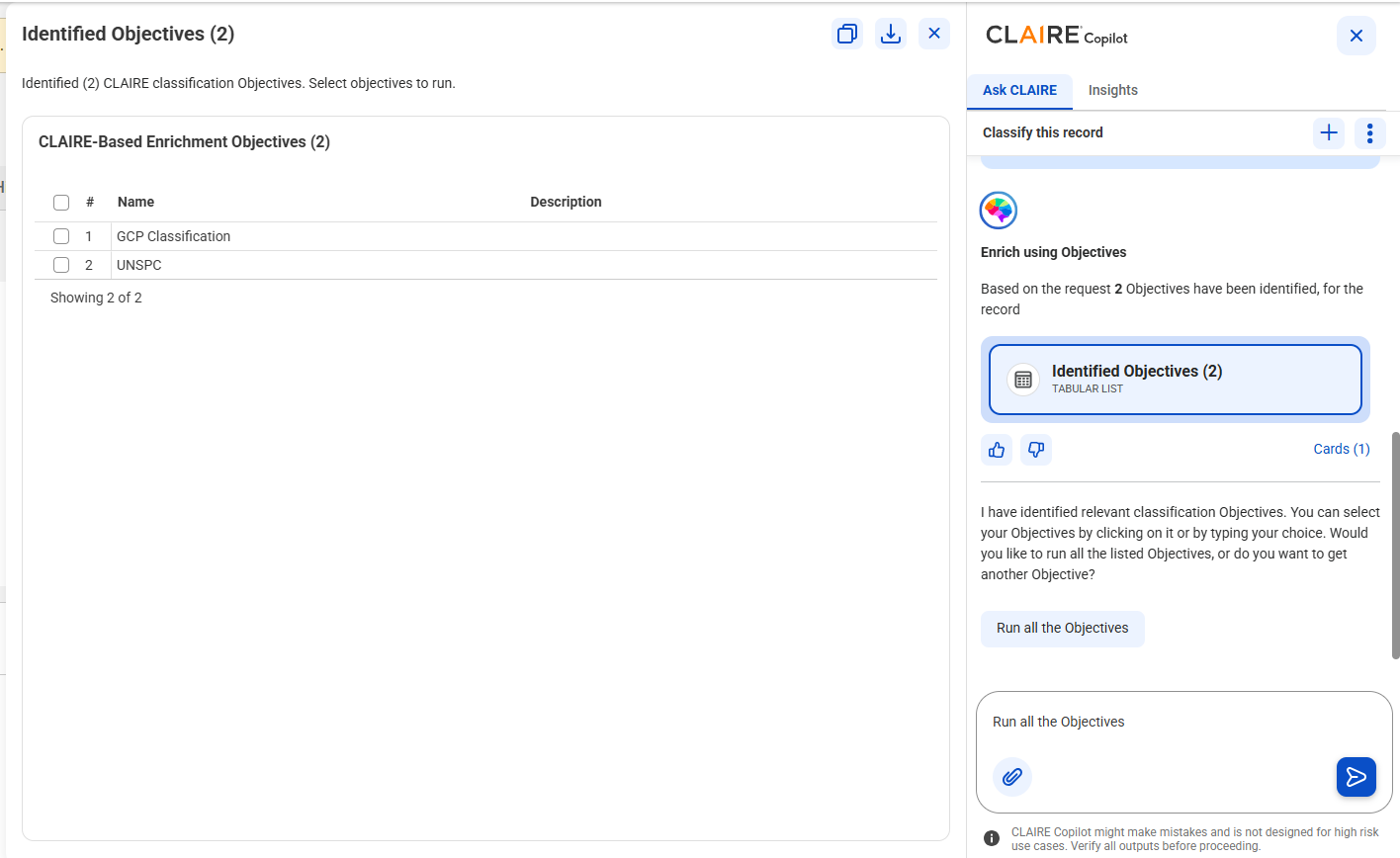
The following image shows two classification objectives in the CLAIRE-Based Enrichment Objectives section of the Identified Objectives workspace:
After you submit the selected objectives, the agent identifies relevant hierarchies and nodes based on the details available in those objectives, such as hierarchy and relationship types. It then recommends parent records and hierarchy nodes for classification, along with confidence scores.The record is assigned to a recommended hierarchy if the confidence score meets or exceeds the accept threshold specified in the configuration.
When you prompt the agent to enrich a record without asking it to classify it, it automatically runs classification objectives along with other tasks. You can also specifically ask the agent to classify records.
After the agent assigns a record to a hierarchy, the dynamic fields from the parent record become available in the classified record.
Note:
The agent assigns records only to hierarchies that a process hierarchies job processed.
Note:
Effective in the April 2026 release, the ability to classify records using the product experience agent is available for preview.
Sample conversation
Let's look at a sample conversation to show how to classify a record by using CLAIRE Copilot.
Your organization has a record named Blower LXT in Product 360 SaaS. You want to assign this record to relevant hierarchies through configured classification objectives.
1In Product 360 SaaS, open the Blower LXT record.
2Start a conversation with CLAIRE Copilot to classify the record, and enter the following prompt:
Classify this record.
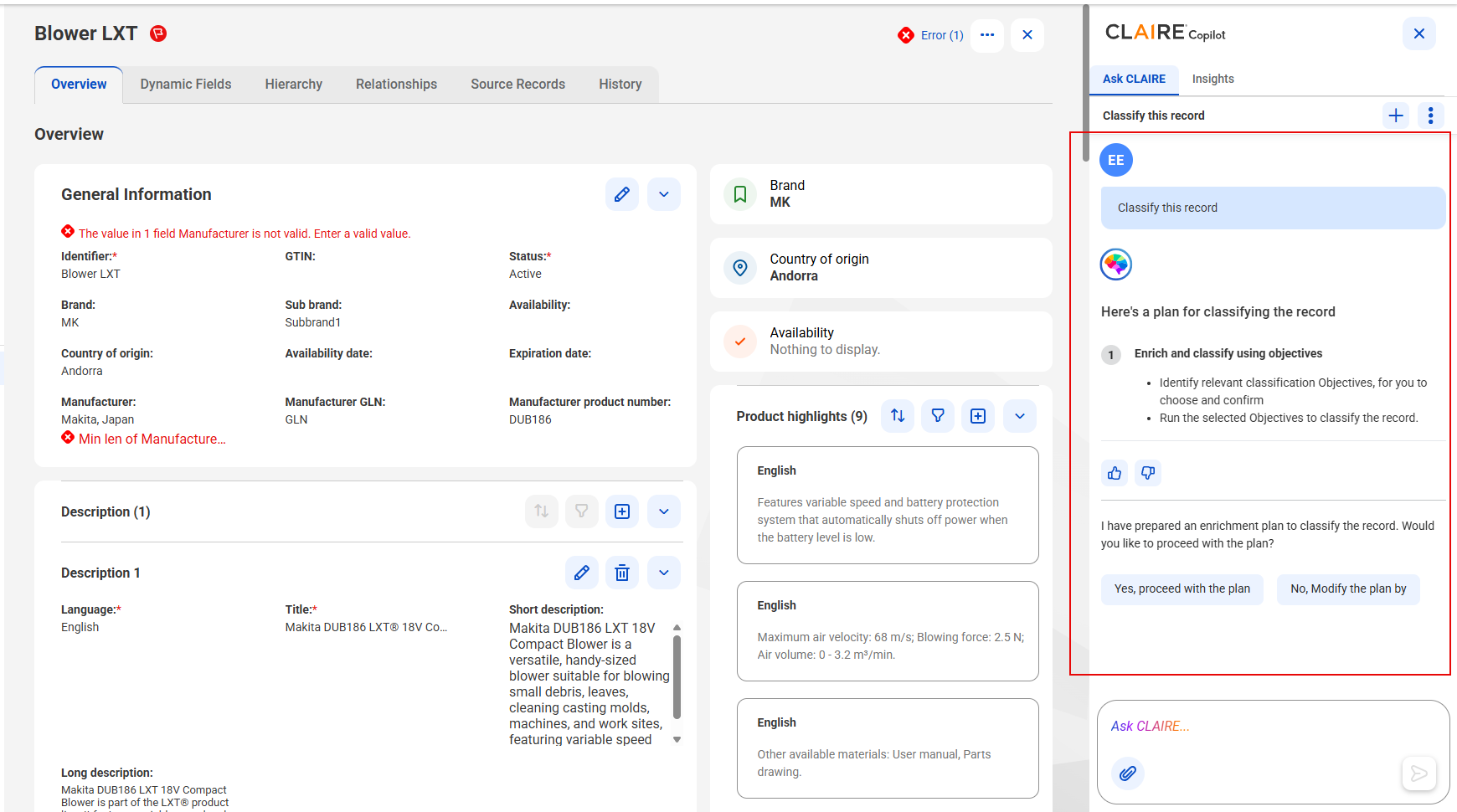
The product experience agent uses the product classification skill and displays a comprehensive plan to classify the record.
The following image shows the classification plan that CLAIRE Copilot displays in response to the prompt:
3Click Yes, proceed with the plan, and submit the prompt.
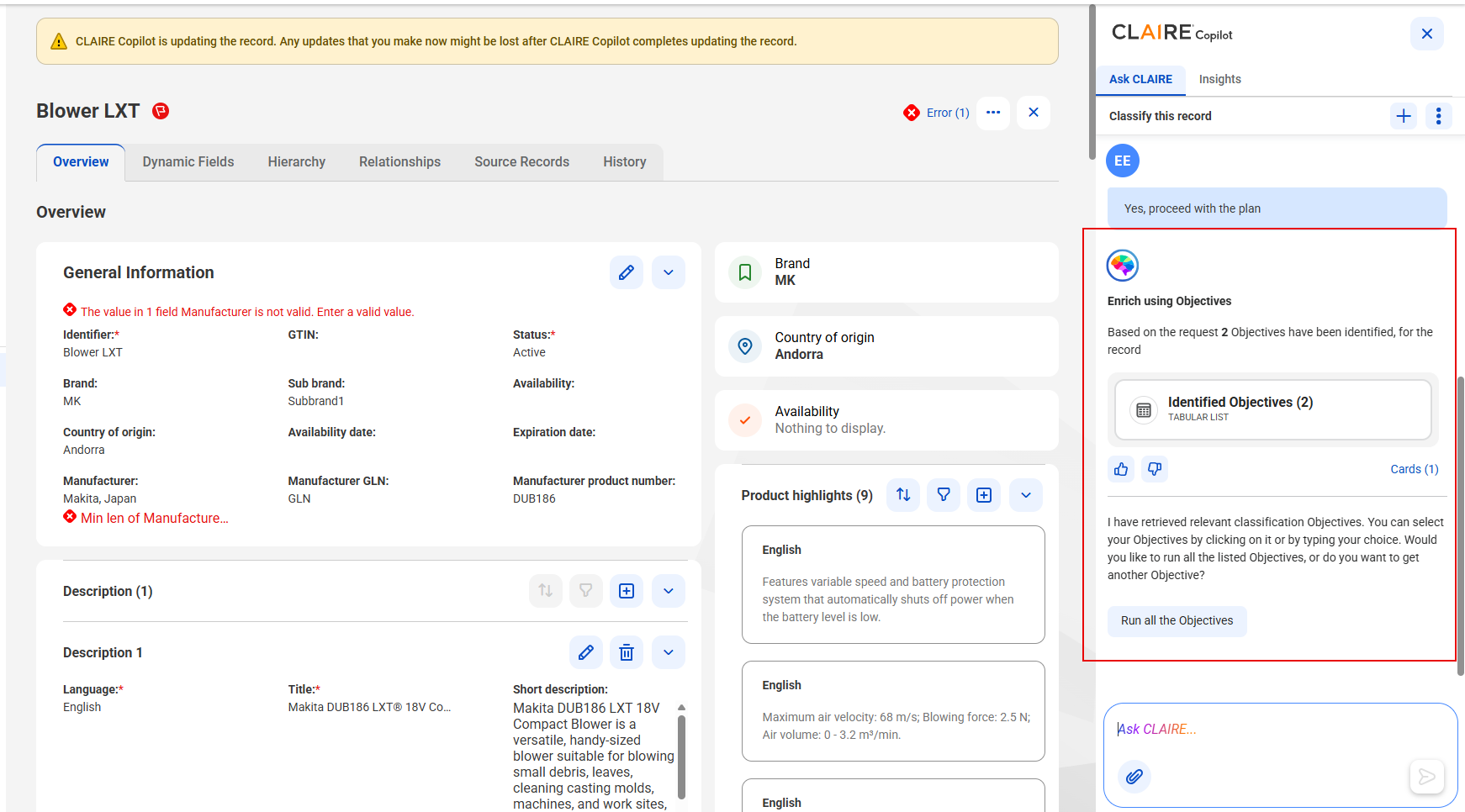
The product experience agent identifies the objectives that are configured for classification and displays the Identified Objectives card.
4Click the Identified Objectives card, and select the objectives that you want to run or ask the agent to run all the objectives.
The objectives that you select appear in the prompt box.
5Submit the objectives that you selected.
The agent identifies relevant hierarchies and nodes based on the details available in those objectives, such as hierarchy and relationship types. It then recommends parent records and hierarchy nodes for classification, along with confidence scores. The record is assigned to a recommended hierarchy if the confidence score meets or exceeds the accept threshold specified in the configuration. CLAIRE Copilot displays the Hierarchies the Record Was Assigned to card.
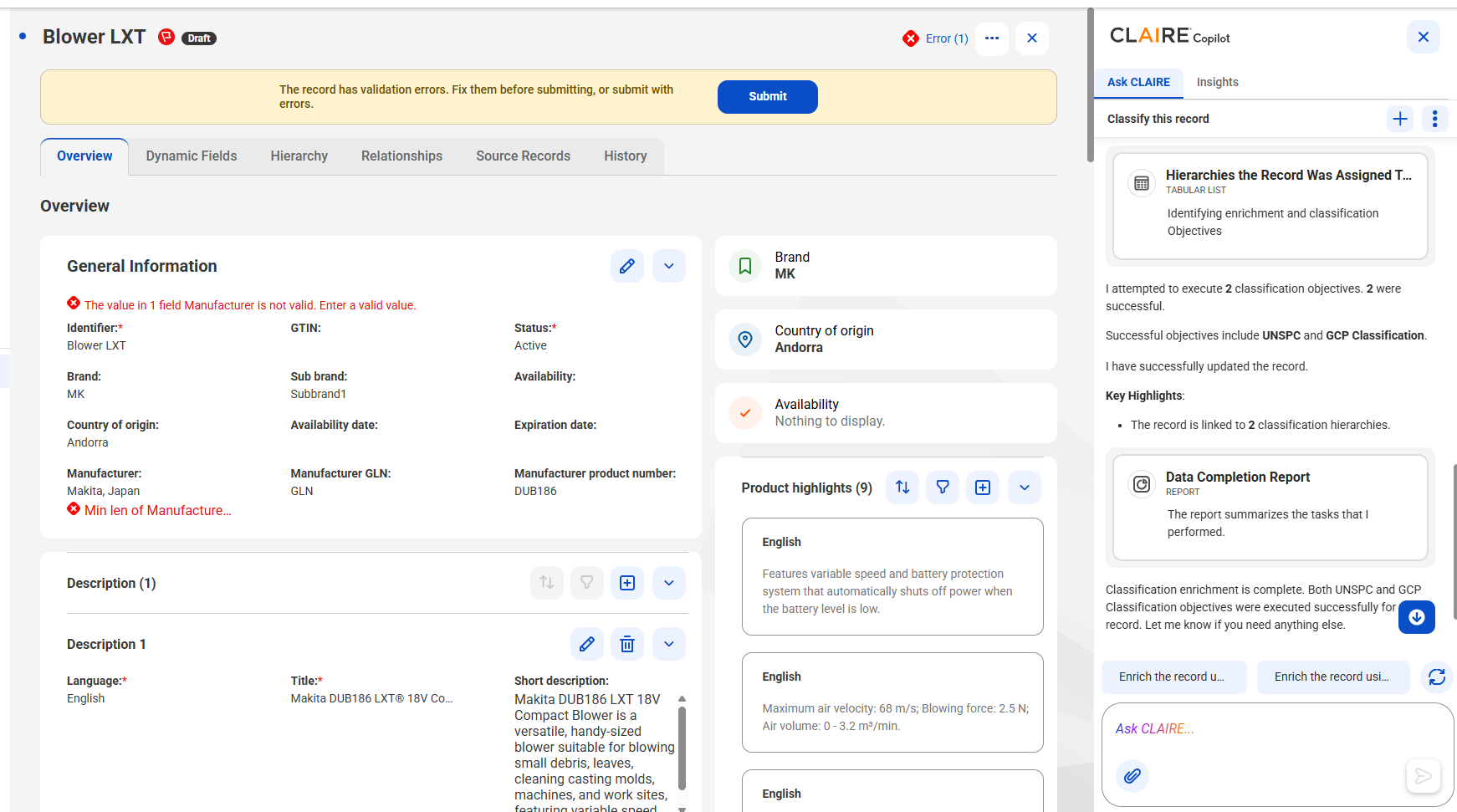
The following image shows the results that CLAIRE Copilot displays after it runs the classification objectives:
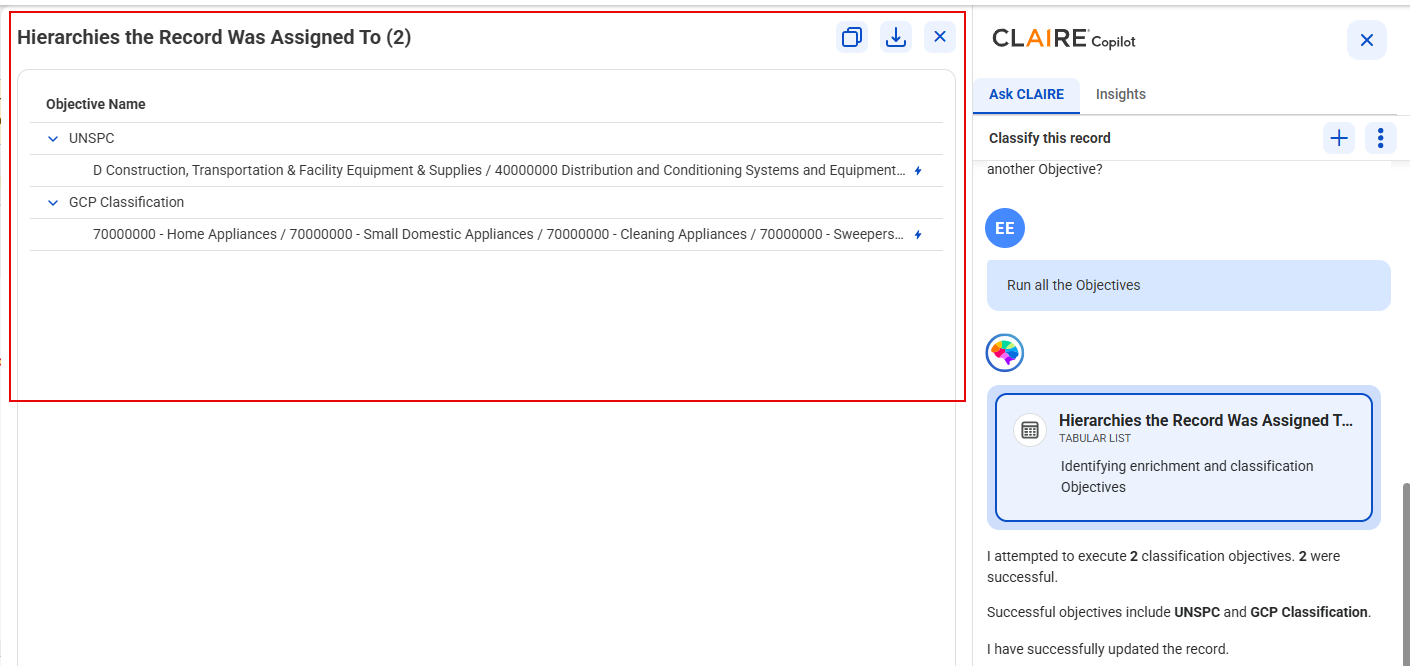
6To view the hierarchies that the record is assigned to, click the Hierarchies the Record Was Assigned to card.
The Hierarchies the Record Was Assigned to workspace appears.
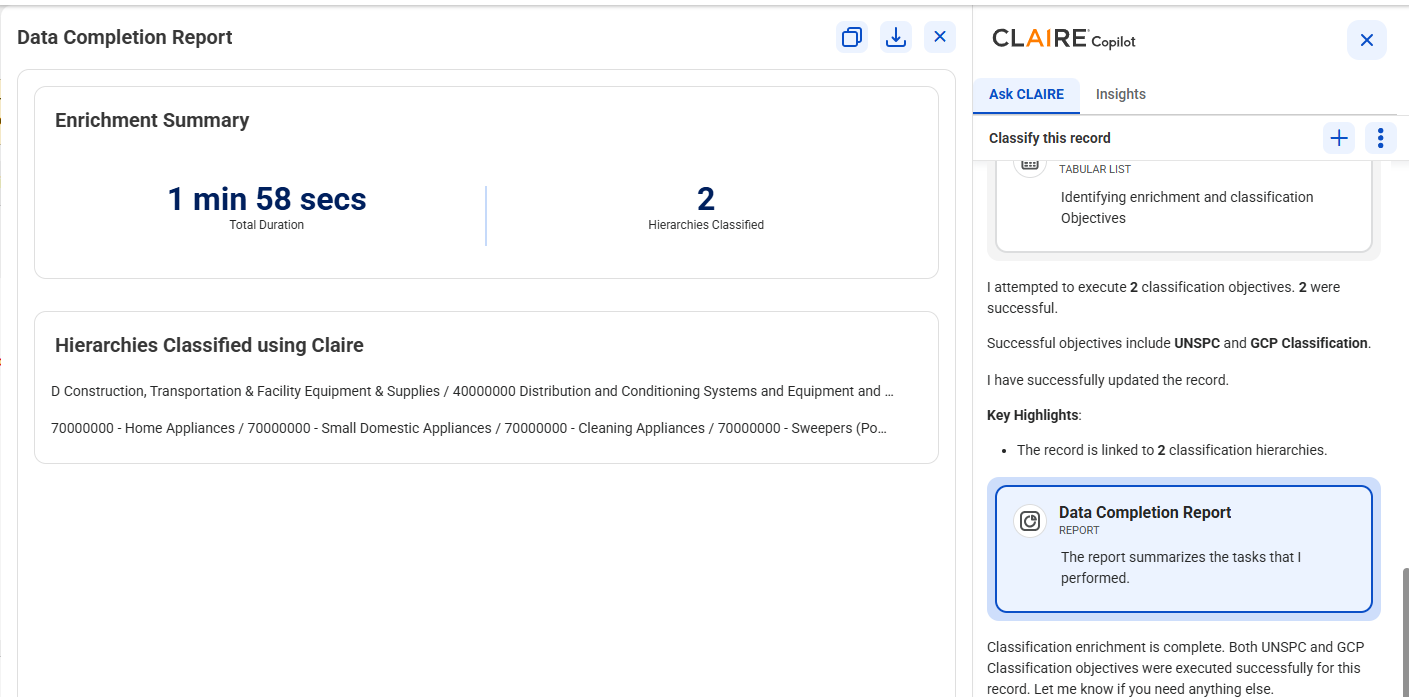
7To view the summary of the classification task, click the Data Completion Report card.