Product Experience Agent > Product experience agent > Enriching a record using on-request objectives
  

Enriching a record using on-request objectives

The product experience agent can enrich records by running on-request objectives configured for fields.
When your prompt CLAIRE Copilot to enrich a record using objectives, the agent displays the on-request objectives configured for fields. You can ask the agent to run specific objectives or all of them.
The agent can't run the following types of objectives:
Note:
Effective in the April 2026 release, the ability to use on-request objectives in CLAIRE Copilot is available for preview.
Preview functionality is supported for evaluation purposes but is unwarranted and is not supported in production environments or any environment that you plan to push to production. Informatica intends to include the preview functionality in an upcoming release for production use, but might choose not to in accordance with changing market or technical circumstances. For more information, contact Informatica Global Customer Support.

Sample conversation

Let's look at a sample conversation to show how to enrich a record by using on-request objectives in CLAIRE Copilot.
Your organization has an incomplete record named Blower LXT in Product 360 SaaS. You want to enrich this record from external sources through configured objectives.
    1In Product 360 SaaS, open the Blower LXT record.
    2Start a conversation with CLAIRE Copilot to enrich the record using objectives, and enter the following prompt:
    Enrich this record using objectives.
    The product experience agent displays a comprehensive plan to enrich the record.
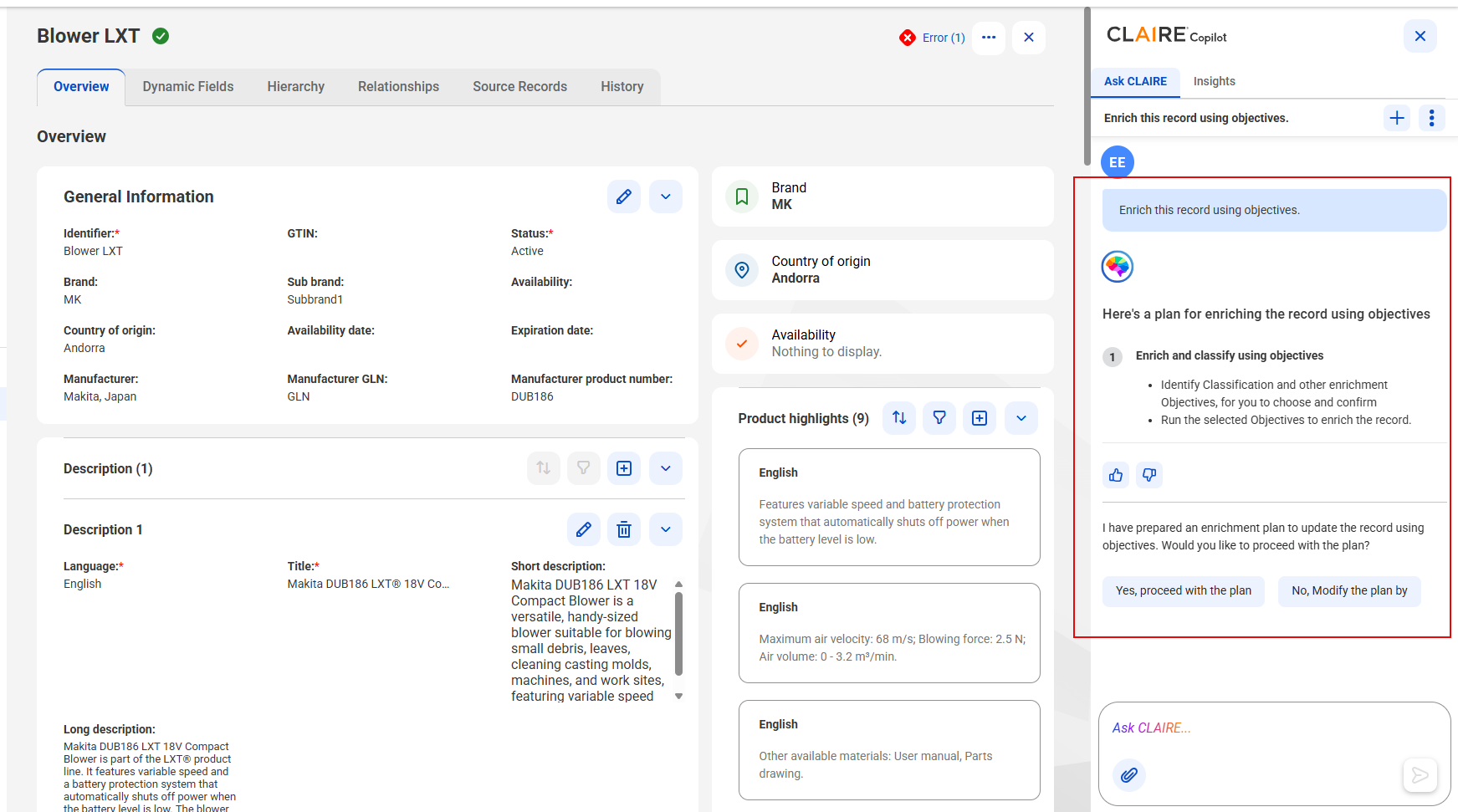
    The CLAIRE Copilot panel shows a plan to enrich the record using objectives and options to proceed with the plan or modify the plan.
    3Click Yes, proceed with the plan, and submit the prompt.
    The product experience agent identifies the on-request objectives and the Identified Objectives card appears.
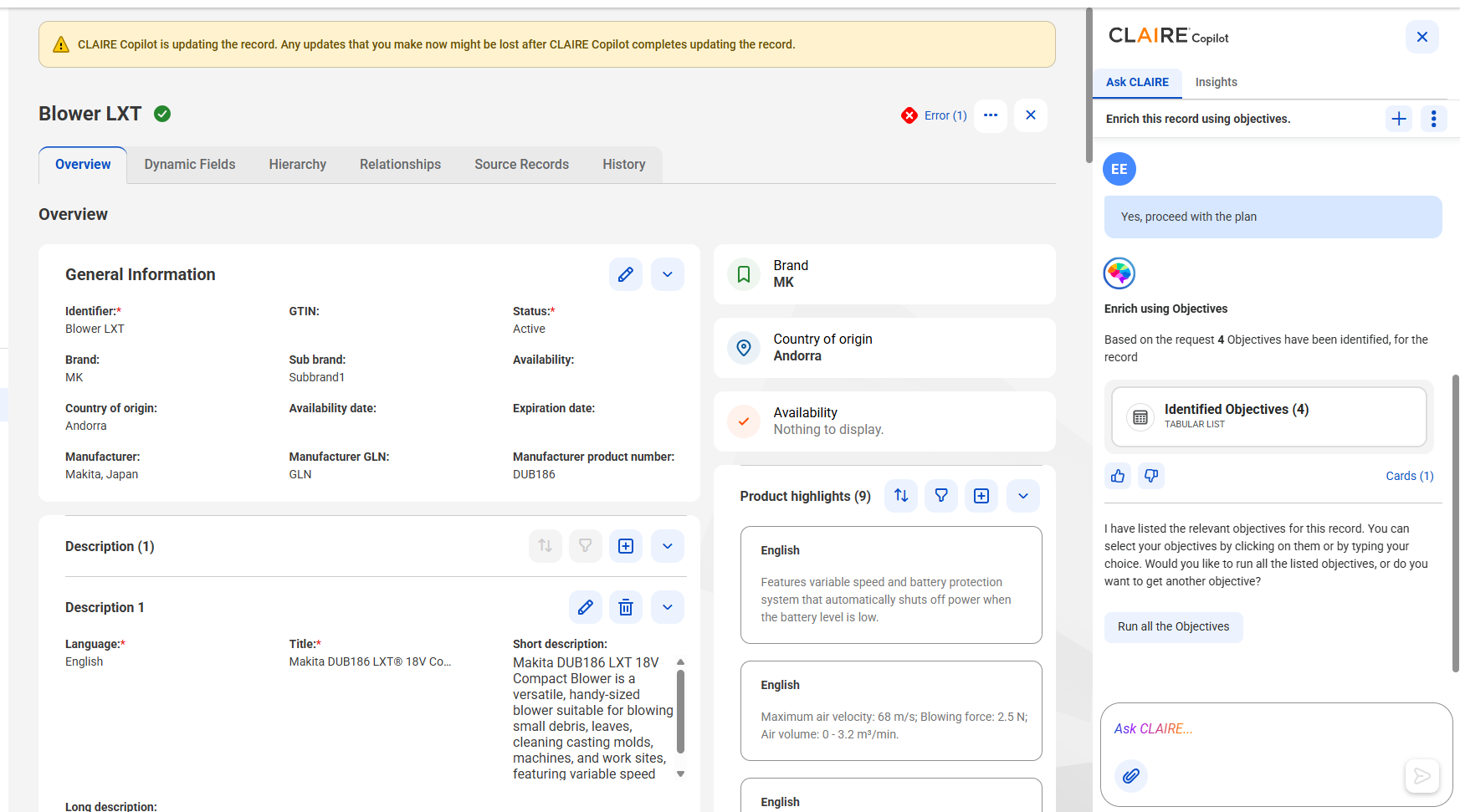
    The CLAIRE Copilot panel shows the Identified Objectives card and the option to run all the objectives.
    4Click the Identified Objectives card, and select the objectives that you want to run, or ask the agent to run all the objectives.
    The objectives that you select appear in the prompt box.
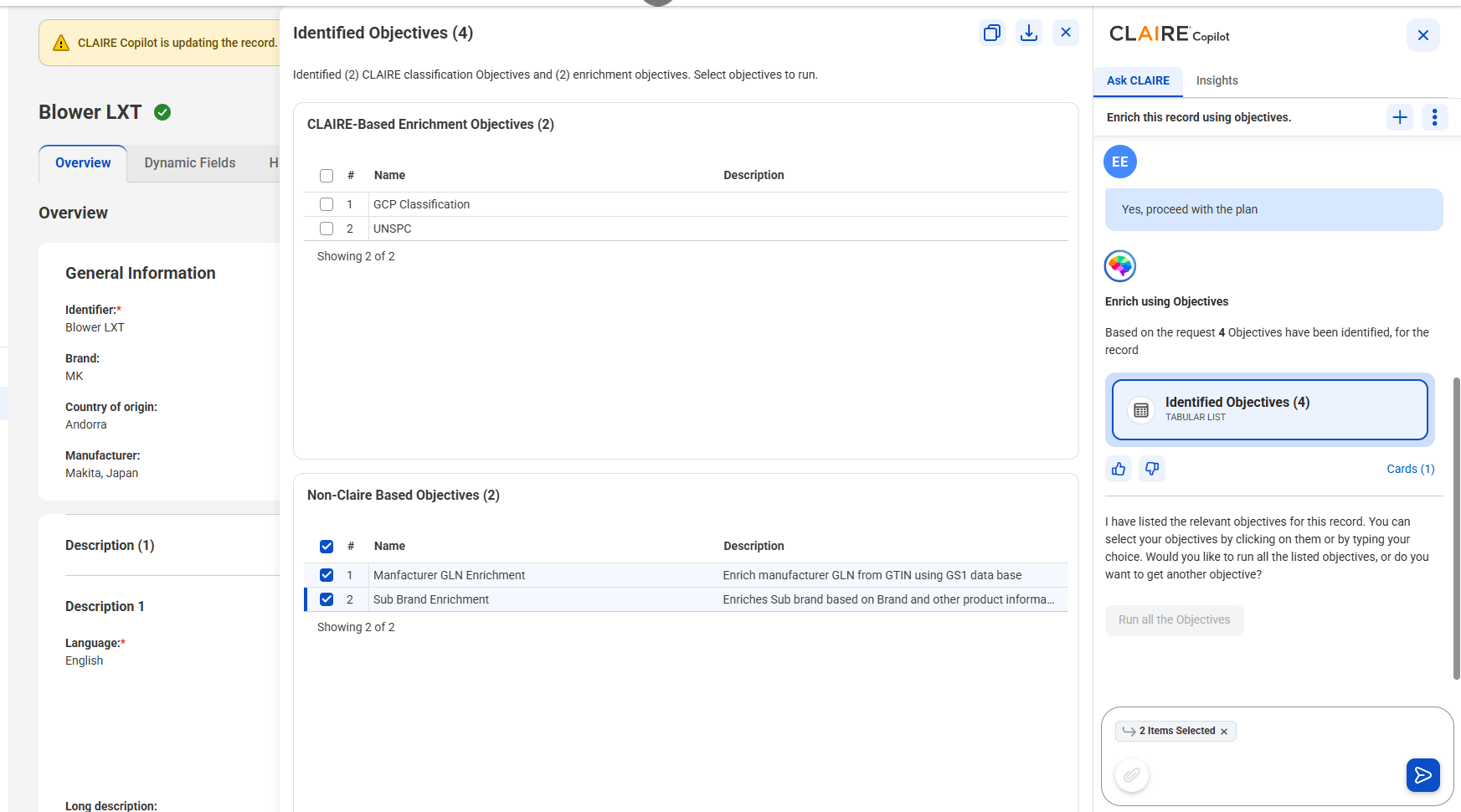
    The Identified Objectives workspace shows the CLAIRE-based and non-CLAIRE enrichment objectives, and the selected objectives appear in the prompt box of the CLAIRE Copilot panel.
    5Submit the objectives that you selected.
    CLAIRE Copilot displays the names of the objectives that it ran successfully.
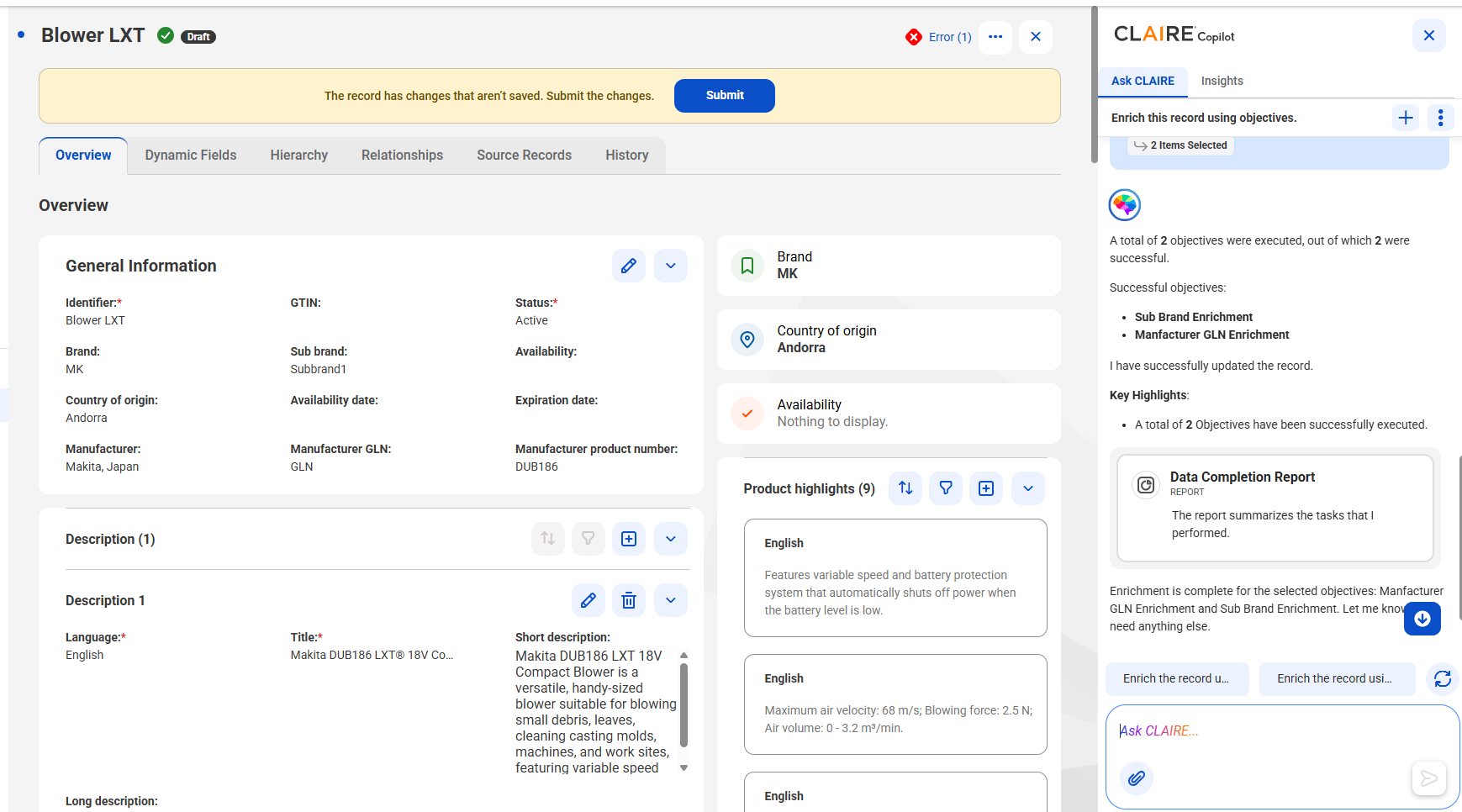
    The CLAIRE Copilot panel shows the names of the objectives that ran successfully, such as Sub Brand Enrichment and Manufacturer GLN Enrichment, along with the Data Completion Report card.
    6To view the details of the data completion report, click the Data Completion Report card.
    The Data Completion Report workspace appears.
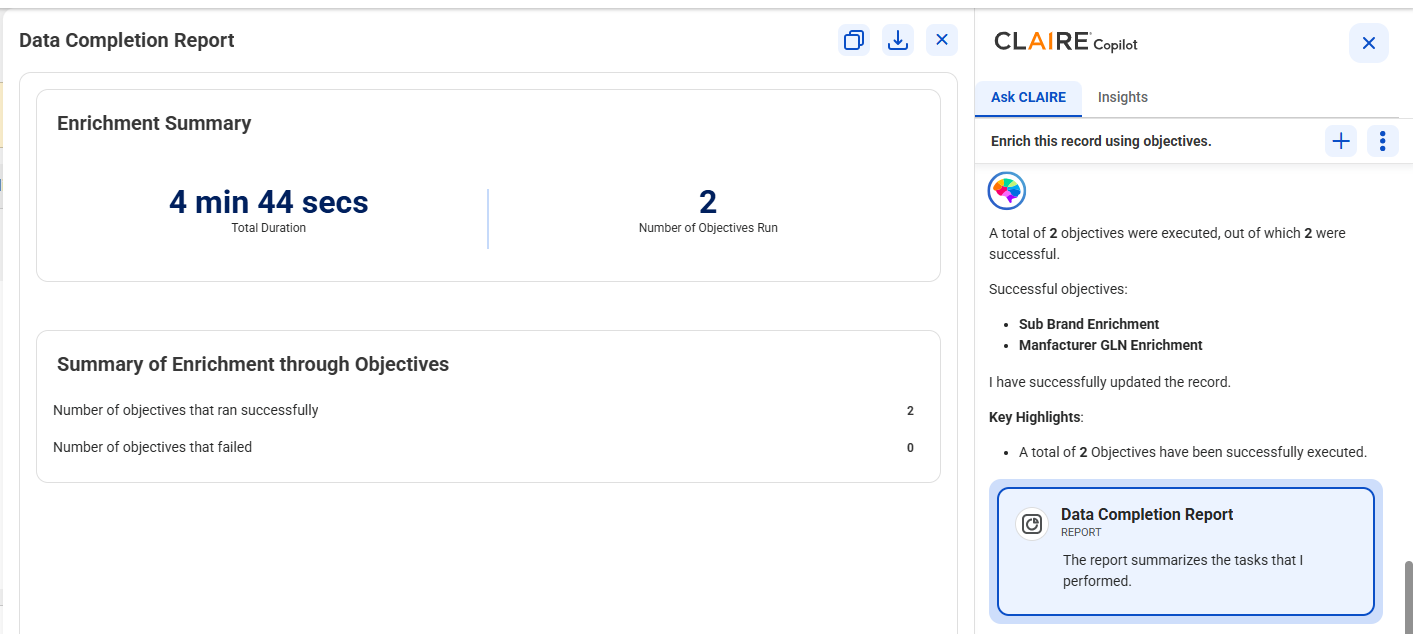
    The Data Completion Report workspace shows the enrichment summary with the total duration and the number of objectives run, along with the number of objectives that ran successfully and the number that failed.
    7Submit the record.