You can view and act on the tasks assigned to you in the task inbox.
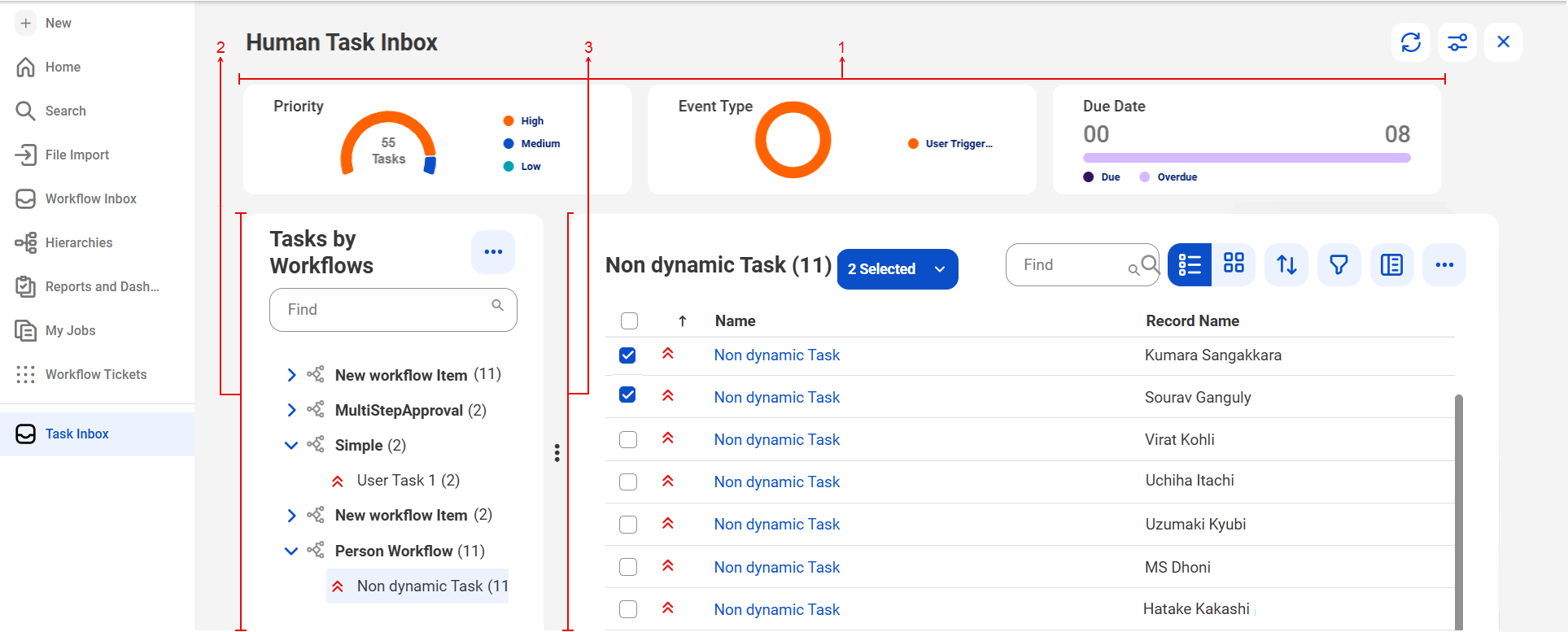
The following image shows the task inbox:
1Overview. Graphical representation of your assigned task metrics, categorized by priority level, event type, and due date. You can hide the section if required.
2Tasks by Workflows. List of workflows for which you're a stakeholder. By default, tasks are grouped by workflows.
3List of tasks. Tasks related to the selected workflow.
You can perform the following actions on tasks:
•Claim, assign, or act on individual tasks or multiple tasks in bulk.
•Search for tasks based on task details and record details.
•Adjust the view by choosing between list and card views.
•Sort tasks in based on priority, event type, asset type, and due date.
•Filter tasks based on task details and record details.
•Adjust the columns displayed in the section. The Name column is always displayed. You can choose to view or hide other columns.
To view details of a single task, click the task. The details are displayed in a new workspace.