Data Asset Publication
Data publication is the process of making prepared data available in the data lake.
When analysts publish a worksheet containing prepared data, Enterprise Data Preparation applies the recipe to the data in the input source. Enterprise Data Preparation writes the transformed input source to a Hive table in the data lake.
The application also converts the recipe to a mapping, and writes the mapping to the Model repository associated with the Enterprise Data Preparation Service.
You can use a third-party business intelligence or advanced analytic tool to run reports to further analyze the published data. Other analysts can add the published data to their projects and create new data assets.
Operationalizing the Loading of Data Assets
You can operationalize the mappings created during data asset publication to regularly load data with the new structure into the data lake.
Use the Developer tool to view and edit the converted mappings stored in the Model repository associated with the Enterprise Data Preparation Service. The mappings use the same name as the Enterprise Data Preparation worksheet with the published data. Verify that the converted mappings meet your requirements, and then deploy the mappings.
Use the Administrator tool or the infacmd command line program to run the mappings to load and transform the data. The Data Integration Service writes the data to Hive tables in the data lake. You can schedule the deployed mappings to regularly load data into the data lake. Use the Administrator tool to monitor each mapping run.
For more information about running and monitoring mappings, see the Informatica Administrator Guide.
For more information about developing and running mappings that write to Hive, see the Informatica Big Data Management User Guide.
Operationalizing Mappings Generated for Avro, JSON, and Parquet Files
To operationalize a mapping generated for an Avro, JSON Lines, or Parquet file during publication to the data lake, you must run queries to modify Read transformations within the mapping. You must also run queries to modify Lookup transformations within a mapplet that looks up data in the file.
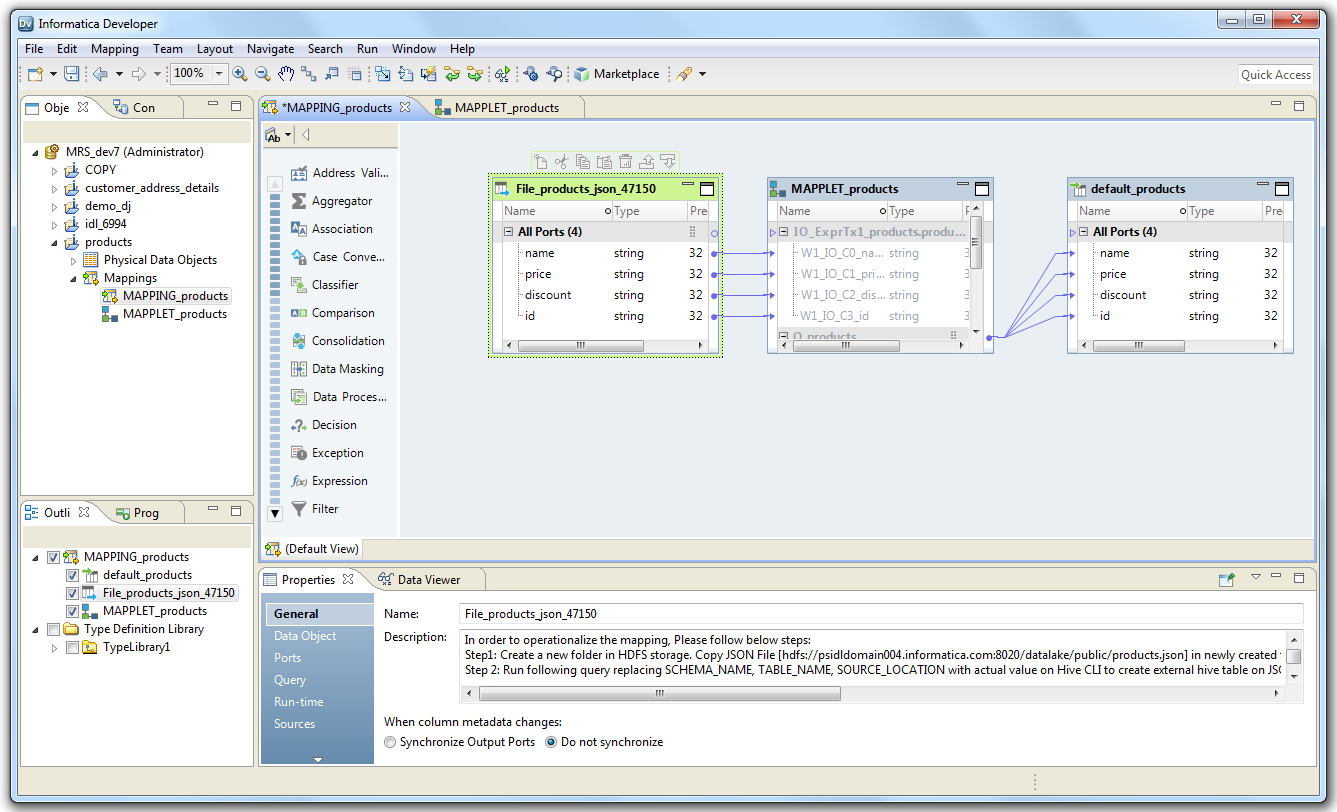
When you open a mapping or mapplet generated for an Avro, JSON, or Parquet file in the Developer tool, you see the syntax for two queries in the Description field for Read or Lookup transformations within the mapping or mapplet. You use the Hive CLI to run to run the first query, which creates an external table in Hive for the mapping. You then run the second query in the Developer tool to update the mapping with the external table you create in Hive.
The following image shows a mapping generated for a JSON file selected in the Developer tool. The instructions to follow to operationalize the mapping appear in the Description field in the General tab.
Perform the following steps on each Read and Lookup transformation within a mapping or mapplet:
1. Open a mapping or mapplet generated for an Avro, JSON, or Parquet file in the Developer tool.
2. Select a Read transformation within the mapping, or a Lookup transformation within the mapplet.
3. Click the General tab.
4. Copy the file from the HDFS location referenced in Step 1 to a directory in the cluster.
5. Copy the CREATE EXTERNAL TABLE query displayed for Step 2 in the Description field.
6. Replace the variables in the query with the actual values.
The following table lists the variables to set:
Variable | Description |
|---|
SCHEMA_NAME | Name the Hive schema in the data lake in which to publish the data. |
TABLE_NAME | Name of the external table to create. |
LOCATION | Directory in the cluster to which you copied the file. |
7. Use the Hive CLI to run the query on Hive.
The query creates the external table for the file.
8. In the Developer tool, copy the SELECT query displayed for Step 3 in the Description field.
9. Click the Query tab.
10. Select Advanced, and then click Custom Query.
11. Paste the query into the SQL Query field.
12. Replace the variables in the query with the actual values.
The following table lists the variables to set:
Variable | Description |
|---|
SCHEMA_NAME | Name the Hive schema in the data lake in which to publish the data. |
TABLE_NAME | Name of the external table created for the file. |
13. Save the mapping.
The query updates the mapping with the external table.
If the instruction text is more than 4000 characters in length, the instruction text truncates in the Description field. If the text truncates, you can copy the queries provided in Step 2 and Step 3 directly from the publication log file.
Note: If you publish an Avro file, you must copy the query the publication log file.