Edit the Cluster Configuration
You can edit property values in a cluster configuration. You can also add user-defined properties, override imported property values, and delete properties within a configuration set.
To edit the cluster configuration, you can access the Edit dialog box for a configuration set on the Active Properties view or the Overridden Properties view. Within the Edit dialog box, you can use the filter control to find properties.
If you edit properties in a cluster configuration that the Data Integration Service used to run a mapping, recycle the Data Integration Service for changes to take effect. For example, if you change the Hadoop distribution version for a cluster configuration that the Data Integration Service used to run a mapping, recycle the Data Integration Service for the change to take effect.
Filtering Cluster Configuration Properties
You can search for properties within a configuration set by using the filter controls.
You can filter properties in the Active Properties view or the Overridden Properties view. You might want to filter properties when a configuration set contains a large number of properties.
- 1In the Active Properties view or the Overridden Properties view, expand a configuration set.
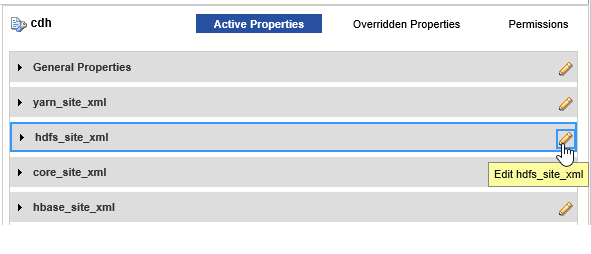
- 2Click the Edit icon on the name bar of the configuration set that you want to edit.
The following image shows the Edit icon for the hdfs-site.xml configuration set:
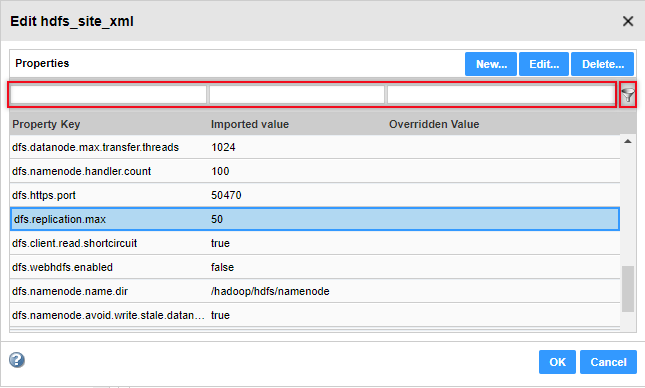
- 3Enter text in the filter text entry pane above any column, and then click the filter icon. You can search by property, imported value, overridden value.
The following image shows the filter text entry panes and the filter icon:
Overriding Imported Properties
You can override property values or you can update overrides from the Active Properties view or the Overridden Properties view.
1Expand the configuration set containing the property that you want to edit.
2Click the Edit icon on the name bar of the configuration set that you want to edit.
The Edit dialog box opens.
3Optionally, use the filter controls to find a property.
4Select the property to edit and click Edit.
The Edit Property dialog box opens.
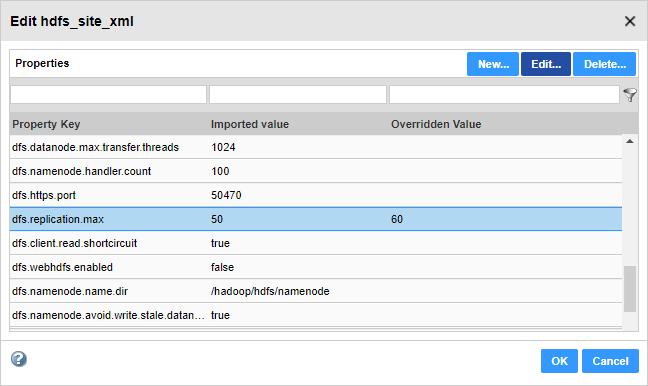
5Enter a value in the Overridden Value pane, and click OK.
The following image shows the overridden value in the Edit dialog box:
Creating User-Defined Properties
You can create user-defined properties in the Active Properties view or the Overridden Properties view. When you create a user-defined property, you configure an overridden value. You cannot configure an imported value in a user-defined property.
You can create a user-defined property based on your requirements.
- 1Expand the configuration set where you want to create a property.
- 2Click the Edit icon on the name bar of the configuration set that you want to edit.
The Edit dialog box opens.
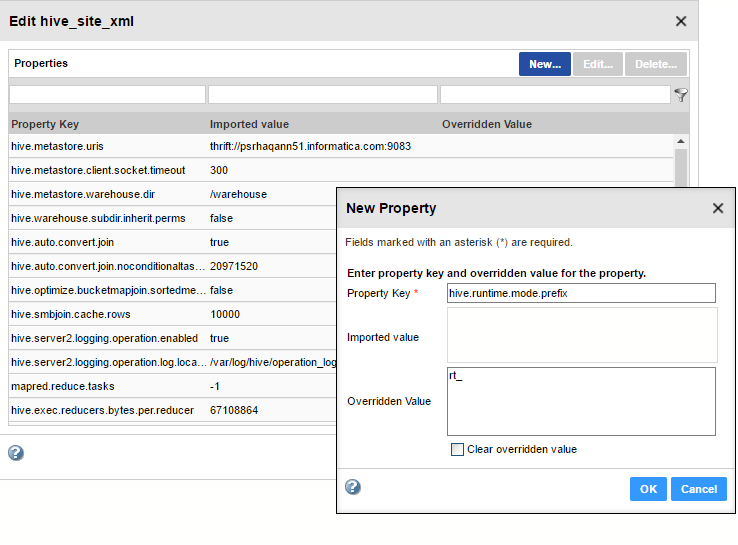
- 3Click New.
The New Property dialog box opens.
- 4Configure the following properties:
Property | Description |
|---|
Property Key | Name of the property that you want to enter. |
Overridden Value | The property value. To clear the contents of this field, select Clear overridden value. |
WICHTIG: If you create a property with the same name as a property that exists in a different configuration set, the Data Integration Service might use either property at run time, leading to unpredictable results.
- 5Click OK.
Deleting Cluster Configuration Properties
You can delete imported and user-defined properties from a configuration set.
1Select a cluster configuration to edit.
2In the Active Properties view or the Overridden Properties view, expand a configuration set.
3Click the Edit icon on the name bar of the configuration set that you want to edit.
The configuration set expands to show its contents.
4Optionally, use the filter control at the top of the Property Key column to filter the properties.
5Select the property and click Delete.
HINWEIS: Imported properties that you delete will be restored if you refresh the cluster configuration.