Column Profiles with JSON or XML Data Sources
You can create and run a column profile with JSON or XML data sources.
You can create a flat file data object or complex file data object with JSON or XML data sources. When you have JSON or XML data sources in Hadoop Distributed File System (HDFS), you can create complex file data object on a JSON or XML file or create a complex file data object on a folder that contains JSON or XML files. You can then create a column profile on the flat file data object or complex file data object.
Note: The Developer tool does not support a JSON data source with UTF-8 encoding.
Column Profile on a JSON or XML Flat File
You can create a flat file data object for a JSON or XML data source. You can then create and run a column profile on the flat file data object.
You must create a flat file data object on a text file that contains the file path of the JSON or XML data sources. You can then use the data object to create a column profile. You can add the file path for one or more multiple JSON or XML data sources into the text file.
Creating a Flat File Data Object With a Text File
You can create a flat file data object with a text file that contains the location of the source JSON or XML file.
1. In the Object Explorer view in Developer tool, select the project where you want to create the data object and column profile.
2. Click File > New > Data Object.
The New dialog box appears.
3. Select Physical Data Objects > Flat File Data Object, and click Next.
The New Flat File Data Object dialog box appears.
4. Select Create from an Existing Flat File, and click Browse to choose the text file. Click Next.
5. Verify that the code page is MS Windows Latin 1 (ANSI), superset of Latin 1, and the format is delimited. Click Next.
6. Verify that the delimiter is set to comma. Click Finish.
Note: If you have the Developer server in Linux, you must update the file path of the data source to the location in the server. To update the file path, click Advanced > Runtime: Read > Source file directory, and add the file path.
Column Profile with Complex File Reader
A Data Processor transformation can read input from a JSON or XML file with a complex file reader. You can create and run a column profile on JSON or XML files with a complex file reader.
The Data Processor transformation processes unstructured and semi-structured file formats. You can configure the transformation to process messaging formats, HTML pages, XML, JSON, and PDF documents. You can create a complex physical data object for the JSON or XML source file, and create a column profile on the physical object.
Creating a Complex File Data Object with a JSON or XML File
You can create a complex physical data object for the JSON or XML source file, and create a column profile on the physical object.
1. In the Object Explorer view, select the project.
2. Click File > New > Data Object.
The New dialog box appears.
3. Select Physical Data Objects > Complex File Data Object, and click Next.
The New Complex File Data Object dialog box appears.
4. Add a name for the data object. Select the access type as File.
5. Click Browze to choose a JSON or XML file. Click Finish.
The data object appears in the project folder.
6. If you have a Linux server, you need to update the file path of the data source to the file location in the Linux server. To update the file path, click Advanced > Runtime: Read > Source file directory, add the file path.
Column Profile on a JSON or XML File in HDFS
You can run a column profile on a JSON or XML file that uses HDFS. To read the JSON or XML file in HDFS, you need a complex file reader that passes the JSON or XML input to the Data Processor for transformation.
To run a column profile on a JSON or XML file in HDFS, you must create a connection with HDFS. You need to create a complex physical data object for the JSON or XML file, and then create a column profile on the physical data object.
Creating a Complex File Data Object with a JSON or XML File in HDFS
You can create a complex physical data object for the JSON or XML source file that uses HDFS, and create a column profile on the physical object.
To create a column profile on a JSON or XML source in HDFS, the Informatica Developer must accept HDFS connections. To create a HDFS connection, perform the following tasks:
- 1. Click Window > Preferences > Informatica > Connections > File Systems > Hadoop File System. Select a HDFS connection. The Edit Connection dialog box appears.
- 2. In the Edit Connection dialog box, add NameNode URI. Click OK.
- 3. In the Preferences dialog box, click OK.
You can create a complex file data object after you create a connection with HDFS.
1. In the Object Explorer view, select the project where you want to create a physical data object and column profile.
2. Click File > New > Data Object.
The New dialog box appears.
3. Select Physical Data Objects > Complex File Data Object, and click Next.
The New Complex File Data Object dialog box appears.
4. Add a name for the data object. Select the access type as Connection.
5. Click Browse to select a connection. In the Add Resource dialog box, click Add to choose a JSON or XML file. Click Finish.
The data object appears in the project folder.
Column Profile with JSON or XML Files in a Folder
You can run a column profile on a folder that has JSON or XML source files in HDFS.
You can run a profile on a XML or JSON file that is up to 1 GB in size. If you have a source file bigger than 1 GB, you can split up the source file into multiple files. Make sure all the split files have the same XML or JSON format and are placed in the same folder.
You can create a column profile using a folder that has JSON or XML files in it. To accomplish this, the JSON and XML files must use HDFS, and you need to create a complex physical data object for the folder.
Creating a Complex File Data Object with JSON or XML Files in a Folder
You can create a column profile on a folder that has multiple JSON or XML files in HDFS.
1. In the Object Explorer view, select the project where you want to create a physical data object and column profile.
2. Click File > New > Data Object.
The New dialog box appears.
3. Select Physical Data Objects > Complex File Data Object, and click Next.
The New Complex File Data Object dialog box appears.
4. Add a name for the data object. Select the access type as Connection.
5. Click Browse to select a connection. In the Add Resource dialog box, click Add to choose a JSON or XML file in the folder. Click Finish.
The data object appears in the project folder.
6. Click Advanced > Runtime: Read > Source file directory. Remove the file name and retain the folder name in the file path.
Running a Column Profile on JSON or XML Data Sources
After you create a flat file data object or complex file data object with JSON or XML data sources, you can create a column profile on the data object.
1. In the Object Explorer view, select the physical data object for the JSON or XML file.
2. Click File > New > Profile.
The New dialog box appears.
3. Select Profile. Click Next.
The New Profile dialog appears.
4. In the New Profile dialog box, add a name for the profile and an optional description.
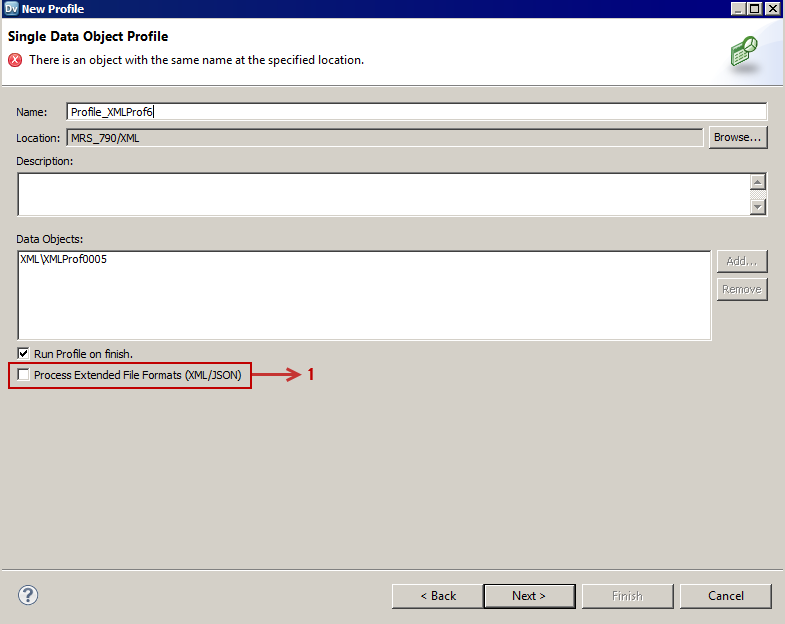
5. Select Process Extended File Formats (XML/JSON) option. Click Next.
The following image displays the New Profile wizard where you must select the Process Extended File Formats (XML/JSON) option. This option must be selected to process data sources in JSON or XML format to create a profile.
6. In the Single Data Object Profile page, select the columns and options under Column Selection and Data Domain Discovery as required. Click Finish.
7. Right-click the profile, and select Run Profile.
The profile results appear.