Exception Tasks in the Exceptions Workspace
When you open an exception task, the Exceptions workspace lists the records in the task and displays the options that you can set for the task. The task opens on the Data Editing tab. The tab displays a common set of options for correct exceptions tasks and review exceptions tasks.
The Analyst tool highlights the data fields that contain the unresolved data quality issues. Examine the records, and update any field that you identify as an error in a record. When you finish work on a record, update the record status. When you finish work on all of the records in the task, update the task status to indicate that the records are ready for the next stage in the workflow.
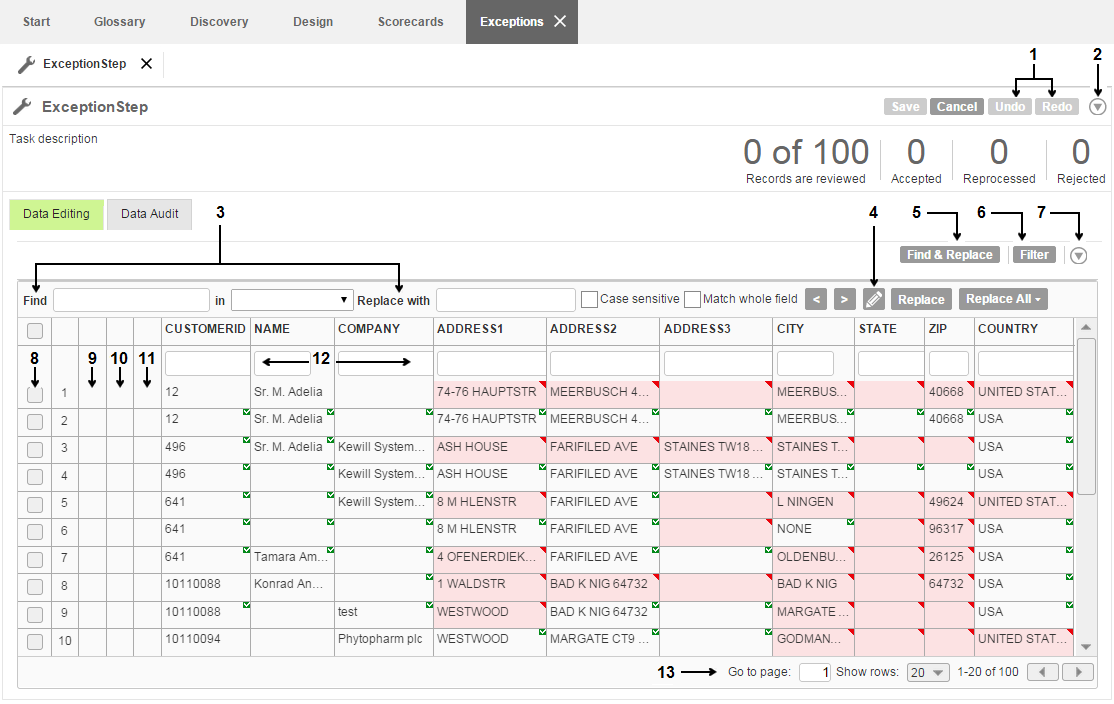
The following image shows the Data Editing tab when you open a task that contains exception records in edit mode:
Use the following options when you work on the task:
- 1. Undo and redo options
Undo the most recent update to the data or the metadata in the task. Redo any update that you chose to undo.
You cannot undo a find and replace operation that you perform on all of the pages in the task.
- 2. Task actions menu
Perform actions on the current task. Export the task data, or send the task to the next step in the workflow.
- 3. Find and replace options
Find and replace the data values that match the strings that you enter.
- 4. Highlighter
View the records that do not use a status indicator.
- 5. Find and Replace
Show or hide the options to find and replace data values in the exception records.
- 6. Record filter options
Show or hide the records in the task based on the status of the records.
- 7. Record actions menu
Update the status of the records that you select. For example, accept the record, reject the record, or clear the record status.
- 8. Record selector
Select the records that a record action applies to.
- 9. Note column
Read the note that the task owner added to the record.
- 10. Record status column
View a status indicator for the most recent action that the task owner performed on the record.
- 11. Record review status column
View a status indicator for the most recent status that the task owner defined for the record.
- 12. Data filter options
Show the records in the task that contain the strings that you enter.
- 13. Navigation options
Move to different pages in the task.