Task Performer Operations
The workflow developer selects the task performers who can work on the instances of a Human task. To view the list of task instances that you can work on, open the My Tasks view.
You can perform the following operations in the My Tasks view:
- View the contents of a task
- View the records or the clusters in a task. The task contents appear in the Exceptions workspace.
- Open a task
- Opens a task to review and edit the records. When you open the task, you become the task owner. Other task performers cannot open a task that you own.
- Release a task
- Release a task that you own. The task that you release has no owner until the business administrator assigns an owner or another user opens the task.
- You can release a task at any time. You do not need to complete work on a task to release the task.
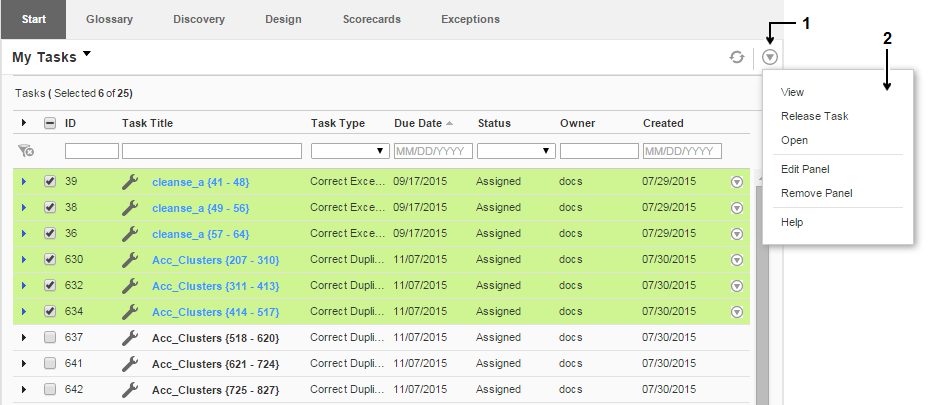
The following image shows the My Tasks view in the Start workspace:
Use the following options to work on tasks:
- 1. Task menu icon.
- 2. Task menu options.
You can view, open, and release multiple tasks in a single operation.
Viewing Tasks
When you view a task, you open the task in read-only mode. As a task performer, you can view the contents of a task that has no owner. A business administrator can view the contents of any task on the Task Administration view.
You can open multiple tasks in read-only mode in a single operation. Each task opens on a separate tab in the Exceptions workspace. Use the task check boxes to select the tasks.
1. On the Start workspace, open the My Tasks view.
2. Select one or more tasks.
Note: Do not click the task name. When you click a task name, you open the task and claim ownership of the task.
3. From the task menu, select View.
The tasks that you select open in the Exceptions workspace.
Opening a Task
Open a task to work on the task data. When you open a task, you claim ownership of the task. Other task performers cannot edit a task that you own.
You can open multiple tasks in a single operation. Each task opens on a separate tab in the Exceptions workspace. Use the task check boxes to select the tasks.
1. On the Start workspace, open the My Tasks view.
2. To open a single task, click the task name.
Or, select one or more tasks.
3. From the task menu, select Open.
The tasks that you select open in the Exceptions workspace.
Releasing a Task
When you release a task, you no longer own the task. Another user can claim ownership of the task, or a business administrator can assign the task to another user. The task saves any work that you performed on the task data.
You can open release multiple tasks in a single operation. Use the task check boxes to select the tasks. A business administrator can release any task on the Task Administration view.
1. On the Start workspace, open the My Tasks view.
2. Select one or more tasks.
3. From the task menu, select Release Task.
The Analyst tool updates the task list to indicate that the tasks have no owner.