Business Administrator Operations
The workflow developer might select you as a business administrator for the task instances that a workflow generates. To view the list of task instances that you administer, open the Task Administration view.
As a business administrator, you can assign tasks to users, view the work that the users perform, and move tasks to the next stage in the workflow. You can also claim ownership of tasks and update task data in the same manner as a task performer. The Task Administration view displays the list of tasks that you manage and own.
You can perform the following operations in the Task Administration view:
- View tasks and open tasks that you own
- View the data in any task, and open any task that you own. Take ownership of a task that does not have an owner.
- Reassign tasks
- Reassign a task from one user to another user if the current user cannot complete the task on schedule.
- Review the work that a user performed in a task
- Use the task summary data to measure the rate of user progress in a task.
- View a list of the tasks that have a common parent task
- View a list of the tasks that originate from the same Human task as the task that you select.
- Complete multiple tasks in a single operation
- Complete all of the tasks that originate from the same Human task as the task that you select. When you complete the tasks, the task data moves to the next stage in the workflow.
You can view and reassign multiple tasks in a single operation.
Assigning a Task to a User
Assign a task when the task has no owner, or assign a task to another user or group when the current user cannot complete the task.
You can assign multiple tasks in a single operation. Use the task check boxes to select the tasks.
1. Open the Task Administration view.
2. Select one or more tasks from the task list.
3. From the task menu, select Reassign Tasks.
4. Select a user or group name.
Use the filter to find a user or group.
5. Optionally, enter a comment.
6. Click Assign.
The Task Administration view updates the records to show the task owner that you selected.
Viewing the List of Task Instances in a Human Task
You can view a list of the task instances that a workflow generates for a Human task.
Note: When you review the list of task instances, do not click OK. If you click OK, you move the data that the tasks specify to the next stage in the workflow.
1. Open the Task Administration view.
2. Select a task from the task list.
3. From the task menu, select Complete Linked Tasks.
4. Review the list of tasks.
The task list displays the following information for each task:
- - Task ID.
The unique identifier of the task instance within the Human task.
- - Task title.
The name of the task that appears in the Task Administration view.
- - Task type.
The type of task that the Human task generated. A task might be a correct exceptions task, a review exceptions task, a correct duplicates task, or a review duplicates task.
- - Task owner
The name of the user who owns the task.
- - Due date
The date by which the user must complete the task.
- - Status
The ownership status of the task. Before a user claims a task, the task status is Created. When a user claims a task, or when you assign a task to a user, the task status is Assigned.
- - Created.
The date on which the workflow that created the tasks ran.
5. Click Cancel.
To move the task data to the next stage in the workflow, click OK.
Task Summary Data
You can read summary data for any task that you view or open in the Exceptions workspace. Use the summary data to measure the progress that a user makes in a task.
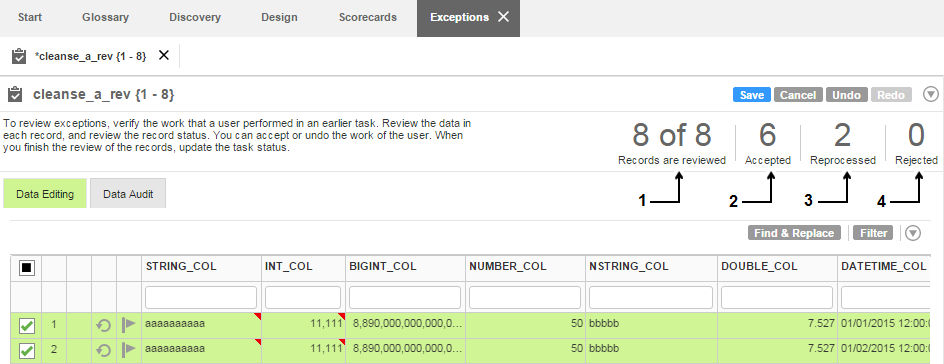
A duplicate record task displays the number of clusters in the task and the number of clusters that are reviewed. An exception record task displays the number of records in the task and the number of records that include a status indicator.
The following image shows the summary data for an exception record task:
The task contains the following summary data values:
- 1. The number of records that the user reviewed and the total number of records in the task.
- 2. The number of records that the user accepted as valid for storage with the business data.
- 3. The number of records that the user selected for further analysis.
- 4. The number of records that the user rejected as not valid for storage with the business data.
Reviewing User Progress in a Task
To measure the progress that a user makes in a task, review the summary data.
1. On the Start workspace, open the Task Administration view.
2. Select a task.
The task opens in the Exceptions workspace.
3. Review the summary data for the task.
Multiple Task Completion
You can identify all of the task instances that originate from a single Human task and complete the task instances in a single operation.
When all of the task instances for a Human task are complete, the records in the tasks move to the next stage in the workflow. The Analyst tool removes the tasks from the users who worked on the tasks. You do not update any record data or status data when you complete the tasks.
You might decide to complete the tasks in the following cases:
- •The workflow failed, and you want to run the workflow again.
- •The users cannot finish the task instances on time.
Completing Multiple Tasks
To complete all task instances for a Human task, select any task instance from the Human task.
1. Open the Task Administration view.
2. Select a task from the task list.
3. From the task menu, select Complete Linked Tasks.
The Complete Linked Tasks dialog box displays the list of the task instances that originate from the same Human task as the task that you select.
4. Optionally, enter a comment.
5. Click OK.
The tasks are complete. The task data moves to the next stage in the workflow.
If you open the Inbox after you complete the tasks, the Inbox might not display any change to the task list. To view the current list of tasks in the Inbox, refresh the Inbox.