Task 1. Create and Run a Default Profile
In this task, you create a default profile for all columns in the data object and use default sampling and drilldown options.
1. Click New > Profile.
The New Profile wizard appears in the Discovery workspace. The Single source option is selected by default.
2. Click Next.
3. In the Specify General Properties screen, enter a name and an optional description for the profile.
4. In the Location field, select the project or folder where you want to create the profile. Click Next.
5. In the Select Source screen, click Choose. Navigate to LA_Customers in the Choose Data Object dialog box. Click OK.
6. Click Next.
7. In the Specify Settings screen, the following options are selected by default:
- - Run column profile
- - All rows in the Run profile on pane
- - Live in the Drilldown pane
- - Native connection in the Select Connection Type pane.
8. Click Next.
9. In the Specify Rules and Filters screen, click Save and Run to create and run the profile.
The Analyst tool creates the profile and the profile results appear in the summary view.
Column Profile Results
You can view the column profile results in the summary view and detailed view.
Summary View
The summary of profile results appear in a grid format in the summary view. You can use the default filters in the summary view to view specific statistics. For example, when you choose Rules, the summary view displays all the rules in the profile.
The following image shows a sample graphical view of summary view:
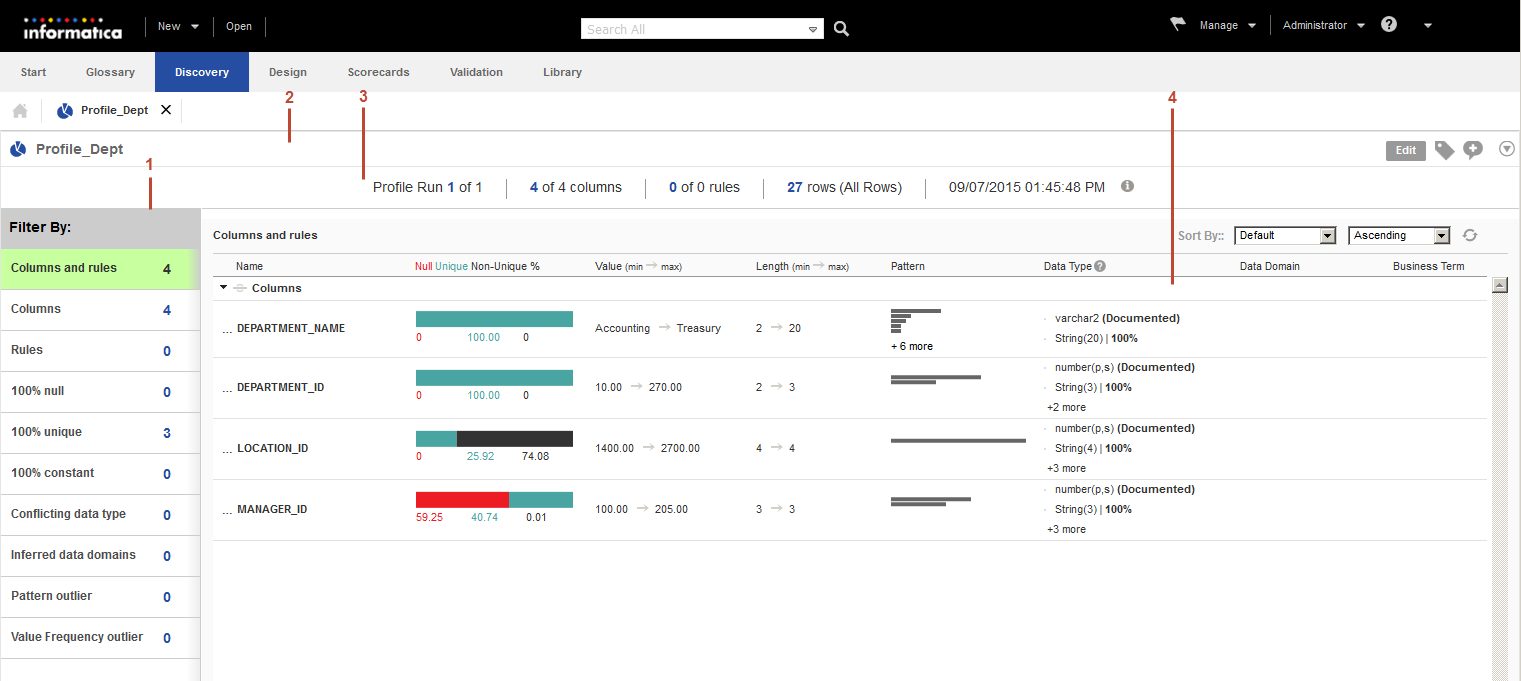
- 1. Default filters. You can view the profile results in the summary view based on the default filters.
- 2. Profile header. You can view the profile name in the header. You can use the Edit button to edit the profile, use the edit icons to add or edit tags and comments, and choose the options from the Actions menu.
- 3. Summary view header. You can view profile-specific information in the summary view header. You can view the profile run number, total number of profile runs, number of columns and rules, and the number of rows in the profile.
- 4. Summary view. You can view the properties for all the columns and rules in the profile.
Summary View Properties
The summary view displays the properties for all the columns and rules in a profile. The summary view includes a visual representation of the properties. You can click each summary property to sort the values of the property.
The following table describes the profile results summary properties:
Property | Description |
|---|
Name | Displays the name of the column or rule in the profile. |
Null Unique Non-unique % | Displays the null values, unique values, and non-unique values in percentages for a column or rule output. You can view the values in a horizontal bar chart. |
Property | Description |
|---|
Pattern | Displays the multiple patterns in the column as horizontal bar charts. You can view the pattern characters and the number of similar patterns in a column as a percentage when you hover the mouse over the bar chart. |
Value | Displays the minimum and maximum values in the column or rule output. |
Length | Displays the minimum and maximum length of the values in the column or rule output. |
Data Type | Displays the documented data type of the column or rule. Displays the inferred data types when you hover the mouse over the field. The Analyst tool can infer the following data types: - - String
- - Varchar
- - Decimal
- - Integer
- - "-" for Nulls
You can also view the percentage of conformance based on the inferred data types. Note: The Analyst tool cannot derive the data type from the values of a numeric column that has a precision greater than 38. The Analyst tool cannot derive the data type from the values of a string column that has a precision greater than 255. If you have a date column on which you create a column profile with a year value earlier than 1800, the inferred data type might show up as fixed length string. Change the default value for the year-minimum parameter in the InferDateTimeConfig.xml, as required. |
Data Domain | Displays the names of the data domains associated with the column or rule and the percentages of conformance. |
Business Term | Displays the business term assigned to the column. |
Detailed View
Column results appear in the detailed view. You can view the column properties in detail.
The detailed view for a column appears after you click on the column in summary view.
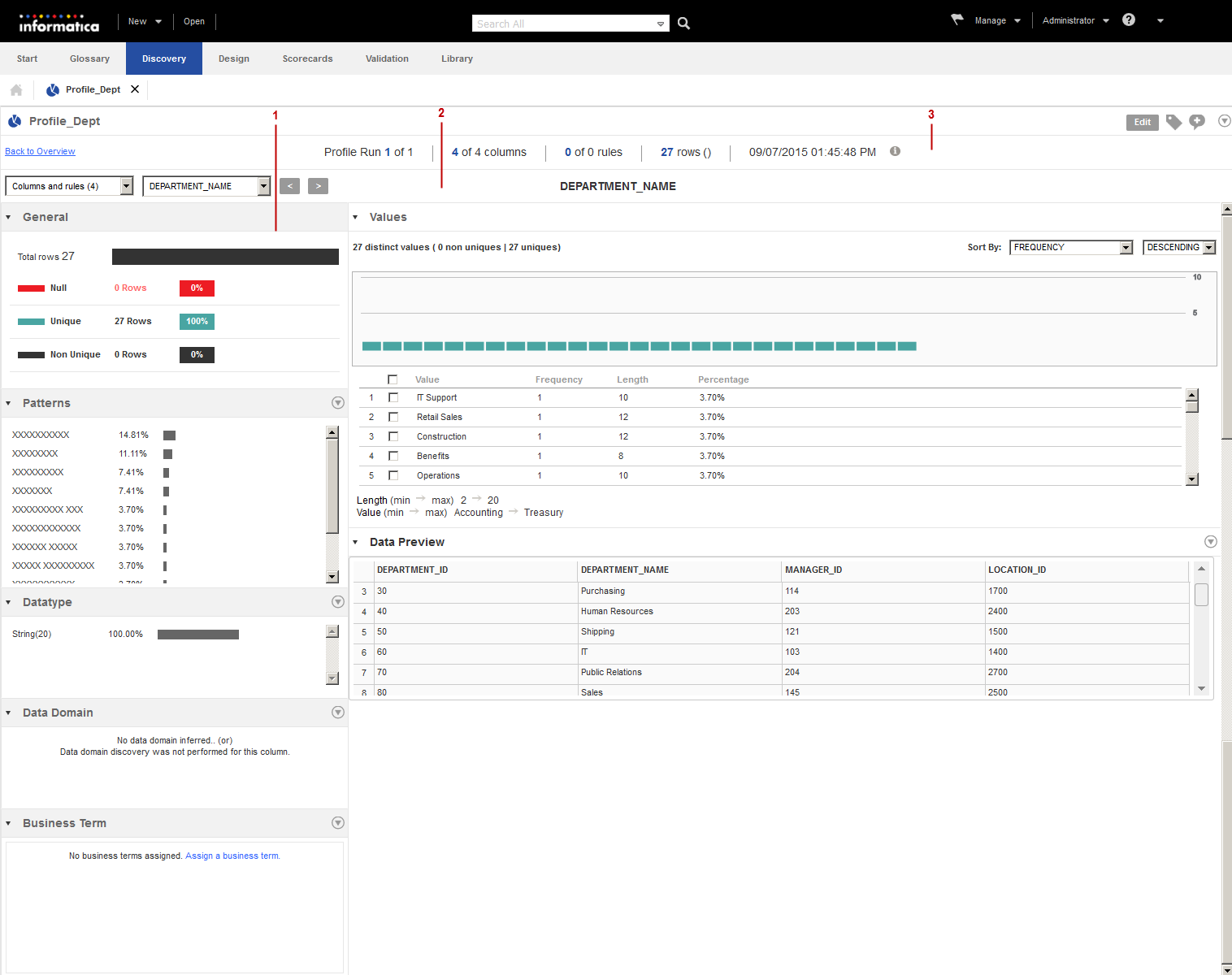
The following image shows a sample graphical view of column properties in detailed view:
- 1. Panes. You can view general properties, values in the column, data preview, inferred patterns, inferred data types, inferred data domains, and business terms in panes.
- 2. Profile header. You can view column results by selecting the column in the dropdown list or by using the navigation buttons.
- 3. Summary view header. You can view profile specific information in the summary view header. You can view the profile run, number of columns, rules, and rows in the profile run, and the time and date of the profile run.
Use the Actions menu in each pane to perform further actions on the column properties. You can collapse or expand the panes.
Detailed View Panes
The detailed view displays the column properties, such as the number and percentage of unique, non-unique, and null values, patterns, inferred data types, inferred data domains, values, data preview, and linked business terms in panes.
When you can click the column or rule, the detailed view for the column or rule opens.
The following table describes the panes in detailed view:
Panes | Description |
|---|
General | Displays the number of rows with null values, unique values, and non-unique values in different colors. You can view the values in percentages. You can view the increase and decrease of the general values in every consecutive profile run as a sparkline. A sparkline displays the variation in a value that is, null value, unique value, or non-unique value across the latest five consecutive profile runs in a line chart. You can view specific results when you hover the mouse over the sparkline. |
Patterns | Displays the patterns for the column values. The frequency in which the patterns appear in a column appears as a horizontal bar chart and in percentages. You can drill-down, add a pattern to a reference table, or create a data domain with the selected pattern. |
Data type | Displays the inferred data types for the column. The frequency of the data types in a column appears as a horizontal bar chart and in percentages. You can drill-down, approve, reject, or reset the selected inferred data type. The Show Rejected option displays rejected inferred data types. |
Data Domain | Displays the inferred data domains for the column. You can drill-down on a data domain for valid, invalid, or null values. You can approve, reject, or reset the data domain value. The Show Rejected option displays rejected data domains. You can verify the data domain value. |
Business Term | Displays the assigned business term for the column. You can assign or unassign a business term to a column. |
Values | Displays all the values in the column in a graphical representation along with the frequency, length, and percentage. You can drill-down on each value. You can add the value to a reference table, create a value frequency rule, and create a data domain. |
Data Preview | Displays the drill-down data for the selected pattern, data type, data domain, or value. |