Actions
An action specifies the output from a rule statement. An action generates an output value when the conditions in the rule statement validate an input value.
Configure an action to generate an output in one of the following ways:
- Return a value that you enter.
- Configure an action to return a data value that you specify.
- For example, you might configure an action to return the word VALID when the input data matches a reference data value.
- Return a value from an input column.
- Configure an action to return a data value from an input in the rule specification. The action reads the data value on the corresponding row of the input that you select.
- For example, a business might define a rule that requires all product records to use Quick Response (QR) codes in place of bar codes. You configure an action to replace an input column of bar code values with a corresponding column of QR code values.
- Return a value from a reference table.
- Configure an action to return a data value from a reference table. The action compares the input data to the values in the reference table that you specify. If the action finds the input data in the reference table, the action returns the reference data value that corresponds to the input data.
- For example, you might configure an action to compare first name data to a reference table that identifies the gender of the first name. The action might read the word "JOHN" from the input data and return the word "MALE" from the reference table.
- Return a value that you enter when an input data value matches a reference table value.
- Configure an action to return a data value from a reference table. The action compares the input data to the values in the reference table that you specify. If the action finds the input data in the reference table, the action returns the string that you entered. if the action does not find the input data in the reference table, the action returns the input value.
- For example, you might configure an action to compare employee code data to a reference table that contains the valid employee codes in an organization. You define a function that returns the word "VALID" when an employee code matches a value in the reference table. If the function does not find an employee code in the reference table, the action returns the employee code from the input column.
Note: The action returns a data value for all records that satisfy the condition in the rule statement.
- Return the current date and time.
- Configure an action to return the system date and time to nanosecond precision from the Data Integration Service host machine. The rule statement returns the date and time values in a date/time data type. You must specify the format for the date and time.
- Remove data values from the input data.
- Configure an action to remove a data value that you specify.
- For example, the input data might include a product name that the business no longer uses. Configure the action to return a version of the input data that omits the product name.
- Remove reference data values from the data.
- Configure an action to remove reference data values from an input.
- The action compares the input data to the values in a reference table that you specify. If the action finds an input data value in the reference table, the action returns a version of the input without the data value.
- For example, you might configure an action to compare an input string to a reference table of salutation terms. The action might read the input string "MR JOHN SMITH" and return the string "JOHN SMITH" as the output.
- Remove character spaces from the input data.
- Configure an action to delete character spaces from the input data. Remove character spaces when the input data includes redundant character spaces.
- For example, you might configure an action to remove character spaces from the following telephone number:
212 555 1234
- Use a function expression to determine the output value.
- Configure an action to apply a function expression to the input data.
- For example, you might configure the action to return the character length of the input data.
- Merge values from multiple inputs.
- Configure an action to merge data from two or more inputs.
- For example, you might configure an action to merge a column of first name data and a column of second name data. The action returns a single field that contains the first name and second name.
- Change the character case of the input data.
- Configure an action to convert the character case of an input that you select.
- For example, a rule statement might read a data set that stores data values in sentence case. Configure an action to return the data in uppercase.
- Apply a mapplet to the input data.
- Configure an action to apply a mapplet to the input data and to return the mapplet output. Select the input from the rule specification, or enter a constant value as the mapplet input. Select the mapplet from the Model repository.
- A mapplet might represent a set of operations that the organization approves for use in for business rules. Or, a mapplet might contain transformation logic that you cannot define in the other options in the rule statement.
Function Configuration in Actions
You can configure the data operation in an action as a function expression. You can also select a function expression from a list of expressions in the rule specification. Use the function options in the action to configure or select the expression.
You can use the function options as an alternative to the inline action options that the rule statement displays in the workspace. You can also use the function options to configure an action that reads multiple inputs or that reads an asset from the Model repository.
To configure an expression, select the function option from the action menu. When you select the field, you open the Define Action dialog box.
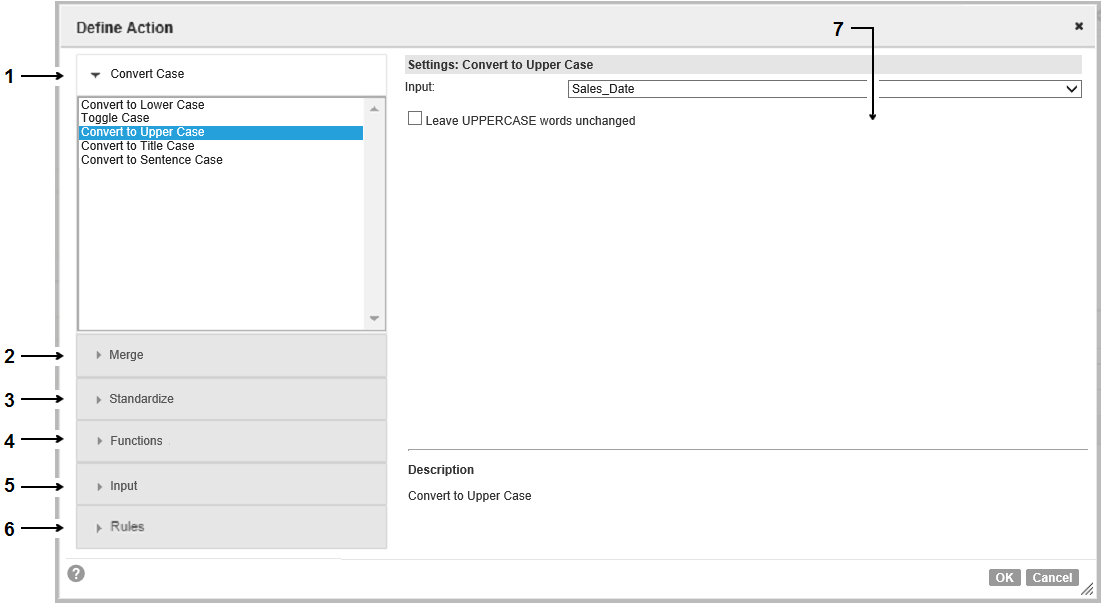
The following image shows the Define Action dialog box:
The dialog box contains the following options:
- 1. Convert Case
Use the Convert Case options to change the character case of the input data values.
- 2. Merge
Use the Merge options to return data values from multiple inputs as a single output.
- 3. Standardization
Use the Standardization options to update a copy of the input data value and to return the copy. You can configure a standardization function to remove characters, to return a value from a reference table, or to return a value that you specify.
- 4. Function
Use the Function options to apply a function expression to the input that you select and to return the output of the expression.
- 5. Input
Use the Input options to return a data value. You can specify a constant value, or you can select an input. If you select an input, the action returns the value in the input column on the same row as the condition input.
- 6. Rules
Use the Rules options to return the output of a mapplet that you select.
- 7. Configurable options for the operation
Use the options to configure the action.