Configure Saved Searches for Quick Links
You can configure the saved searches to make them appear as a quick link button on the Unison search page. You can view the quick link button even if you do not log in to Axon.
You must have the Admin or Super Admin profile to perform this task.
Note: Informatica recommends that you create and save searches from Unison search instead of the Admin Panel. For more information, see the Saving and Sharing Searches topic in the Search and View Objects chapter of the Axon Data Governance 7.3 User Guide
1. From the Axon toolbar, click the Admin Panel menu item under your user name.
2. In the menu on the left, under the Customize & Configure category, click Application Settings.
3. In the Application Settings page, click the Quick Links option.
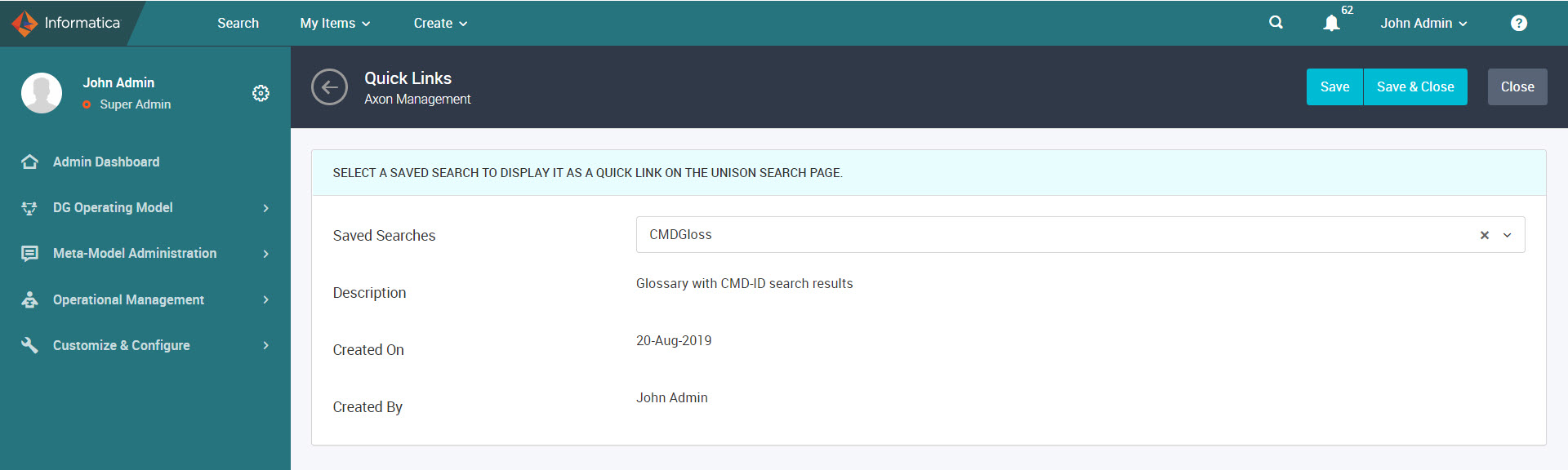
4. On the Quick Links page, select a saved search that you want to display as a quick link button on the Unison search page.
After you select a saved search, you can view the description of the search, the date the search was created, and the user who created the search.
To delete a selected search, you click the x icon next to the name of the selected search.
5. Click Save.
After you save the changes, the name of the selected search appears as a quick link button on the Unison page.