Running the Installer
Perform the following steps to run the installer:
- 1. Log in to the machine with a system user account.
- 2. Close all other applications
- 3. On a shell command, run the install.sh command from the root directory as shown in the following sample:
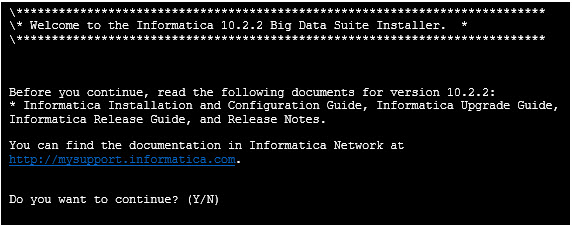
The Informatica Big Data Suite Installer starts as shown in the following sample:
- 4. Press Y to continue.
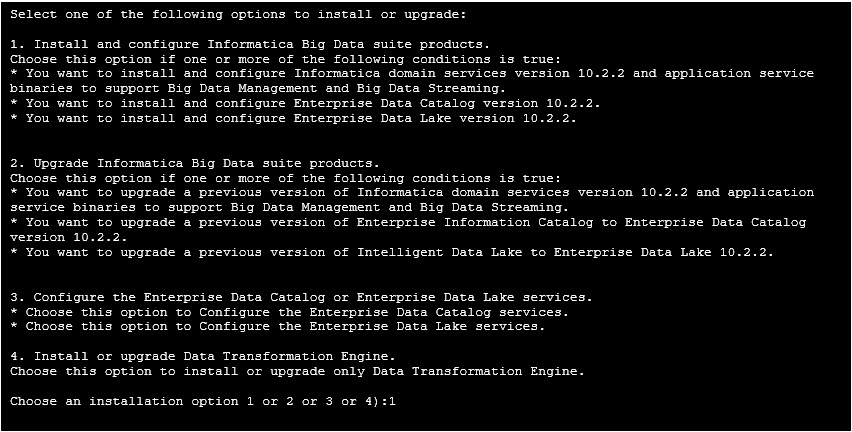
The installer verifies the operating system version installed on the machine for compatibility. If the operating system is compatible, the installer displays the following options:
- 5. Press 1 to select the option to install Informatica Big Data suite products.
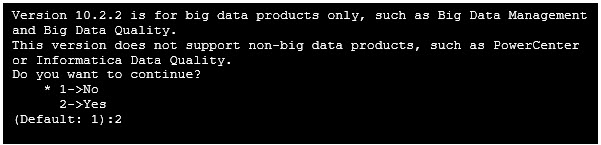
The following options appear:
- 6. Press 1 to run the Pre-installation System Check tool. The tool verifies if your machine meets the minimum system requirements to install or upgrade Informatica.
Note: You can skip this step if you are sure that your machine meets the minimum system requirements to install or upgrade Informatica.
- 7. Press 3 to install Informatica.
- 8. Press 2 to agree to the terms and conditions of the installation or upgrade.
The following options appear:
- 9. Press 2 to continue.
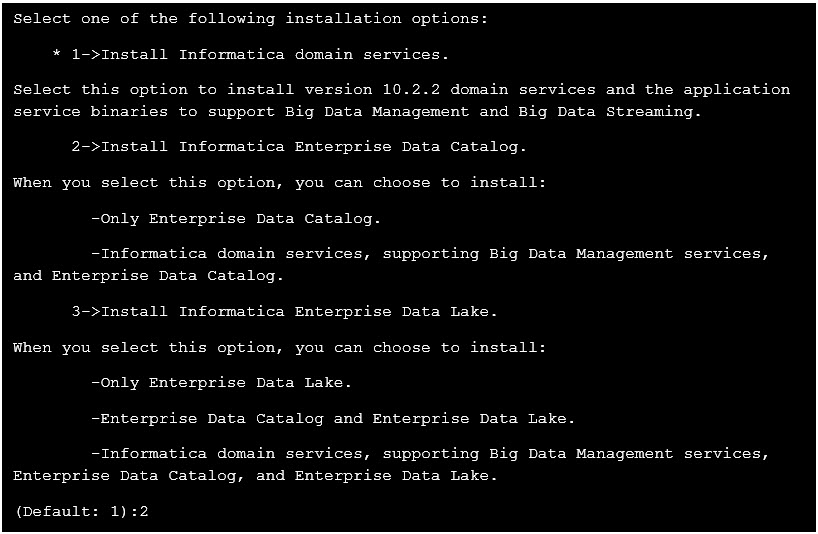
The following options appear:
- 10. Press 2 to install Informatica Services with Enterprise Data Catalog.
The installer prompts you to confirm that the current version of the Informatica Services is installed.
- 11. Press 1 if you do not have the current version of the Informatica Services installed, else, press 2.
Proceed to the next section to select whether you want to install Enterprise Data Catalog in an embedded cluster or an existing cluster.