A Deduplicate asset contains options on a Definition tab, a Deduplication tab, and a Consolidation tab.
Use the Definition tab options to enter a name for the asset, optionally enter a description for the asset, and select the folder in which to store the asset. Use the Deduplication tab options to configure the type of identity analysis that a mapping will perform. Optionally, use the Consolidation options to configure the strategy that the mapping will apply to the discrete sets of duplicate records that arise from the identity analysis.
Deduplication tab options
Use the options on the Deduplication tab to configure the type of duplicate analysis that a mapping will perform. The Deduplication tab includes the Configuration, Advanced Options and the Test Data panels.
Configuration panel
Use the Configuration panel to configure the type of duplicate analysis that a mapping will perform.
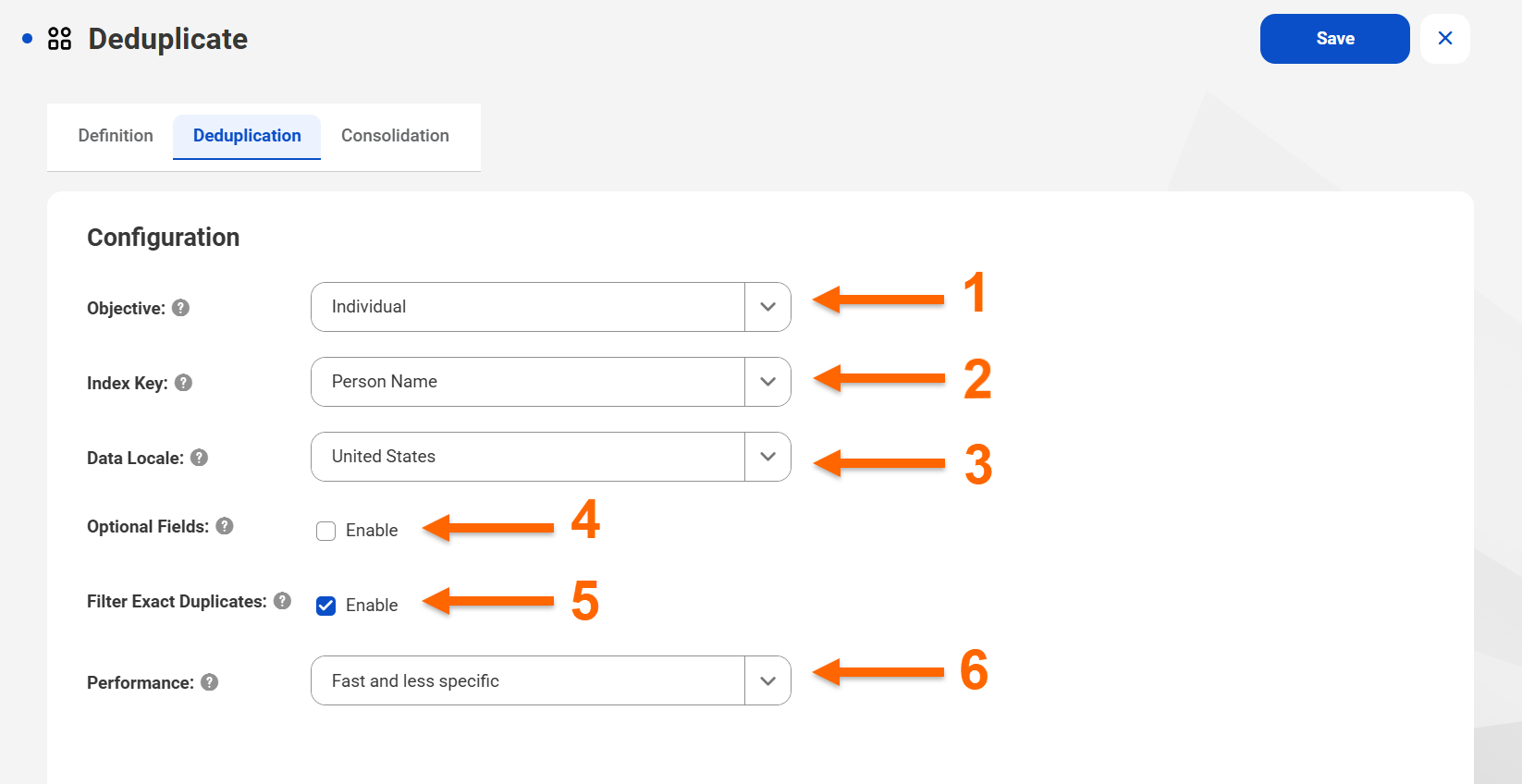
The following image shows the Configuration panel on the Deduplication tab:
The Configuration panel includes the following options:
1Objective. Identifies the type of information that the asset will prioritize when it compares the input records to each other. For more information about the objectives that you can configure, see Deduplication objectives.
2Index Key. Identifies the type of information that the asset will use to create an index of the input records.
3Data Locale. Identifies the county or region for which the Deduplicate transformation loads identity population reference data.
4Optional Fields. Enables the deduplicate analysis to consider additional fields at run time. This field is disabled by default.
5Filter Exact Duplicates. Determines whether the transformation passes identical records directly to the configuration stage without analysis. This field is disabled by default.
6Performance. Specifies the speed and granularity of duplicate analysis. Fine-grained analysis takes longer to perform. To enable advanced options, select Custom.
Advanced Options panel
Use the Advanced Options panel to review or update the performance criteria that the Deduplicate transformation defines for duplicate analysis at run time.
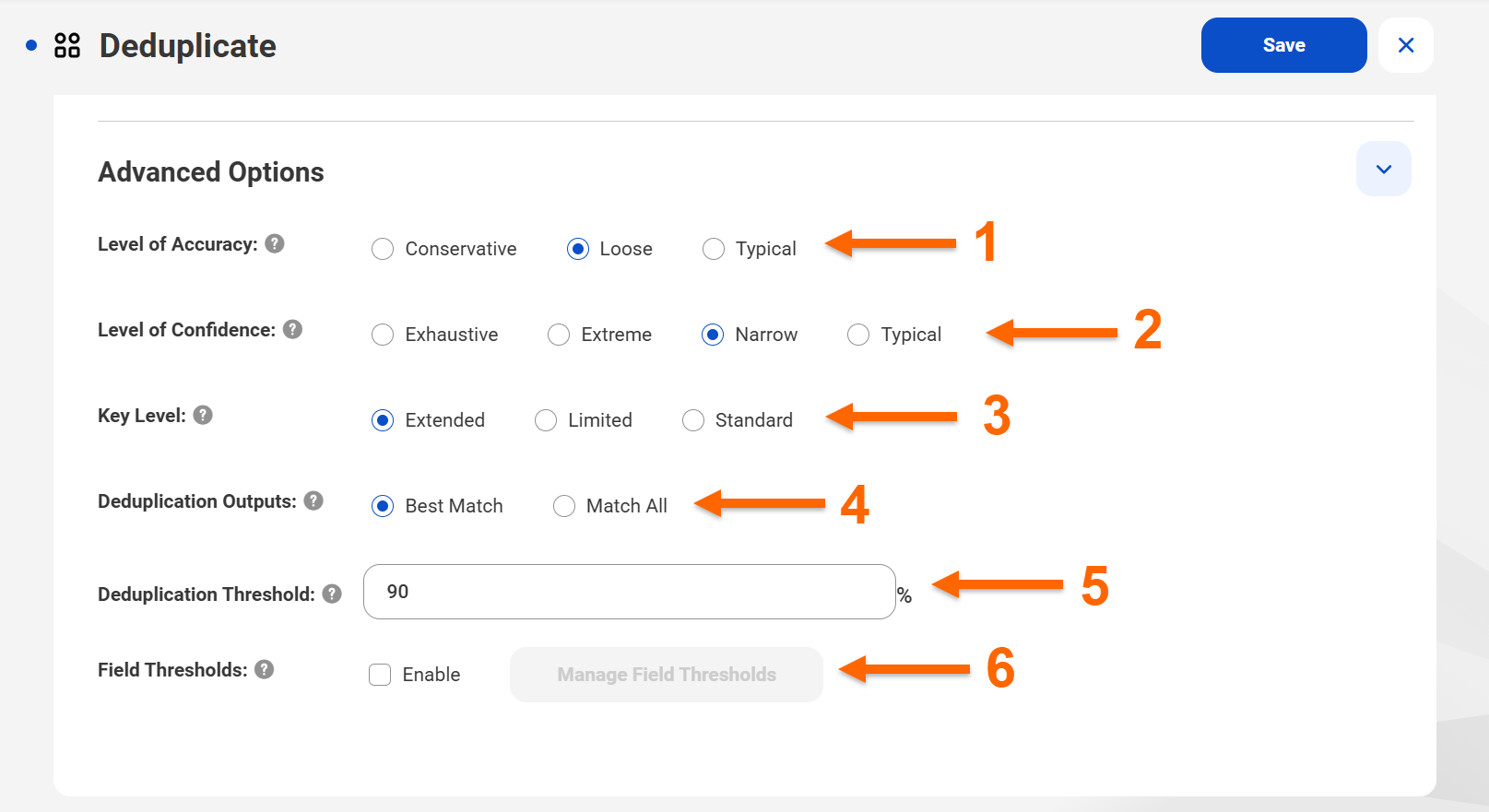
The following image shows the Advanced Options panel on the Deduplication tab:
1Level of Accuracy. Determines the degree of similarity that must exist between two identities before the deduplication process considers them to be good matches with each other.
You can select one of the following accuracy levels:
- Conservative. Requires a very high degree of similarity.
- Loose. Allows for a wider degree of latitude when evaluating the similarity between identities.
- Typical. Requires a reasonable degree of similarity.
2Level of Confidence. Determines the extent of the differences between data values that the deduplication process will tolerate. The level of confidence represents the level of error tolerance that the deduplication process supports.
You can select one of the following confidence levels:
- Exhaustive. Configures the process to find a broader range of errors than the typical analysis. Mappings with exhaustive confidence may take longer to run.
- Extreme. Configures the process to use every possibility to find a candidate match. Select the extreme level when you have a critical need to find every possible duplicate in the input data. Extreme confidence extends the time that the mapping takes to run.
- Narrow. Configures the process to find a narrow range of errors. Narrow confidence prioritizes mapping speed and may miss some duplicate identities.
- Typical. Configures the process to find common errors and variations in data values. The typical confidence level provides a practical balance between quality and mapping execution time.
3Key Level. Determines the complexity of the index keys that the deduplication process creates.
You can select one of the following key levels:
- Extended. Improves match reliability by finding matches regardless of word order or concatenation. Extended keys increase disk space requirements and result in larger sets of matching candidates.
- Standard. Addresses most variations in word order, missing words, and extra words. They also maximize the likelihood of finding candidate matches in cases of severe spelling errors in multi-word names.
- Limited. A subset of standard keys. Limited keys reduce the use of disk space but may also reduce the reliability of identity search operations.
4Deduplication Outputs. Determines the composition of the clusters of matching records that the transformation creates at run time.
You can select one of the following deduplication outputs:
- Best Match. Creates a cluster that contains only the best match for each record in the cluster.
- Match All. Creates a cluster that contains all records in the input data that match each record in the cluster.
5Deduplication Threshold. Specifies the minimum score between two records that identify the records as plausible duplicates of each other. You can enter a threshold value from 0 through 100.
6Field Thresholds. Enables custom deduplication thresholds for input fields.
You can use the field-level threshold options to change the emphasis on individual fields within a deduplication process and deliver results that are fine-tuned to your current deduplication project.
To set the thresholds, click Manage Field Thresholds. In the Manage Field Thresholdes dialog box, you can configure a unique threshold value for each input field. You can enter a threshold value from 0 through 100.
Test Data panel
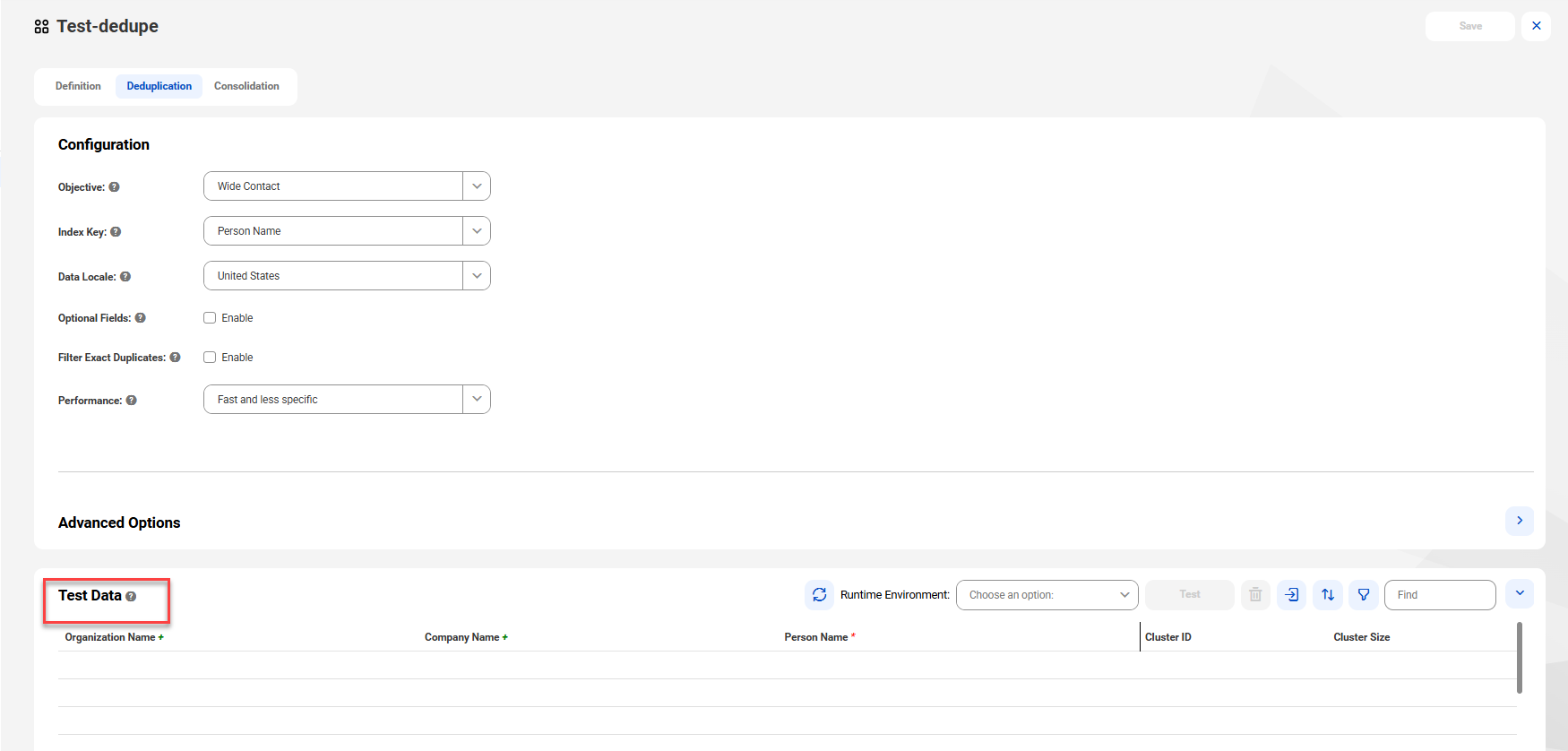
Use the Test Data panel to see the fields for which the asset expects data, based on the objective that you select.
The following image shows the Test Data panel:
Each field appears as a column name. To test the similarity between data records, enter two or more rows of data. Populate at a minimum each mandatory field and one or more of any required fields that the asset specifies for the current objective.
The panel also includes a Runtime Environment option and options to search, sort, and filter the test data. Use the Runtime Environment option to specify a Secure Agent.
Consolidation tab
Use the options on the Consolidation tab to configure the type of consolidation that a mapping will perform.
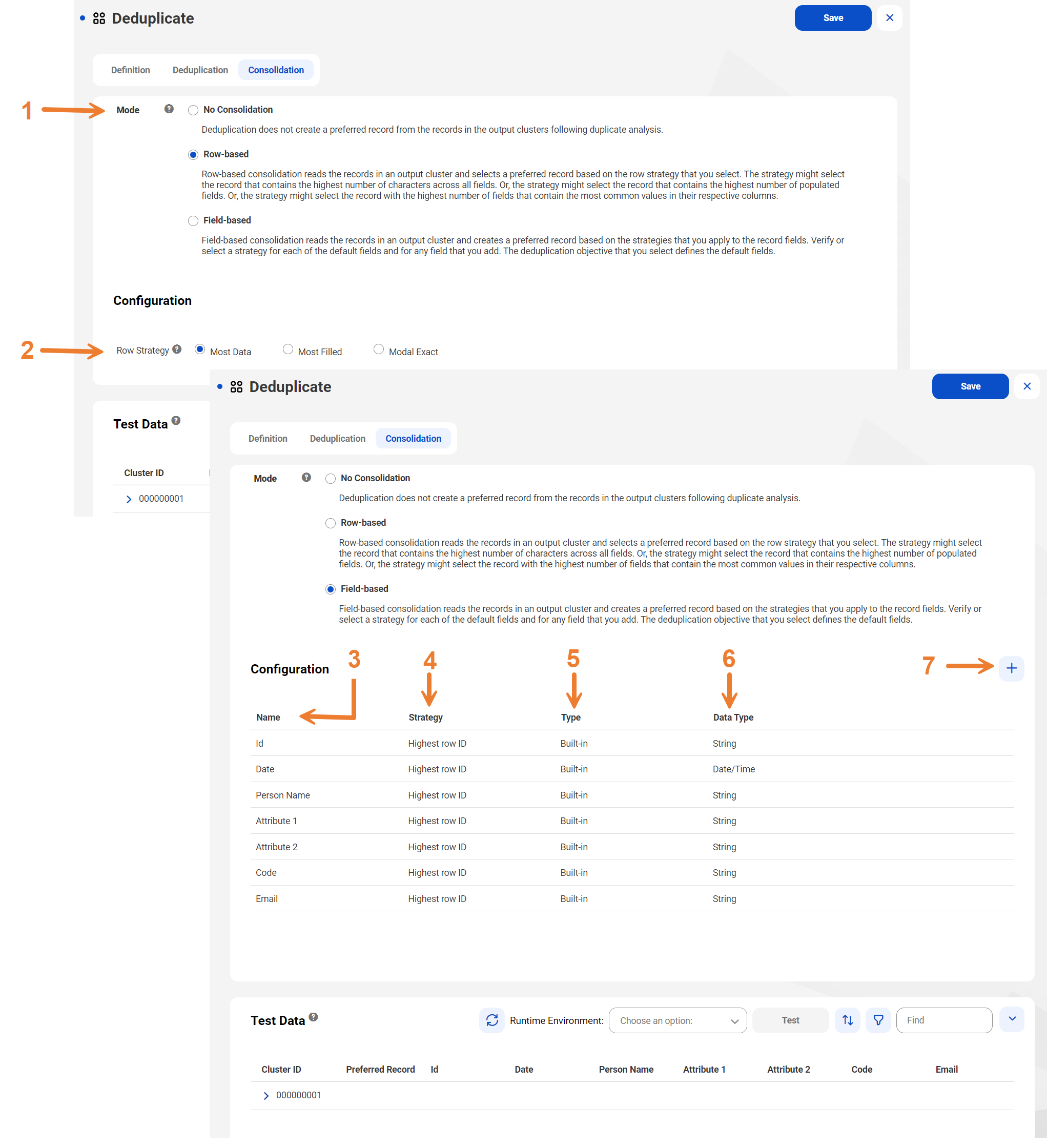
The following image shows the Consolidation tab options:
The Consolidation tab includes the following options:
1Consolidation mode.
Identifies the type of consolidation that the Deduplicate transformation will perform when the mapping runs. The type that you select determines how the transformation selects the preferred record in each set of duplicate records.
Choose the row-based option to select a preferred record based on the quantity of data in the identity fields. Choose the field-based to build a preferred record from the data values across one or more records. You can also choose not to consolidate the duplicate record sets.
2Row strategy.
Determines how the transformation will select the preferred record when you choose the row-based consolidation mode.
Choose Most Data to specify the record with the greatest number of characters as the preferred record. Choose Most Filled to specify the row with the highest number of populated fields. Choose Modal Exact to select the record with the highest number of fields that contain the most common values in their respective columns.
3Field name column.
Lists the fields in the input records that the Deduplicate transformation will read. The field name column is visible when you select the field-based consolidation mode. You can specify a consolidation strategy for each field when you select field-based consolidation.
4Strategy.
Determines how the transformation selects the value in each field for the preferred record when you choose the field-based consolidation mode.
You can select one of the following strategies:
- Highest row ID. Use the value from the record with the highest row ID or sequence ID. Highest row ID is the default strategy.
- Average. Use the average value across the records.
- Longest. Use the longest value in the field across the records.
- Maximum. Use the highest number in the field across the records. Or, choose the last value in alphabetical order.
- Minimum. Use the lowest number in the field across the records. Or, choose the first value in alphabetical order.
- Most frequent. Use the most frequently-occurring value in the field across the records, including blank, empty, or zero-length string fields.
Note:
The consolidation operation will not add a null value to the preferred record.
- Most frequent non-blank. Use the most frequently-occurring value in the field across the records, excluding null, blank, empty, or zero-length string fields.
- Shortest. Use the shortest value in the field across the records.
5Type
Indicates whether the asset created the field during the deduplication operation or whether you added the field to the asset in the Consolidation pane.
6Data Type
Identifies the data type of the field. The default data type on all fields is String. You can modify the data type in field-based consolidation to suit your data requirements.
You can select one of the following data types for a field:
- Date/Time
- Float
- Integer
- String
Note:
If you modify the data type of a field, do not change the mode to No Consolidation or Row-based consolidation without first saving the asset. The asset discards any update that you make to a data type in Field-based consolidation mode if you change to another mode.
7Add field button.
Adds one or more inputs to the consolidation operation when you select the field-based mode.
Add fields in the following cases:
- The identity analysis that you define on the Deduplication tab does not cover all of the fields that the transformation will analyze.
- You want to specify a non-default strategy for the additional fields.
The field-based strategies will apply to every input field that you map to the deduplicate asset in the transformation. If you do not specify a strategy for a field in field-based mode, the transformation applies the default strategy.