Use the expression editor to configure the expression field. The expression can contain constants, variables, built-in functions, and user-defined functions. You can also create a complex expression by nesting functions within functions.
To configure an expression, enter it in the expression editor.
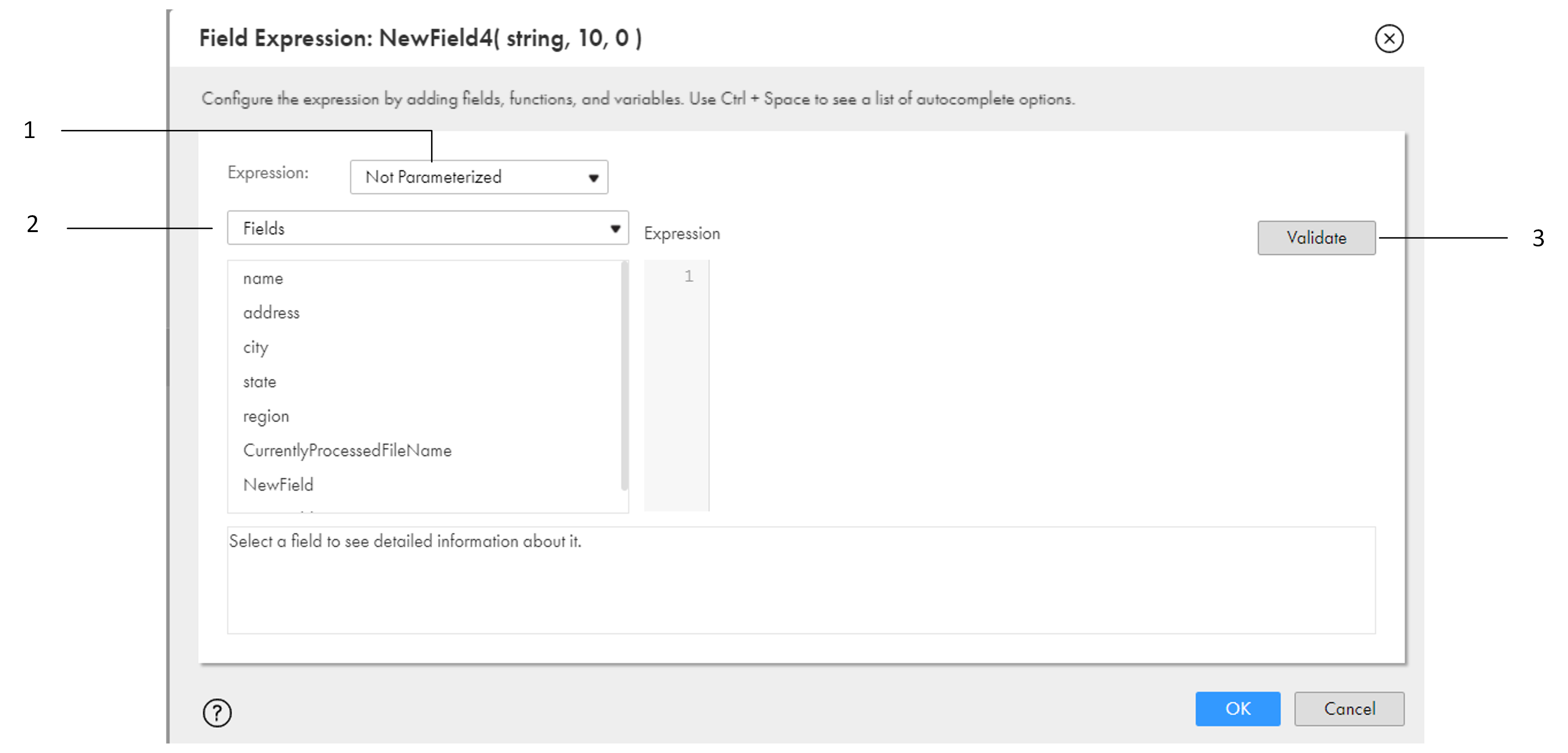
The following image shows the expression editor and the actions you can perform:
1Parameterize the expression.
2Switch between fields, system variables, parameters, built-in functions, and user defined functions.
3Validate the expression.
You can add source fields, functions, and variables to the expression by clicking Add next to the object that you want to use. You can also type in the expression manually.
Alternatively, press the Ctrl + Space keys to see a list of recommended arguments and functions in-line. Data Integration provides recommendations based on the type of function arguments and keystrokes. In-line recommendations are not available for hierarchical source data.
To validate the expression, click Validate. Data Integration validates the expression.
In mappings in SQL ELT mode, the expression editor displays your cloud data warehouse's native functions instead of Informatica transformation language functions. Data Integration doesn't validate the expression. If you enter an invalid expression, the mapping fails at run time.
Transformation language components for expressions
The transformation language includes the following components to create simple or complex expressions:
•Fields. Use the name of a source field to refer to the value of the field.
•Literals. Use numeric or string literals to refer to specific values.
•Functions. Use these SQL-like functions to change data in a task.
•Operators. Use transformation operators to create expressions to perform mathematical computations, combine data, or compare data.
•Constants. Use the predefined constants to reference values that remain constant, such as TRUE.
In mappings in SQL ELT mode, you use your cloud data warehouse's native expression components to create expressions. You don't use the Informatica transformation language to create expressions.
Expression syntax
You can create a simple expression that only contains a field, such as ORDERS, or a numeric literal, such as 10. You can also write complex expressions that include functions nested within functions, or combine different fields using the transformation language operators.
Note:
Although the transformation language is based on standard SQL, there are differences between the two languages.
String and numeric literals
You can include numeric or string literals.
Enclose string literals within single quotation marks. For example:
'Alice Davis'
String literals are case sensitive and can contain any character except a single quotation mark. For example, the following string is not allowed:
'Joan's car'
To return a string containing a single quotation mark, use the CHR function:
'Joan' || CHR(39) || 's car'
Do not use single quotation marks with numeric literals. Just enter the number you want to include. For example:
.05
or
$$Sales_Tax
Adding comments to expressions
You can use the following comment specifiers to insert comments in expressions:
•Two dashes:
-- These are comments
•Two forward slashes:
// These are comments
Data integration tasks ignore all text on a line preceded by comment specifiers. For example, to concatenate two strings, enter the following expression with comments in the middle of the expression:
-- This expression concatenates first and last names for customers: FIRST_NAME -- First names from the CUST table || // Concat symbol LAST_NAME // Last names from the CUST table // Joe Smith Aug 18 1998
Data integration tasks ignore the comments and evaluates the expression as follows:
FIRST_NAME || LAST_NAME
You cannot continue a comment to a new line:
-- This expression concatenates first and last names for customers: FIRST_NAME -- First names from the CUST table || // Concat symbol LAST_NAME // Last names from the CUST table Joe Smith Aug 18 1998
In this case, data integration tasks do not validate the expression because the last line is not a valid expression.
Reserved words
Some keywords, such as constants, operators, and system variables, are reserved for specific functions. These include:
•:EXT
•:INFA
•:LKP
•:MCR
•:SD
•:SEQ
•:SP
•:TD
•AND
•DD_DELETE
•DD_INSERT
•DD_REJECT
•DD_UPDATE
•FALSE
•NOT
•NULL
•OR
•PROC_RESULT
•SPOUTPUT
•TRUE
•WORKFLOWSTARTTIME
The following words are reserved for IDMC:
•ABORTED
•DISABLED
•FAILED
•NOTSTARTED
•STARTED
•STOPPED
•SUCCEEDED
Note:
You cannot use a reserved word to name a field. Reserved words have predefined meanings in expressions.