1Connect the Verifier transformation to a Source transformation or other upstream object.
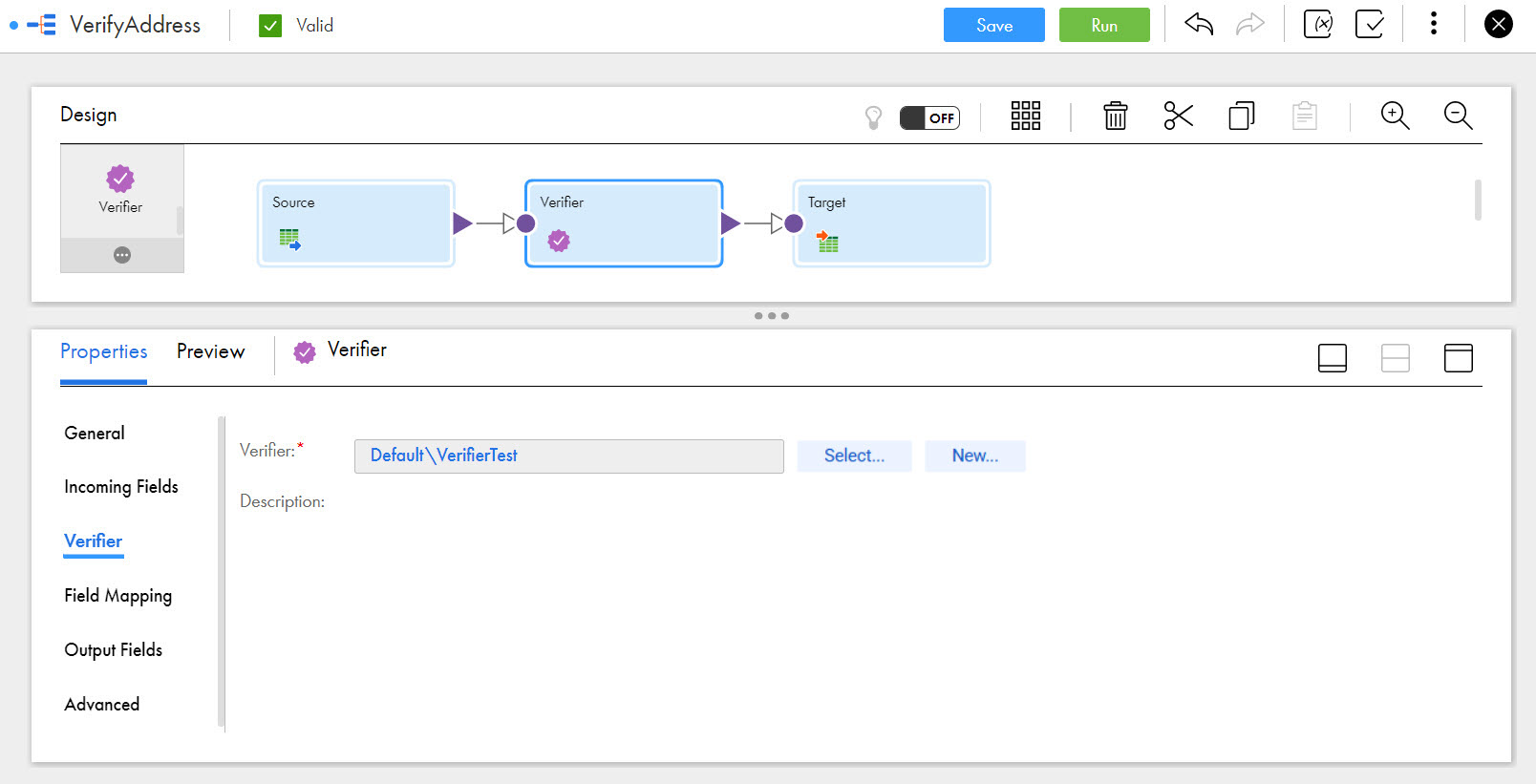
2On the Verifier tab, add a verifier asset using one of the following methods:
- - Select the verifier that you want to include in the transformation.
- - Create a new verifier asset and then select it to add it to the transformation.
For more information about creating a verifier asset, see Data Quality Assets.
The following image shows the options that you use to select the verifier:
3On the Incoming Fields tab, configure the incoming fields.
By default, the transformation inherits all incoming fields from any connected upstream object in the mapping. You can define a field rule to limit or rename the incoming fields.
4On the Field Mapping tab, configure the options to connect the data from incoming fields to the target fields on the verifier asset.
The verifier inputs might already reflect the names of the input fields in the data. If so, you can use the Automap options to connect the fields.
For more information about connecting to upstream object fields, see Verifier transformation field mappings.
5Verify the verifier output fields on the Output Fields tab.
6You can optionally rename the Verifier transformation and add a description on the General tab. You can also update the tracing level for the transformation on the Advanced tab. The default tracing level is Normal.