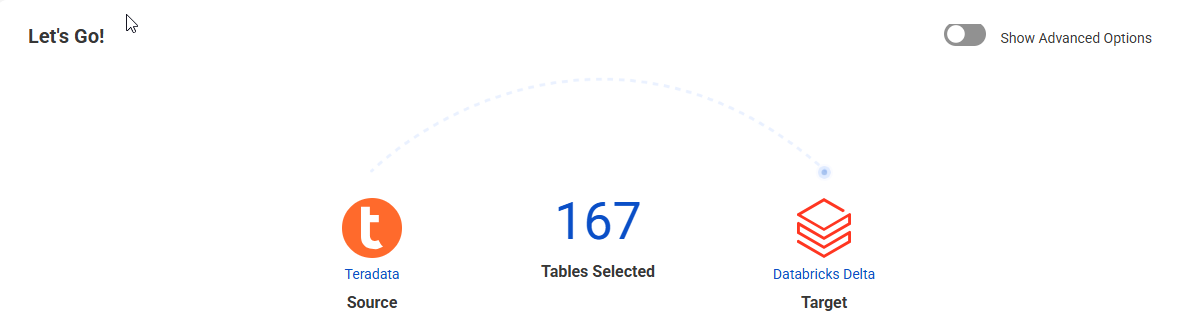
1At the top of the page, view the number of source tables that have been selected for processing:
2Under General Properties, set the following properties:
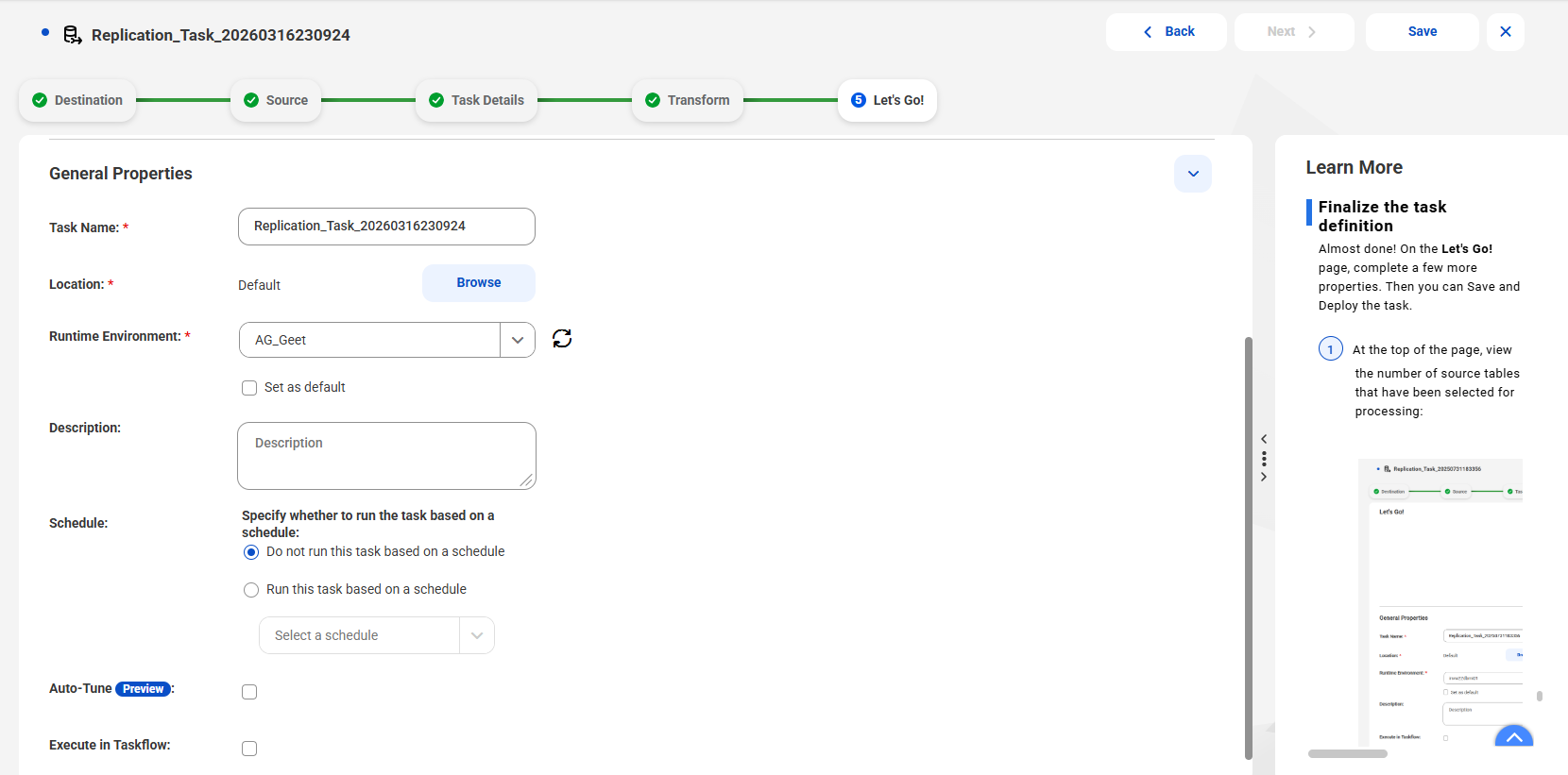
Property | Description |
|---|---|
Task Name | Enter a name that you want to use to identify the database ingestion and replication task, if you do not want to use the generated name. Using a descriptive name will make finding the task easier later. Task names can contain Latin alphanumeric characters, spaces, periods (.), commas (,), underscores (_), plus signs (+), and hyphens (-). Task names cannot include other special characters. Task names are not case sensitive. Maximum length is 50 characters. Note: If you include spaces in the task name, after you deploy the task, the spaces do not appear in the corresponding job name. |
Location | The project or project\folder in Explore that will contain the task definition. If you do not specify a project, the "Default" project is used. |
Runtime Environment | Select the runtime environment that you want to use to run the task. By default, the runtime environment that you initially entered when you began defining the task is displayed. You can use this runtime environment or select another one. Tip: To refresh the list of runtime environments, click Refresh. The runtime environment can be a Secure Agent group that consists of one or more Secure Agents. A Secure Agent is a lightweight program that runs tasks and enables secure communication. Alternatively, for selected cloud source types, you can use a serverless runtime environment hosted on Microsoft Azure. Note: You cannot choose a serverless runtime environment if a local runtime environment was previously selected. The Cloud Hosted Agent is not supported. Select Set as default to use the specified runtime environment as your default environment for all tasks you create. Otherwise, leave this check box cleared. |
Description | Optionally, enter a description you want to use for the task. Maximum length is 4,000 characters. |
Schedule | If you want to run an initial load task based on a schedule instead of manually starting it, select Run this task based on a schedule. Then select a schedule that was previously defined in Administrator. The default option is Do not run this task based on a schedule. Note: This field is not available for incremental load and combined initial and incremental load tasks. To view and edit the schedule options, go to Administrator. If you edit the schedule, the changes will apply to all jobs that use the schedule. If you edit the schedule after deploying the task, you do not need to redeploy the task. If the schedule criteria for running the job is met but the previous job run is still active, Database Ingestion and Replication skips the new job run. |
Auto-Tune | Preview Notice: Effective in the April 2026 release, auto-tuning is available for preview. Select this check box to enable automatic tuning of intial load jobs and the unload phase of combined load jobs to optimize performance. This option tunes selected performance-related parameters that affect reading data from the source and writing data to target. Tuning settings are based on performance and system metrics collected from your environment, including network and database latency, row counts, table sizes, CPU cores, and memory usage. They're also based on application-specific metrics such as JVM heap allocation and task capacity. Note: This option is ignored for tasks that have a MongoDB or Netezza source. |
Execute in Taskflow | Select this check box to make the task available in Data Integration to add to a taskflow as an event source.You can then include transformations in the taskflow to transform the ingested data. Available for initial load and incremental load tasks with Snowflake targets that don't use the Superpipe option. |
3To display advanced properties, toggle on Show Advanced Options.

4In the Number of Rows in Output File field, specify the maximum number of rows that the database ingestion and replication task writes to an output data file, if you do not want to use the default value.
Note:
The Number of Rows in Output File field is not displayed for jobs that have an Apache Kafka target or if you use the Superpipe option for a Snowflake target.
For incremental load operations and combined initial and incremental load operations, change data is flushed to the target either when this number of rows is reached or when the flush latency period expires and the job is not in the middle of processing a transaction. The flush latency period is the time that the job waits for more change data before flushing data to the target. The latency period is internally set to 10 seconds and cannot be changed.
Valid values are 1 through 100000000. The default value for Amazon S3, Microsoft Azure Data Lake Storage Gen2, and Oracle Cloud Infrastructure (OCI) Object Storage targets is 1000 rows. For the other targets, the default value is 100000 rows.
Note:
For Microsoft Azure Synapse Analytics targets, the data is first sent to a Microsoft Azure Data Lake Storage staging file before being written to the target tables. After data is written to the target, the entire contents of the table-specific directory that includes the staging files are emptied. For Snowflake targets, the data is first stored in an internal stage area before being written to the target tables.
5For initial load jobs only, optionally clear the File Extension Based on File Type check box if you want the output data files for Flat File, Amazon S3, Google Cloud Storage, Microsoft Azure Data Lake Storage, Microsoft Fabric OneLake, or Oracle Cloud Object Storage targets to have the .dat extension. This check box is selected by default, which causes the output files to have file-name extensions based on their file types.
Note:
For incremental load jobs with these target types, this option is not available. Database Ingestion and Replication always uses output file-name extensions based on file type.
6For database ingestion and replication incremental load tasks that have Amazon S3, Google Cloud Storage, Microsoft Azure Data Lake Storage Gen2, Microsoft Fabric OneLake, or Oracle Cloud Object Storage targets, configure the following apply cycle options:
Option | Description |
|---|---|
Apply Cycle Interval | Specifies the amount of time that must elapse before a database ingestion and replication job ends an apply cycle. You can specify days, hours, minutes, and seconds or specify values for a subset of these time fields leaving the other fields blank. The default value is 15 minutes. Note: If you're using an Amazon S3 target with the Apache Iceberg option for the Open Table Format target property, this field is ignored. |
Apply Cycle Change Limit | Specifies the total number of records in all tables of a database ingestion and replication job that must be processed before the job ends an apply cycle. When this record limit is reached, the database ingestion and replication job ends the apply cycle and writes the change data to the target. The default value is 10000 records. During startup, jobs might reach this limit more frequently than the apply cycle interval if they need to catch up on processing a backlog of older data. Note: If you're using an Amazon S3 target with the Apache Iceberg option for the Open Table Format target property, this field is ignored. |
Low Activity Flush Interval | Specifies the amount of time, in hours, minutes, or both, that must elapse during a period of no change activity on the source before a database ingestion and replication job ends an apply cycle. When this time limit is reached, the database ingestion and replication job ends the apply cycle and writes the change data to the target. If you do not specify a value for this option, a database ingestion and replication job ends apply cycles only after either the Apply Cycle Change Limit or Apply Cycle Interval limit is reached. No default value is provided. Note: If you're using an Amazon S3 target with the Apache Iceberg option for the Open Table Format target property, this field is ignored. |
Note:
- - Either the Apply Cycle Interval or Apply Cycle Change Limit field must have a non-zero value or use the default value.
- - An apply cycle ends when the job reaches any of the three limits, whichever limit is met first.
7Under Schema Drift Options, if the detection of schema drift is supported for your source and target combination, specify the schema drift option to use for each of the supported types of DDL operations.
Schema drift options are supported for incremental load and combined initial and incremental load jobs with the following source - target combinations:
Source | Target |
|---|---|
Db2 for i | Amazon Redshift, Amazon S3, Databricks, Google BigQuery, Google Cloud Storage, Kafka (incremental loads only), Microsoft Azure Data Lake Storage, Microsoft Azure Synapse Analytics, Microsoft Fabric OneLake, Oracle, Oracle Cloud Object Storage, PostgreSQL, Snowflake, and SQL Server |
Db2 for LUW | Snowflake |
Db2 for z/OS, except Db2 11 | Amazon Redshift, Amazon S3, Databricks, Google BigQuery, Google Cloud Storage, Kafka (incremental loads only), Microsoft Azure Data Lake Storage, Microsoft Azure Synapse Analytics, Microsoft Fabric OneLake, Oracle, Oracle Cloud Object Storage, Snowflake, and SQL Server |
Microsoft SQL Server | Amazon Redshift, Amazon S3, Databricks, Google BigQuery, Google Cloud Storage, Kafka (incremental loads only), Microsoft Azure Data Lake Storage, Microsoft Azure Synapse Analytics, Microsoft Fabric OneLake, Oracle, Oracle Cloud Object Storage, PostgreSQL, Snowflake, and SQL Server |
Oracle | Amazon Redshift, Amazon S3, Databricks, Google BigQuery, Google Cloud Storage, Kafka (incremental loads only), Microsoft Azure Data Lake Storage, Microsoft Azure Synapse Analytics, Microsoft Fabric OneLake, Oracle, Oracle Cloud Object Storage, PostgreSQL, Snowflake, and SQL Server |
PostgreSQL | Incremental loads: Amazon Redshift, Amazon S3, Databricks, Google BigQuery, Google Cloud Storage, Kafka (incremental loads only), Microsoft Azure Data Lake Storage, Microsoft Azure Synapse Analytics, Microsoft Fabric OneLake, Oracle, Oracle Cloud Object Storage, PostgreSQL, and Snowflake Combined initial and incremental loads: Oracle, PostgreSQL, and Snowflake |
The following types DDL operations are supported:
- - Add Column
- - Modify Column
- - Drop Column
- - Rename Column
Note:
The Modify Column and Rename Column options are not supported and not displayed for database ingestion and replication jobs that have Google BigQuery targets.
The following table describes the schema drift options that you can set for a DDL operation type:
Option | Description |
|---|---|
Ignore | Do not replicate DDL changes that occur on the source database to the target. For Amazon Redshift, Kafka, Microsoft Azure Synapse Analytics, PostgreSQL, Snowflake and SQL Server targets, this option is the default option for the Drop Column and Rename Column operation types. For Amazon S3, Google Cloud Storage, Microsoft Azure Data Lake Storage, and Oracle Cloud Object Storage targets that use the CSV output format, the Ignore option is disabled. For the AVRO output format, this option is enabled. |
Replicate | Replicate the DDL operation to the target. For Amazon S3, Google Cloud Storage, Microsoft Azure Data Lake Storage, Microsoft Fabric OneLake, and Oracle Cloud Object Storage targets, this option is the default option for all operation types. For other targets, this option is the default option for the Add Column and Modify Column operation types. Note:
|
Stop Job | Stop the entire database ingestion and replication job. |
Stop Table | Stop processing the source table on which the DDL change occurred. When one or more of the tables are excluded from replication because of the Stop Table schema drift option, the job state changes to Running with Warning. Important: The database ingestion and replication job cannot retrieve the data changes that occurred on the source table after the job stopped processing it. Consequently, data loss might occur on the target. To avoid data loss, you will need to resynchronize the source and target objects that the job stopped processing. Use the Resume With OptionsResync option. |
8For incremental load jobs that have an Apache Kafka target, configure the following Checkpoint Options:
Option | Description |
|---|---|
Checkpoint All Rows | Indicates whether a database ingestion and replication job performs checkpoint processing for every message that is sent to the Kafka target. Note: If this check box is selected, the Checkpoint Every Commit, Checkpoint Row Count, and Checkpoint Frequency (secs) options are ignored. |
Checkpoint Every Commit | Indicates whether a database ingestion and replication job performs checkpoint processing for every commit that occurs on the source. |
Checkpoint Row Count | Specifies the maximum number of messages that a database ingestion and replication job sends to the target before adding a checkpoint. If you set this option to 0, the job does not perform checkpoint processing based on the number of messages. If you set this option to 1, the job adds a checkpoint for each message. |
Checkpoint Frequency (secs) | Specifies the maximum number of seconds that must elapse before a database ingestion and replication job adds a checkpoint. If you set this option to 0, a database ingestion and replication job does not perform checkpoint processing based on elapsed time. |
9Under Custom Properties, you can specify one or more custom properties that Informatica provides to meet your special requirements. To add a property, in the Create Property field, enter the property name and value. Then click Add Property.
Specify these properties only at the direction of Informatica Global Customer Support. Usually, these properties address unique environments or special processing needs. You can specify multiple properties, if necessary. A property name can contain only alphanumeric characters and the following special characters: periods (.), hyphens (-), and underscores (_)
10Click Save to save the task.
11Click Deploy to deploy a job instance for the task, or click View to view or edit the task.
You can run a job that has the status of Deployed from the My Jobs page.