Integrating Database Ingestion and Replication tasks with Data Integration taskflows
To perform post-replication transformation, you can configure database ingestion and replication tasks to trigger Data Integration taskflows that process and transform the ingested data.
This feature is available for tasks that use any supported load type and have an Amazon Redshift, Oracle, SQL Server, or Snowflake target. It's also available for tasks that use the initial load type and have an Amazon S3, Azure SQL Database, Databricks, Google BigQuery, Google Cloud Storage, Kafka, Microsoft Azure Data Lake Storage Gen2, Microsoft Azure Synapse Analytics, Microsoft Fabric OneLake, Oracle Cloud Object Storage, or PostgreSQL target.
When you define a database ingestion and replication task, you can select the Execute in Taskflow option to make the task available to add to taskflows in Data Integration. For incremental load and combined load jobs with an Amazon Redshift, Oracle, Snowflake (without Superpipe), or SQL Server target, you can optionally select the Add Cycle ID option to include cycle ID metadata in the target table. The Cycle ID column identifies the cycle in which the row got updated. It's passed as a parameter to the taskflow, where you can use it to filter the rows on which to execute transformation logic.
When you configure the taskflow in Data Integration, you can select the task as an event source and add any appropriate transformation type to transform the ingested data.
Configuration task flow:
1In the Data Ingestion and Replication task configuration wizard, select the following options when defining a database ingestion and replication task:
- (Optional) Add Cycle ID on the Target page. This option adds the generated cycle ID for each CDC cycle to the target table. Applies to Amazon Redshift, Oracle, and SQL Server targets and to Snowflake targets that don't use the Superpipe option.
- Execute in Taskflow on the Schedule and Runtime Options page. This option makes the task available for selection when defining a taskflow in Data Integration.
2When done defining the task, Save it.
3To define a taskflow in Data Integration, click the Orchestrate panel on the Home page.
4To add the database ingestion and replication task in the taskflow, perform the following steps:
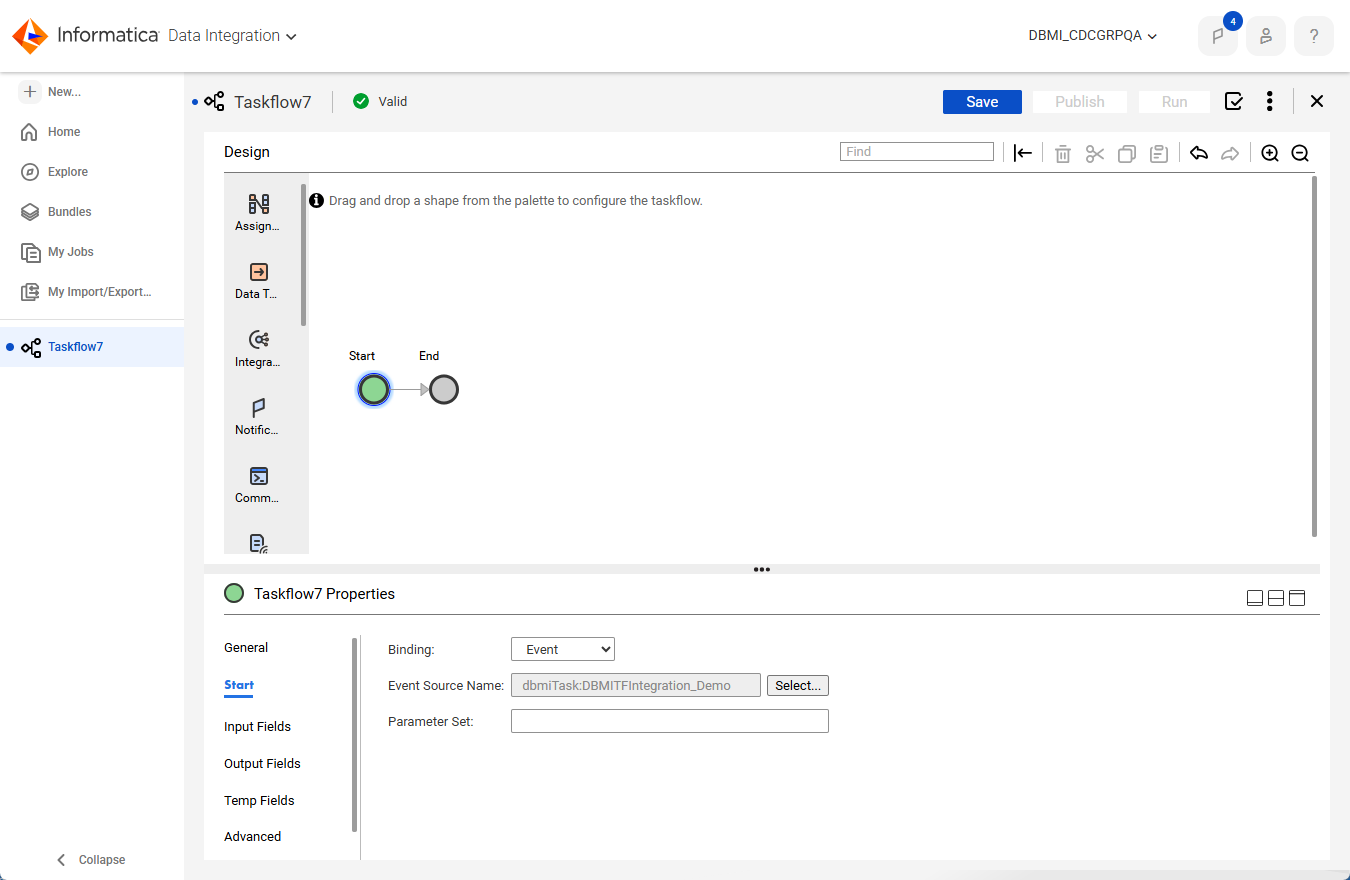
aUnder Task Properties, click Start.
bIn the Binding field, select Event.
cIn the Event Source Name field, click Select. Then in Select Event Source dialog box, select the database ingestion and replication task and click Select.
Note:
You can filter the list of tasks by task type.
dCheck that the Event Source Name field and Input Fields display the task name. For example:
eSave and publish the taskflow.
The taskflow is automatically triggered to start when either the initial load task successfully completes or after each CDC cycle in an incremental load operation. If a CDC cycle ends but the previous taskflow run is still running, the data is queued and waits for the previous taskflow to complete.