When you configure a Cleanse transformation in a mapping, you first select the cleanse asset that contains the logic to include in the transformation. Next, you map one or more incoming fields on the transformation to target fields that cleanse asset specifies.
The steps to configure the transformation depend on the number of inputs that the cleanse asset specifies.
To configure the transformation, complete the following tasks:
1Connect the Cleanse transformation to a Source transformation or other upstream object.
2On the Cleanse tab, add a cleanse asset using one of the following methods:
- Select the cleanse asset that you want to include in the transformation.
- Create a new cleanse asset and then select it to add it to the transformation.
For more information about creating a cleanse asset, see Data Quality Assets.
You can select a cleanse asset that contains a single input or multiple inputs.
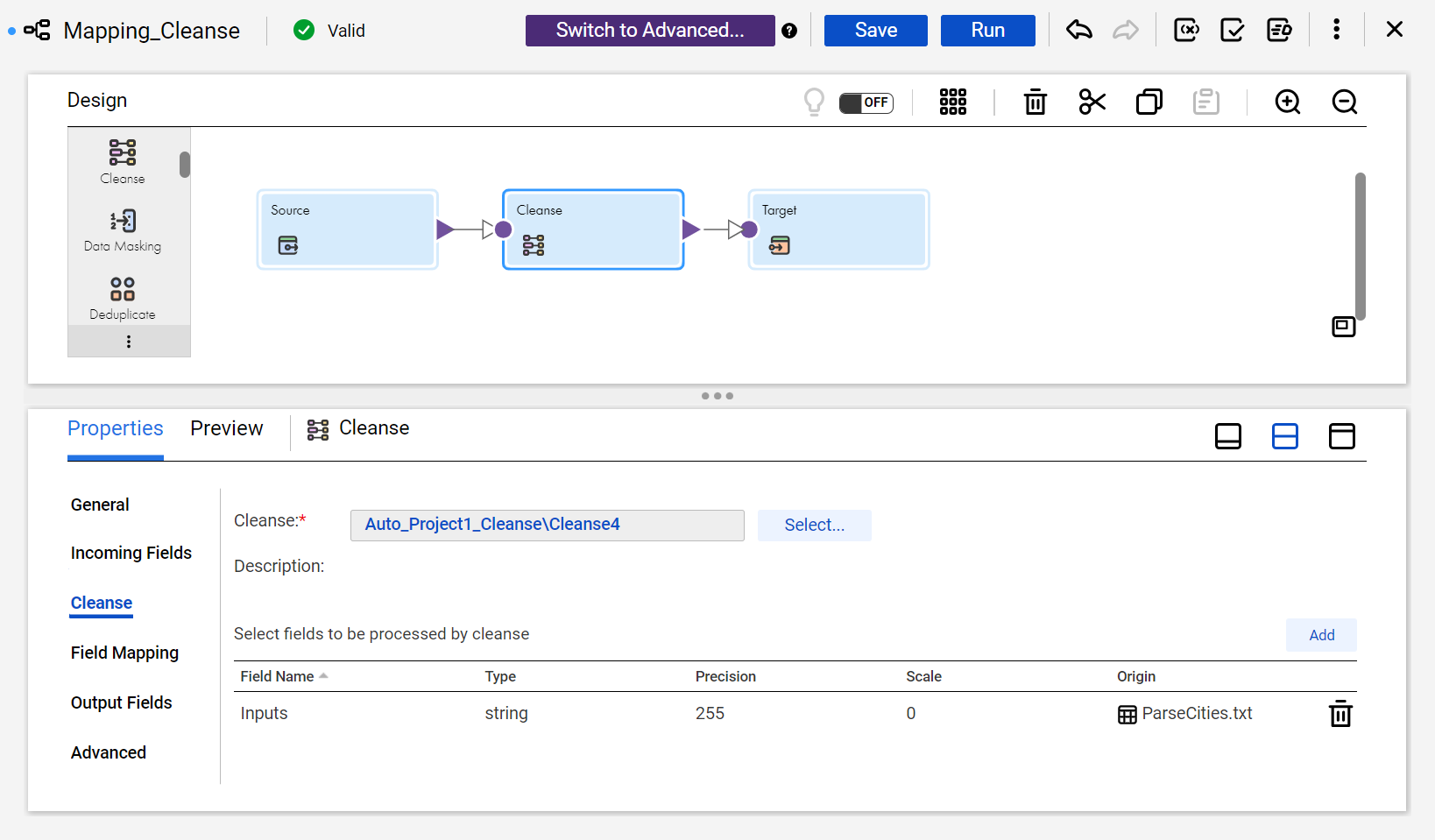
- If you include a cleanse asset that contains a single input, you can select one or more fields from upstream objects as inputs. To map the fields to the cleanse asset, click Add.
The following image shows the Cleanse tab options that you use to select the cleanse asset and add the input fields:
- If you include a cleanse asset that contains multiple inputs, the Add option does not appear on the Cleanse tab. Use the Field Mapping tab options to connect the transformation input fields to the asset.
3On the Incoming Fields tab, verify the incoming fields.
By default, the transformation inherits all incoming fields from any connected upstream object in the mapping. You can define a field rule to limit or rename the incoming fields.
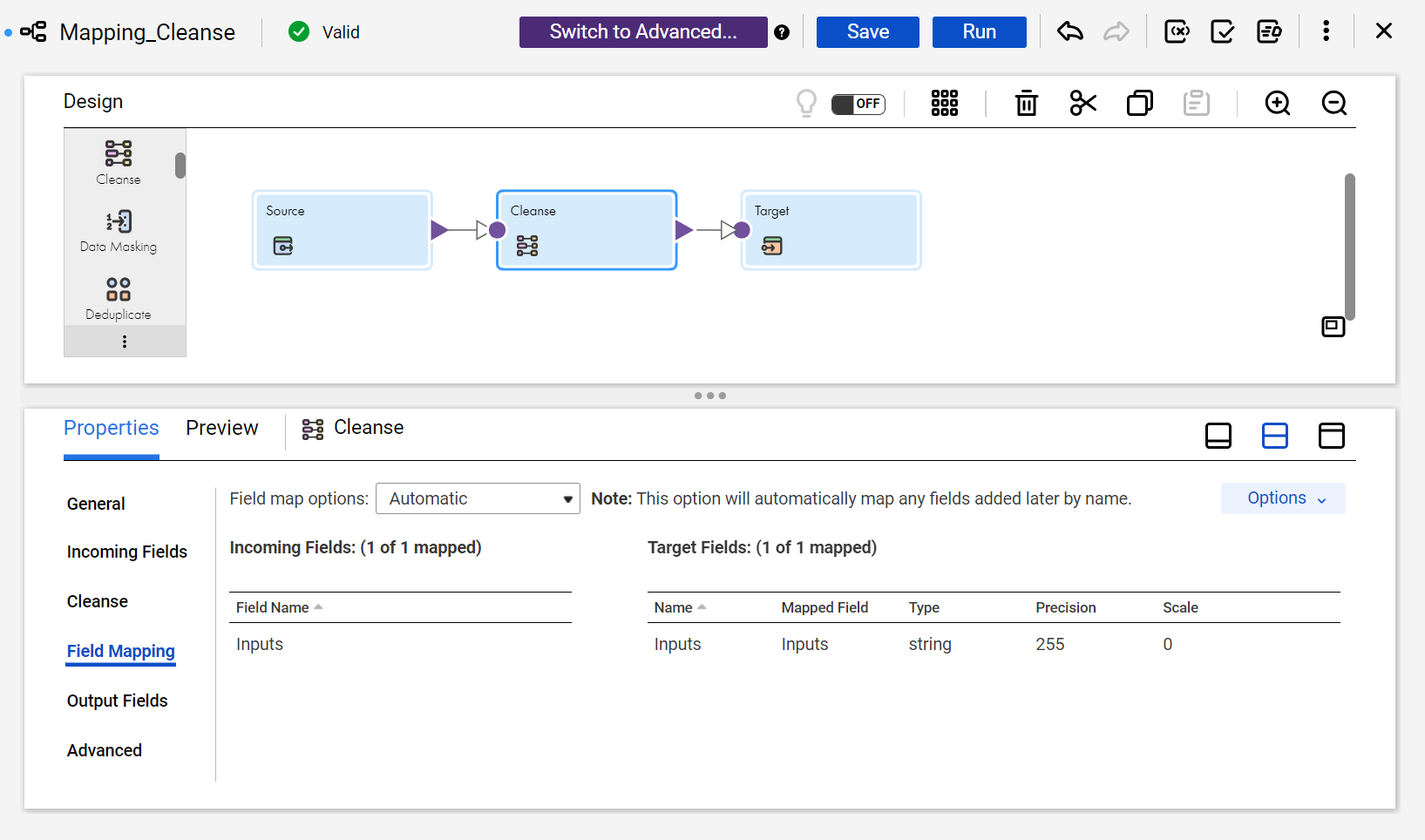
4On the Field Mapping tab, connect one or more input fields on the transformation to the asset. If the cleanse asset specifies a single input, Data Integration automatically links the incoming fields with the target field. If the cleanse asset specifies multiple inputs, link the incoming fields to the fields manually.
The cleanse asset input names might reflect the names of the transformation input fields. If so, you can use the Automap options to connect the fields.
The following image shows the options that you can use to map the input fields in the transformation:
5Verify the output field properties on the Output Fields tab.
6You can optionally rename the Cleanse transformation and add a description on the General tab. You can also update the tracing level for the transformation on the Advanced tab. The default tracing level is Normal.
Cleanse asset considerations
A cleanse asset comprises one or more cleanse instances. Each instance represents one or more input fields for which the asset specifies a set of cleanse operations.
You can add multiple cleanse instances to an asset, so that a Cleanse transformation can apply multiple cleanse operations to different sets of input fields.
You must understand the asset configuration and know the types of cleanse operation that each instance will perform on each input. The Cleanse transformation doesn't display the instance logic. When you define instances on the asset, make a record of the instance logic. Use the record as a guide when you connect the asset inputs to the transformation input fields. You can also open the asset from the Cleanse tab and review the instance logic.
Synchronizing data quality assets
If you update an asset after you add it to a transformation, you might need to synchronize the asset version in the transformation with the latest version.
To synchronize the asset versions, open the transformation in the mapping and select the transformation name in the properties panel. For example, in a Cleanse transformation select Cleanse in the properties panel. If synchronization is necessary, Data Integration displays a message that prompts you to synchronize the assets.
When you synchronize the asset versions, Data Integration might prompt you to propagate the field attributes of the current asset to other assets in the mapping. Data Integration might display the prompt if the current asset originates in an earlier version of Data Quality.
You select the assets to which to propagate the field attributes. You can select multiple assets and propagate the attributes in a single operation.
Note:
Field propagation occurs by default for assets that you create in the current version of Data Quality or Data Integration.