You can view details about a mapping task such as the mapping used by the task and the task schedule on the Task Details page.
When you open the Task Details page, the Task Details and Task Mapping sections are expanded by default.
The sections included on the Task Details page depend on the properties configured in the task. For example, if the task doesn't include in-out parameters, the In-Out Parameters section doesn't appear. Expand each section to see the configured properties. Or, to expand all sections, click Expand All.
The Task Details page includes the following sections:
Task Details
Displays general details about the task such as the task name, the date the task was last updated, the date the task was last run, and the execution mode. If the task runs on an advanced cluster, this section also indicates if continuous tuning is enabled.
Task Mapping
Displays general details about the mapping that the task is based on such as the mapping name, the project and folder where the mapping resides, and the date the mapping was last updated.
To open the mapping, click the mapping name.
SQL ELT Optimization
Displays details about SQL ELT optimization such as the optimization type, context type, and fallback option.
Advanced Session Properties
Displays advanced session properties configured for the task.
For information about the advanced properties in a mapping task that's based on a mapping in advanced mode, see Session properties in advanced mode.
Mapping Image
Displays an image of the mapping that the task is based on.
Input Parameters
Lists input parameters used in the task and their associated values. Doesn't include connection and object parameters.
Also displays information about shared sequences.
You can search for parameters by entering a full or partial parameter name in the search field.
In-Out Parameters
Lists in-out parameters available in the task and their associated values.
Transformations with Connections
Displays general and advanced properties for transformations that use a connection. Also includes connection and object parameters if a parameter was used in the mapping. Doesn't include storage and directory connections configured in Data Masking transformations.
If an advanced property was overridden in the task, the Data Integration displays the value configured in the task. If a value was not overridden, it displays the value configured in the mapping.
The properties displayed for each transformation depend on the transformation and the connection type. For more information about the properties you can configure in each transformation, see Transformations.
Note:
Some connections, such as Amazon Redshift and Marketo V3 connections, might display connection properties that you haven't configured with empty values. You can ignore the properties.
Sequences
Displays the sequence initial value and current value for Sequence Generator transformations that don't use a shared sequence.
Task Schedule
Shows the task schedule.
Email Notification Options
Displays the email notification options configured for the task.
Parameter File Options
Displays the file name and directory for the parameter file used in the task.
Advanced Options
Displays advanced options configured for the task such as pre- and post-processing commands and schema change handling. Also indicates whether cross-schema SQL ELT optimization and simultaneous task runs are enabled.
For tasks that are based on mappings in advanced mode, the section also includes the configured schema mismatch handling options.
Dynamic Schema Handling
When dynamic schema handling is enabled for the task, displays the handling options configured for each target.
Spark Session Properties
Displays Spark session properties configured for the task for tasks that are based on mappings in advanced mode.
You can view details about a mapping task, such as the mapping used by the task.
1On the Explore page, navigate to the task.
2In the row that contains the task, click Actions and select View.
On the Task Details page, you can click Edit to modify the mapping task.
Viewing SQL queries
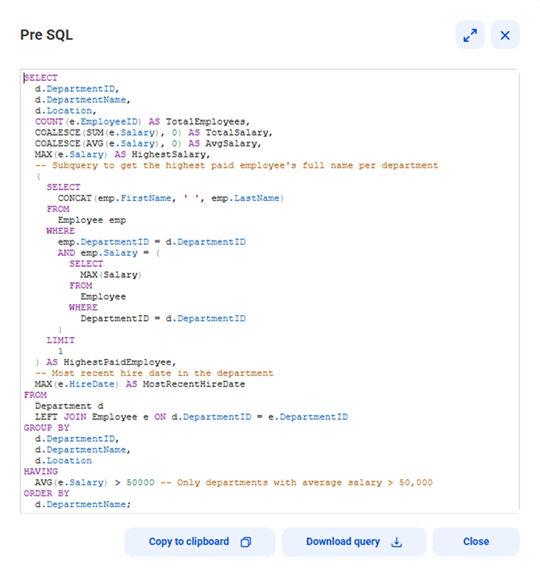
When you view details for a mapping task that contains SQL queries, you can view, copy, and download the queries.
1In the Transformations with Connections section of the Task Details page, expand the transformation that contains the query.
2Click the query that you want to view.
The SQL query dialog box appears, as shown in the following image:
3To view the entire query, expand the dialog box.
4Optionally, copy or download the entire query.
Sequence values
When you run a mapping task that includes a Sequence transformation in the mapping, you can change the beginning value for the sequence.
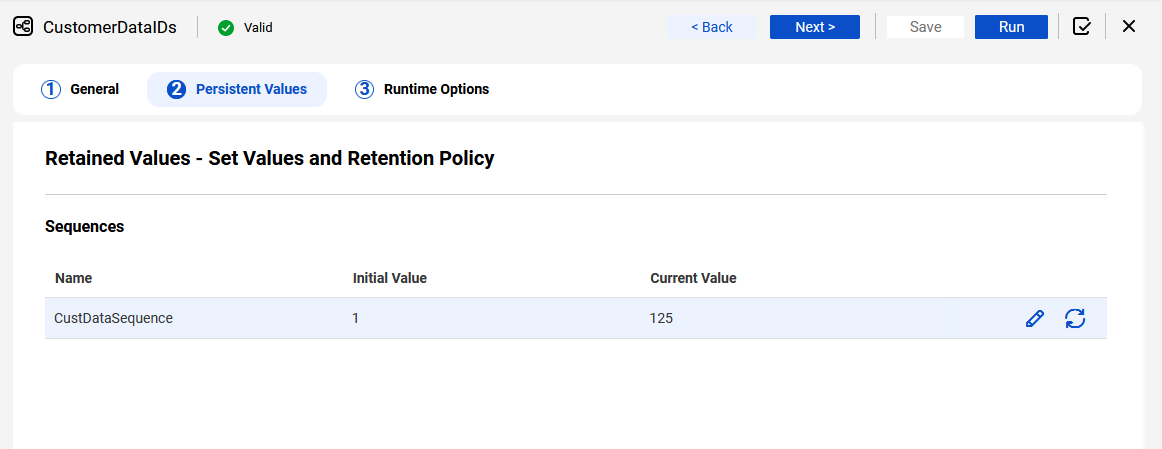
To change the beginning value, you change the Current Value field in the Sequencesor Persistent Valuespage in the mapping task wizard. The Current Value field shows the first value the task will generate in the sequence, based on the last value generated in the last task execution.
For example, the last time you ran the CustDataIDs task, the last value generated was 124. The next time the task runs, the first number in the sequence is 125 because the Sequence transformation is configured to increment by 1. If you want the sequence to begin with 200, you change the Current Value to 200.
Note:
If the Sequence transformation is configured to reset the value for each run, editing the current value in the mapping task has no effect.