Add Business Title
Add a business title to an asset that has a cryptic name to make the asset easier to understand and identify in the catalog. For example, an Oracle table called s_dt contains sales details. When you associate a business title called Sales details with the table, Enterprise Data Catalog displays the business title Sales details under the asset name in the search results and above the asset name in the Overview tab, Lineage and Impact, and Relationships view.
If the asset is a calculated field, associate a business term as a business title with the asset to see the business rules that explain how the field should be calculated. For example, a Tableau report in the catalog contains the field called Cost Ratio. The enterprise business glossary contains a term called Cost Ratio with the following rule definition: Cost Ratio = Actual Cost / Planned Cost * 100. Associate the term Cost Ratio with the report field so that users can see how the value of Cost Ratio should be calculated.
Associate a business term as a business title with a data domain to make it easier to associate the term with assets to which the data domain is assigned. For example, you associate a business term called UPC with data domain Product ID Information. When you associate a business term with any asset to which data domain Product ID Information is assigned, Enterprise Data Catalog displays UPC as a recommended term for the asset.
Adding a Business Title to an Asset
You can add a business title to any asset in the catalog that is not a business glossary or an Axon glossary asset. Add a business title with an asset to provide more business context to the asset. You can either associate a business term or provide a display name to add a business title to an asset. You can add one business title to an asset.
After you add a business title to an asset, Enterprise Data Catalog displays the business title with the asset name in the following places:
- •In the search results page, under the asset name.
- •Above the asset name in the Overview tab, Lineage and Impact view, and Relationships view.
1. Click Add a Business Title, from above the asset name.
Alternatively, you can associate a business term as a business title with an asset from the search results page.
- - To associate a business term as a business title for the asset, click the Edit Properties icon (
 ) in the search results. The Edit Properties dialog box appears.
 - - In the Edit Properties dialog box, click Business Terms, select a business term, and then click OK.
2. In the Add Business Title dialog box, you can either select a business term, an inferred business term, or provide a display name to add a business title to an asset:
- - You can provide a display name if the asset has no business terms or inferred terms.
- - If one or more data domains with an associated business term are added to the asset, the inferred terms appear in the Recommended Business Terms section. To accept an inferred term, click the check mark icon next to the term.
- - You can either select a business glossary or Axon resource to associate a business term if the asset has no inferred terms.
3. To associate a business glossary asset with an asset, select the business glossary resource from the Select a Resource list, and then select the business glossary from the Glossary list. Then, select the term that you want to associate from the list of terms.
- - If the list of terms is long, you can search for a term in the list by entering the first few characters of the term name in the search field.
4. To associate an Axon glossary with an asset, select the Axon resource from the Select a Resource list, and then select the Axon glossary that you want to associate from the list of Axon glossaries.
- - If the list of Axon glossaries is long, you can search for a glossary in the list by entering the first few characters of the glossary name in the search field.
5. Click OK.
Automatically Assign Business Title to a Column
Enterprise Data Catalog infers a business term as the business title for column assets based on data domains with associated business terms added to the column, name similarity between column and business term, and column similarity. Enterprise Data Catalog saves your time by automatically assigning a business title to a column.
A business term with the confidence score of 80 percent and above is automatically assigned as a business title to a column. The confidence score is calculated by an internal algorithm based on accepted business terms on data domains, column similarity, and name similarity between column and business term. If there are multiple business terms that meet the threshold of 80 percent and higher, the term with the highest confidence score is automatically assigned as a business title. An Axon object gets the precedence over a business glossary term if both the terms meet the threshold of 80 percent and higher.
The catalog displays the recommended business terms if confidence score is between 60 and 80 percent.
Business term recommendations appear in the Add Business Title window and Sample Columns section of a table. The Add Business Title window displays a maximum of three recommended business terms.
You can curate the recommended business terms. As a part of the curation task, you can accept or reject the business term recommendation. Accept the recommended business term as a business title if you find the term appropriate for the column asset. Reject the recommended business term if you do not find it appropriate. If you reject the recommended business terms or the auto-assigned business title, the terms move to the Rejected Business Terms section.
Enterprise Data Catalog does not consider the business terms that are in the Rejected Business Terms section until you clear the rejected terms from the list.
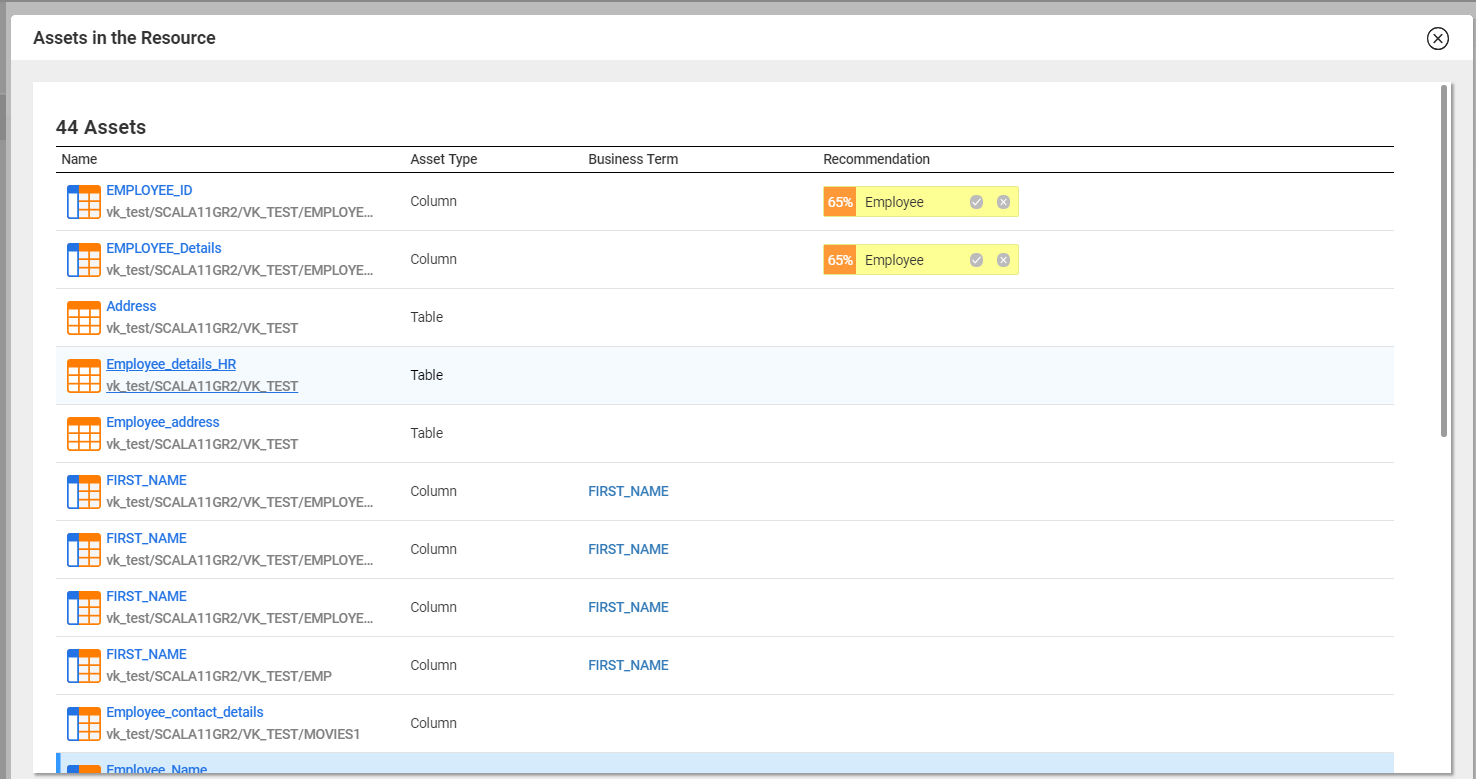
You can accept or reject multiple recommended business terms from the Overview tab of a resource. In the Resource Contains section of a resource, click the Assets in the resource link to open the list of assets in the resource. The Assets in the resource window displays the details, such as the name of the asset, type of the asset, business term associated with the asset, and recommended business terms. You can filter the list based on the asset type, assets with business title recommendation, assets with business title association, and assets without business title association. To accept a recommended term, click the check mark icon next to the term. If you have manually assigned a business title to a column, other business terms are not inferred on the column.
The following image displays the Assets in the Resource window:
Note: To view the inferred business terms in the catalog, ensure that you have enabled the Run Similarity Profile option for a resource in the Catalog Administrator.
Removing a Business Title
You can remove an assigned business tile for any asset in the catalog.
1. Click the Edit Properties icon () next to the assigned business title name of the asset. The Add Business Title dialog box appears.
2. In the Display Name field of the dialog box, click X next to the business title name.
3. Click OK.