Data Domain Assets
You can view data domain assets in Enterprise Data Catalog. You can view details about data domains and accept or reject the assets for a data domain.
A data domain is a predefined or user-defined asset that is based on the semantics of column or field data or a column or field name. Some examples of data domains are Social Security number, account status, IP address, and UPC code. Assigning a data domain to a column or field makes the asset easier to identify and understand.
You can organize data domains that apply to similar types of data in data domain groups. For example, the Bank Account data domain group might contain data domains such as Account Status, Account Number, and Credit Card Number.
Catalog administrators, Analyst tool users, and Developer tool users can create data domains and data domain groups. You can also create a smart data domain in the catalog when you view the overview details for a column or field that supports profiling. Data domains and data domain groups are stored in the Model repository.
Data domains are inferred for column and field assets based on the profiles that users run in Catalog Administrator and based on the data domains that are assigned to similar assets.
Curation is the process of accepting and rejecting data domains for assets. As you curate data domains for columns and fields, Enterprise Data Catalog becomes more accurate in making data domain inferences for other columns and fields. You can accept or reject the assets that are inferred for a data domain. You can also reject the assets to which the data domain is assigned.
For more information about data domains, see the Informatica Catalog Administrator Guide.
Data Domain Overview Tab
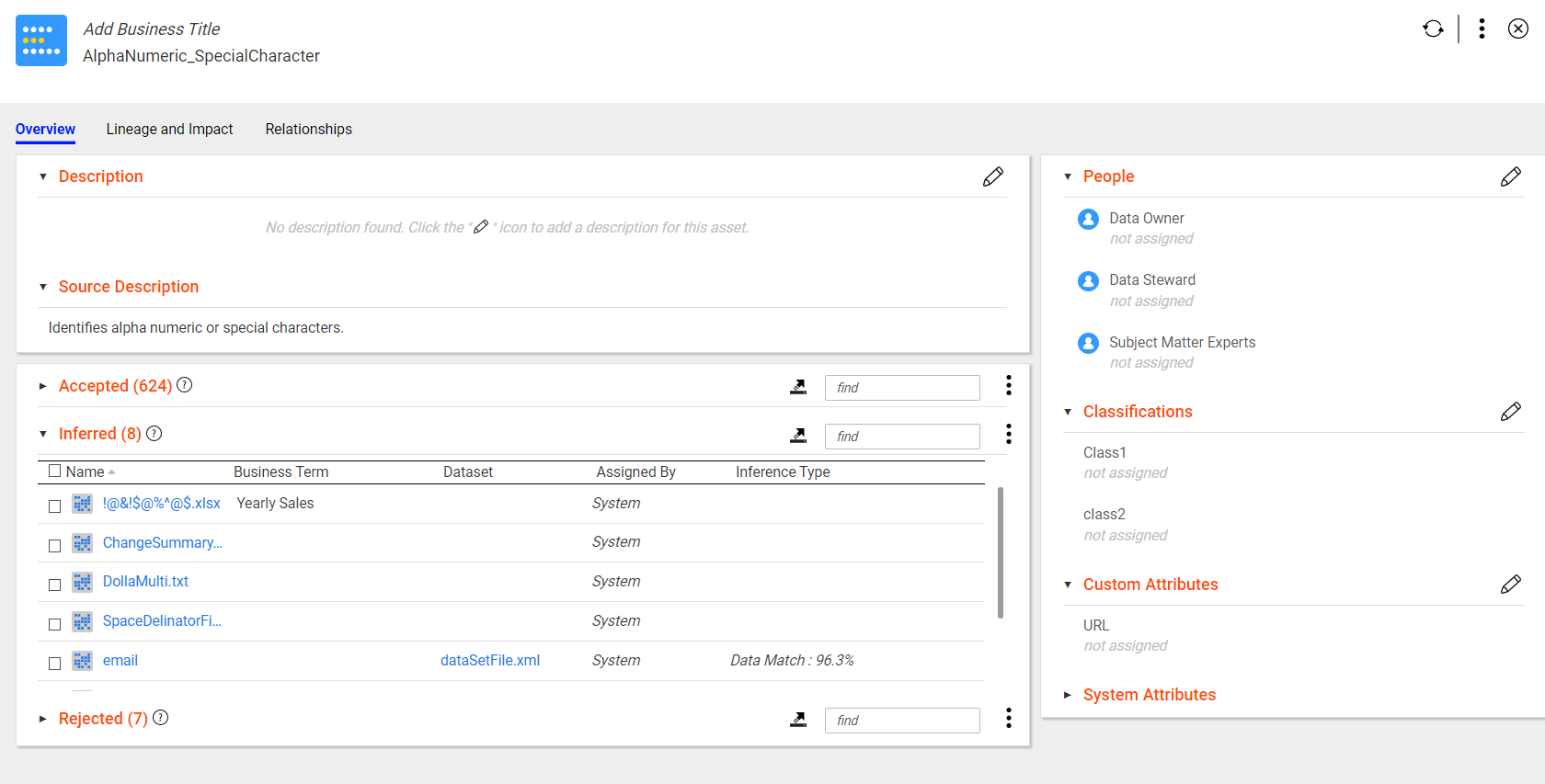
The Overview tab for a data domain asset displays the details, such as the description and source description of the data domain, associated business terms, associated people, system attributes, accepted, inferred, and rejected data domains.
The Catalog tool displays the following details for data domain assets:
- Description
- The Description section displays the data domain description. Use the Edit Properties icon to edit or add description for the asset. You can enter rich text as the description for the asset. Use the text formatting options to format the rich text. To add more descriptive context to the asset, you can also add multiple sections under the Description section. For example, you create and configure a rich text type custom attribute called Alternative Description for the data domain in the Catalog Administrator tool. The Catalog tool displays the custom attribute as an another section under the Description section in the Overview tab.
- Source description
- The Source Description section displays the data domain description that you provide while creating the data domain.
- Accepted
The Accepted section lists the columns and fields for which the data domain is accepted.
You can view the following details in the Accepted section:
- - Name. Displays the name of the asset for which the data domain is accepted. Hover over the name to view the path of the asset.
- - Business Term. Displays the associated business term.
- - Dataset. Displays the table asset name.
- - Assigned By. Lists the name of the person that assigned the data domain to the asset.
- - Inference Type. Displays the inference type and percentage.
You can reject an assigned data domain. You can choose multiple data domains, and click the Menu icon to reject data domains for a table, column, or field asset. You can sort the assets for which a data domain is accepted based on the Name column. You can export the assets for which a data domain is accepted to a CSV file. The sort and export options appear when the data is in tabular format.
- Inferred
The Inferred section lists the columns and fields for which the data domain is inferred.
You can view the following details in the Inferred section:
- - Name. Displays the name of the asset for which the data domain is inferred. Hover over the name to view the path of the asset.
- - Business Term. Displays the associated business term.
- - Dataset. Displays the table asset name.
- - Assigned By. Displays System for inferred data domains.
- - Inference Type. Displays the inference type and percentage.
You can accept or reject an inferred data domain. You can choose multiple data domains, and click the Menu icon to accept or reject data domains for a table, column, or field asset. You can sort the assets for which a data domain is inferred based on the Name column. You can export the assets for which a data domain is inferred to a CSV file. The sort and export options appear when the data is in tabular format.
- Rejected
- The Rejected section lists the columns and fields for which the data domain was rejected.
You can view the following details in the Rejected section:
- - Name. Displays the name of the asset for which the data domain is rejected. Hover over the name to view the path of the asset.
- - Business Term. Displays the associated business term.
- - Dataset. Displays the table asset name.
- - Assigned By. Lists the name of the person that assigned the data domain to the asset. Displays System if the data domain is inferred.
You can accept a rejected data domain for a column or field. You can choose multiple data domains, and click the Menu icon to accept data domains for a table, column, or field asset. You can sort the assets for which a data domain is rejected based on the Name column. You can export the assets for which a data domain is rejected to a CSV file. The sort and export options appear when the data is in tabular format.
- People
- The People section displays the users associated with the data domain. The section by default displays the data owner and data steward fields. Use the Edit Properties icon to add or change the users associated with the glossary. The additional user fields that you see in the section appear after the Catalog Administrator tool creates and configures a custom attribute of User data type for a data domain in the Catalog Administrator tool.
- Classifications
- The Classifications section displays the asset classifications based on custom attributes of reference data types. The custom attributes of a reference data type depend on how the custom attributes are defined in Informatica Business Glossary or Informatica Axon. For example, if you have a table called Sales Details and you want to classify the table based on a region. To classify the table, you can assign a custom attribute of reference data type called APAC to the table. Use the Edit Properties to add, remove, or change the business classification values.
- Custom attributes
- The properties that the Custom Attributes section displays depends upon the different types of custom attributes the Catalog Administrator tool creates and configures for a data domain in the Catalog Administrator tool. The section displays custom attributes of data types, such as the date, string, boolean, decimal, integer, and URL. Use the Edit Properties icon to add or change values of the properties in the section.
- System attributes
The System Attributes section displays the following system attributes for the data domain:
- - Is Domain by Example. Displays Yes for a smart data domain, and No for a rule-based or pre-defined data domain.
- - Resource Name. Displays DataDomain by default. "DataDomain" is the name of the internal job that synchronizes data domains between the catalog and the Model repository.
- - Last Modified. Displays the date, time, and year the data domain was last updated.
- - Asset type. Displays the type of the asset.
The following image shows the sample Overview tab of a data domain asset:
Data Domain Group Overview
The Overview tab for a data domain group displays the details, such as the system attributes, custom attributes, associated business terms, people, and data domains in the group.
Enterprise Data Catalog displays the following details for data domain groups:
- Description
- The Description section displays the data domain group description. Use the Edit Properties icon (
 ) to edit or add description for the asset. You can enter rich text as the description for the asset. Use the text formatting options to format the rich text. To add more descriptive context to the asset, you can also add multiple sections under the Description section. For example, you create and configure a rich text type custom attribute called Additional Description for the data domain group in the Catalog Administrator. Enterprise Data Catalog displays the custom attribute as an another section under the Description section in the Overview tab.
 - Source Description
- The Source Description section displays the data domain group description that you provide while creating the data domain group.
- Contains
- The Contains section lists the data domains in the group. The section by default lists maximum a five data domains. Click Show All to view the complete list of assets the glossary contains.
You can view the following details in the Contains section:
- - Name. Displays the name of the data domain group.
- - Business Title. Displays the associated business title.
- - Asset Type. Displays Data Domain as asset type.
- System Attributes
The System Attributes section displays the following system attributes for the data domain:
- - Last Modified. Displays the date, time, and year the data domain group was last updated.
- - Resource Name. Displays DataDomainGroup by default. "DataDomain" is the name of the internal job that synchronizes data domains between the catalog and the Model repository.
- - Asset type. Displays Data Domain Group as the asset type.
- People
- The People section displays the users associated with the data domain group . The section by default displays the data owner and data steward fields. Use the Edit Properties icon ( ) to add or change the users associated with the glossary. The additional user fields that you see in the section come when the catalog administrator creates and configures a custom attribute of User data type for a data domain group in the Catalog Administrator.
- Business Terms
- The Business Terms section displays custom attributes of data types, such as BusinessTerm, Glossary, AxonGlossary. The section displays related terms when the catalog administrator creates and configures the custom attribute for the data domain group in the Catalog Administrator. You can associate multiple business terms as custom attribute values with the asset. Use the Edit Properties ( ) to add, remove, or change the business term values.
- Custom Attributes
- The properties that the Custom Attributes section displays depends upon the different types of custom attributes the catalog administrator creates and configures for a data domain group in the Catalog Administrator. The section displays custom attributes of data types, such as the date, string, boolean, decimal, integer, and URL. Use the Edit Properties icon ( ) to add or change values of the properties in the section.
Data Domain Curation
Enterprise Data Catalog infers data domains for columns and fields based on profile results. It also infers data domains for assets based on the data domains that are assigned to similar assets. You can accept and reject assets for a data domain.
When you curate a data domain, you make the data domain more accurately reflect the type of data that belongs in the data domain. Curating a data domain also makes Enterprise Data Catalog more accurate when it infers data domains for similar assets.
You can perform the following curation tasks for a data domain:
- •Accept or reject the inferred assets for the data domain. When you accept an asset, the data domain becomes assigned to the asset.
- •Reject any assigned asset for the data domain.
- •Accept any rejected asset for the data domain.
Note: If you accept or reject an inferred asset for a data domain, you cannot set the asset to back the inferred status.
You can accept or reject one asset for a data domain, or you can accept or reject multiple assets at once.
Curate Individual Assets
You can accept or reject assets for a data domain. When you accept an asset, the data domain is assigned to the asset.
1. In the Enterprise Data Catalog home page, type a data domain name, and click the search icon.
2. In the Search Results page, click the data domain asset.
The Overview tab for the asset appears.
3. To accept an asset for the data domain, perform the following tasks:
- a. In the Inferred list, find the asset that you want to accept.
If the list of assets is long, you can search for an asset in the list by entering the first few characters of the asset name in the search field.
- b. To accept the asset for the data domain, click the Accept icon.
4. To accept multiple assets for the data domain, perform the following tasks:
- a. In the Inferred list, select the assets that you want to assign.
If the list of assets is long, you can search for an asset in the list by entering the first few characters of the asset name in the search field. To select all the assets, select the Name checkbox.
- b. To accept the assets for the data domain, click the Menu icon, and click Accept.
5. To reject an asset for the data domain, perform the following tasks:
- a. In the Accepted or Inferred list, find the asset that you want to reject.
If the list of assets is long, you can search for an asset in the list by entering the first few characters of the asset name in the search field.
- b. To reject the asset for the data domain, click the Reject icon.
6. To reject multiple assets for the data domain, perform the following tasks:
- a. In the Accepted or Inferred list, select the assets that you want to reject.
If the list of assets is long, you can search for an asset in the list by entering the first few characters of the asset name in the search field. To select all the assets, select the Name checkbox.
- b. To reject the assets for the data domain, click the Menu icon, and click Reject.
Data Domain Curation through Export and Import
You can accept or reject the multiple inferred assets simultaneously. You can export the assets to the comma-separated values (CSV) file and import the CSV file back into Enterprise Data Catalog. You can also assign a data domain to an asset manually.
The exported CSV file has inferred, accepted, and rejected data domains column headings. You can edit the columns to accept, reject, or delete the assets. You can perform the following actions to change the assets state in the exported CSV file:
Asset State in Exported CSV file | Action | Asset State in Imported CSV file |
|---|
Inferred | Accept | Accepted |
Inferred | Reject | Rejected |
Inferred | Delete | Inferred |
Accepted | Reject | Rejected |
Accepted | Delete | Remove assets that are associated with the data domains. |
Rejected | Accept | Accepted |
Rejected | Delete | Inferred, if a profile scanner assigns a data domain to an asset. |
Rejected | Delete | Remove assets that are associated with the data domains. |
Auto accepted | Reject | Rejected |
Auto accepted | Delete | Rejected |
For data domains assigned to the accepted or rejected state, if you remove the data domains from a column and import the CSV file, the data domains will be deleted and all links to the assets will be removed. You cannot add a data domain to the inferred column to move the data domain to the inferred state when you import the file. Likewise, you cannot delete a data domain from the inferred column to delete the data domain that is in the inferred state when you import the file.
Accepting or Rejecting Assets for Data Domains through Export and Import
You can accept or reject the multiple inferred assets simultaneously. You can perform the following steps to accept or reject assets through export and import button:
1. From the Search Result page, Resource Overview tab, or Asset Overview tab, click Menu button and select Export option.
The Export Assets dialog box appears.
2. Select the asset types and custom attributes that you want to export.
3. Click OK.
4. Open the exported CSV file.
The exported file has inferred, accepted, and rejected data domains column headings.
5. Accept or reject the inferred assets by editing the columns.
- - Add the inferred assets from the inferred data domain column to the accepted or rejected data domain column.
- - Delete the assets from the accepted or inferred data domains column to remove the data domains associated with the assets.
Note: You cannot reject data domains that are inferred or auto-accepted by the profile scanner.
6. From the Search Result page, Resource Overview tab, or Asset Overview tab, click Menu button and select Import option.
The Import Assets dialog box appears.
7. Click Browse to select the CSV file you want to import from the local machine. Optionally, you can drag the CSV file into the dotted rectangle in the Select file to Import section.
8. Click Next.
9. To receive notifications on the import status, select the Send email notification check box and enter a valid email address in the address field. You can enter multiple email addresses separated by a comma.
10. Click OK.
The Enterprise Data Catalog sends you a notification after the import job is complete and updates assets based on the attribute values that were assigned in the exported CSV file. You can monitor the export and import job in the Monitor Job page.