A Customer Managed Secure Agent group is a runtime environment where Secure Agents run after deployment, with no dependency on a connection to IDMC.
Customer Managed Secure Agent groups allow you to determine which changes to send to the Secure Agents within the group and when, as no updates push to the Secure Agents without you performing a synchronization. Configure a customer-managed Secure Agent group when you expect sporadic or unreliable internet connectivity or when you need to run jobs or tasks in an air-gapped environment.
For example, a data engineer at a retail bank in an emerging market can create a schedule for data integration jobs that run in an environment without constant internet connectivity. An operator on a maritime vessel can run scheduled jobs during high-latency or intermittent connectivity windows.
Secure Agents in a Customer Managed environment run jobs using definitions that were active when the job started. When the job completes, the Secure Agents synchronize the job execution results and agent logs with IDMC, if a connection is available. If not, this synchronization defers until connectivity returns.
The Customer Managed operation isn't available in standard Secure Agent groups and elastic runtime environments.
Note:
A Customer Managed Secure Agent group should have internet connectivity at least once a month, to avoid billing issues and to install any Secure Agent updates. If connectivity is not available, the Secure Agents continue to function with previous data until connectivity is restored.
Is a Customer Managed environment right for you?
While a Customer Managed runtime environment offers advantages such as better control over your Secure Agents and the ability to run without an internet connection, there are additional considerations to keep in mind:
•You need to plan for and maintain additional hardware infrastructure for the Customer Managed Secure Agents and for a PostgreSQL database.
•You are responsible for maintaining high availability and data replication/disaster recovery for the PostgreSQL database.
If you can't or don't want to maintain additional hardware, then a Customer Managed environment might not be the best fit for your organization.
Differences between Customer Managed and standard Secure Agent groups
Customer Managed and standard Secure Agent groups are similar, with a few key differences.
Note the following key differences between the two types of Secure Agent groups:
•You need to provide a PostgreSQL database for Customer Managed Secure Agent groups to store metadata. In standard Secure Agent groups, the metadata is stored within IDMC.
Important:
For PostgreSQL 15 or later, add the following privileges for the DB user (but never to PUBLIC):
- CONNECT and CREATE on the database
- USAGE + CREATE on scheme public
Run the grant as the database owner or a superuser:
GRANT USAGE, CREATE ON SCHEMA public TO <db_user>;
PostgreSQL versions prior to 15 have these privileges by default, so these steps aren't necessary.
•In standard Secure Agent groups, the flow of information occurs seamlessly between the agents and IDMC. In a Customer Managed environment, you need to synchronize all changes manually. For more information, see Synchronize the runtime environment.
•In standard Secure Agent groups, the Secure Agents automatically upgrade when a new version is available. In a Customer Managed environment, you manually check for and install the upgrades. You are alerted to available upgrades when you attempt to synchronize. For more information, see Working with Customer Managed Secure Agent groups.
•You can’t use the IDMC UI to start, restart, or pause jobs on Secure Agents attached to a Customer Managed Secure Agent group. To perform these tasks, use the REST API for Customer Managed runtime environments. For more information, see REST API.
Supported functionality in Customer Managed runtime environments
Customer Managed runtime environments support only a subset of the functionality supported by standard Secure Agent groups.
The following table summarizes the supported services and functionality:
Supported Service
Unsupported functionality
Cloud Application Integration
Cloud Data Ingestion & Replication
Cloud Data Integration
- Advanced Integration
- Dynamic tasks
- Linear taskflows
- Taskflows that span more than one Customer Managed runtime environment (RTE)
The taskflow and all of its steps that require a runtime environment must use the same Customer Managed RTE (or RTE group).
- Access Policy transformation
- Data Masking transformation
- Data Services transformation
Cloud Data Integration Connectors
Connections created with OAuth authentication.
Cloud Data Integration for PowerCenter
Cloud Data Quality
Industry Solutions for Healthcare
All services not listed in the above table are not supported in Customer Managed runtime environments.
Set up a Customer Managed Secure Agent group
You perform a series of setup steps to get your Customer Managed environment ready.
1Contact Informatica Global Customer Support to license the Customer Managed functionality for your organization.
5Push tasks, schedules, and dependencies to the Secure Agents using the Synchronize Runtime Environment action. For more information, see Synchronize the runtime environment.
The Secure Agents are now fully autonomous and ready to operate in a Customer Managed environment.
Create a Customer Managed runtime environment
Create a Customer Managed runtime environment in Administrator.
Note:
You can't convert a Customer Managed runtime environment to a standard Secure Agent group.
1In Administrator, open the Runtime Environments page.
2Select New Runtime Environment.
3On the General page, enter a name for the runtime environment.
4Select Customer Managed Runtime Group as the runtime environment type and optionally add a description.
Note:
If the option isn't visible, verify that the feature is enabled on the Settings page. For more information, see Set up a Customer Managed Secure Agent group.
5Click Next to configure the database.
6Select PostgreSQL as the connection type.
7Select any connection from the drop-down list to be used temporarily or click Connections to create a new one.
Note:
The temporary connection is required to create the Customer Managed runtime environment. After the environment is created, you can use it to configure the actual PostgreSQL connection. Once this connection is available, use the Database Configuration tab of the Customer Managed runtime environment to update the connection to the PostgreSQL connection.
8Click Next and then enable the services and components for your runtime environment.
9Optionally select any additional services to enable.
Note:
You can also enable services and connectors from the Actions menu after you create the Customer Managed runtime environment.
10Click Create.
The Customer Managed runtime environment appears on the Runtime Environments page.
Configure a database for a Customer Managed Secure Agent group
A Customer Managed Secure Agent group uses a database that you supply to maintain its metadata store.
The database stores job metadata, schedules, execution state, service discovery information.
Use the Database Configuration tab of a Customer Managed runtime environment's details page to enter or modify connection details.
Connection Details
The following table describes the connection details:
Property
Description
Connection Name
Name of the database connection.
Database Type
PostgreSQL
Host
Domain of the database host, for example, "db-prod.example.com".
Port
Port number for the database host.
Database Name
Name of the database.
Authentication
The following table describes the authentication properties:
Property
Description
Authentication Type
Username/Password
Username
User name
Password
Password
After you enter the connection details, click Test Connection to verify that the connection is successful.
To test a connection, you need at least one Secure Agent in the Customer Managed Secure Agent group.
Install Secure Agents to a Customer Managed Secure Agent group
You can install a Secure Agent to a Customer Managed Secure Agent group in your chosen environment. The procedure is virtually identical to installing to a standard Secure Agent group.
Note:
Alternatively, you can choose to download the Secure Agent for a Customer Managed Runtime from Download Secure Agent for Customer Managed Runtime. Ensure that you select the matching URL for the POD that hosts your organization. After you download the Secure Agent, perform the steps described in this section to install the Secure Agent.
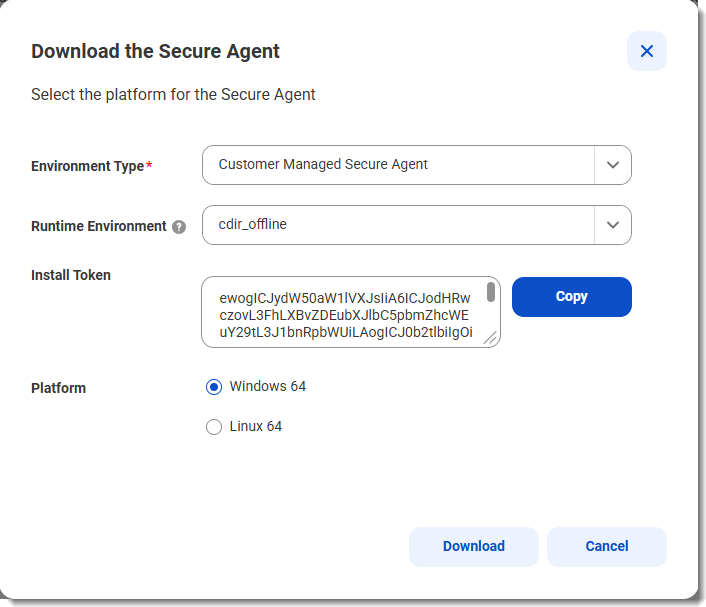
The following image shows the Download Secure Agent dialog box, where the differences occur:
Perform the following steps:
1Select Customer Managed Secure Agent as the environment type.
2Select a Customer Managed Secure Agent group as the runtime environment.
3Click Copy to copy the install token.
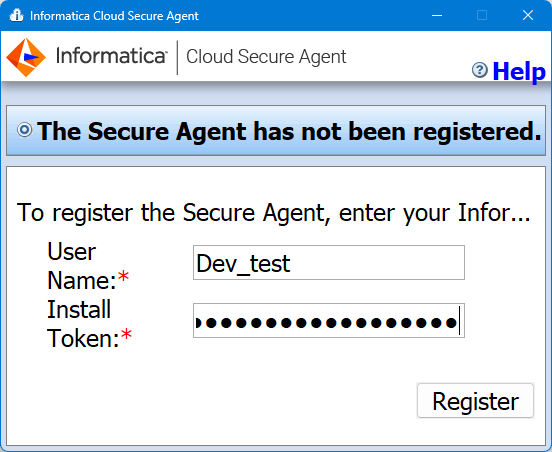
You will need this token to install the Secure Agent. The token expires after 24 hours. If the token expires before you install the Secure Agent, repeat steps 1 to 3 to obtain a new token. You don't need to download the installer again.
4Specify your platform.
5Click Download and save the installer.
6Install the Secure Agent for your platform:
- On Windows, run the installer file and follow the installation wizard.
- On Linux, run the following shell command in the directory where you saved the installation file:
./agent64_install_ng_ext.bin -i console
When the installer completes, navigate to the following directory:
Monitor synchronizations for a Customer Managed Secure Agent group
The Monitor tab on a Customer Managed Secure Agent Group's details page shows the status and history of runtime synchronizations. Knowing the status allows you to take corrective actions as necessary.
Customer Managed runtime environments require that you manually synchronize all changes to the Secure Agents. The Monitor tab on the details page of a Customer Managed Secure Agent group displays the status and history of these synchronizations.
Runtime synchronizations
A runtime synchronization represents a deployment of task metadata and assets that IDMC pushes to the Secure Agents running in the Customer Managed environment. The Monitor tab lists all the runtime synchronizations for the offline runtime environment.
Runtime Syncs table
The runtime synchronizations table on the Monitor tab displays the following information for each synchronization:
•A sync ID that you can select to view more details about the synchronization.
•The start and end times of the runtime synchronization, based on your user profile time zone.
•The status of the runtime synchronization.
The following table describes each status:
Status
Description
Activated
Synchronization is complete.
In Progress
Auto synchronization is in progress.
Completed Successfully
Auto synchronization was successful. Moves automatically to Activated.
Completed with Errors
Auto synchronization encountered errors and requires a user response.
If the user chooses to continue synchronization despite errors, the status moves to Activated.
Cancelled
User cancelled the synchronization after errors are found.
Synchronization errors
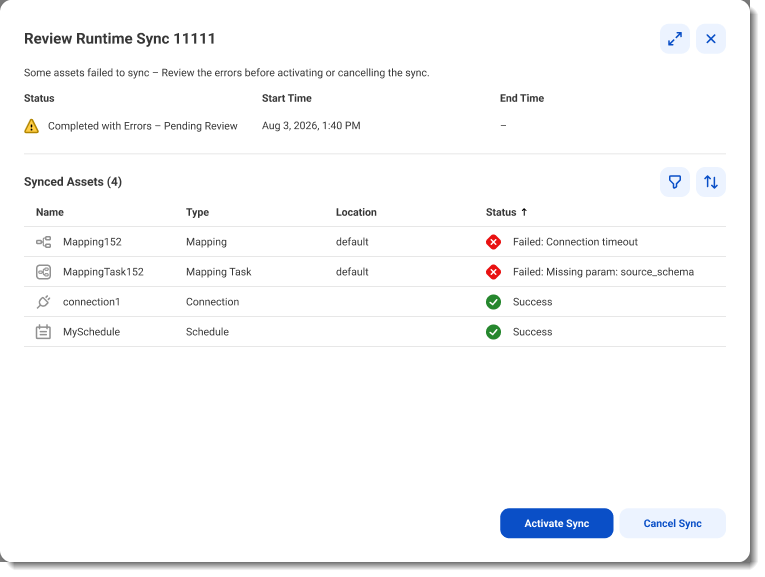
If a synchronization status shows Completed with Errors, click Pending Review in the job's review pane on the Monitor tab to view the details of the errors. The following image shows the review pane for a job named "Runtime Sync 11111:"
Review the failures and choose one of the following actions:
•To continue with the synchronization despite the errors, click Activate Sync. The "Success" assets will receive the latest versions pushed down through this synchronization. Failed assets continue to use the last successful synchronized version. After synchronization, the status moves to "Activated."
•To cancel the synchronization so that you can address the failures, click Cancel Sync. You can restart the synchronization later through the Synchronize the runtime environment action. For more information, see Synchronize the runtime environment.
Create a password to access the Customer Managed Secure Agent API
The Secure Agent API allows you to perform tasks without using the IDMC user interface. Create a separate password to allow Customer Managed Secure Agents to authenticate API calls. The password doesn't grant access to the IDMC user interface.
1In Administrator, select Settings.
2Under Customer Managed Secure Agent, create a password.
Grant access to Customer Managed Secure Agent API
To allow a user to access the Customer Managed Secure Agent API, assign a role with the appropriate feature enabled.
1In Administrator, select User Roles.
2Click Add Role and enter a role name.
3Select the Features tab and enable Offline Secure Agent API Access.
4Click Save.
5In Administrator, select Users.
6Select the user who needs the API access.
7In the Roles tab, select the role that you just created.
After you create a Customer Managed Secure Agent group, you can edit, synchronize, and delete it. You can also view dependencies, change permissions, and check for upgrades.
You can perform the following tasks from the Actions menu:
Change the name or description of the environment
To change the name or description of your Customer Managed runtime environment, select Edit Environment Properties.
Enable or disable services and connectors
You can enable a service to allow the Customer Managed runtime environment to run product features associated with the service. You can enable specific connectors to allow the environment to communicate with cloud and on-premises applications, platforms, databases, and flat files.
To enable services and connectors, select Enable or Disable Services, Connectors.
Manage configuration
To change the configuration on the Database Configuration tab, select Manage configuration.
Synchronize the runtime environment
To push changes to Secure Agents in a Customer Managed runtime environment, select Sync Runtime Environment.
Check whether upgrades are available for the Secure Agents in the Customer Managed runtime environment and then install the upgrades.
Install any upgrades as soon as possible, as you can't synchronize your Customer Managed runtime environment with outdated Secure Agents.
Tip:
The Sync Runtime Environment action automatically checks for upgrades.
To check for upgrades, select Check and install upgrades.
Delete the runtime environment
You can delete a Customer Managed runtime environment if it is no longer being used.
To delete a Customer Managed runtime environment, select Delete.
View dependencies
View dependencies to find the tasks or connections that use the Customer Managed runtime environment or to find the objects that are used by the Customer Managed runtime environment.
To view dependencies, select Show Dependencies.
Change permissions
To change permissions for a Customer Managed runtime environment, select Permissions. You can define permissions for a Customer Managed runtime environment for each user group in your organization.
The following table describes the permissions that you can set:
Permission
Description
Read
View details about the Customer Managed runtime environment and use the Customer Managed runtime environment in a task.
Update
Edit the Customer Managed runtime environment.
Delete
Delete the Customer Managed runtime environment.
Execute
Run tasks in the Customer Managed runtime environment.
Change Permissions
Change permissions for the Customer Managed runtime environment.
Synchronize the runtime environment
When you use the Sync Runtime Environment action of a Customer Managed runtime environment, you manually push changes to tasks, assets, or configurations to the Secure Agents in the environment. Unlike standard runtime environments, these changes don't transmit automatically.
It's important to understand the two types of synchronizations in a Customer Managed runtime environment:
•Automatic synchronization. Secure Agents in a Customer Managed runtime environment automatically return results of jobs back to IDMC when a connection is available. This operation runs in the background, with no user interaction.
•Manual synchronization. Any changes within IDMC such as new tasks, mappings, connections, or schedules require you to manually deploy the changes to the Secure Agents. You do this using the Sync Runtime Environment option in the Actions menu of a Customer Managed runtime environment.
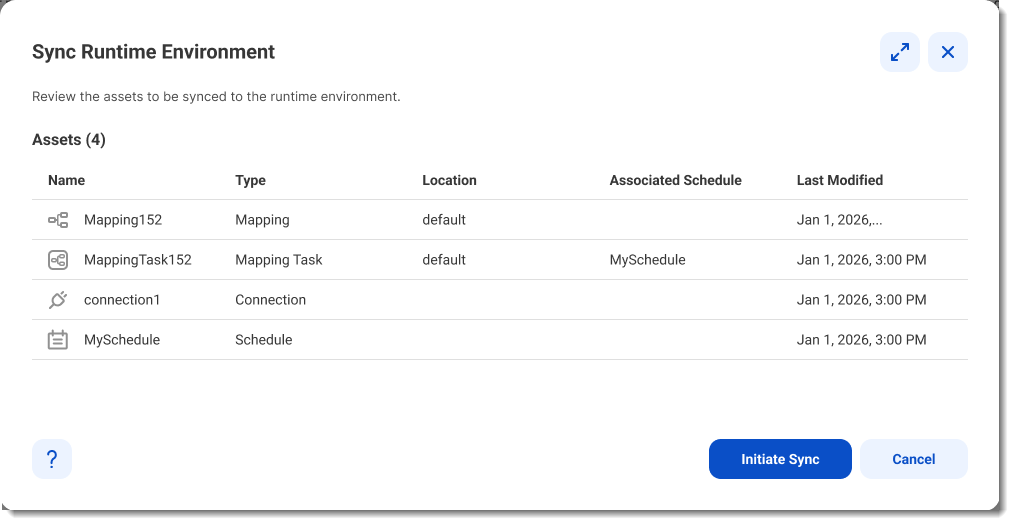
The following image shows a confirmation dialog listing a set of assets that will be synchronized:
If everything is in order, click Initiate Sync to begin the synchronization. This may take several minutes to complete and you will be notified when the process is finished.
If you need to make changes, click Cancel, make the corrections and synchronize.
Secure Agent upgrade
If your Secure Agent requires an upgrade, a banner prompts you to upgrade before synchronization is possible.
The following image shows the upgrade banner:
Click Install Upgrade to continue and then click Upgrade in the confirmation dialog to proceed with the upgrade.
Optionally, you can select to upgrade all available Customer Managed Secure Agent groups. If you don't select this option, only the agents in the current Customer Managed Secure Agent group are upgraded.