Configure properties for the output, including the schema and output format.
The following table describes the output properties:
Property
Description
Schema
Schema that defines the structure of the hierarchical output.
To convert data to Avro, ORC, or Parquet format, click Auto-generate from sample file and create an intelligent structure model. For more information about intelligent structure models, see Intelligent structure models.
To convert data to JSON or XML format, select an existing hierarchical schema or click Create new schema. When you select a new hierarchical schema to override an existing schema, you can choose to retain the existing field mapping.
You can also update an existing XSD schema file or an XML sample file.
For more information about intelligent structure models and hierarchical schemas, see Components.
Precision
Buffer size for the output.
Null Values
Determines whether the transformation keeps or omits null values in primitive JSON types. Applicable when you associate the transformation with a JSON-based schema.
Output Format
Format for the output data, either string or binary.
Write to file
Determines whether the transformation writes the data to a flat file. When you enable this option, enter the file path in the File path field.
You can parameterize the file path only when you enable the Optimize transformation property.
Tip:
Write data to a flat file when the transformation processes a large amount of data and the output field size exceeds 100 MB.
Enable passthrough fields
Determines whether unmapped fields are passed to the downstream transformation.
If there is more than one upstream transformation connected to the Hierarchy Builder transformation, the transformation passes through fields only from the first connected upstream transformation, provided these fields are mapped to the hierarchy root group.
Generate single output
Determines if the transformation generates a single JSON or XML structure containing all the output elements. By default, the transformation generates a JSON or XML output structure for each output element.
To generate a single output structure, map an incoming group to a recurring element in the hierarchy fields.
You can configure the Hierarchy Builder transformation to generate a single output structure or output structures for each output element. For example, you're creating an XML file for employee contact information.
If you choose to generate a single output structure, the transformation outputs the following data:
Rules and guidelines for optimizing the transformation
Consider the following rules and guidelines when you optimize the processing performance in the output settings:
•When you generate a single output, ensure that you enable the Write to file option.
•When you write data to a file, you can parameterize the file path.
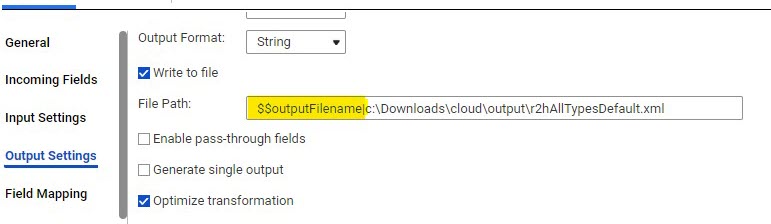
To parameterize the file path, you must add $$ as a prefix and | as a suffix to the parameter name before the file path. You can define the parameter by adding the file path in the [global] section in the downloaded parameters file.
The following image displays a file path that contains the parameter name along with its prefix and suffix:
•
•When you pass through fields from the upstream transformation and the passthrough ports include the FileName port, the transformation reads from the port and writes each hierarchical output to the filename specified by this port.
Writing hierarchical data using binary output format
You can write large amounts of hierarchical data to cloud-based storage targets, such as Microsoft Azure Data Lake Storage Gen2 and Amazon S3 V2, using the binary output format.
To write data using the binary output format in a mapping, perform the following steps:
1In the Hierarchy Builder transformation, under Output Settings, select binary as the output format and enable the Optimize transformation option.
2In the Target transformation, perform the following steps to rename the incoming field to data:
aIn the Target transformation, navigate to Incoming Fields in the Properties panel.
bConfigure field rules to rename the incoming field that contains binary data.
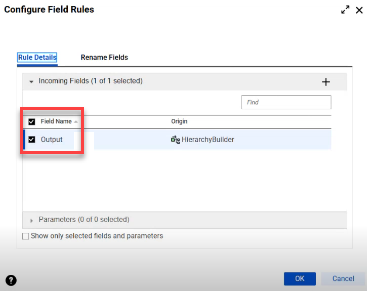
cIn the Rule Details tab, select the incoming field named output.
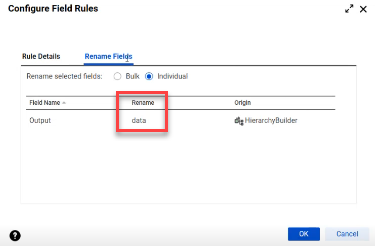
dIn the Rename Fields tab, rename the selected field to data.