AWS Secrets Manager is a fully managed AWS service that helps you securely store, manage, and retrieve sensitive information like database credentials, API keys, and other secrets needed by your applications. You can configure your organization to retrieve sensitive connection credentials from AWS Secrets Manager instead of directly entering the credentials in the connection properties.
The Secure Agent can access Secrets Manager using one of the following authentication methods:
•Role-based authentication. If you use role-based authentication, you need to configure the IAM role that the Secure Agent uses.
•Instance profile authentication. If you use instance profile authentication, you need to configure and access an instance profile to the AWS resource that hosts the Secure Agent.
•Access key authentication
If the AWS account that hosts your secrets differs from the account that hosts the Secure Agent, you'll also need to set up both accounts for cross-account access.
To configure your organization to retrieve secrets from AWS Secrets Manager, enable secret vault in Administrator, select AWS Secrets Manager as the secrets manager, and configure the connection properties. Then, you can configure connections to retrieve sensitive credentials from Secrets Manager.
IAM role configuration for AWS Secrets Manager
If you access AWS Secrets Manager using role-based authentication, you need to ensure that the IAM role that the Secure Agent uses to access secrets has the appropriate policies and permissions. You must also attach the role to your EC2 instance.
To configure the IAM role, first define a policy with the appropriate permissions, assign the policy to the role, and then update the role trust policy.
Step 1. Create an IAM policy and assign appropriate permissions.
Depending on your organization's policies, configure one of the following policies for your IAM user:
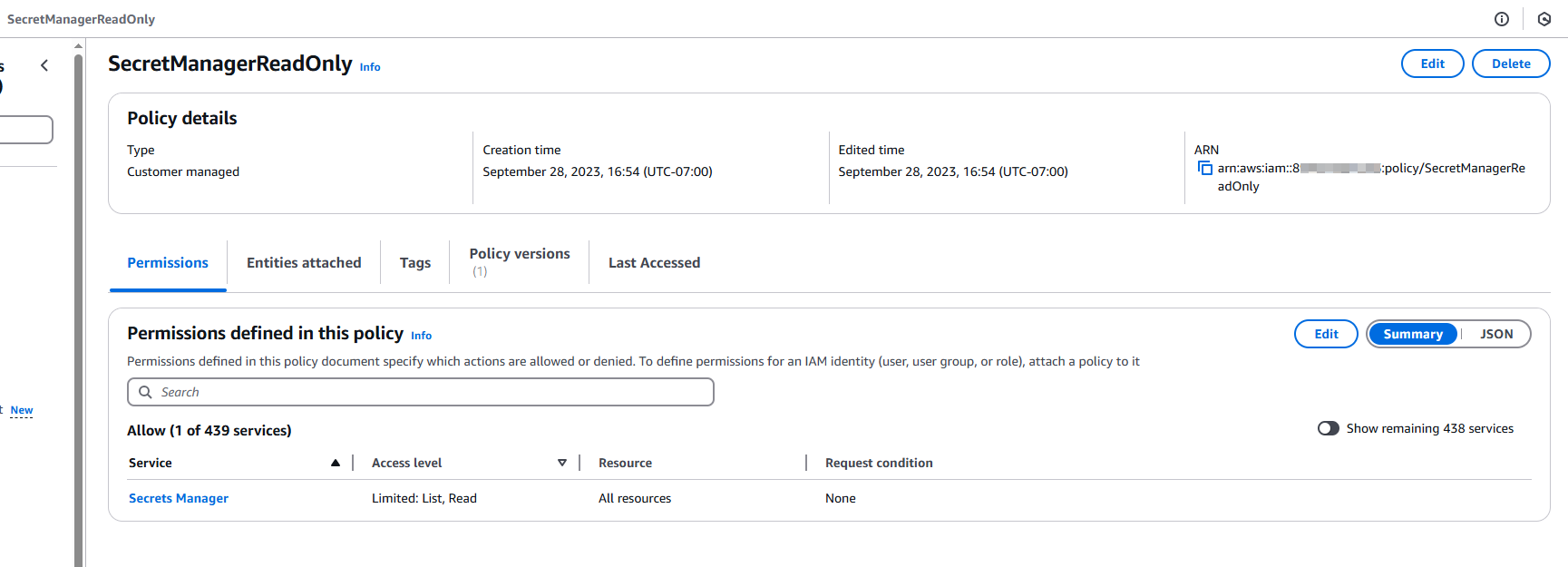
The policy that you select must be able to list and read secrets from Secrets Manager. The following image shows the minimum policies required:
Step 2. Assign the policy to the IAM role.
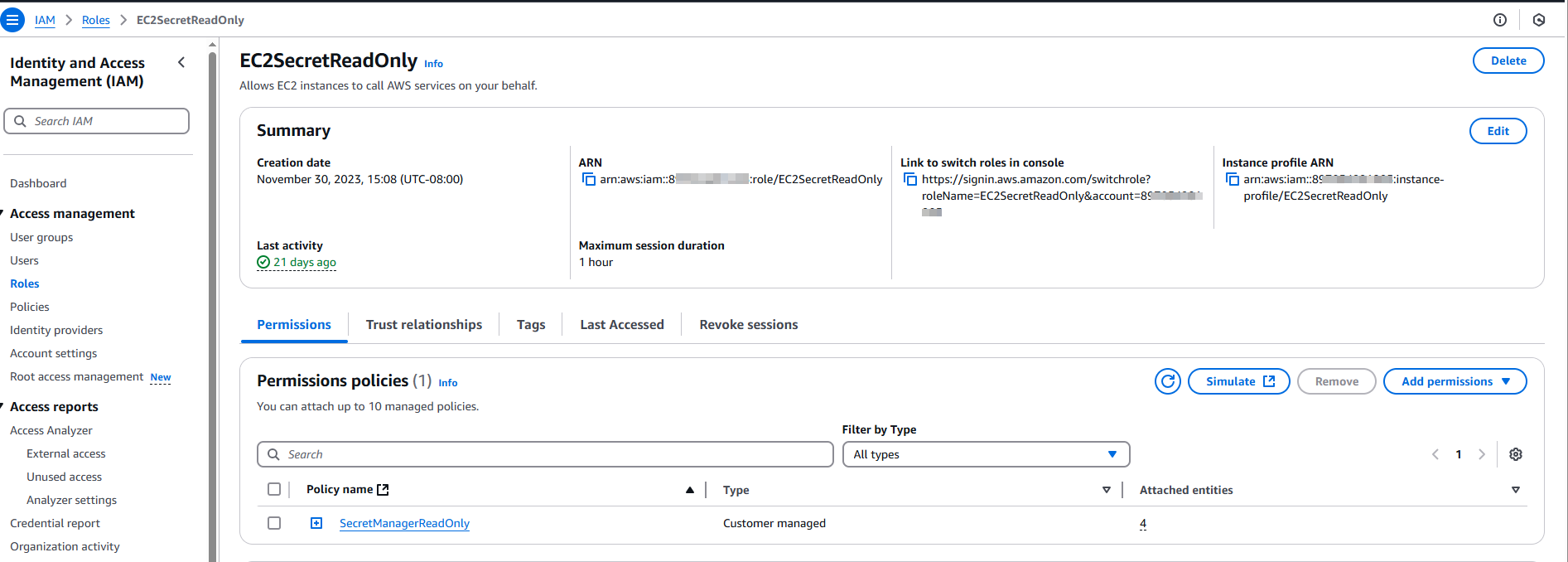
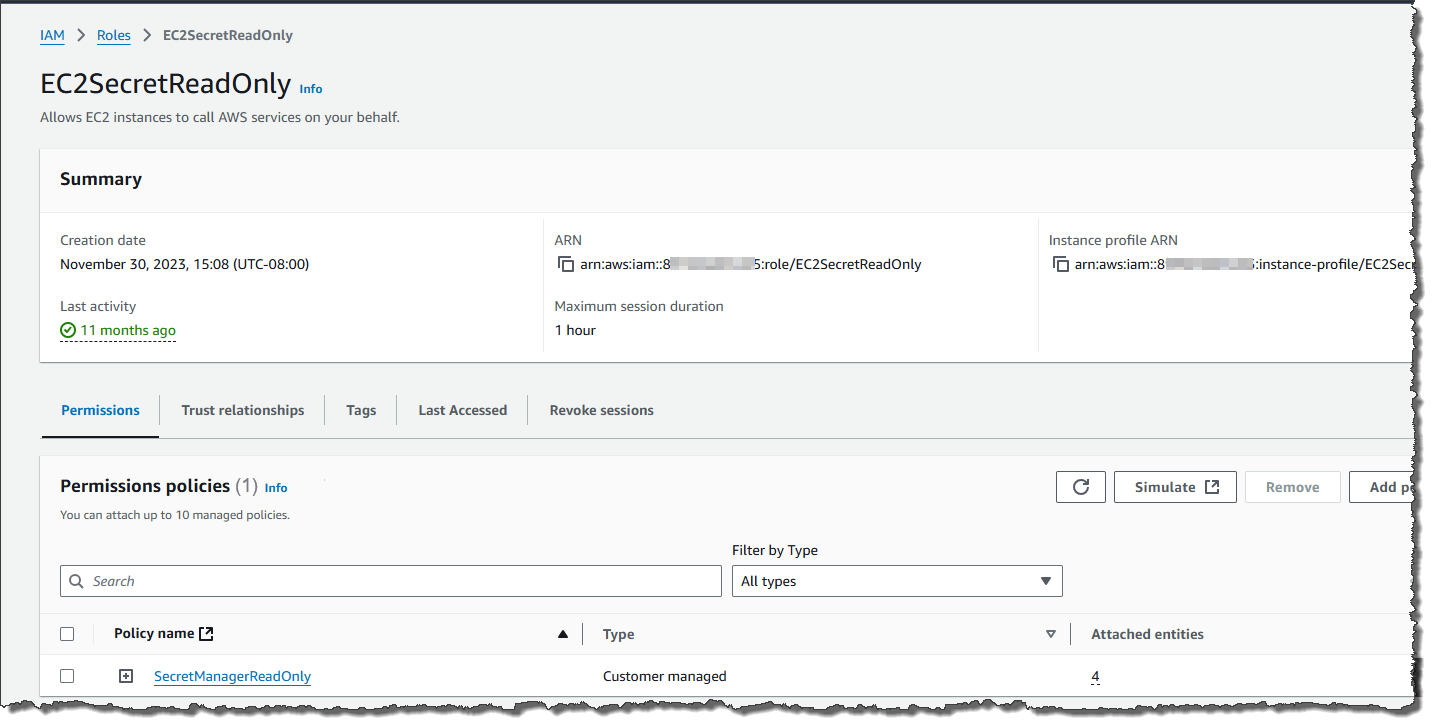
Assign the policy you created to the role that the Secure Agent uses to access secrets, as shown in the following image:
Step 3. Update the IAM role trust policy.
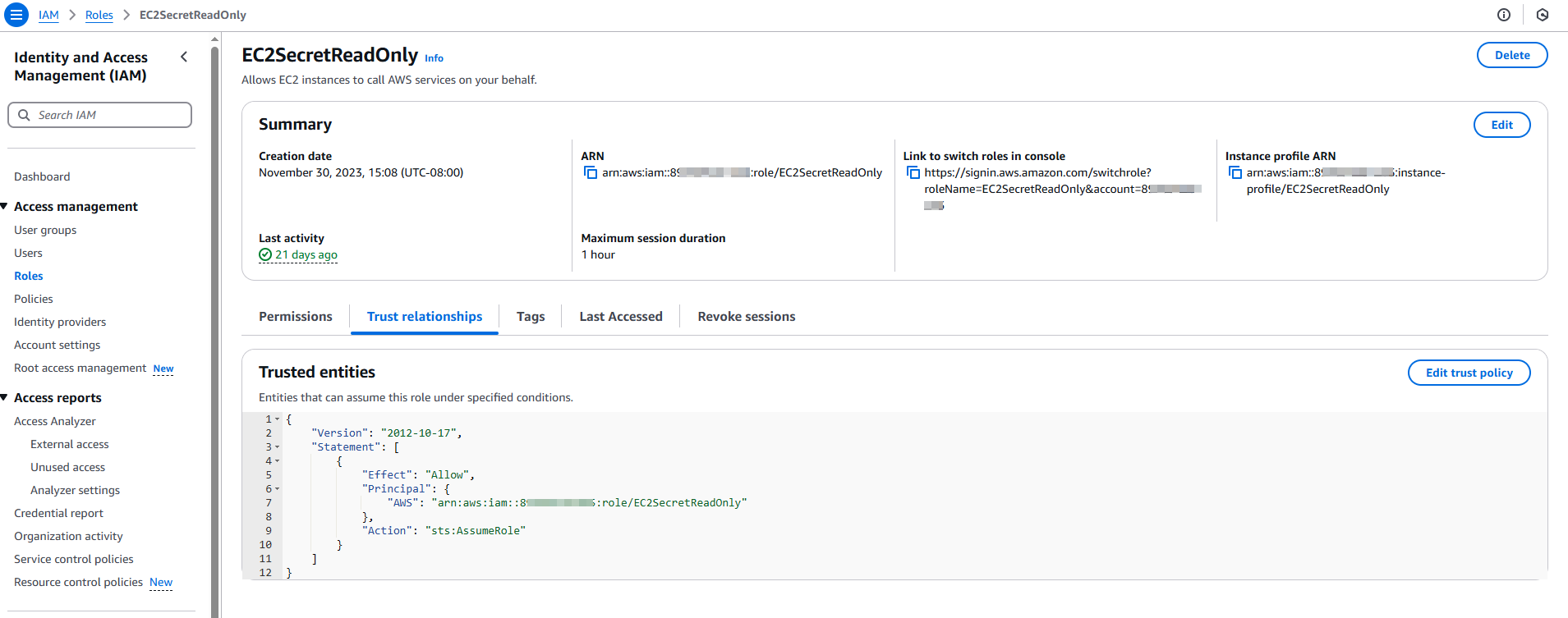
After you assign the policy, update the IAM role trust policy to define which AWS resources can access the role. To do this, either allow any EC2 VM instance to access the role or allow the EC2 instance’s role to assume the role that has permission to read secrets.
If the IAM role is the same role as the EC2 instance’s role, you can have the role assume itself.
To allow any EC2 VM instance to access the role, configure the following trust policy:
For more information about assigning polices to IAM roles and attaching IAM roles to EC2 instances, see the AWS documentation.
Instance profile configuration for AWS Secrets Manager
If you access AWS Secrets Manager using instance profile authentication, you need to create an IAM policy that can read secrets, create a role that has this policy, and then attach an instance profile to the AWS resource that hosts the Secure Agent.
1Log in to the AWS Management Console.
2Navigate to the IAM console.
3Under Access management, select Policies.
4Click Create policy.
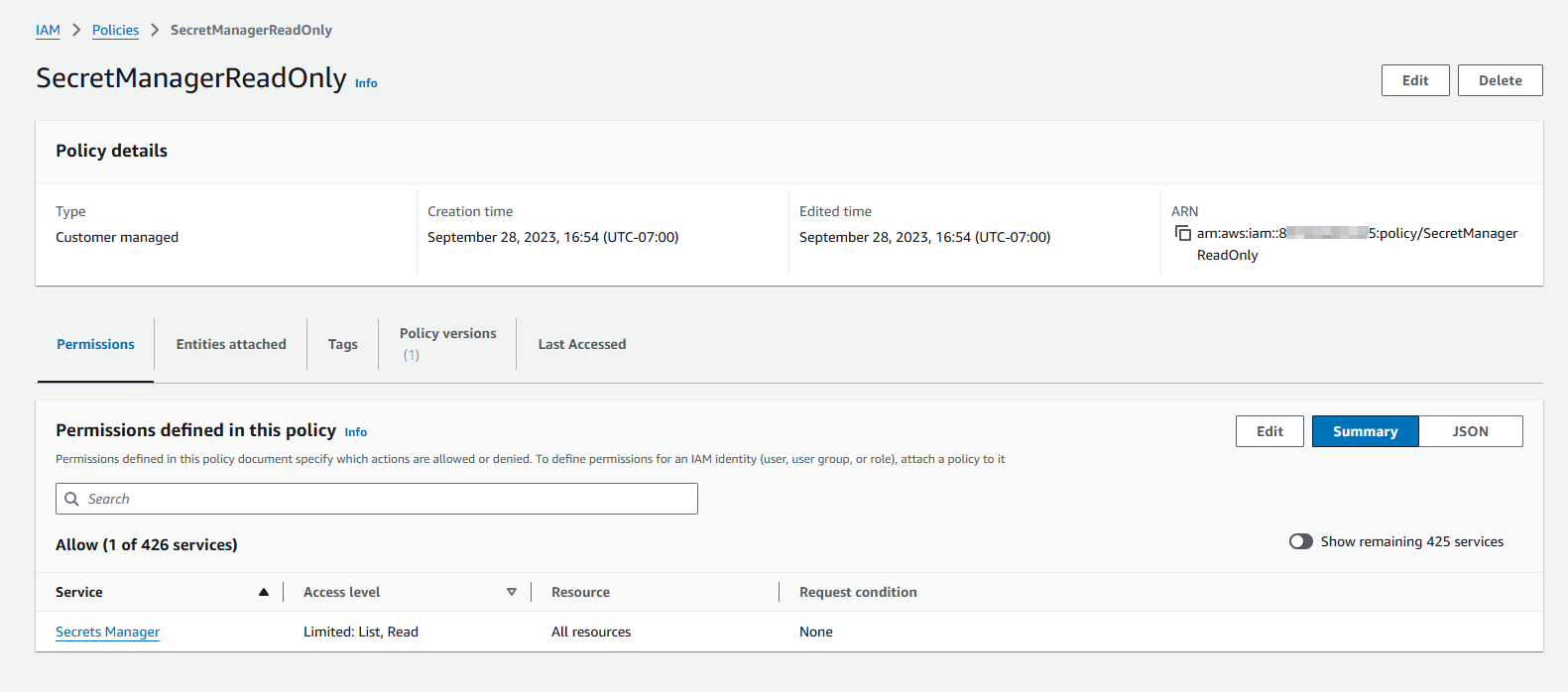
5Create an IAM policy with the All list actions and All read actions access levels as shown in the following image:
6Under Access management, select Roles.
7Click Create role.
8On the Select trusted entity page, select AWS service as the trusted entity type and EC2 as the use case, and then click Next.
9On the Add permissions page, select the policy you created, and then click Next.
10Enter a role name, verify the permissions policy, and create the role, as shown in the following image:
11Navigate to the EC2 dashboard and select the EC2 instance that hosts the Secure Agent.
12Click Advanced.
13Under IAM instance profile, select the IAM role you created, and launch the EC2 instance.
Cross-account access configuration for AWS Secrets Manager
If the AWS account that hosts your secrets differs from the account that hosts the Secure Agent, you'll need to set up both accounts for cross-account access.
When you configure a connection to use a secrets manager, you choose the runtime environment for the connnection. If the runtime environment contains a Secure Agent that is hosted within an AWS account and this account differs from the account that hosts the secrets, you need to configure cross-account access. Configure cross-account access so that the Secure Agent can access the secrets.
Note:
To configure cross-account access, the resource that hosts the secrets needs to be in the same region as the region you choose when you enable your organization to use a secrets manager. For more information about enabling your organization to use a secrets manager, see Enabling and disabling a secrets manager.
Step 1. Set up the account that hosts the secrets.
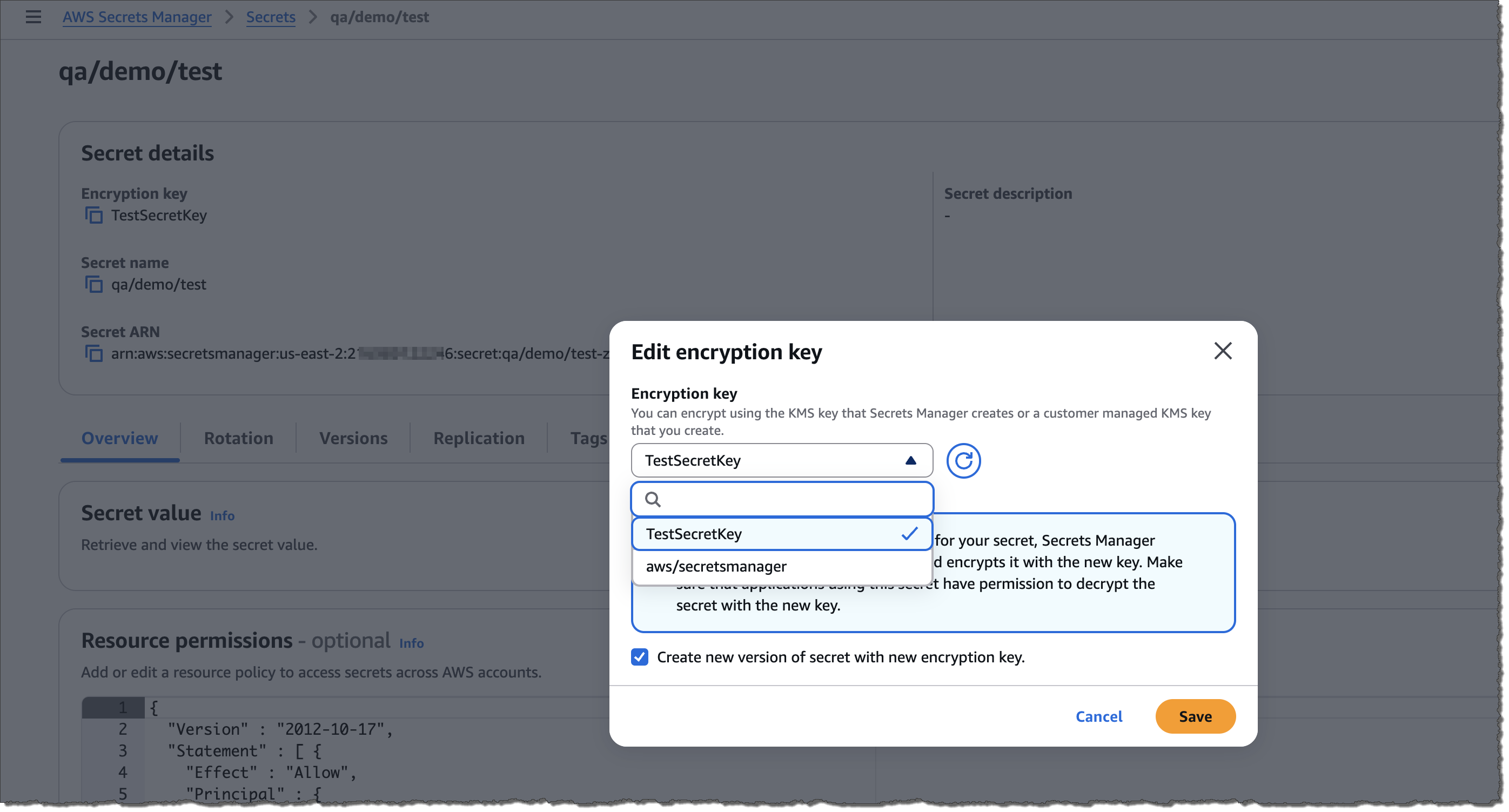
To set up the account that hosts the secrets, you need to create a customer-managed KMS key, encrypt the secret using the key, and attach a resource policy to the secret. You can't use the AWS managed key for cross-account access.
Perform the following steps:
1Create the KMS key by performing the following steps:
aLog in to the AWS Management Console, and search for "Key Management Service" or "KMS."
bNavigate to Customer Managed Keys.
cCreate a new customer-managed key that has the following properties:
Property
Value
Key type
Symmetric
Key usage
Encrypt and Decrypt
Key administrators
Select the IAM users or roles that will manage the key.
Key users
Select the IAM users or roles that will use the key to encrypt and decrypt secrets.
dConfigure the following key policy to allow access to the IAM role in the account that hosts the Secure Agent:
Step 2. Set up the account that hosts the Secure Agent.
To set up the account that hosts the Secure Agent, attach an identity policy to the role that the agent uses, and then verify that the account that hosts the agent can fetch the KMS key from the account that hosts the secrets.
Attach the following identity policy to the the role that the agent uses to access secrets:
To verify that the account that hosts the agent can retrieve the KMS key, run the following command from the EC2 instance in the account that hosts the agent:
AWS Secrets Manager enforces restrictions on secret names.
In AWS Secrets Manager, secret names can contain only alphanumeric characters and the following special characters:
/ _ + = . @ - "
For more information about secret names, see the AWS Secrets Manager documentation.
AWS Secrets Manager connection properties
If you select AWS Secrets Manager as your secrets manager, configure connection properties such as the authentication type and region. The connection properties vary based on the authentication type.
Role-based authentication
Configure the following properties when you access Secrets Manager using role-based authentication:
Property
Description
Type
Secrets manager type. Choose AWS Secrets Manager.
Authentication Type
Authentication type that the Secure Agent should use to access Secrets Manager. For role-based authentication, choose Role Based Access.
IAM Role
Amazon Resource Name (ARN) of the IAM role that the Secure Agent should use to access secrets. Typically, the format is:
arn:aws:iam::<account>:role/<role name with path>
Note:
The IAM role must be configured as described in IAM role configuration for AWS Secrets Manager. The AWS resource that hosts the Secure Agent needs to have access to this role.
External ID
External ID required to assume the IAM role.
Region
Region code for the region where your Secrets Manager secrets are hosted, for example, us-east-2.
Don't enter a full region name like US East (Ohio).
STS Endpoint
STS endpoint URL if you are using a regional or manually configured endpoint.
For example, if your service endpoint is US West (N. California), enter the following value:
https://secretsmanager.us-west-1.amazonaws.com
If not specified, the global endpoint https://sts.amazonaws.com is used.
STS Endpoint Region
Region in which your service endpoint is located, for example, us-west-1.
Enter a value for this property if your STS endpoint region differs from your Secrets Manager region. If not specified, the STS endpoint region is assumed to be the same as the Secrets Manager region.
Instance profile authentication
Configure the following properties when you access Secrets Manager using instance profile authentication:
Property
Description
Type
Secrets manager type. Choose AWS Secrets Manager.
Authentication Type
Authentication type that the Secure Agent should use to access Secrets Manager. For instance profile authentication, choose Instance Profile.
Region
Region code for the region where your Secrets Manager secrets are hosted, for example, us-east-2.
Don't enter a full region name like US East (Ohio).
Access key authentication
Configure the following properties when you access Secrets Manager using an access key:
Property
Description
Type
Secrets manager type. Choose AWS Secrets Manager.
Authentication Type
Authentication type that the Secure Agent should use to access Secrets Manager. For access key authentication, choose Access Key.
Access Key ID
AWS access key ID that the Secure Agent should use to access secrets, for example, AKIAIOSFODNN7EXAMPLE.
The access key ID must be associated with an IAM role that is assigned an access policy with the GetSecretValue and ListSecrets permissions.
You need to enter both the access key ID and the secret access key.
Secret Access Key
AWS secret access key that the Secure Agent should use to access secrets, for example wJalrXUtnFEMI/K7MDENG/bPxRfiCYEXAMPLEKEY.
You need to enter both the access key ID and the secret access key.
Region
Region code for the region where your Secrets Manager secrets are hosted, for example, us-east-2.
Don't enter a full region name like US East (Ohio).
For more information about AWS Secrets Manager properties, see the AWS documentation.