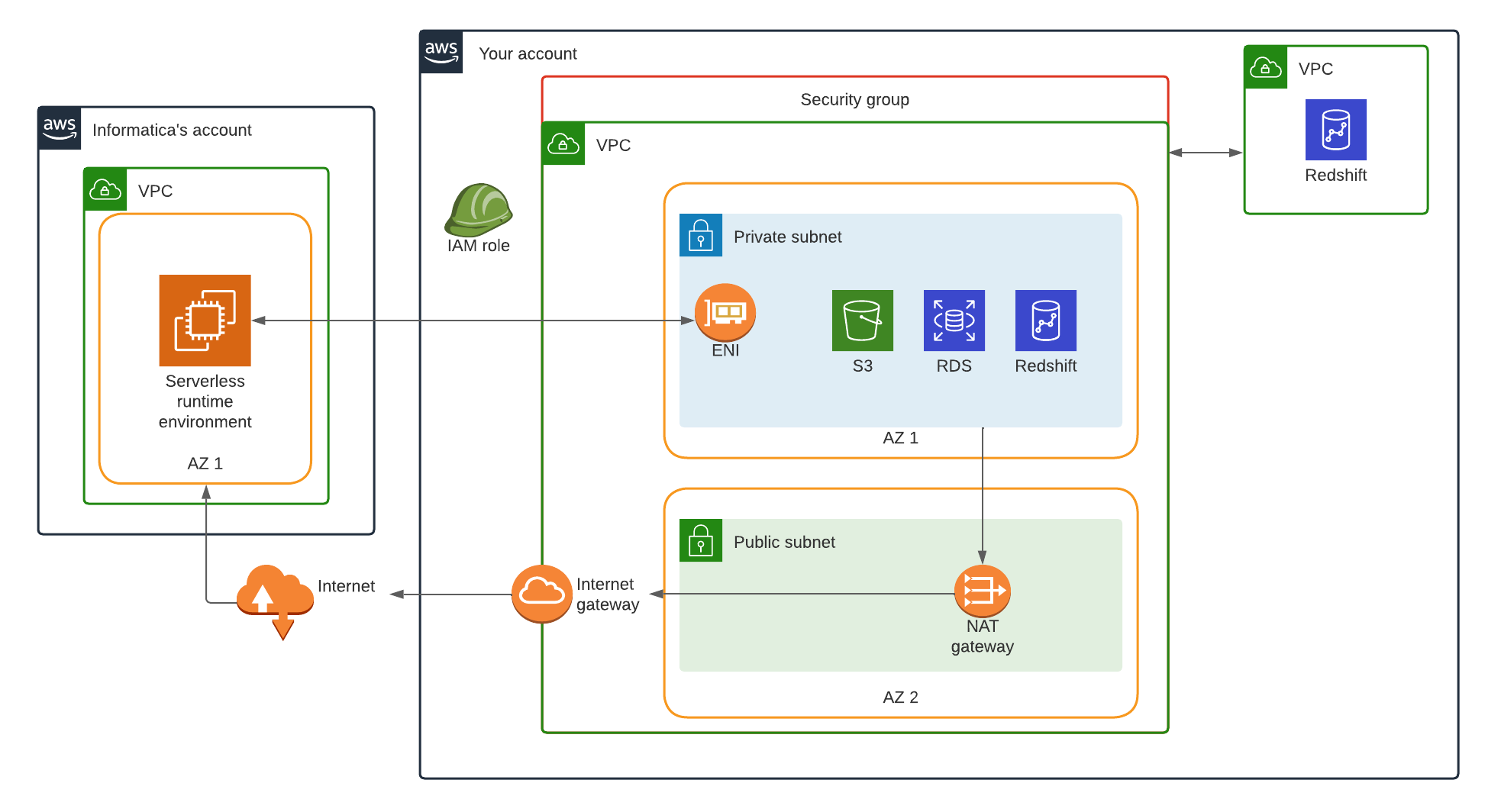
Serverless setup using AWS cross-account elastic network interfaces
A serverless runtime environment using AWS cross-account elastic network interfaces (ENIs) uses an ENI to connect to the AWS resources in your AWS account. Then, it runs tasks using the infrastructure in Informatica's AWS account.
To create the serverless runtime environment, complete the following tasks:
1Set up your AWS environment to create and configure the required AWS resources.
2In Administrator, create a serverless runtime environment to deploy it to AWS.
3If your organization uses an outgoing proxy server to connect to the internet, you can configure the serverless runtime environment to connect to IDMC through the proxy server.
4Prepare for disaster recovery by setting up a temporary serverless runtime environment where you can redirect jobs as part of your organization's disaster recovery plan.
Note:
Your VPC must have default tenancy. A serverless runtime environment can't connect to a VPC with dedicated instance tenancy.
Set up the AWS environment
Set up your AWS environment to create and configure the required AWS resources before creating a serverless runtime environment.
To set up the AWS environment, complete the following tasks:
1Create and configure AWS resources to connect to the serverless runtime environment.
2Configure VPC to VPC connectivity to access data across VPCs.
3Create an IAM role that the serverless runtime environment and advanced cluster worker nodes can use to create, attach, detach, and delete the ENI that's associated with the private subnet in your VPC.
4Create a system disk to improve mapping performance in Data Integration.
5Create a data disk if you have files on Amazon EFS or an NFS file server that you want to use in tasks.
6If tasks use JAR files and external libraries, dedicate a location on Amazon S3 to store the files and create folders for each file type.
7If your organization allows only trusted IP addresses, add the IP addresses for the Informatica NAT gateway to the trusted list.
The following image shows how the serverless runtime environment connects to your AWS resources:
Step 1. Create AWS resources
Create and configure AWS resources in your VPC to connect to the serverless runtime environment in Informatica's VPC.
Create and configure the following AWS resources:
VPC
A VPC is a virtual network that contains other AWS resources. You can use an existing VPC or create a VPC.
Enable DNS hostnames and DNS resolution for the VPC. Also, ensure that at least one of the following scenarios applies to you:
- Your VPC's DHCP option is set with AmazonProvidedDNS.
- If you have custom DNS servers in your DHCP option set, ensure that AmazonProvidedDNs is part of the option set or that the DNS servers can resolve EC2 internal hostnames. To ensure that the DNS servers can resolve EC2 internal hostnames, internally redirect the DNS query to AmazonProvidedDNS.
Public subnet for internet access
A public subnet provides internet access through a NAT gateway. To create the public subnet, use the following guidelines:
- Use any availability zone in the region where you created the VPC.
- The CIDR range must be within the VPC CIDR range. Choose a range based on the number of IP addresses that you want to have within the subnet.
Private subnet to host the ENI
A private subnet hosts the ENI that the serverless runtime environment uses to connect to your VPC.
Create a private subnet and configure a CIDR range to determine the maximum number of IP addresses and therefore, the scalability, of the serverless runtime environment. Configure the CIDR range to have at least 25 IP addresses per serverless runtime environment so that the serverless runtime environment can scale effectively when developers run concurrent workloads.
After your organization administrator creates a serverless runtime environment in Administrator, the serverless runtime environment creates an ENI in your private subnet.
Security group
A security group controls the traffic flow from the serverless runtime environment. Create a security group in the VPC. The security group is associated with all ENIs that the serverless runtime environment creates.
To create the security group, use the following guidelines:
- Leave the inbound rules empty to restrict all incoming traffic.
- The outbound rules can either allow all traffic or limit traffic to all Amazon S3 resources and all source and target systems that the serverless runtime environment accesses.
You specify this security group in the serverless runtime environment properties in Administrator.
NAT gateway for internet access from the private subnet
A NAT gateway allows outbound traffic to the internet from private instances. All compute instances in the serverless runtime environment that are associated with the ENI are private.
Create a NAT gateway to route outbound traffic from the private subnet to the internet. AWS provides several ways to configure subnet routing rules, such as route tables and NACL. For more information, see the AWS documentation.
Step 2. Configure VPC to VPC connectivity (optional)
Configure VPC to VPC connectivity to access data across VPCs.
For example, configure VPC to VPC connectivity if a mapping reads data from an Amazon Redshift cluster in one VPC and writes data to an Amazon Redshift cluster in another VPC.
AWS provides several ways to configure VPC to VPC connectivity, such as VPC peering or AWS Transit Gateway. Use AWS PrivateLink if applicable. For more information, see the AWS documentation.
Step 3. Create an IAM role
Create an IAM role that the serverless runtime environment and advanced cluster worker nodes can use to create, attach, detach, and delete the ENI that's associated with the private subnet in your VPC.
The IAM role must be able to access the S3 location for supplementary files as well as the sources and targets that you use in mappings and tasks. You can use the following template:
In the trust relationship, specify the Informatica account number as a trusted entity and create an external ID. To find the Informatica account number, create a serverless runtime environment in Administrator and check the environment properties. You can use the following template:
Create a system disk to improve mapping performance in Data Integration.
You can create a system disk using Amazon EFS or an NFS. File system connections in Amazon EFS use TLS by default. File system connections in NFS use NFSv4.
When you use a system disk, the serverless runtime environment creates the following directory on the system disk to store job metadata and logs:
To create a system disk on Amazon EFS, use the following guidelines:
•Create any folder required by an access point before creating the access point itself. For example, if the access point refers to the folder /my-company/dev, then define this folder first before you set up the access point.
•Configure connectivity between the subnet in the serverless runtime environment and the EFS file system.
•Configure the EFS security group to allow inbound access from the security group of the serverless runtime environment.
- REST V3 Connector truststore and keystore certificates
- JAR files for the Java transformation
- Installation and resource files for the Python transformation
You can customize the directory structure under the serverless_agent_config folder and specify the relative path to each file in the serverlessUserAgentConfig.yml file.
Step 7. Add trusted Informatica IP addresses
If your organization allows only trusted IP addresses, add the IP addresses for the Informatica NAT gateway to the trusted list.
For information about adding trusted IP addresses, see Organization Administration.
The following table lists the IP addresses for the Informatica NAT gateway to allow for each POD:
POD
Trusted IP addresses
NA West 1, NA East 2, US West 3, US East 4, US West 5, US East 6
5To save and deploy the serverless runtime environment, select Save.
It takes at least five minutes for the serverless runtime environment to become available. Use the Serverless Environments page to track the status of the environment and review any status messages.
Serverless runtime environment properties
Configure the serverless runtime environment properties so that IDMC can connect to your AWS account.
Basic configuration
The following table describes the basic properties:
Property
Description
Name
Name of the serverless runtime environment.
Description
Description of the serverless runtime environment.
Task Type
Type of tasks that run in the serverless runtime environment.
- Select Data Integration to run mappings outside of advanced mode.
- Select Advanced Data Integration to run mappings in advanced mode.
Cloud Platform
Cloud platform to host the serverless runtime environment. Use Amazon Web Services (AWS).
Max Compute Units Per Task
Maximum number of serverless compute units corresponding to CPU and memory that a task can use.
The property value configured in the serverless runtime environment specifies the maximum number of serverless compute units that each task can request from the environment. When you create a mapping task, you can override the maximum number of compute units that the task can request. In Monitor, you can view the number of compute units that the task requested and consumed. For information about metering, see Organization Administration.
Task Timeout
Amount of time in minutes to wait for a task to complete before it is terminated. The timeout ensures that serverless compute units are not unproductive when a task hangs.
By default, the timeout is 2880 minutes (48 hours). You can set the timeout to a value that is less than 2880 minutes.
Informatica Account Number
Informatica's account number on the cloud platform where the serverless runtime environment will be created. The account number is populated automatically.
External ID
External ID to associate with the role that you create for the serverless runtime environment. You can use the generated external ID or specify your own external ID.
Platform configuration
The following table describes the platform configuration properties:
Property
Description
Configuration Name
Name of the serverless configuration.
Configuration Description
Description of the serverless configuration. The description can be up to 256 characters and can contain alphanumeric characters and the following special characters:
._-:/()#,@[]+=&;{}!$"*
Account Number
Your account number on the cloud platform.
Region
Region of your cloud environment. The sources and targets that you use in mappings must either reside in or be accessible from this region.
AZ ID
ID of the availability zone. The sources and targets that you use in mappings must either reside or be accessible from the availability zone.
VPC ID
ID of the VPC. The VPC must be configured with an endpoint to access the sources and targets that you use in mappings. For example, vpc-2f09a348
Subnet ID
ID of the subnet within the VPC. The subnet must be have an entry point to access the sources and targets that you use in mappings. For example, subnet-b46032ec
Security Group ID
ID of the security group that the serverless runtime environment will attach to the ENI. The security group allows access to the sources and targets that you use in tasks.
For example, sg-e1fb8c9a.
Role Name
Name of the IAM role that the serverless runtime environment can assume on your AWS account.
The role must have permissions to create, read, delete, list, detach, and attach an ENI. It also requires read and write permissions on supplementary file location.
Use the Informatica account number and the external ID when you create a policy for the role.
AWS Tags
AWS tags to label the ENI that's created in your AWS account.
Each tag must be a key-value pair in the format: Key=string,Value=string where Key and Value are case-sensitive. Use a space to separate tags.
Follow the rules and guidelines for tagging that AWS specifies. For more information, refer to the AWS documentation.
Supplementary File Location
Location on Amazon S3 to store supplementary files, such as JAR files and external libraries for certain transformations and connectors. Use the format: s3://<bucket name>/<folder name>
Place script files in a folder named command_scripts. The folder can have subfolders. If you update files in the command_scripts folder, IDMC automatically uploads them to the Secure Agent.
System disk
The following table describes the system disk properties:
Property
Description
Type
System disk type, either EFS or NFS.
File System
For EFS disks, the file system is the file system ID of the EFS disk. For NFS disks, the file system is the DNS of the file system.
Source Mount
File system path to be mounted in the serverless runtime environment.
Access Point
ID of the Amazon EFS file system access point. The access point ensures isolation for tenants in a multi-tenant EFS file system. When an access point is set up, you can configure the file system policy to allow access only to the access point.
Data disk
The following table describes the data disk properties:
Property
Description
Type
Data disk type, either EFS or NFS.
File System
For EFS disks, the file system is the file system ID of the EFS disk. For NFS disks, the file system is the DNS of the file system.
Source Mount
File system path to be mounted in the serverless runtime environment.
Target Mount
File system to be mounted on the Secure Agent.
Access Point
ID of the Amazon EFS file system access point. The access point ensures isolation for tenants in a multi-tenant EFS file system. When an access point is set up, you can configure the file system policy to allow access only to the access point.
Set up a proxy server
If your organization uses an outgoing proxy server to connect to the internet, you can configure the serverless runtime environment to connect to IDMC through the proxy server.
When you configure a proxy server for the serverless runtime environment, you define the required proxy server settings in the serverlessUserAgentConfig.yml file before you can import metadata or design your mappings. Data Integration copies the proxy entries in the file to the serverless runtime environment.
To apply the proxy when you run mappings, set the proxy configurations on the Serverless Environments page in Administrator.
You can configure proxy settings for the serverless runtime environment in certain connectors. To see if the proxy applies in a connector, see the help for the appropriate connector.
Configuring the proxy in the serverlessUserAgentConfig.yml file
To apply proxy server settings when you design mappings and import metadata, add the proxy server details to the serverlessUserAgentConfig.yml file.
Use the following code snippet as a template to provide the values for the proxy server in the serverlessUserAgentConfig.yml file:
agent: agentAutoDeploy: general: proxy: proxyHost: <Host_name of proxy server> proxyPort: <Port number of the proxy server> proxyUser: <User name of the proxy server> proxyPassword: <Password to access the proxy server> nonProxyHost: <Non-proxy host>
Configuring the proxy in the JVM options
To apply proxy server settings when you run mappings or tasks, configure JVM options in Administrator.
1On the Serverless Environments page, click the name of the serverless runtime environment.
2Click Edit.
3In the Runtime Configuration Properties section, select the Service as Data Integration Server and the Type as DTM.
4Edit any of the JVMOption fields and specify appropriate values for each parameter based on whether you use an HTTPS or HTTP proxy server.
The following table describes the parameters:
Parameter
Description
-Dhttp.proxySet=
Determines if the serverless runtime environment must use the proxy settings when the outgoing proxy server is HTTP. Select -Dhttp.proxySet=True to use the proxy.
-Dhttps.proxySet=
Determines if the serverless runtime environment must use the proxy settings when the outgoing proxy server is HTTPS. Select -Dhttps.proxySet=True to use the proxy.
-Dhttp.proxyHost=
Host name of the outgoing HTTP proxy server.
-Dhttp.proxyPort=
Port number of the outgoing HTTP proxy server.
-Dhttp.proxyUser=
Authenticated user name for the HTTP proxy server.
-Dhttp.proxyPassword=
Password for the authenticated user.
-Dhttps.proxyHost=
Host name of the outgoing HTTPS proxy server.
-Dhttps.proxyPort=
Port number of the outgoing HTTPS proxy server.
-Dhttps.proxyUser=
Authenticated user name for the HTTPS proxy server.
-Dhttps.proxyPassword=
Password for the authenticated user.
5Click Save.
Allowing domains in the proxy server
To run a mapping successfully, the proxy server must allow traffic from the AWS endpoints that are required to process the data in the mapping.
Specify the region that contains the VPC that connects to the serverless runtime environment.
Prepare for disaster recovery
Prepare for disaster recovery by setting up a temporary serverless runtime environment where you can redirect jobs as part of your organization's disaster recovery plan.
Disaster recovery procedure
During a disaster, all virtual machines in the serverless runtime environment shut down and jobs can no longer run in the environment.
To minimize data loss and downtime, complete the following tasks:
1Create a temporary serverless runtime environment in a stable region or availability zone.
2Make sure that the connections used in jobs are available in the stable region or availability zone.
3Clean up data related to incomplete job runs. If data was partially loaded to a target, manually delete the data or update the mapping to truncate the target before writing new rows.
4Redirect jobs to the temporary environment.
Restoring the primary environment
When the region or availability zone that hosts the primary serverless runtime environment has recovered, you can restore the primary environment.
To restore the primary environment, complete the following tasks:
1Clean up the ENIs that were created in your AWS account for the primary environment.
2Redeploy the primary environment.
3Redirect jobs to the primary environment.
4Delete the temporary environment.
Serverless runtime environment validation
Informatica validates the serverless configuration properties and several network settings in the serverless runtime environment when you create, clone, or redeploy it; or when you edit and save a failed environment.
To validate the serverless runtime environment, Informatica connects to your AWS account using the IAM role that you created. Informatica uses the role to verify AWS resource properties, such as the role name, subnet ID, and availability zone ID. To access these resources, Informatica uses the following role permissions:
Informatica doesn't validate the VPC ID if the subnet ID doesn't exist.
Informatica also checks the number of IP addresses in the subnet.
If validation fails for an AWS resource or there aren't enough IP addresses available in the subnet, the serverless runtime environment fails to start. You can download the validation log on the Serverless Environments page.