After you create a Customer Managed Secure Agent group, you can edit, synchronize, and delete it. You can also view dependencies, change permissions, and check for upgrades.
You can perform the following tasks from the Actions menu:
Change the name or description of the environment
To change the name or description of your Customer Managed runtime environment, select Edit Environment Properties.
Enable or disable services and connectors
You can enable a service to allow the Customer Managed runtime environment to run product features associated with the service. You can enable specific connectors to allow the environment to communicate with cloud and on-premises applications, platforms, databases, and flat files.
To enable services and connectors, select Enable or Disable Services, Connectors.
Manage configuration
To change the configuration on the Database Configuration tab, select Manage configuration.
Synchronize the runtime environment
To push changes to tasks or Secure Agents in a Customer Managed runtime environment, select Sync Runtime Environment.
Check whether upgrades are available for the Secure Agents in the Customer Managed runtime environment and then install the upgrades.
Install any upgrades as soon as possible, as you can't synchronize your Customer Managed runtime environment with outdated Secure Agents.
Tip:
The Sync Runtime Environment action automatically checks for upgrades.
To check for upgrades, select Check and install upgrades.
Delete the runtime environment
You can delete a Customer Managed runtime environment if it is no longer being used.
To delete a Customer Managed runtime environment, select Delete.
View dependencies
View dependencies to find the tasks or connections that use the Customer Managed runtime environment or to find the objects that are used by the Customer Managed runtime environment.
To view dependencies, select Show Dependencies.
Change permissions
To change permissions for a Customer Managed runtime environment, select Permissions. You can define permissions for a Customer Managed runtime environment for each user group in your organization.
The following table describes the permissions that you can set:
Permission
Description
Read
View details about the Customer Managed runtime environment and use the Customer Managed runtime environment in a task.
Update
Edit the Customer Managed runtime environment.
Delete
Delete the Customer Managed runtime environment.
Execute
Run tasks in the Customer Managed runtime environment.
Change Permissions
Change permissions for the Customer Managed runtime environment.
Synchronize the runtime environment
When you run a Customer Managed runtime environment, you manually push changes to tasks, assets, or configurations to the Secure Agents in the environment. Unlike standard runtime environments, these changes don't transmit automatically.
It's important to understand the two types of synchronizations in a Customer Managed runtime environment:
•Automatic synchronization. Secure Agents in a Customer Managed runtime environment automatically return results of jobs back to IDMC when a connection is available. This operation runs in the background, with no user interaction.
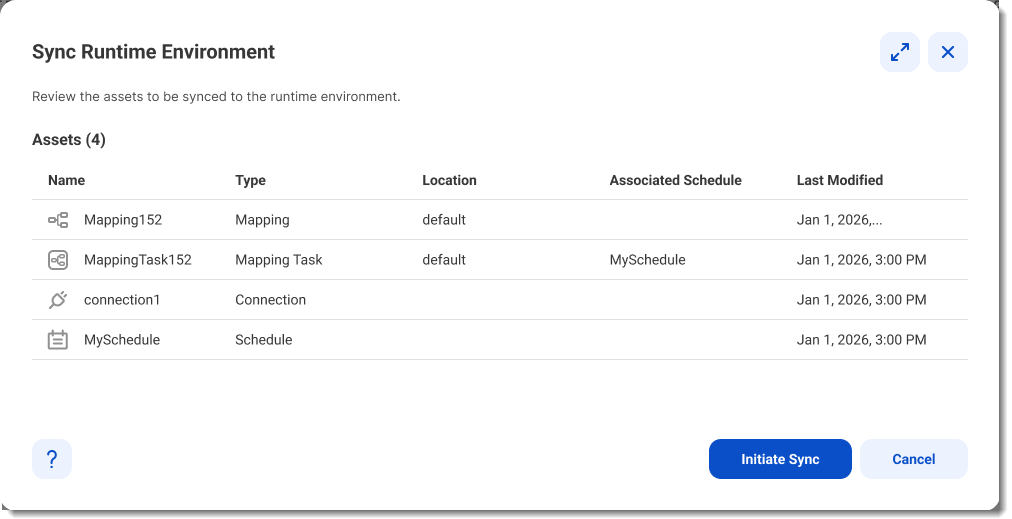
•Manual synchronization. Any changes within IDMC such as new tasks, mappings, connections, or schedules require you to manually deploy the changes to the Secure Agents. You do this using the Sync Runtime Environment option in the Actions menu of a Customer Managed runtime environment.
The following image shows a confirmation dialog listing a set of assets that will be synchronized:
If everything is in order, click Initiate Sync to begin the synchronization. This may take several minutes to complete and you will be notified when the process is finished.
If you need to make changes, click Cancel, make the corrections and synchronize.
Secure Agent upgrade
If your Secure Agent requires an upgrade, a banner asks you to upgrade before synchronization proceeds.
The following image shows the upgrade banner:
Click Install Upgrade to continue and then click Upgrade in the confirmation dialog to proceed with the upgrade.
Optionally, you can select to upgrade all available Customer Managed Secure Agent groups. If you don't select this option, only the agents in the current Customer Managed Secure Agent group are upgraded.