After you publish a taskflow as a service, you can run the taskflow as an API or schedule the taskflow. You can use the endpoint URLs to run the taskflow as an API, and dynamically provide input parameters for the tasks that the taskflow contains and perform orchestration.
1Navigate to the taskflow that you published as a service.
2From the Actions menu, select Properties Detail.
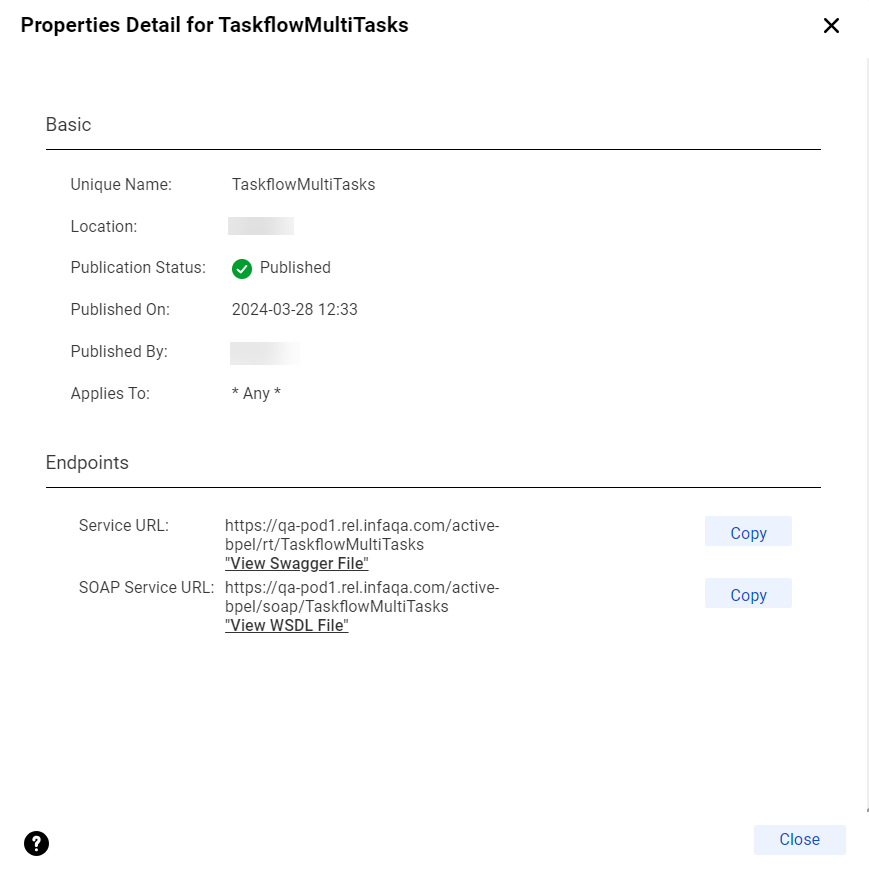
The Properties Detail dialog box appears displaying the service URL and the SOAP service URL as shown in the following image:
3Open a browser and paste the service URL with the input fields and values. If the taskflow uses authentication, you must enter the allowed user name and password.
The service returns the taskflow run ID as the response. You can monitor the taskflow execution by using the run ID.
Passing inputs through a REST client
When you have multiple input values to pass and have a complex body, you can use a REST client such as Postman. You must use the service URL and the API definition available in the Swagger file to send a request through a REST client. The Swagger file contains the operation name, authentication method, and the input for the taskflow. You can use the Swagger editor to parse the Swagger file and get the Swagger request.
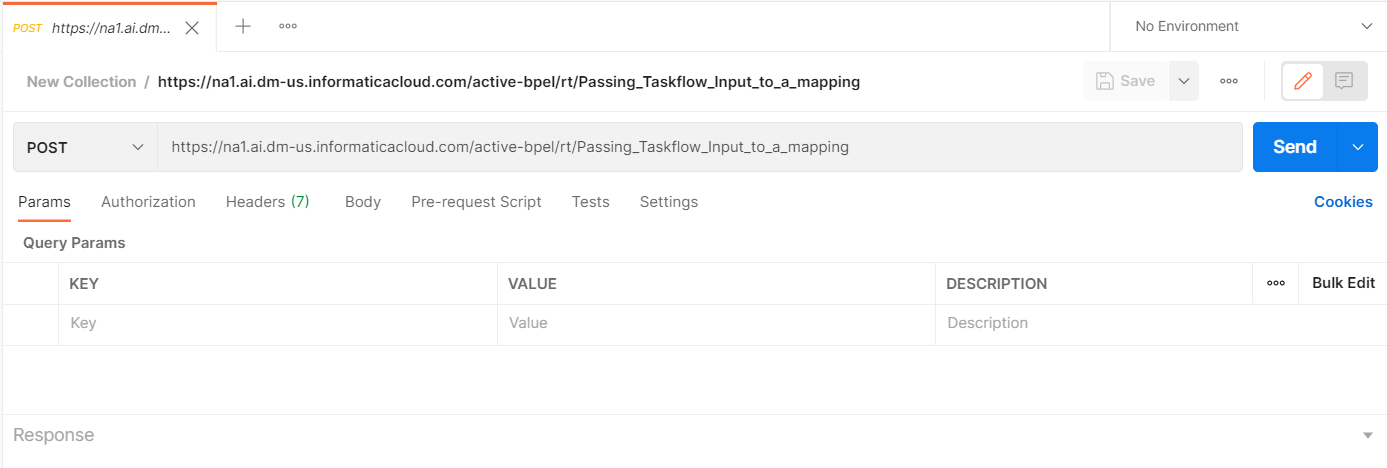
2Select the HTTP verb such as GET or POST and specify the generated REST service URL as shown in the following image:
3Enter the user account details in the Authorization tab.
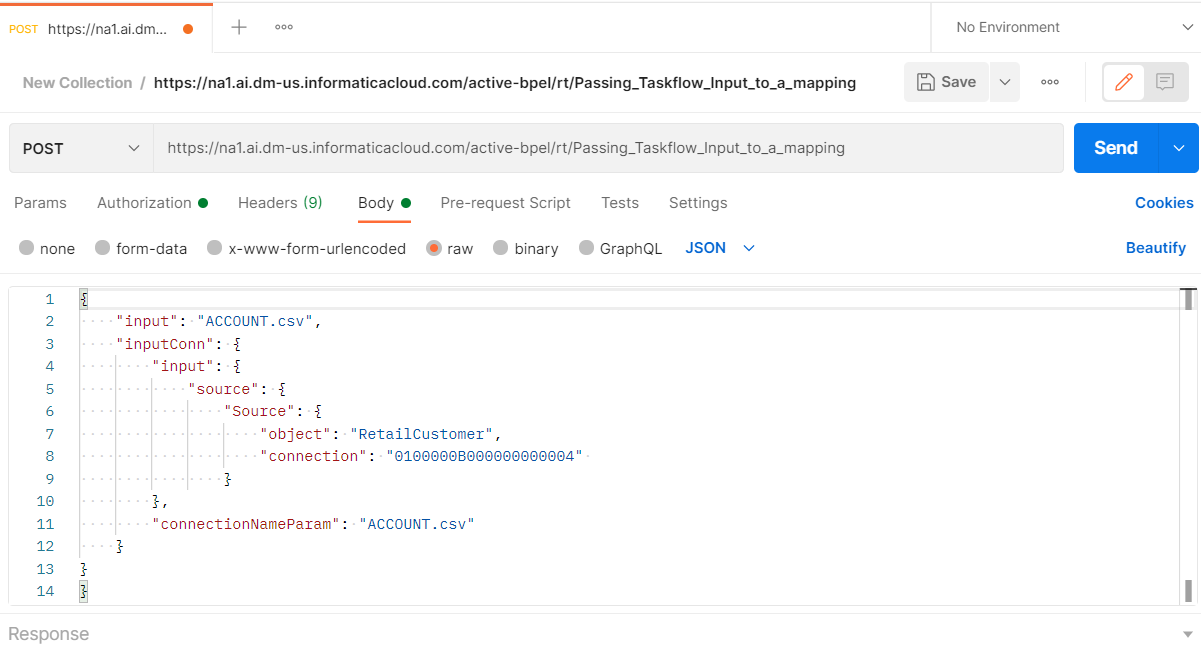
4Specify the swagger request in the Body tab as shown in the following image:
5Specify the input values in the request body.
6Click Send.
You receive the taskflow run ID as the response as shown in the following image:
Resume a suspended taskflow
You can use the resumeWithFaultRetry resource to resume a suspended taskflow instance from a faulted step. You can also use the resumeWithFaultSkip resource to skip a faulted step and resume a suspended taskflow instance from the next step.
Note:
If you configure the Custom Error Handling option for a step within a taskflow, you can't use the resumeWithFaultyRetry resource to resume the taskflow from the failed step.
resumeWithFaultRetry
To resume a suspended taskflow instance from a faulted step, use the following URI in a PUT request:
PUT <Informatica Intelligent Cloud Services URL>/active-bpel/management/runtime/v1/resumeWithFaultRetry/<run ID>
Include the following information in the request:
Field
Type
Required
Description
run ID
String
Yes
Run ID for the taskflow.
resumeWithFaultRetry PUT example
Use this sample as a reference to resume a suspended taskflow instance from a faulted step in a PUT request.
PUT https://na1.dm-us.informaticacloud.com/active-bpel/management/runtime/v1/resumeWithFaultRetry/681134580186693632
Accept: application/json
INFA-SESSION-ID: 9KA11tLGqxVcGeul8SQBK3
resumeWithFaultRetry PUT response
Returns the 204 response code if the request is successful.
Returns an error object if error occurs.
resumeWithFaultSkip
To skip a faulted step and resume a suspended taskflow instance from the next step, use the following URI in a PUT request:
PUT <Informatica Intelligent Cloud Services URL>/active-bpel/management/runtime/v1/resumeWithFaultSkip/<run ID>
Include the following information in the request:
Field
Type
Required
Description
run ID
String
Yes
Run ID for the taskflow.
resumeWithFaultSkip PUT example
Use this sample as a reference to skip a faulted step and resume a suspended taskflow instance from the next step in a PUT request.
PUT https://na1.dm-us.informaticacloud.com/active-bpel/management/runtime/v1/resumeWithFaultSkip/681134580186693632
Accept: application/json
INFA-SESSION-ID: 9KA11tLGqxVcGeul8SQBK4
resumeWithFaultSkip PUT response
Returns the 204 response code if the request is successful.
Returns an error object if error occurs.
Listing suspended taskflows through an API
You can use a JLS API to get a list of taskflows that are suspended. By default, the number of suspended taskflows that the API returns is 200.
To get a list of suspended taskflows, use the following URI:
{{<Informatica Intelligent Cloud Services URL>}}/jls-di/api/v1/Orgs(<Organization ID>)/JobLogEntries?$top=<Number of suspended taskflows>&$filter=(status eq 'SUSPENDED' and assetType eq 'TASKFLOW')
To get a list of latest suspended taskflows within an organization based on the users who started the taskflows, use the following URI :
{{<Informatica Intelligent Cloud Services URL>}}/jls-di/api/v1/Orgs(<Organization ID>)/JobLogEntries?$top=<Number of suspended taskflows>&$filter=(status eq 'SUSPENDED' and startedBy eq '<username>' and assetType eq 'TASKFLOW')
Terminating taskflows through an API
You can terminate one or more taskflows using an API. The maximum number of taskflows that you can terminate at a time is 200.
Use the following URI to terminate one or more taskflows:
PUT <Informatica Intelligent Cloud Services URL>/active-bpel/services/tf/terminate
Enter the taskflow run IDs as the input in the body of the PUT request.
Enclose the run IDs within double quotation marks and separate multiple run IDs with a comma. For example, enter: < { "runid" : [ "7645954072982472420" , "675348537035183518"] } >.
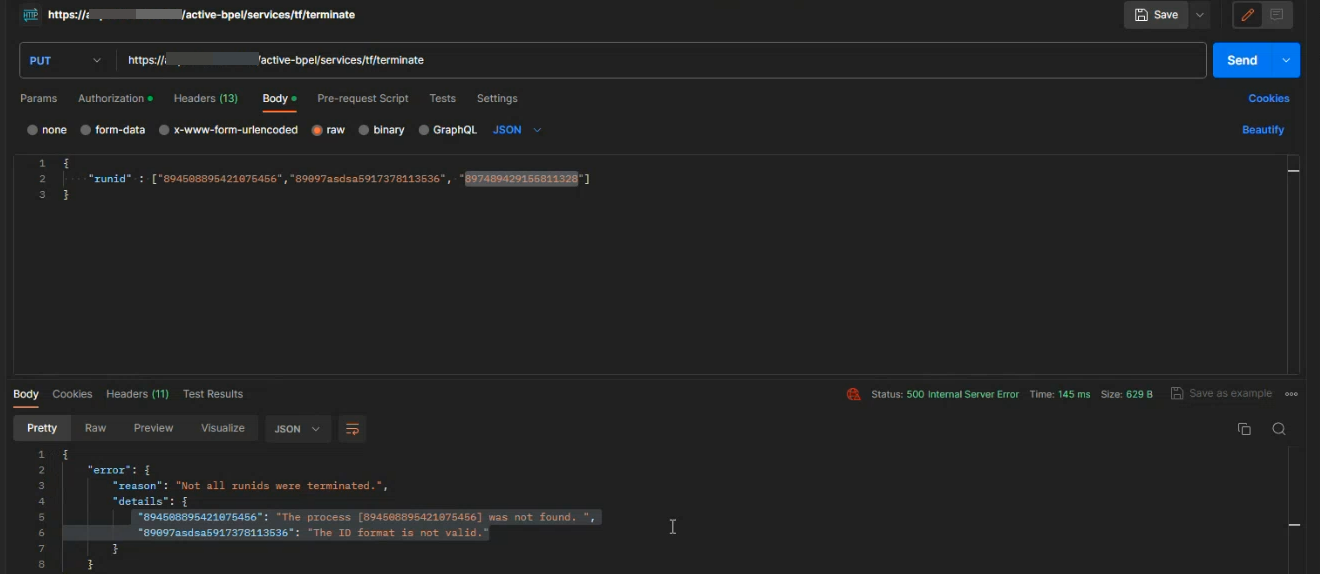
The API displays error messages when you enter a run ID that does not exist or is not valid. The API supports basic authentication and session ID authorization.
The following image shows a sample terminate request and response:
Modifying taskflow attributes with the update resource
If you are assigned the Administrator, Deployer, Designer, or Operator role, you can use the update resource to update the values of the API Name, Allowed Users, Allowed Groups, Parameter Setand fields of a taskflow. You can update these fields for both single and multiple taskflows.
Use the request body to pass the values. The updates can be applied to one or more taskflows using the update resource.
To perform the updates, use the following URI with the updated values included in the request body:
Consider the following rules and guidelines when you use the Parameter Set field:
•You can configure the parameter set name using alphanumeric characters, underscores, hyphens, dots, and spaces. The parameter set name must not exceed 255 characters.
•You can perform a bulk update of parameter sets for both published and unpublished taskflows.
Rules and guidelines for API Name field
Consider the following rules and guidelines when you use the API Name field:
•The API name must not be blank and shouldn't exceed 80 characters.
•Use only alphanumeric characters, underscores and hyphens in the API name.
•The API name must be unique. No two taskflows should share the same API name.
PUT request
The following HTTP header shows a PUT request to update the API Name, Allowed Users, Allowed Groups, and Parameter Set fields:
Send a JSON payload in the body of the PUT request that contains a list of taskflows and the fields that you want to update, such as API Name, Allowed Users, Allowed Groups, and Parameter Set.
Use the following sample PUT request to update the API Name, Allowed Users, Allowed Groups, and Parameter Set fields of multiple taskflows:
If the fields include invalid data, you receive the following error response:
// Failure Response { "status": { "$t": "FAILED" }, "errorDetails": { "error": { "$t": "Update failed for assets" }, "failedAssets": { "updateAssetFaultInfo": { "xmlns": "https://com.informatica.icrt/2021/08/updateAssets.xsd", "xmlns$aetgt": "https://com.informatica.icrt/2021/08/updateAssets.xsd", "name": {}, "GUID": { "$t": "<Incorrectguidvalue>" }, "fault": { "$t": "The Api Name is not valid. Specify a valid Api Name." } } } } }
Adding a custom name to a taskflow name
You can add a custom name to a taskflow name by using an API and the RunAJob utility. You can use the custom name as an identifier for the taskflow.
Adding a custom name to a taskflow name using an API
After you publish a taskflow as a service, you can run the taskflow as an API and add a custom name to the taskflow name. When you use the API to add a custom name that contains Japanese characters, you must pass the URL encoded characters.
1Navigate to the taskflow that you published as a service.
2From the Actions menu, select Properties Detail.
The Properties Detail dialog box appears displaying the service URL and the SOAP service URL as shown in the following image:
You can also view the associated Swagger file and WSDL file.
3To run the taskflow, perform one of the following steps based on the type of client that you want to use:
- If you use a REST client, use the service URL and the API definition available in the Swagger file to send a request through the REST client.
- If you use a SOAP client, use the SOAP service URL and the API definition available in the WSDL file to send a request through the SOAP client.
You can pass inputs using the service URL through a browser or a third-party tool. For more information, see Passing inputs through a REST client.
You receive the taskflow run ID as the response.
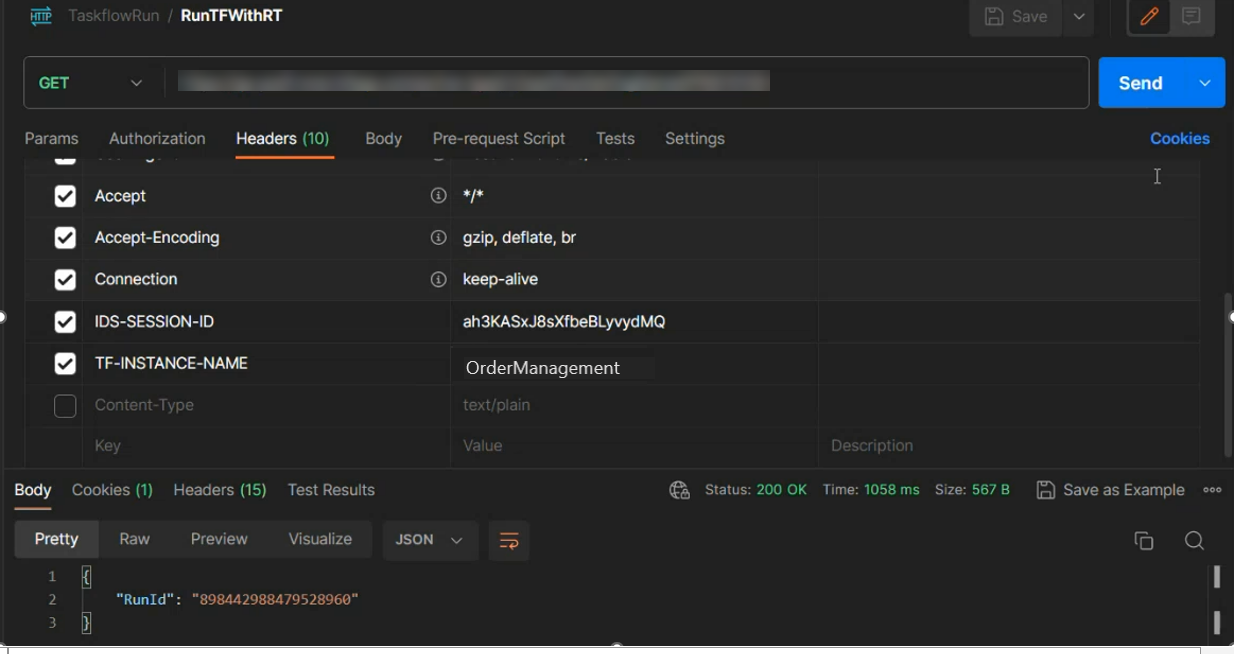
4In the GET request, add the TF-INSTANCE-NAME header and set the header value to the custom name that you want to use. The following image shows the custom name set to the value OrderManagement:
5To monitor the taskflow with the run ID, use the run ID to monitor the taskflow run in the My Jobs page. The instance name uses the following format: <taskflow name>-<custom name>-<run ID>
Adding a custom name to a taskflow name using RunAJob utility
You can add a custom name to a taskflow name using the RunAJob utility. To run a taskflow using the RunAJob utility, the taskflow must be published. Add the custom name by providing -in as the short argument and --instanceName as the long argument in the RunAJob command.
For more information about short and long options for RunAJob utility arguments, see RunAJob utility arguments in REST API Reference.
To add a custom name to a taskflow name using the RunAJob utility, use the following syntax:
For example: cli.bat runAJobCli -t TASKFLOW -in Order -un taskflowManagement
When you use the RunAJob utility, the custom names can't contain the following characters:
•Special characters and meta characters such as ., +, -, =, ~, `, !, %, ^, &, *, (), [], {}, '", ;, :, ?, <>, \, |, \t, \r, \n, <space>, and so on
•Japanese characters
The taskflow name with the custom name appears in the My Jobs page in the following format:
<taskflow name>-<custom name>-<runID>
Monitoring taskflow status with the status resource
If you have the privilege to view job results in Monitor, you can use the status resource to get the status of a taskflow. You can get the status of a taskflow using the taskflow run ID as a path parameter or using query parameters such as run ID, run status, start time, end time, offset, and row limit.
GET request
To get the status of a taskflow using the run ID as a path parameter, use the following URI:
You can add the optional subtaskDetails parameter in the Taskflow Status API URL to indicate whether you want to return the status of only the taskflow or you also want to return the status of the subtasks within the taskflow.
Set the subtaskDetails parameter to No or leave the parameter empty to return only the taskflow status. Default is No. To get the status of multiple subtasks within the taskflow, set the subtaskDetails parameter to Yes.
Number of rows to skip. For example, you might want to skip the first three rows.
rowLimit
Maximum number of rows to return. The maximum number you can specify is 50. If you omit this parameter, the query returns all available rows, up to a maximum of 10 rows.
You can use any combination of these query parameters to get the status of multiple taskflows. For example, you can use the following URI:
If the startTime or endTime parameters are not used in the query, the response contains status information about the taskflows that ran in the last 24 hours.
Authenticate the GET request in one of the following ways:
•Use basic authorization and specify the Informatica Intelligent Cloud Services user name and password.
To get the INFA-SESSION-ID, use the Platform REST API version 3 login resource. For more information about the login resource, see REST API Reference.
Send the request using JSON format. Include the following line in the header: Accept: application/json
GET response
Returns the taskflow status information if successful or an error object if errors occur.
If successful, returns the following status information for a taskflow:
Field
Type
Description
assetName
String
Name of the taskflow.
The taskflow name also includes the custom name, if you had added a custom name to the taskflow using an API or the RunAJob utility.
assetType
String
Type of the object. Returns the value TASKFLOW.
duration
String
Time in seconds that the taskflow ran before it completed, was suspended, was failed, or was stopped.
endTime
Date/time
End time for the taskflow run. Uses Coordinated Universal Time (UTC).
location
String
Project and folder path where the taskflow is located.
runId
Long
Run ID for the taskflow.
runtimeEnv
String
ID of the runtime environment where the taskflow runs.
runtimeEnvName
String
Name of the runtime environment where the taskflow runs.
startTime
Date/time
Start time for the taskflow run. Uses Coordinated Universal Time (UTC).
startedBy
String
User who started the taskflow.
status
String
Execution status of the taskflow.
Returns one of the following values to indicate the taskflow status:
- RUNNING. The taskflow is running.
- SUCCESS. The taskflow completed successfully.
- FAILED. The taskflow did not complete because it encountered errors.
- SUSPENDED. The taskflow run was suspended.
subtasks
String
Number of subtasks that the taskflow contains.
updateTime
Date/time
Last time the taskflow run status was updated. Uses Coordinated Universal Time (UTC).
errorMessage
String
Error message string.
subtaskDetails
String
Object that contains status details for all subtasks in the taskflow.
details
String
Status details. Includes status information for each subtask in the tasks object.
tasks
Collection
Status information for all subtasks that the taskflow contains.
The tasks object includes the following status information for each subtask that the taskflow contains:
Field
Type
Description
assetName
String
Name of the subtask in the taskflow.
assetType
String
Type of the subtask. Returns one of the following values:
- MTT. Mapping task.
- DSS. Synchronization task.
duration
String
Time in seconds that the subtask ran before it completed, was failed, or was stopped.
endTime
Date/time
End time for the subtask run. Uses Coordinated Universal Time (UTC).
errorMessage
String
Error message string.
errorRows
String
Total number of rows that resulted in errors in a subtask.
location
String
Project and folder path where the subtask is located.
rowsProcessed
String
Total number of rows that were processed in a subtask.
runId
Long
Run ID for the subtask.
runtimeEnv
String
ID of the runtime environment where the subtask runs.
runtimeEnvName
String
Name of the runtime environment where the subtask runs.
startTime
Date/time
Start time for the subtask run. Uses Coordinated Universal Time (UTC).
startedBy
String
User who started the task. This field is the same as the user who started the taskflow.
status
String
Execution status of the subtask.
Returns one of the following values to indicate the subtask status:
- QUEUED. The subtask is queued on a Secure Agent, but it has not started yet.
- STARTING. The subtask is starting.
- RUNNING. The subtask is running.
- COMPLETED. The subtask completed successfully.
- SUSPENDED. The subtaskflow is suspended.
- STOPPED. The taskflow has stopped running, so the subtask cannot start.
- WARNING. The subtask completed with errors.
- FAILED. The subtask did not complete because it encountered errors.
subtasks
String
Reserved for future use. When this field is returned for a subtask, the value is always 0.
successRows
String
Total number of rows that were processed successfully in a subtask.
updateTime
Date/time
Last time the subtask run status was updated. Uses Coordinated Universal Time (UTC).
You might receive one of the following responses:
Response
Description
Purged logs
If logs are purged for the instance, the response is as follows:
{ "status": "No status available." }
The HTTP status code is 200 OK.
Invalid run ID
If the run ID is not valid, the response is as follows:
{ "error": "CMN_003-Bad request. Error message - The property '<runID>', used in a query expression, is not defined in type 'OData.job-log-service.JobLogEntry'." }
The HTTP status code is 400 Bad Request(From JLS).
Invalid filter clause
If the parameter value is not valid, the response is as follows:
The HTTP status code is 400 Bad Request(From JLS).
Unavailable JLS service
If the JLS service is unavailable, the response is as follows:
{ "error": "503-Service Unavailable." }
The HTTP status code is 503 Service Unavailable.
Note:
If you receive a 503 error code, you perform retries to ensure resiliency. It is recommended to execute at least six retries with an exponential backoff starting at 10 seconds. If you use the runAJob CLI, retries occur automatically. For more information about RETRYCOUNT parameter, see the Job status section in REST API Reference.
GET example using the run ID as a path parameter
The following example shows a taskflow status request that uses the run ID as a path parameter:
GET https://pod.ics.dev:444/active-bpel/services/tf/status/20262247166322413568 Content-type: application/json Accept: application/json INFA-SESSION-ID: 9KA11tLGqxVcGeul8SQBK3
Based on the taskflow configuration and request inputs, the response can be of the following types:
Taskflow without subtasks
If the request is successful and the taskflow does not contain subtasks, the response includes taskflow status information as shown in the following example:
If the request is successful and the taskflow contains multiple subtasks, the response includes status information for each subtask that the taskflow contains as shown in the following example:
The following example shows a taskflow status request that uses run ID, run status, and row limit as query parameters:
GET https://pod.ics.dev:444/active-bpel/services/tf/status?runId=20262247166322413568&runStatus=Success&rowLimit=3 Accept: application/json INFA-SESSION-ID: 9KA11tLGqxVcGeul8SQBK3
If the request is successful, the response format is the same as when we use the path parameter, but within square brackets [ ].
If the request is successful and the taskflow does not contain subtasks, the response includes taskflow status information as shown in the following example:
The response contains status information of the last 10 taskflows that were run in the last 24 hours.
GET example of a running taskflow
If you use the status resource to get the status of a running taskflow, the response includes taskflow status information with the endTime as null without quotes as shown in the following example:
You can use the REST API to run, stop, and monitor taskflows directly on a Customer Managed Secure Agent group, without routing the request through IDMC. Use these APIs to get taskflow status when the agent group is disconnected from IDMC.
Taskflows REST API resources send requests to the IDMC URL. However, the Customer Managed Secure Agent group REST API sends requests directly to the Secure Agent in the agent group.
Use the Customer Managed Secure Agent group REST API to perform the following tasks:
•Authenticate API requests
•Run a taskflow
•Stop a taskflow instance
•Resume a suspended taskflow
•Restart a taskflow
•Monitor taskflow status
For information about creating and configuring a Customer Managed Secure Agent group, see the Administrator help.
Authenticating API requests to a Customer Managed Secure Agent group
To call the taskflow REST API resources on a Customer Managed Secure Agent group, authenticate with the Secure Agent and get a JSON web token (JWT). Include this token in the Authorization header of each subsequent request.
Authenticate with a separate password that you set for API and command line access. This password is distinct from your IDMC password and never confirms your identity against IDMC. The Secure Agent validates this password locally, so authentication works even when the agent group is disconnected from IDMC.
For more information, see Rest API Reference and Runtime Environments in the Administrator help.
POST request
To get a JWT, use the following URI:
POST https://<Secure Agent host>:<port>/rm/api/v2/login Content-Type: application/json
JWT to include in the RM-USER-TOKEN header of subsequent requests.
expiresIn
Integer
Number of seconds until the token expires.
Note:
By default, the token expires after 15 minutes. You can request for a new token before the current one expires. There's no session renewal endpoint. Hence, you need to call this resource again to generate a new token.
Running a taskflow on a Customer Managed Secure Agent group
Use the REST API to run a taskflow directly on a Customer Managed Secure Agent group. Use this resource to trigger taskflows from a third-party scheduler or an orchestration tool without an IDMC connection.
Before you run a taskflow on a Customer Managed Secure Agent group, verify the following prerequisites:
•You deployed the taskflow to the Customer Managed Secure Agent group, and the taskflow and its assets are synchronized and activated.
•You obtained a JWT.
POST request
To run a taskflow, use the following URI:
POST https://<Secure Agent host>:<port>/rm/api/v2/job RM-USER-TOKEN: <token> Content-Type: application/json
To stop a running taskflow, use the following URI:
PUT https://<Secure Agent host>:<port>/rm/active-bpel/restadmin/processes/<run ID>/terminate?isManual=true RM-USER-TOKEN: <token>
The request body contains the following fields:
Parameter
Type
Description
<run ID>
Number
The ID of the taskflow run to stop.
isManual
Boolean
Required. Set to true.
PUT response
The API returns the HTTP status code 204 and an empty response body if the agent accepts the request. If the request fails, the response contains the same error information as the corresponding Data Integration resource.
Resuming a suspended taskflow run on a Customer Managed Secure Agent group
Use the REST API to resume a taskflow run that is suspended on a Customer Managed Secure Agent group.
To resume a suspended taskflow run, use the following URI:
PUT https://<Secure Agent host>:<port>/rm/active-bpel/restadmin/processes/<run ID>/resume RM-USER-TOKEN: <token>
In the URI, <run ID> is the ID of the taskflow run to resume.
PUT response
The API returns the HTTP status code 204 and an empty response body if the agent accepts the request. The run status changes from Suspended to Running.
If the run isn't suspended, the request has no effect on the run.
Restarting a taskflow run on a Customer Managed Secure Agent group
Use the REST API to restart a taskflow run on a Customer Managed Secure Agent group. The agent starts a new run of the taskflow. The original run doesn't change.
You can restart a suspended taskflow instance but not a taskflow instance that's still running.
POST request
To restart a taskflow run, use the following URI:
POST https://<Secure Agent host>:<port>/rm/active-bpel/restadmin/processes/<run ID>/restartasnew RM-USER-TOKEN: <token>
In the URI, <run ID> is the ID of the taskflow instance to restart.
POST response
The API returns the HTTP status code 204 and an empty response body if the agent accepts the request. The response doesn't include the run ID of the new run. To find the new run, use the status resource. For more information, see Monitoring taskflow status on a Customer Managed Secure Agent group.
If the original run is still running, the request fails with the same error that Data Integration returns.
Monitoring taskflow status on a Customer Managed Secure Agent group
Use the status resource to monitor a taskflow running on a Customer Managed Secure Agent group. The request and response match those for the status resource described in Monitoring taskflow status with the status resource. The only difference is that you send the request directly to the agent, not to your IDMC URL.
GET request for a single run
To get the status of one taskflow run, use the following URI:
GET https://<Secure Agent host>:<port>/rm/active-bpel/services/tf/status/<run ID> RM-USER-TOKEN: <token>
To include details about each subtask, add ?subtaskDetails=yes to the URI.
You can include the following optional headers. The headers apply only to requests for a single run.
Header
Description
Max-Retry
Number of times the agent retries the lookup if it doesn't find the run. Maximum value is 5.
Retry-Interval
Number of seconds between retries. Maximum value is 20.
Query this resource directly on the agent to get real-time status when the agent group is disconnected from IDMC. Taskflow runs that start while the agent group is disconnected don't appear in Monitor until the agent group reconnects and synchronizes run history. Synchronization time depends on the number of runs that occurred during the disconnection.
You can't perform live job actions, such as stop or restart, against runs from Monitor in IDMC while the agent group is disconnected. To stop a run while disconnected, use the agent-side stop resource. For more information, see Stopping a taskflow run on a Customer Managed Secure Agent group.
GET request for suspended runs
To list the taskflow runs that are suspended, use the following URI:
GET https://<Secure Agent host>:<port>/rm/active-bpel/services/tf/status?runStatus=Suspended RM-USER-TOKEN: <token>
You can also use the startTime, endTime, offset, rowLimit, and subtaskDetails query parameters. These parameters work the same way as they do in Monitoring taskflow status with the status resource. The rowLimit value can range from 10 through 50.
A run doesn't appear in this list after you resume it or stop it.
GET response
A request for a single run returns one status object. A request for suspended runs returns an array of status objects. If no run matches, the response is HTTP status code 200 with the following body:
{ "status": "No status available" }
The agent returns the HTTP status code 400 if the run ID isn't valid, and 500 if the agent can't read the run data. The response body contains the reason, code, detail, and message fields.
Rules and Guidelines
Consider the following rules and guidelines when you monitor taskflow runs on a Customer Managed Secure Agent group:
•Monitor shows limited information about taskflow runs on a Customer Managed Secure Agent group. To check run status, use the status resource.
•The agent deletes run data after 30 days. To keep the data, query or export it before then.