Actions define your MCP server's tools. They represent the callable functions that enable your AI agents to perform tasks and interact with external systems, for example, querying databases, calling APIs, or performing computations.
When you create a composite MCP server, the actions are obtained from the Application Integration process that you're exposing through MCP.
To add an action, click Add Actions, select the Application Integration process that exposes the operations you want your AI agents to perform, and then choose the operations. The operations you select are displayed on the Actions tab of the MCP server details page.
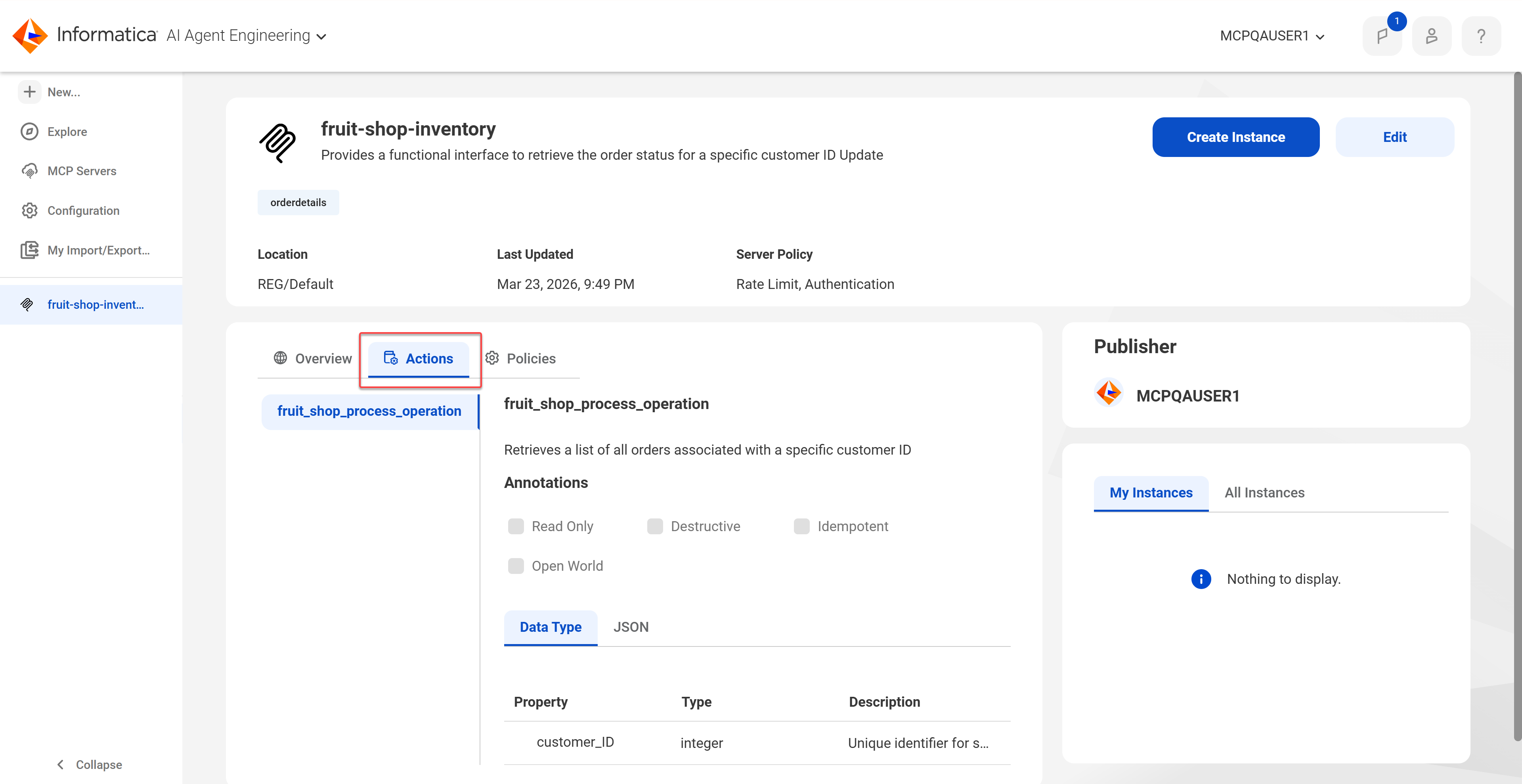
The following image shows the Actions tab:
For each action, the name, description, annotations, and properties are displayed. The properties and property descriptions are displayed for each action in both data type and JSON format.
Annotations
Annotations provide hints that describe how a tool behaves. For example, you can use the Read Only annotation to indicate that the tool reads information but doesn't change its environment.
When you edit a composite MCP server, you can select the following annotations for each tool on the Actions tab:
Read Only
Indicates that the tool strictly queries or reads information without altering its environment. For example, the tool retrieves information from local files but doesn't modify them.
Destructive
Indicates that the tool can perform destructive, risky, or irreversible updates. For example, the tool deletes files, drops database tables, or sends emails.
Idempotent
Indicates that calling the tool repeatedly with identical arguments produces the same outcome without cumulative side effects. For example, the tool performs a database upsert or sets a configuration key.
Open World
Indicates that the tool reaches out to external, unpredictable environments like the Web. For example, the tool reaches out to a third-party web API.
Return Direct
Indicates that the tool's output should be returned directly to the user without further processing by the model. For example, the tool fetches a structured piece of code and the end user wants the code itself, not a summary.
You can view annotations for the tools in a shared MCP server, but you can't modify them.
Defining the server actions
To define the MCP server actions, choose the Application Integration process and the operations that you want to expose as tools.
1On the Actions tab of the MCP server details page, click Add Action.
The Import Action wizard opens.
2On the Select Source page, choose the provider.
For the preview release, the provider is always Application Integration.
A list of your organization’s Application Integration processes that are exposed as API endpoints is displayed.
3Select a process, and then click Next.
The Select Action page opens. This page displays the operations associated with the chosen process, for example, UploadFile. For each operation, the HTTP request method, endpoint, and description are displayed.
4Select one or more operations and click Next.
The Summary page opens.
5Verify the source URL, actions, and inherited policies, note any warnings, and then click Import.