Use the Explore page to work with your AI agents, connections, and tools and organize them into projects and folders. The AI agents, connections, and tools that you and other users create are your organization's assets.
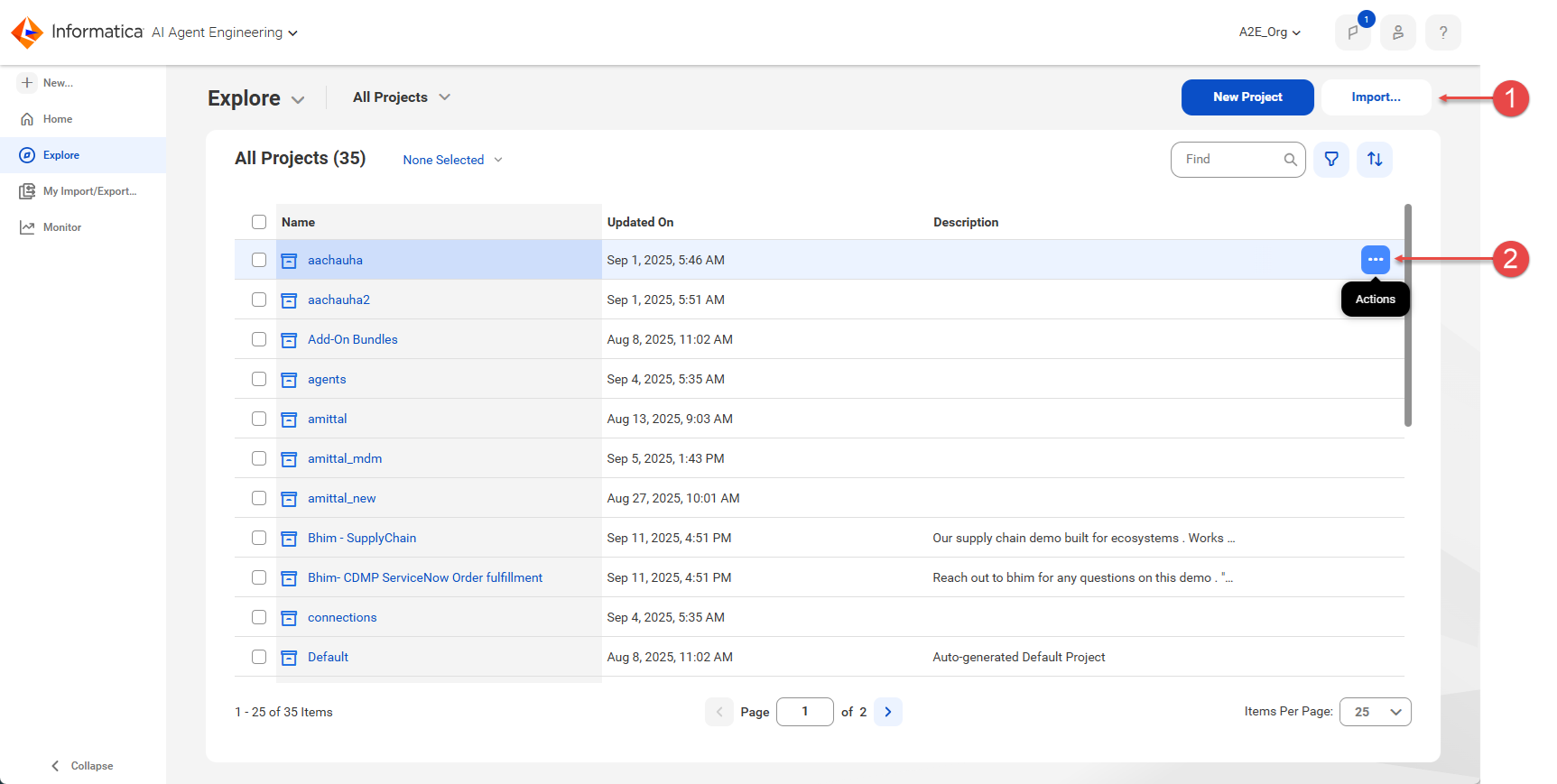
The following image shows the Explore page:
1Buttons to create a project or folder and to import assets. The New Project button changes to New Folder when you open a project.
2Actions menu. Appears when you hover over a project, folder, or asset. Use the Actions menu to view or update an object's properties or permissions, to view an object's dependencies, and to edit, rename, copy, move, export, or delete an object. The options available vary based on the object type.
Use the Explore page to perform the following tasks:
•Create projects and folders to store assets.
•Find and view your organization's assets.
•Open assets for editing.
•Copy, move, rename, and delete assets.
•Find an asset's dependencies. For example, find out which tools and tool connections an AI agent uses or find out which AI agents use a particular LLM.
•Set permissions on an asset.
•Export your organization's assets for use in your organization or another organization.
•Import AI agents, connections, and tools that were created in your organization or a different organization.
For more information about organizing, finding dependencies for, and assigning permissions on assets, see Organize assets. For more information about exporting and importing assets, see Asset migration.