What's New > Upgrade > Post-upgrade tasks for the April 2026 release
Post-upgrade tasks for the April 2026 release
Perform the following tasks after your organization is upgraded to the April 2026 release.
Migrate rule associations
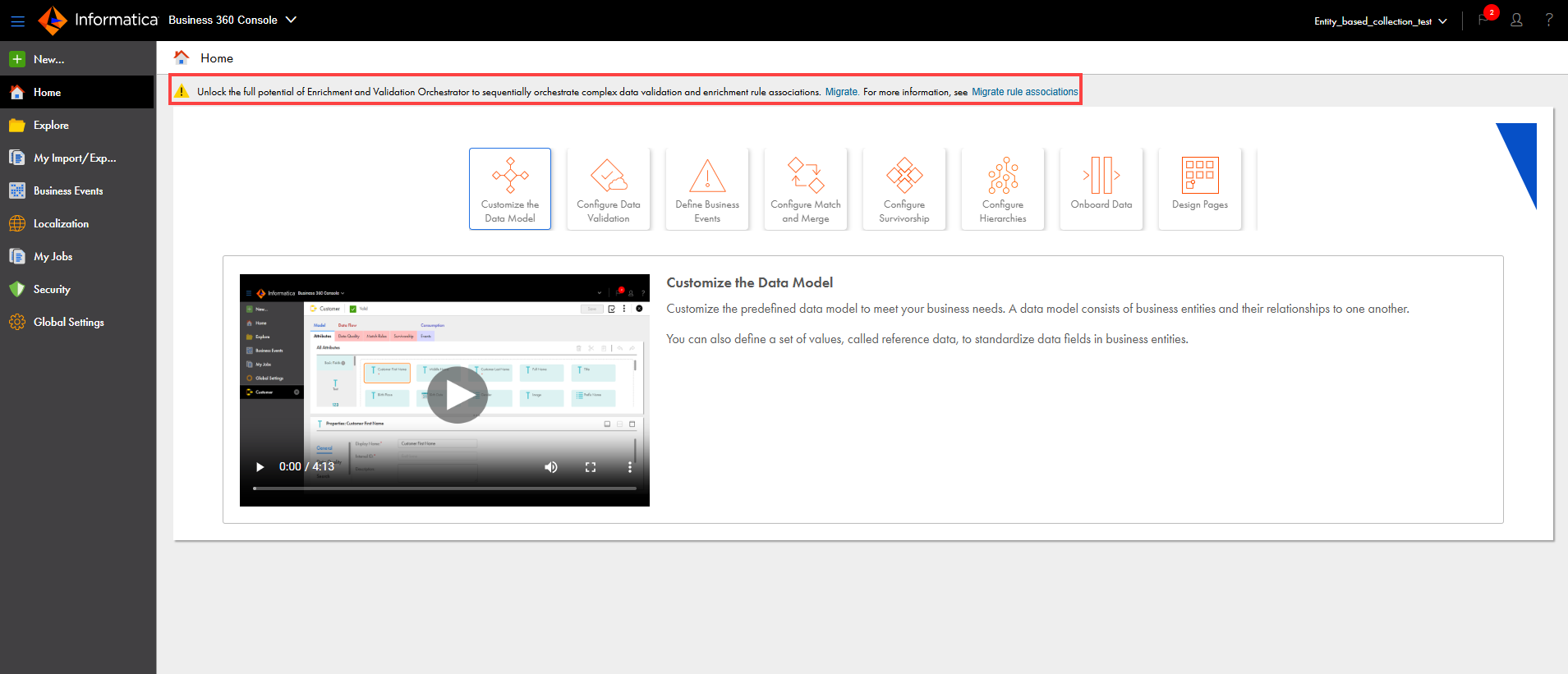
To optimize performance and ensure faster validation and enrichment, migrate your existing basic, advanced, and DaaS rule associations to use Enrichment and Validation Orchestrator. You can run the migrate rule association job from the Home page of Business 360 Console.
The following image shows the Home page with the migrate rule association notification:
To migrate existing basic, advanced, and DaaS rule associations, click Migrate. To enable migration of rule associations for your organization, contact Informatica Global Customer Support. After the functionality is enabled, you can click Migrate and confirm the migration. MDM SaaS runs the migrate rule associations job.
Note:
If ingress or file import jobs don't return expected results from rule associations after a successful migration, contact Informatica Global Customer Support. You might have to ingress or import the records again, so keep a copy of the imported data.
To ensure consistency and compatibility, MDM SaaS restricts asset migration from organizations that haven't migrated their basic, advanced, and DaaS rule associations to use Enrichment and Validation Orchestrator into organizations that have. However, if you have already migrated these rule associations in your source organization, you can import assets into the target organization even if it hasn't migrated to use Enrichment and Validation Orchestrator.
MDM SaaS doesn't support migration of assets between organizations containing basic, advanced, and DaaS rule associations that are partially migrated to use Enrichment and Validation Orchestrator.
For example, if some rule associations fail to migrate, the organization might end up with a partial migration. Rerun the job to resolve the issue. If the issue persists, contact Informatica Global Customer Support.
Additionally, ensure that you don't migrate assets and run the migrate rule associations job simultaneously.
For example, if you export assets while the migrate rule associations job is in progress, the exported file doesn't contain rule associations that are created as part of the migration process. If you import the exported file into a target organization that's migrated to use Enrichment and Validation Orchestrator, the import fails. When you import assets into an organization, if you simultaneously run the migrate rule associations job, the migration process doesn't consider the rule associations that are being imported.
Import the process for the reprocess master data job
You need the predefined Cloud Application Integration process, MDMProcessMasterData, to recalculate the trust scores of the active and deleted master records.
To reprocess master data, ensure that you perform the following tasks after the organization is upgraded:
Step 1. Modify permissions for the existing process
If you don't have the MDMProcessMasterData process in your organization, you can start by importing the process to reprocess master data. For more information about importing the process to reprocess master data, see Step 2. Import the process to reprocess master data.
If you have the MDMProcessMasterData process from the July 2024 release, you need to get the latest process file that supports processing active and deleted records. Before you get the latest file, remove the read-only access to the process so that you can overwrite the existing file with the latest file.
To set the update permissions, use the UpdateACL API and submit a POST request.
To submit a POST request, use the following URI with the session ID of the administrator who manages the organization:
<baseApiUrl>/frs/v1/UpdateACL
When you submit a POST request to set the update permissions, you require the artifactId of the process. To get the artifactId of the process, see Step 3. Get the artifact ID of the process.
Sample Request
Use the following POST request to set the update permissions of the MDMProcessMasterData process:
The service user ID, 3VMH0uFUXQVddwVkjrfJUv, remains a constant value for all the predefined Application Integration processes and doesn't vary between organizations.
Sample Response
After the POST request to modify the permissions of the MDMProcessMasterData process, you get the following response:
Step 2. Import the process to reprocess master data
To reprocess master data, import the MDMProcessMasterData process after you upgrade the organization.
1To request the MDMProcessMasterData process, contact Informatica Global Customer Support.
After the necessary approvals, you'll receive a ZIP file that contains the MDMProcessMasterData process.
2In Cloud Application Integration, click Explore.
3Navigate to the Business360 folder.
4Click Import.
5On the Import Assets page, click Choose File, and select the ZIP file that contains the MDMProcessMasterData process, and click Open.
6Click Import.
Step 3. Get the artifact ID of the process
To modify permissions and create a user to access the MDMProcessMasterData process, you require the artifact ID of the process to uniquely identify it.
To get the artifact ID of the process, use the LookupArtifactsDetailsByPath API and submit a POST request with the following URI:
POST <baseApiURL>/frs/api/v1/LookupArtifactsDetailsByPath
Sample Request
Use the following POST request to get the artifact ID of the MDMProcessMasterData process:
The sample response shows the HTTP 200 OK response code and gets the artifact ID of the MDMProcessMasterData process. The response shows the artifact ID as 9TvdYgWHVOrhUHnMLMCc0z in the artifact section.
Step 4. Modify permissions and create a user for reprocessing master data
After you import the MDMProcessMasterData process, set the process to read only so that users can't modify it. Additionally, the MDMProcessMasterData process includes a service user created and assigned to it by default.
You can remove the service user or modify its permission, but you can't create a new service user. When you upgrade your organizations to the latest release and the MDMProcessMasterData process has updates in the latest release, the service user requires the necessary permissions to upgrade the process. If you don’t assign the necessary permissions to the service user, the upgrade might fail.
To set the read-only permission for the process and to assign necessary permissions to the service user, use the UpdateACL API and submit a POST request. To submit a POST request, use the following URI with the session ID of the administrator who manages the organization:
<baseApiUrl>/frs/v1/UpdateACL
Sample Request
Use the following POST request to modify the permissions of the MDMProcessMasterData process to read only:
After the POST requests to modify the permissions of the MDMProcessMasterData process and create a user to access the MDMProcessMasterData process are successful, you get the following response:
Step 5. Publish the process for reprocessing master data
After you modify permissions and create a user for the MDMProcessMasterData process, publish the process to invoke or run it.
1In Cloud Application Integration, click Explore.
2Navigate to the Business360 folder.
3Select the MDMProcessMasterData process, and click Actions.
4Click Publish.
Import the process for matching external data
To match external data with master or source records without storing the external data, the match process requires match keys for master or source records. You can generate match keys for master records by using a generate search indexes or match keys job. The match keys for source records are generated during the ingress process.
Additionally, you need the predefined Cloud Application Integration process, MDMExternalMatch, to match external data with master or source records.
If you import the MDMExternalMatch process for the first time in your organization, perform the following steps:
If the MDMExternalMatch process is already imported in your organization during the previous releases, you must reimport the latest version of the MDMExternalMatch process. For more information about reimporting the process, see Reimport the process for matching external data.
Step 1. Generate match keys for master records
To match external data with master records, generate match keys for master records by running a generate search indexes or match keys job. The match process uses match keys of master records for matching.
The sample response shows the HTTP 200 OK response code and contains the artifact ID of the MDMExternalMatch process. The response shows the artifact ID as a7d1raphIOLdjfNVarUJaC in the artifact section.
Step 4. Modify permissions for matching external data orchestration
After you import the MDMExternalMatch process, set the process to read only so that users can't modify it. Additionally, the MDMExternalMatch process is assigned to a service user by default.
You can remove the service user or modify its permission, but you can't create a new service user. When you upgrade your organizations to the latest release and the MDMExternalMatch process has updates in the latest release, the service user requires the necessary permissions to upgrade the process. If you don’t assign the necessary permissions to the service user, the upgrade might fail.
To set the read-only permission for the process and to assign necessary permissions to the service user, use the UpdateACL API and submit a POST request. To submit a POST request, use the following URI with the session ID of the administrator who manages the organization:
<baseApiUrl>/frs/v1/UpdateACL
Sample Requests
Use the following POST request to modify the permissions of the MDMExternalMatch process to read only:
The service user ID, 3VMH0uFUXQVddwVkjrfJUv, remains a constant value for all the predefined Application Integration processes and doesn't vary between organizations.
Sample Response
After the POST requests to modify the permissions of the MDMExternalMatch process and the service user assigned to it are successful, you get the following response:
After you modify permissions for the MDMExternalMatch process, publish the process to invoke or run it.
1In Cloud Application Integration, click Explore.
2Navigate to the Business360 folder.
3Select the MDMExternalMatch process, and click Actions.
4Click Publish.
Reimport the process for matching external data
If you already have the MDMExternalMatch process in your organization, you must reimport the latest version of the MDMExternalMatch process to match external data with master or source records.
To reimport the latest version of the MDMExternalMatch process, perform the following steps:
If you import the MDMExternalMatch process for the first time in your organization, see Import the process for matching external data.
Step 1. Get the artifact ID of the existing process
To overwrite the existing MDMExternalMatch process, you need the artifact ID of the process to uniquely identify it. To get the artifact ID, log in to MDM SaaS.
To log in to MDM SaaS, use the Login API and submit a POST request with the following URI:
POST <baseApiURL>/saas/public/core/v3/login
To get the artifact ID of the process, use the LookupArtifactsDetailsByPath API and submit a POST request with the following URI:
POST <baseApiURL>/frs/api/v1/LookupArtifactsDetailsByPath
Sample Requests
Use the following POST request to log in to MDM SaaS:
POST https://use4.dm-us.informaticacloud.com/saas/public/core/v3/login Content-Type: application/json { "username": "<username>", "password": "<password>" }
Use the following POST request to get the artifact ID of the existing MDMExternalMatch process:
After the POST request to get the artifact ID of the process is successful, you get the following response that shows the artifact ID as a7d1raphIOLdjfNVarUJaC.
Step 3. Import the latest process for matching external data
You require the latest MDMExternalMatch process to match external data with source records.
1To request the latest MDMExternalMatch process, contact Informatica Global Customer Support.
After the necessary approvals, you'll receive a ZIP file that contains the MDMExternalMatch process.
2In Cloud Application Integration, click Explore.
3Navigate to the Business360 folder.
4Click Import.
5On the Import Assets page, click Choose File, and select the ZIP file that contains the MDMExternalMatch process, and click Open.
6In the Specify Import Job Details section, select Overwrite existing assets, excluding connections and runtime environments.
7Click Import.
Step 4. Delete the write permission assigned to users
After you import the latest MDMExternalMatchProcess process, delete the write permission assigned to the user and set the process to read only so that users don't modify it.
To delete the write permission, you require the ID of the write permission. Use the GetACL API to get a list of permissions assigned to the process. You can identify the ID of the write permission based on the date when you assigned the permission.
To get a list of permissions assigned to the user, use the GetACL API and submit a GET request with the following URI:
GET <baseApiURL>/frs/api/v1/GetACL
To delete the write permission, use the UpdateACL API and submit a POST request with the following URI:
POST <baseApiURL>/frs/api/v1/UpdateACL
Sample Requests
Use the following GET request to get the list of permissions assigned to the user:
GET https://use4.dm-us.informaticacloud.com/frs/api/v1/GetACL(artifactId='<Artifact ID from Step 1>')
Use the following POST request to delete the write permission assigned to the user:
POST https://use4.dm-us.informaticacloud.com/frs/api/v1/UpdateACL IDS-SESSION-ID: XXXXXXXXXXXXXXXXXXXXXX Content-Type: application/json { "aces": [ { "aceId": "<Write Permission ID>", "operation": "DELETE_ACE", "idsInfo": { "id": "<User ID from Step 1>", "type": "USER" } } ], "artifactId": "<Artifact ID from Step 1>" }
Sample Responses
After the GET request is successful, you get the following response:
After you delete the write permissions assigned to the user, publish the process to invoke or run it.
1In Cloud Application Integration, click Explore.
2Navigate to the Business360 folder.
3Select the MDMExternalMatch process, and click Actions.
4Click Publish.
Reindex job to enhance search performance
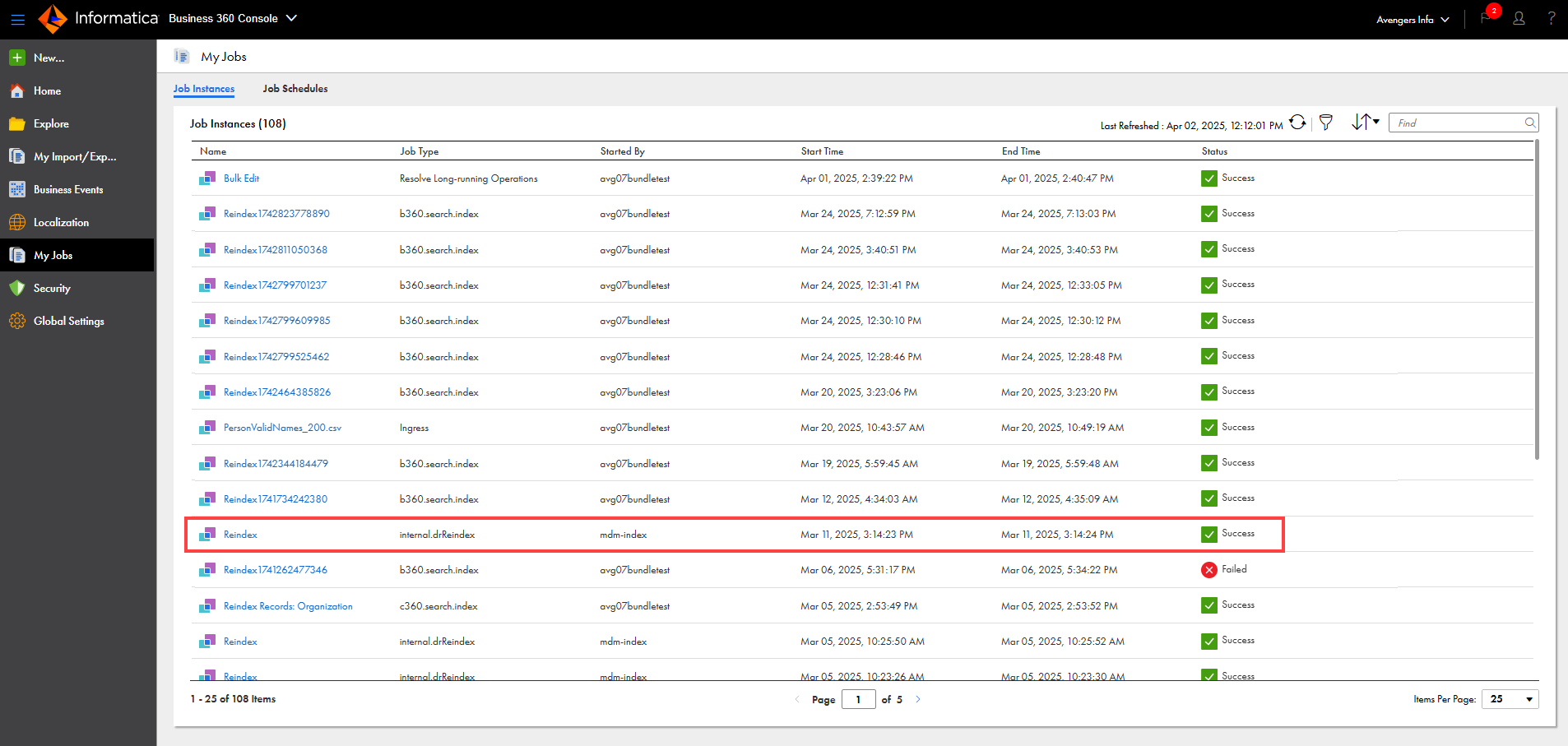
To enhance search efficiency and performance, MDM SaaS runs an internal reindex job once for the existing business entities in your organization. The job indexes all records for search, and you can view the job on the My Jobs page.
The following image shows a sample internal reindex job that MDM SaaS runs:
For more information about the internal reindex job, contact Informatica Global Customer Support.
Update validation process objects to include group IDs
Effective in the July 2026 release, groupId is a required parameter for root fields in responses that an Application Integration process returns for validation and cleansing requests.
To prepare for this change, update the validation process objects in existing processes to include the groupId parameter for root fields.
For example, a process that handles validation expects MDM SaaS to send values for the drugCode and approvalStatus, regulatoryAuthority, and patentExpiry input fields. A business entity root field is mapped to the drugCode input field. Also, fields from a field group in the business entity are mapped to the approvalStatus, regulatoryAuthority, and patentExpiry input fields, which belong to the regulatoryInformation field group.
The following sample JSON is an input payload that MDM SaaS sends to a validation process:
The root field mapped to the drugCode input field and the field mapped to the approvalStatus input field might fail validation. Currently, if the process sends a response without groupId for root fields, the validation errors appear in the record.
The following sample JSON is a response without the groupId parameter for root fields:
The sample payload includes the groupId parameter for the root fields. Before the July 2026 release, ensure that all root field objects in the response include a sys object with a groupId.