Before you define a data access rule, ensure that you have set the required privileges for the custom user roles. If you rename a custom user role in Administrator, the data access rule isn't valid for the user role.
You can create and publish up to 50 record-level and 50 attribute-level data access rules for a business entity.
4Select an asset to protect. Currently, you can only protect business entities.
5Select one of the following permissions for the selected asset:
- Allow. Allows the user role access to asset data.
- Deny. Denies the user role access to asset data.
6In the Affected User Roles section, click Add User Role, and select the user roles to which you want to apply the data access rule.
The Add User Roles page appears.
7Select the user roles, and click Add.
The selected user roles are added to the Affected User Roles section.
8Click Next.
The Conditions page appears.
Rules and guidelines for adding rule name and description
Consider the following rules and guidelines when you add the data access rule name and description:
•Rule name can include the following special characters: ! * ~ _ -
•Rule name can't include characters from languages other than English.
•Rule name can't begin with the * character.
•Rule description can include the following special characters: ! * ~ _ - . ,
Step 2: Configure the rule conditions
Define conditions based on which rules must be applied. You can define conditions based on attributes and field group values that are configured as searchable.
You can configure conditions for the following assets and attributes:
The more the conditions, the longer it takes to process search requests. If you have performance issues after adding conditions, consider reducing the number of conditions.
Configure rule conditions for business entity attributes
You can create conditions only for business entity attributes that you configure as searchable.
1On the Conditions page, select the level to which you want to apply the rule in the Rule Applies To: list.
- Record Level. Applies the rule to the entire record data.
- Attribute Level. Applies the rule to attributes or field groups within the record.
2If you select Attribute Level, select the attributes you want to protect.
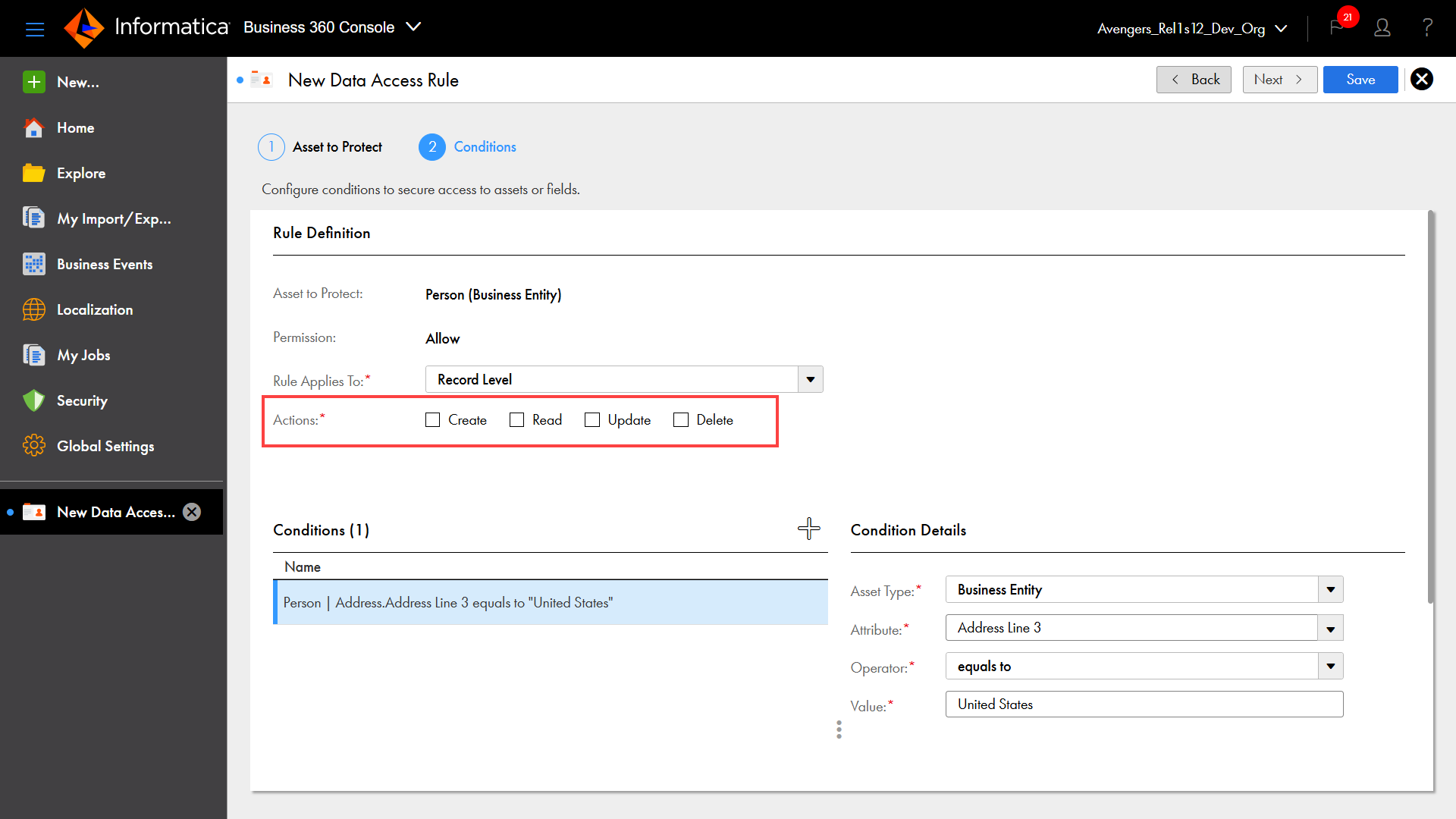
3To set permissions in data access rules, enable the Create, Read, Update, or Delete actions.
The following image shows the actions that you can enable when you configure a data access rule:
4To add conditional statements, enter the required details in the Condition Details section.
5In the Asset Type list, select Business Entity to create conditions for attributes of the protected business entity or attributes of the business entity related to the protected business entity through the business entity record field.
Note:
The conditions on attributes of related business entity in the business entity record field controls access to these attributes in the record details page and the related records component in your business application.
Effective in the February 2023 release, the option to create conditions for the following assets and attributes is available for preview:
You can create conditions for the following assets and attributes:
- Attributes of the business entity related to the protected business entity through a business entity record field.
- Relationships. Relationships associated with the protected business entity.
- Relationship attributes. Attributes of the relationship associated with the protected business entity.
- Value of related business entity attributes. Attributes of the business entity related to the protected business entity.
Preview functionality is supported for evaluation purposes but is unwarranted and is not supported in production environments or any environment that you plan to push to production. Informatica intends to include the preview functionality in an upcoming release for production use, but might choose not to in accordance with changing market or technical circumstances. For more information, contact Informatica Global Customer Support.
6Select an attribute, and an applicable operator, and then enter a value. For more information about the supported operators, Operators.
The conditional statement is listed in the Conditions section.
7To add another condition, click Add a condition and repeat the steps 3 to 5.
8Click Save.
When you save the data access rule, the rule is saved as a draft after creation.
9To review and publish draft data access rules, on the Data Access Rules tab, click Publish Drafts.
•Relationships. Relationships associated with the protected business entity.
•Relationship attributes. Attributes of the relationship associated with the protected business entity.
•Related business entity attributes. Attributes of the business entity related to the protected business entity through relationships.
Preview functionality is supported for evaluation purposes but is unwarranted and is not supported in production environments or any environment that you plan to push to production. Informatica intends to include the preview functionality in an upcoming release for production use, but might choose not to in accordance with changing market or technical circumstances. For more information, contact Informatica Global Customer Support.
1On the Conditions page, select the level to apply the rule in the Rule Applies To: list.
- Record Level. Applies the rule to the entire record data.
- Attribute Level. Applies the rule to attributes or field groups within the record.
2If you select Attribute Level, select the attributes you want to protect.
3To add conditional statements, enter the required details in the Condition Details section.
4In the Asset Type list, select Relationship to create conditions on relationships associated with the protected business entity and the relationship attributes.
5Select a relationship that's associated with the protected business entity in the Relationship Name field.
The Direction field that shows the relationship direction and the Condition list appears.
6Select one of the following conditions:
- Exist. Allows or denies access to attributes when the relationship exists for the records.
- Does Not Exist. Allows or denies access to attributes when the relationship doesn't exist for the records.
- Value of Relationship Attributes. Enables you to create conditions on values of relationship attributes.
- Value of Related Business Entity Attributes. Enables you to create conditions on values of related business entity attributes.
7Select an attribute for one of the following conditions:
- Value of Relationship Attributes. The Attribute list displays the list of attributes of the selected relationship. Select the required attribute and specify an operator and a value.
- Value of Related Business Entity Attributes.The Attribute list displays the attributes of the business entity related to the protected business entity through relationships. Select required attribute and specify an operator and a value.
Note:
If you select a picklist attribute, select a value from the list instead of entering a value.
Note:
The Exist and Does Not Exist conditions do not require an operator and value.
After you specify all the required details, the condition is listed in the Conditions section.
8To add another condition, click Add a condition and repeat steps 3 through 6.
9Click Save.
When you save the data access rule, the rule is saved as a draft after creation.
10To review and publish draft data access rules, on the Data Access Rules tab, click Publish Drafts.