1Click New.
2In the New Asset dialog box, click Model > Dynamic Pool.
3Click Create.
4In the Dynamic Pool dialog box, specify the dynamic pool properties, and click OK.
The dynamic pool opens on a blank canvas.
5To add fields, field groups, or folders to the dynamic pool, select one of the following options:
- - In the fields panel, double-click a field, field group, or folder to add it to the canvas.
- - Right-click the dynamic pool, select Add child, and then select a field type or folder.
6To add fields, field groups, or folders nested within a selected folder, right-click the folder, select Add child, and then select a field type or folder.
7To add fields, field groups, or folders at the same level as the selected field or folder, right-click the field or folder, select Add sibling, and then select a field type or folder.
Note:
You can't add folders to a field group.
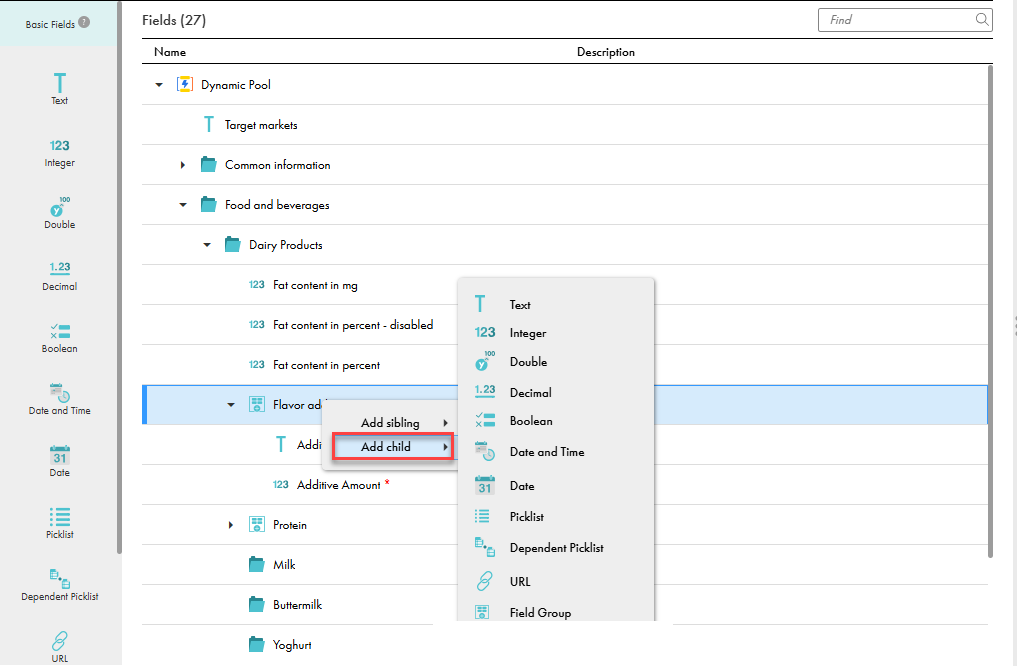
8To add fields and field groups nested within a field group, right-click the field group, select Add child, and then select a field type.
The following image shows how to add fields to the Flavor additives field group:
9Specify the general field properties.
For more information about configuring general field properties, see Configure general properties for a field.
Note:
You can specify whether the field is a required field and whether it can use multiline and rich text format. When you specify a field as a required field in a dynamic pool, the dynamic field definitions attribute related to the dynamic pool appears as a required field when selected in business applications. A business user needs to enter values into the dynamic field definitions while editing a record.
10On the Search tab, configure the dynamic field to be searchable or facetable.
When you enable a dynamic field to be searchable or facetable, you can enable up to two levels of its child nodes to be searchable or facetable.
11To rearrange a field, field group, or folder within a dynamic pool, drag it to the location you want.
When you move a folder, its fields and field groups move with it.
12To undo or redo your last action, click Undo or Redo.
13To delete a folder that doesn't have any fields or field groups, select the folder, and click Delete.