After you define a project, manually map business entities and reference data objects in the MDM Hub and MDM SaaS that are similar. If they aren’t similar, create the MDM Hub business entities automatically in MDM SaaS.
To manually map your MDM Hub source objects to MDM SaaS business entities and reference data, define a custom mapping project. To automatically create the MDM Hub business entities in MDM SaaS, define a smart mapping project. However, in a smart mapping project, you must map reference data objects manually.
To successfully modernize the MDM Hub objects, ensure that the field types in the MDM Hub and MDM SaaS are compatible.
Custom mapping
You can configure custom mapping to map MDM Hub business entity fields, base object columns, and lookup tables to MDM SaaS business entity fields and Reference 360 code lists in Business 360 Console user interface.
With custom mapping, you can map business entities or base objects and reference data. You can select multiple MDM Hub business entities or base objects and map them to an MDM SaaS business entity, and you can map MDM Hub lookup tables to Reference 360 code lists. You can map fields either manually or automatically.
When MDM Hub fields or field groups have no equivalent in MDM SaaS, you can mark them for creation in MDM SaaS during modernization. You can then map the marked fields to the corresponding MDM Hub fields. Similarly, when an MDM Hub business entity or base object has no equivalent MDM SaaS business entity, you can mark it for creation in MDM SaaS. You can then map the marked custom business entity to the corresponding MDM Hub object.
Retrieving business entity and reference data configurations
Before you map objects, retrieve the business entity and reference data configurations from MDM SaaS. The modernization process builds the configuration from the business entities in MDM SaaS and the change list XML file that you upload from the MDM Hub.
If you use updated configuration files from the MDM Hub, or the data model in MDM SaaS is updated, you can refresh the configuration to retrieve the latest changes. You can also download the configuration as a CSV file to review the source and target fields. If you map the fields and save the mapping before you download the configuration file, the file includes your field mappings.
Automapping fields by confidence score
You can automatically map fields based on a confidence score. The modernization process compares the fields in the MDM Hub and MDM SaaS and maps them automatically. You can then review the automapped fields and modify them if needed.
Automapping is useful when objects contain too many fields and when most fields have clear counterparts. Use automapping as the starting point for a mapping as it reduces manual effort. After automapping runs, manually map the remaining fields that aren't mapped.
You can set a confidence score to control how closely fields must match. The confidence score is a threshold value from 50 through 100, default is 60. To determine the matches, the modernization process calculates a score for each source and target field pair based on rules, such as field name and data type similarity. A pair that scores at or above the threshold is mapped automatically. If no pair meets the threshold, the modernization process marks the source field for creation as a custom field in MDM SaaS.
The following table describes the statuses that a field can have after automapping fields:
Status
Description
Auto-mapped
Indicates that the modernization process automatically mapped an MDM Hub field to the MDM SaaS field.
Unmapped
Indicates that no MDM Hub field matched the MDM SaaS field. The MDM SaaS field remains in the mapping so that you can map it manually.
Auto-created
Indicates that no MDM SaaS field matched the MDM Hub field. The modernization process marks the field for creation as a custom field in MDM SaaS to keep the MDM Hub field in the mapping.
The names of auto-created field groups include the X_ prefix, and the names of auto-created fields include the x_ prefix. For example, X_Address and x_first_name.
Rules and guidelines for automapping
Consider the following rules and guidelines for automapping:
•The modernization process doesn't map fields that have incompatible data types, regardless of confidence score. For example, the MDM Hub and MDM SaaS both have a Birth Date field. The MDM Hub field is a VARCHAR field, and the MDM SaaS field is a Date field. Even though the field names match, the fields aren't mapped because their data types are incompatible.
•If you map an MDM Hub business entity or base object to a predefined business entity, such as Person, x_ is prefixed to each auto-created field. For example, home_address becomes x_home_address.
•If you map an MDM Hub business entity or base object to a custom business entity and the name of an auto-created field matches the name of another field in the same field group, _custom is suffixed to the name of the auto-created field. For example, address_line1 becomes address_line1_custom. If that name is also taken, a hash code based on the MDM Hub field path is suffixed, such as address_line1_5004fe. Auto-mapped and unmapped fields are never renamed. Fields in different field groups can have the same name.
•Field name comparisons aren't case sensitive. For example, Address and address count as the same name.
•If the fields of an MDM Hub child node map to a smart field, such as Address, Email, or Phone, the modernization process maps the fields only if all the fields of the node map to that smart field. If only some of the fields map, the mapped fields in the smart field are reset to Unmapped. The modernization process then adds all the fields of the node to a custom field group as auto-created fields.
•If you map a root node of an MDM Hub business entity to a field group, the modernization process manages the unmatched fields of the node in the following ways:
- If an unmatched field is in the root node, the field is added to the same field group as an auto-created field.
- If an unmatched field is in a child node, the field is added to a separate custom field group for the child node, even if other fields in the child node map to the field group of the parent node.
For example, the Person business entity in the MDM Hub has an Address child node. The Address node contains the Address Type and City fields and the Street child node. The Street node contains the Address Line 1 and Address Line 2 fields.
Address Type and Address Line 1 are automapped to the Address field group in the Person business entity in MDM SaaS because the field group contains fields with similar names. The modernization process then manages the unmapped fields in the following ways:
▪ Adds City to the Address field group because City is at the same level as Address Type in the Address node.
▪ Adds Address Line 2 to the X_Address.X_Street custom field group because Address Line 2 is in the Street node, which is nested in the Address node.
•If you map a base object to an MDM SaaS business entity, each custom field group that's created is named after the display name of the base object, such as Account. If a base object doesn't have a display name, the modernization process uses the physical name, which is the actual name of the base object table in the database, such as C_ACCOUNT. If two base objects have the same display name, the modernization process adds the physical name to the display name of one of the base objects to keep field group names unique. For example, the C_ACCOUNT and C_CUSTOMER_ACCOUNT base objects both have the display name Account. The modernization process names one custom field group Account and the other custom field group Account_C_CUSTOMER_ACCOUNT.
•If you change the confidence score, the fields that are automapped might change.
Creating custom fields and field groups
When MDM Hub fields or field groups have no equivalent in MDM SaaS, you can mark them as custom fields or field groups for creation in the target MDM SaaS business entity. Use custom fields to retain MDM Hub fields during modernization.
You can mark MDM Hub source fields for creation as custom fields in an existing MDM SaaS field group or as root fields in a business entity. When you mark a custom field for creation in a predefined business entity, the name includes the X_ prefix to identify it as a custom field. Automapping can also mark MDM Hub source fields for creation as custom fields when the confidence score of a field pair doesn't meet the defined threshold.
Creating custom business entities
When an MDM Hub business entity or base object has no equivalent in MDM SaaS, you can mark it as a custom business entity for creation in MDM SaaS. You can then map the marked custom business entity to the corresponding MDM Hub object.
You must enter a unique name for the custom business entity. After you mark a business entity for creation, the modernization process marks all the source fields and field groups in the selected MDM Hub business entity or base object for creation in MDM SaaS. The modernization process then maps each source field to the corresponding field that it marked for creation. For example, if the MDM Hub business entity contains a First Name field, the modernization process marks a First Name field for creation in MDM SaaS and maps the source field to it. You can modify the field mappings in the same way as other field mappings, if required.
Smart field mapping
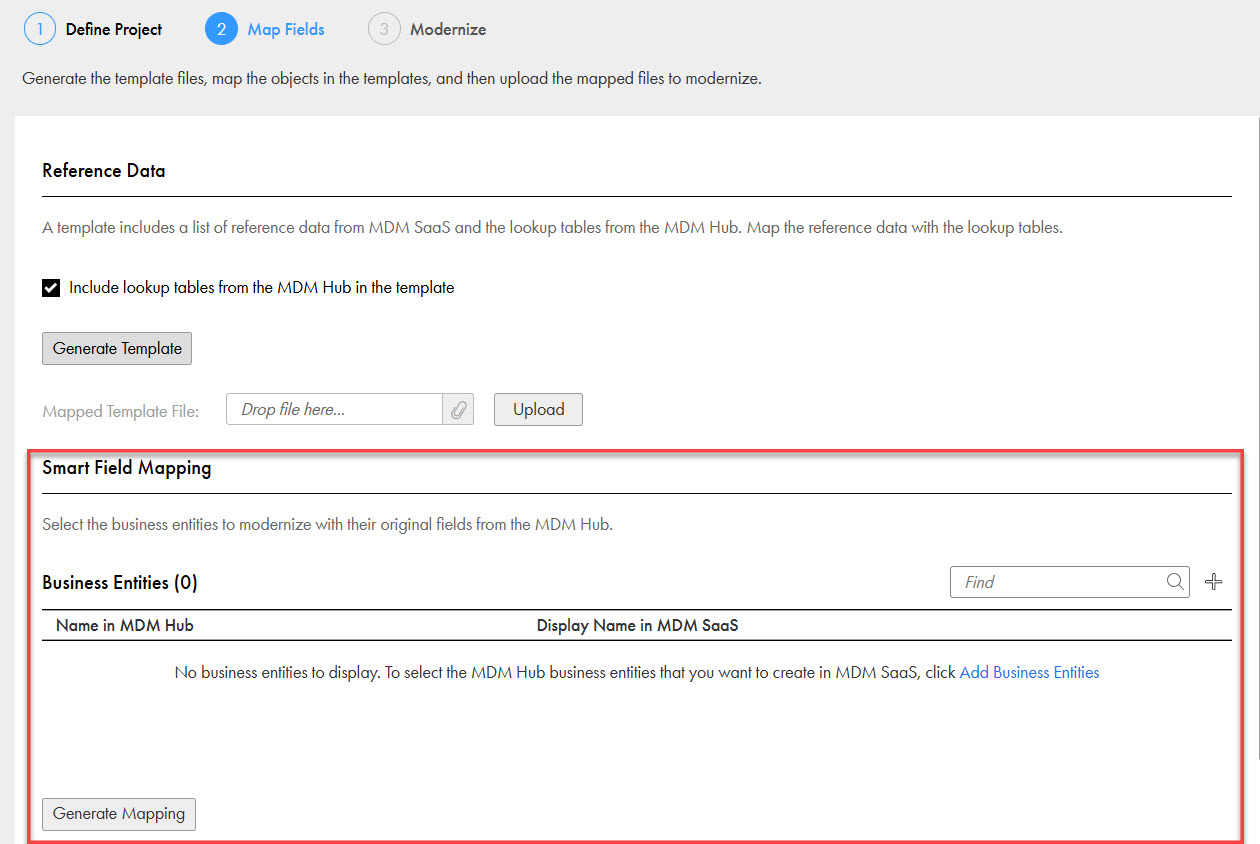
If business entities in the MDM Hub and MDM SaaS aren't similar, you can choose to create business entities automatically from the MDM Hub. The modernization process creates them in MDM SaaS without the need for mapping fields in data model mapping files.
In the MDM Hub, business entities contain a root node and one or more child nodes within the root node. MDM SaaS uses field groups or smart fields instead of child nodes. The modernization process lists both root and child nodes from the MDM Hub. If you select child nodes, then each child node will be modernized as a separate business entity. To avoid modernizing the child nodes in the MDM Hub as separate business entities in MDM SaaS, you can choose only the root nodes. You can create field groups or smart fields in MDM SaaS after modernization instead of creating separate business entities in MDM SaaS for child nodes.
The following image shows a modernization project that uses smart field mapping to automatically create MDM Hub business entities in MDM SaaS:
Compatible data types
When you map the MDM Hub objects with MDM SaaS, ensure that their field types are compatible.
The following table lists the compatible field types of the objects in MDM SaaS and the MDM Hub: