aRegister your application in Microsoft Entra ID and generate client ID, tenant ID, and client secret.
Microsoft Fabric Data Warehouse Connector does not require any API permissions assigned to your application. Additionally, you can remove any API permissions that are assigned to the application.
bCreate a security group with assigned owners or members in Microsoft Entra ID.
3To allow the Microsoft Entra app to use the Power BI APIs, enable the Power BI service admin settings, and then add the Microsoft Entra app to the workspace in Power BI.
Note:
The Manage access pane in the Microsoft Entra app allows you to add roles based on the required capabilities. The pane displays admin, member, contributor, and viewer roles. The maximum number of capabilities are associated with the admin role. However, to access Microsoft Fabric OneLake and perform read and write operations, you need at least the Contributor role.
For more information about enabling access in the Power BI admin portal and adding the Microsoft Entra app to the workspace, see Enabling access in the Power BI portal.
Connect to Microsoft Fabric Data Warehouse
Let's configure the Microsoft Fabric Data Warehouse connection properties to connect to Microsoft Fabric Data Warehouse.
Before you begin
Before you get started, you'll need to keep the client ID, client secret, workspace name, database name, and tenant ID details handy.
Check out Prerequisites to make sure that the setup is complete and all the prerequisites are in place before you configure a connection.
Connection details
The following table describes the basic connection properties:
Property
Description
Connection Name
Name of the connection.
Each connection name must be unique within the organization. Connection names can contain alphanumeric characters, spaces, and the following special characters: _ . + -,
Maximum length is 255 characters.
Description
Description of the connection. Maximum length is 4000 characters.
Use Secret Vault
Stores sensitive credentials for this connection in the secrets manager that is configured for your organization.
This property appears only if secrets manager is set up for your organization.
This property is not supported by Data Ingestion and Replication and the Data Access Management services.
When you enable the secret vault in the connection, you can select the credentials that the Secure Agent retrieves from the secrets manager. If you don't enable this option, the credentials are stored in the repository or on a local Secure Agent, depending on how your organization is configured.
Note:
If you’re using this connection to apply data access policies through pushdown or proxy services, you cannot use the Secret Vault configuration option.
For information about how to configure and use a secrets manager, see "Secrets manager configuration" in the Administrator help.
Runtime Environment
The name of the runtime environment where you want to run tasks.
You cannot run an ingestion and replication task on a Hosted Agent or in a serverless runtime environment.
For more information about runtime environments, see Runtime Environments in the Administrator help.
SQL Connection String
The SQL connection string to connect to Microsoft Fabric Data Warehouse.
Specify the connection string in the following format:
<Server>.datawarehouse.pbidedicated.windows.net
Client ID
The application ID or client ID of your application registered in Azure Active Directory for service principal authentication.
Client Secret
The client secret for your application registered in Azure Active Directory.
Tenant ID
The tenant ID of your application registered in Azure Active Directory.
Workspace
The name of the workspace in Microsoft Fabric Data Warehouse that you want to connect.
Database
The name of the database in Microsoft Fabric Data Warehouse that you want to connect.
Advanced settings
The following table describes the advanced connection properties:
Property
Description
Schema Name
The name of the schema in Microsoft Fabric Data Warehouse where the tables are stored.
Additional Properties
Additional connection properties that you configure in key-value pairs.
You can configure the following properties:
- connectRetryCount. The maximum number of attempts to establish or re-establish a connection.
You can configure an integer between 0 and 255. A value of 0 indicates that a retry won't be attempted.
Default is 3.
- connectRetryInterval. The time, in seconds, between connection retry attempts.
You can configure an integer between 1 and 60. This property is ignored if connectRetryCount is set to 0.
Default is 10 seconds.
- loginTimeout. The number of seconds to wait for a connection to be established.
Connection attempts continue up to the limit defined by connectRetryCount. However, if the total retry time exceeds the loginTimeout, any attempt to establish the connection stops when the loginTimeout duration is reached.
Maximum is 65535 seconds. Default is 30 seconds.
- WorkspaceId. The ID of the workspace that you want to connect to in Microsoft Fabric Data Warehouse.
- LakehouseId. The ID of the lakehouse used to stage data.
Configure this property when you enable the Copy command to stage data as Parquet files and load staging data to Microsoft Fabric Warehouse.
Enter the property in the following format:
LakehouseId=<ID>
For example, in the following URL, the lakehouse ID is the value that follows /lakehouse/:
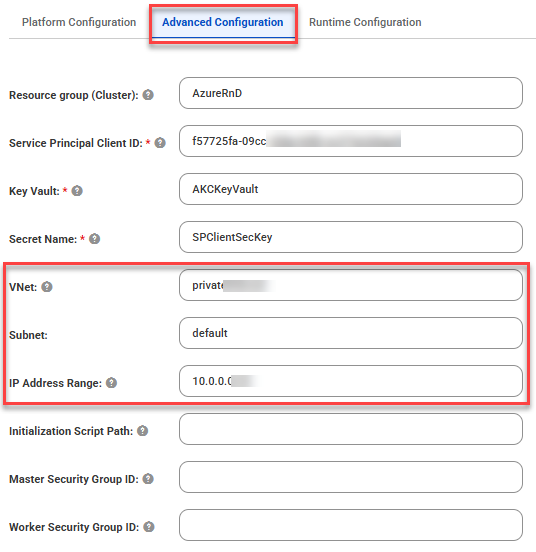
To run mappings in advanced mode over the private Azure network, additionally you must perform the following steps after you complete the required prerequisites:
1Log in to Intelligent Data Management Cloud (IDMC), and then click Administrator.
2In Administrator, navigate to Advanced Clusters to create or modify an Advanced Configuration.
3In the Advanced Configuration tab, add the Vnet, Subnet, and IP Address Range properties that is linked with the private DNS zone. This helps to spawn the cluster resources under this subnet and provide access to the private DNS zone.