Create a Snowflake Data Cloud connection to securely read data from or write data to Snowflake.
Prepare for authentication
You can configure standard, authorization code, key pair, and programmatic access token authentication types to access Snowflake. Consider using authorization code, key pair, or programmatic access token authentication to connect more securely to Snowflake.
Before you configure the connection properties, you need to keep the authentication details handy based on the authentication type that you want to use.
Standard
To connect to Snowflake using standard authentication, you need the Snowflake user name, password, account name, and warehouse name.
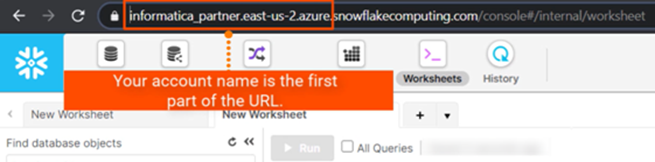
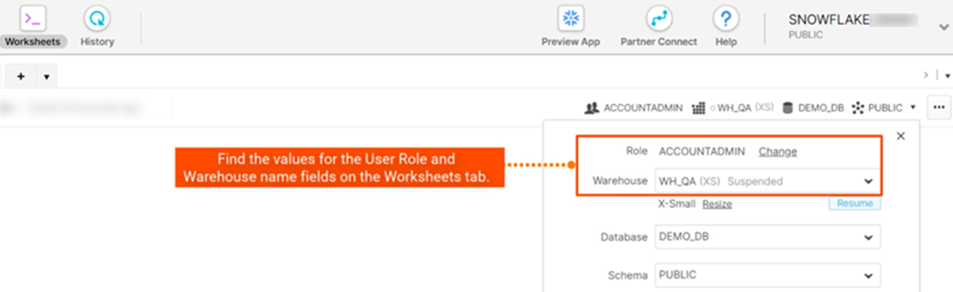
Let's get the required details such as the Snowflake account name, warehouse, and role details from the Snowflake account.
The following image shows you where you can find the name of your Snowflake account:
The following image shows you where you can find the name of the warehouse and role details of your Snowflake account:
Authorization code
To connect to Snowflake using the OAuth 2.0 authorization code, you need the Snowflake account name, warehouse name, authorization URL, access token URL, client ID, client secret, and access token.
To get the authorization details, create a security integration in Snowflake that enables OAuth access, which acts as a secure gateway for your application to connect to Snowflake and register the following Informatica redirect URL in Security Integration:
https://<Informatica cloud hosting facility for your organization>/ma/proxy/oauthcallback
If the access token expires, Informatica redirect URL, which is outside the customer firewall, tries to connect to the endpoint and retrieves a new access token.
When you use the OAuth 2.0 authorization code to connect to Snowflake, you can use either the Snowflake OAuth provider or an external OAuth authorization server, such as Okta or Microsoft Entra ID, that uses the OAuth protocol for accessing Snowflake.
For more information about how to create a security integration and get the authorization details, see Create security integration in the Snowflake documentation.
Key pair
To connect to Snowflake using key pair authentication, you need the private key file and private key file password, along with your Snowflake account user name.
Generate the public and private key pair using OpenSSL. The key pair authentication method requires a 2048-bit RSA key pair. Specify the path to the private key file and password in the connection properties to access Snowflake.
Generate the public and private key
Before you generate the public and private key for key pair authentication, you need to have the security admin role or higher in Snowflake.
1From the OpenSSL command line, generate a private key:
- To generate a decrypted private key, run the following command, and provide a passphrase when prompted:
3Copy the public and private key files in a directory that the Secure Agent can access.
For example, C:\Program Files\Informatica Cloud Secure Agent\apps\Data_Integration_Server\data\snowflake\rsa_key.p8
You require the path details when you configure the Snowflake connection.
4In Snowflake, assign the public key to the Snowflake user using the ALTER USER command:
alter user <user> set rsa_public_key='<content of the public key after removing the header and footer lines>';
For example, alter user jsmith set rsa_public_key='MIIXBIjABCdef...';
For more information about configuring a key pair authentication for Snowflake, see the Snowflake documentation.
Configure the private key on an advanced cluster
After you generate the public and private key pair using OpenSSL, you need to additionally perform certain tasks for the connection to work in a mapping in advanced mode.
Before you run mappings with the configured connection on an advanced cluster, set the properties for the cluster application in the mapping task.
The following list describes the properties that you need to set in the advanced session properties in a mapping task:
Spark.NeedUserCredentialFileForAdapter=true
Copies the contents of the private key from the location you specify in Spark.UserCredentialDirOnDIS from the Secure Agent machine to the Spark driver and executers. The folder that contains the credential file does not have the 1 MB limit. You need to ensure that the credential file of the secret key content that you copy to the cluster application does not exceed 1 MB. You need to set the value to true. Default is false.
If you do not set this flag or you set this flag to false, the private key file is not copied to the cluster application and the mapping fails.
Overrides the default Secure Agent directory that contains the private key with the directory that you specify for copying the private key contents to the cluster application. The default directory is /infa/user/credentials. Ensure that the directory does not include the private key file name.
If you do not set this flag, the default location is used. To use the default location, create the /infa/user/credentials directory on the Secure Agent machine and the copy the private key file here.
If you set the flag to override the location specified in the advanced session properties of the mapping task, make sure that the override location that you specify in Spark.UserCredentialDirOnDIS contains the private key file. Ensure that the override location and the private key file have the write permissions.
The following image shows the configured advanced custom property in the mapping task:
Programmatic access token
To connect to Snowflake using programmatic access token authentication, you need the Snowflake user name, programmatic access token, account name, and warehouse name.
If you use the Secure Agent deployed in your environment, serverless runtime environment, or elastic runtime environment, you need to allow the range of IP addresses to connect to Snowflake using a PAT.
To allow the range of IP addresses in Snowflake, perform the following tasks:
1Create a network rule for the allowed IP addresses.
For more information about creating a network rule, see Working with network rules in the Snowflake documentation.
2Create a network policy for the network rule that you created.
For more information about creating a network policy, see Working with network policies in the Snowflake documentation.
The following table describes the basic connection properties:
Property
Description
Connection Name
Name of the connection.
Each connection name must be unique within the organization. Connection names can contain alphanumeric characters, spaces, and the following special characters: _ . + -,
Maximum length is 255 characters.
Description
Description of the connection. Maximum length is 4000 characters.
Use Secret Vault
This property applies to standard, key pair, and programmatic access token authentication types.
Stores sensitive credentials for this connection in the secrets manager that is configured for your organization.
This property appears only if secrets manager is set up for your organization.
This property is not supported by Data Ingestion and Replication and the Data Access Management services.
When you enable the secret vault in the connection, you can select the credentials that the Secure Agent retrieves from the secrets manager. If you don't enable this option, the credentials are stored in the repository or on a local Secure Agent, depending on how your organization is configured.
Note:
If you’re using this connection to apply data access policies through pushdown or proxy services, you cannot use the Secret Vault configuration option.
For information about how to configure and use a secrets manager, see "Secrets manager configuration" in the Administrator help.
If you use the key pair authentication type to connect to Snowflake, enter the password for the private key file in the Private Key File Password advanced connection property.
Runtime Environment
The name of the runtime environment where you want to run tasks.
For application ingestion and replication tasks and database ingestion and replication tasks, you can use the Secure Agent or serverless runtime environment. You can't run an application ingestion and replication, a database ingestion and replication, or a streaming ingestion and replication task on a Hosted Agent or elastic runtime environment.
For more information about runtime environments, see Runtime Environments in the Administrator help.
Authentication types
You can configure standard, authorization code, key pair, and programmatic access token authentication types to access Snowflake.
Select the required authentication method and then configure the authentication-specific parameters.
Standard authentication
Standard authentication is the default type and the minimum requirement for a standard authentication is the Snowflake user name, password, account name, and warehouse name.
Note:
The following table describes the basic connection properties for standard authentication:
Property
Description
Username
The user name to connect to the Snowflake account.
Password
The password to connect to the Snowflake account.
Account
The name of the Snowflake account.
For example, if the Snowflake URL is https://<123abc>.us-east-2.aws.snowflakecomputing.com/console/login#/, your account name is the first segment in the URL before snowflakecomputing.com. Here, 123abc.us-east-2.aws is your account name.
If you use the Snowsight URL, for example, https://app.snowflake.com/us-east-2.aws/<123abc>/dashboard, your account name is 123abc.us-east-2.aws.
Note:
Ensure that the account name doesn't contain underscores. If the account name contains underscores, you need to use the alias name. To use an alias name, contact Snowflake Customer Support.
Warehouse
The Snowflake warehouse name.
Advanced settings
The following table describes the advanced connection properties for standard authentication:
Property
Description
Role
The Snowflake role assigned to the user.
Additional JDBC URL Parameters
The additional JDBC connection parameters.
You can specify multiple JDBC connection parameters, separated by ampersand (&), in the following format:
For example, you can pass the following database and schema values when you connect to Snowflake:
db=mydb&schema=public
When you add parameters, ensure that there is no space before and after the equal sign (=).
For the list of additional JDBC parameters that you can configure, see JDBC URL parameters.
Authorization code authentication
OAuth 2.0 authentication requires the OAuth 2.0 protocol with Authorization Code grant type to connect to Snowflake. Authorization Code allows authorized access to Snowflake without the need to share or store your login credentials.
The following table describes the basic connection properties for OAuth 2.0 authorization code authentication:
Property
Description
Account
The name of the Snowflake account.
For example, if the Snowflake URL is https://<123abc>.us-east-2.aws.snowflakecomputing.com/console/login#/, your account name is the first segment in the URL before snowflakecomputing.com. Here, 123abc.us-east-2.aws is your account name.
If you use the Snowsight URL, for example, https://app.snowflake.com/us-east-2.aws/<123abc>/dashboard, your account name is 123abc.us-east-2.aws.
Note:
Ensure that the account name doesn't contain underscores. If the account name contains underscores, you need to use the alias name. To use an alias name, contact Snowflake Customer Support.
Warehouse
The Snowflake warehouse name.
Authorization URL
The Snowflake server endpoint that is used to authorize the user request.
The authorization URL is https://<account name>.snowflakecomputing.com/oauth/authorize, where <account name> specifies the full name of your account provided by Snowflake.
For example, https://<abc>.snowflakecomputing.com/oauth/authorize
Note:
If the account name contains underscores, use the alias name.
You can also use the Authorization Code grant type that supports the authorization server in a Virtual Private Cloud network.
Access Token URL
The Snowflake access token endpoint that is used to exchange the authorization code to get an access token.
The access token URL is https://<account name>.snowflakecomputing.com/oauth/token-request, where <account name> specifies the full name of your account provided by Snowflake.
For example, https://<abc>.snowflakecomputing.com/oauth/token-request
Note:
Ensure that the account name doesn't contain underscores. If the account name contains underscores, you need to use the alias name. To use an alias name, contact Snowflake Customer Support.
Client ID
Client ID of your application generated when you create a security integration of type OAuth in Snowflake.
Client Secret
Client secret generated for the client ID.
Access Token
The access token value.
Enter the populated access token value that you get from the OAuth endpoint, or click Generate Access Token to populate the access token value.
Advanced settings
The following table describes the advanced connection properties for OAuth 2.0 authorization code authentication:
Property
Description
Additional JDBC URL Parameters
The additional JDBC connection parameters.
You can specify multiple JDBC connection parameters, separated by ampersand (&), in the following format:
For example, you can pass the following database and schema values when you connect to Snowflake:
db=mydb&schema=public
When you add parameters, ensure that there is no space before and after the equal sign (=).
For the list of additional JDBC parameters that you can configure, see JDBC URL parameters.
Scope
Determines the access control when the API endpoint has defined custom scopes.
For example, specify session:role:CQA_GCP as the scope to override the value of the default user role. The value needs to be one of the roles assigned in Security Integration.
To enter multiple scope attributes, separate each scope attribute with a space.
Access Token Parameters
Additional parameters to use with the access token URL.
Define the access token parameters in the following JSON format:
Enter the populated refresh token value that you get from the OAuth endpoint, or click Generate AccessToken to populate the refresh token value. If the access token is not valid or expires, the Secure Agent fetches a new access token with the help of the refresh token.
Note:
If the refresh token expires, provide a valid refresh token or regenerate a new refresh token by clicking Generate Access Token.
Key pair authentication
Key pair authentication requires the private key file and private key file password, along with your Snowflake account user name to connect to Snowflake.
When you configure key pair authentication to connect to Snowflake, don't use a Hosted Agent as the runtime environment.
The following table describes the basic connection properties for key pair authentication:
Property
Description
Username
The user name to connect to the Snowflake account.
Account
The name of the Snowflake account.
For example, if the Snowflake URL is https://<123abc>.us-east-2.aws.snowflakecomputing.com/console/login#/, your account name is the first segment in the URL before snowflakecomputing.com. Here, 123abc.us-east-2.aws is your account name.
If you use the Snowsight URL, for example, https://app.snowflake.com/us-east-2.aws/<123abc>/dashboard, your account name is 123abc.us-east-2.aws.
Note:
Ensure that the account name doesn't contain underscores. If the account name contains underscores, you need to use the alias name. To use an alias name, contact Snowflake Customer Support.
Warehouse
The Snowflake warehouse name.
Private Key File
Path to the private key file, including the private key file name, that the Secure Agent uses to access Snowflake.
For example, specify the following path and key file name in the Secure Agent machine:
- On Windows: C:\Users\path_to_key_file\rsa_key.p8
- On Linux: /export/home/user/path_to_key_file/rsa_key.p8
To use the serverless runtime environment, specify the following path and key file name in the serverless agent directory:
For example, you can pass the following database and schema values when you connect to Snowflake:
db=mydb&schema=public
When you add parameters, ensure that there is no space before and after the equal sign (=).
For the list of additional JDBC parameters that you can configure, see JDBC URL parameters.
Private Key File Password
This property is required when you enable the secret vault in the connection.
Password for the private key file.
Programmatic access token authentication
The minimum requirement for an programmatic access token authentication is the Snowflake user name, programmatic access token, account name, and warehouse name.
The following table describes the basic connection properties for programmatic access token authentication:
Property
Description
Username
The user name to connect to the Snowflake account.
Programmatic Access Token
The programmatic access token to connect to the Snowflake account.
Enter the programmatic access token granted by Snowflake.
Account
The name of the Snowflake account.
For example, if the Snowflake URL is https://<123abc>.us-east-2.aws.snowflakecomputing.com/console/login#/, your account name is the first segment in the URL before snowflakecomputing.com. Here, 123abc.us-east-2.aws is your account name.
If you use the Snowsight URL, for example, https://app.snowflake.com/us-east-2.aws/<123abc>/dashboard, your account name is 123abc.us-east-2.aws.
Note:
Ensure that the account name doesn't contain underscores. If the account name contains underscores, you need to use the alias name. To use an alias name, contact Snowflake Customer Support.
Warehouse
The Snowflake warehouse name.
Advanced settings
The following table describes the advanced connection properties for programmatic access token authentication:
Property
Description
Role
The Snowflake role assigned to the user.
Additional JDBC URL Parameters
The additional JDBC connection parameters.
You can specify multiple JDBC connection parameters, separated by ampersand (&), in the following format:
For example, you can pass the following database and schema values when you connect to Snowflake:
db=mydb&schema=public
When you add parameters, ensure that there is no space before and after the equal sign (=).
For the list of additional JDBC parameters that you can configure, see JDBC URL parameters.
JDBC URL parameters
You can use the additional JDBC URL parameters field in the Snowflake Data Cloud connection to customize and set any additional parameters when you connect to Snowflake.
The Snowflake warehouse, database, schema, table, and storage integration names are case-sensitive. Be sure to take this into account when you define properties in the additional JDBC parameters field.
You can configure the following properties as additional JDBC URL parameters in the Snowflake Data Cloud connection:
•To override the database and schema name used to create temporary tables in Snowflake, enter the database and schema name in the following format:
•To load data from Amazon S3, Google Cloud Storage, or Microsoft Azure Data Lake Storage Gen2 to Snowflake for SQL ELT optimization, enter the Cloud Storage Integration name created for the Amazon S3, Google Cloud Storage, or Microsoft Azure Data Lake Storage Gen2 account in Snowflake in the following format:
storage_integration=<Storage Integration name>
The storage integration name is case-sensitive. For example, if the storage integration name you created for Amazon S3, Google Cloud Storage, or Microsoft Azure Data Lake Storage Gen2 in Snowflake is STORAGE_INT, you need to specify the same integration name:
storage_integration=STORAGE_INT
Note:
You can also load data from Amazon S3 to Snowflake for SQL ELT optimization without using storage integration.
•To connect to Snowflake using the proxy server, enter the following parameters:
useProxy=true& proxyHost=<Proxy host IP address>& proxyPort=<Proxy server port number>& proxyUser=<Proxy server user name>& proxyPassword=<Proxy server password>
•To ignore double quotes in the table and treat all tables as case-insensitive, enter the following parameter:
QUOTED_IDENTIFIERS_IGNORE_CASE=true
When you set this property in the connection to true, Snowflake ignores the double quotes in the table and treats all tables as case-insensitive.
If you have set this property to true, you cannot access case-sensitive tables with the same connection. You need to create a new connection to fetch any existing case-sensitive tables.
•To filter queries that are executed in a Snowflake job on the Snowflake web interface, enter the tag name in the following format:
query_tag=<Tag name>
You have an option to override the query_tag parameter that is defined in the Snowflake connection when you run a mapping task.
To override the query_tag parameter, click the Runtime Options tab of the mapping task. In the Advanced Session Properties section, select Custom Properties from the Session Property Name list, and then enter the following value:
snowflake_query_tag=<Tag name>
Note:
In advanced mode, you can't override the query_tag parameter.
•To write data of the TIMESTAMPNTZ data type with microsecond or nanosecond precision to a Snowflake target when the Secure Agent is configured with the INFA_DTM_STAGING_ENABLED_CONNECTORS staging property for the write operation, enter the following parameter with its corresponding values:
- For microsecond precision, enter the following value:
This parameter doesn't apply to mappings in advanced mode.
•To read or write data of the VARCHAR data type with a maximum precision value of 104,857,600, enter the following parameter:
VARCHAR_MAX_PRECISION=true
When you increase the maximum precision value to 104,857,600, you might need to increase the Java heap space memory.
For more information about how to increase the Java heap space memory, see the Increase Java heap size Knowledge article.
In addition to the parameters listed, this field provides you the flexibility to configure other Snowflake parameters based on your requirements.
Microsoft Azure Active Directory for external OAuth authorization
You can use Microsoft Azure Active Directory as an external OAuth authorization server to authenticate Snowflake.
To use Microsoft Azure Active Directory as an external OAuth authorization server, select Authorization Code as the authentication type in the connection properties. Provide the account name, warehouse, authorization URL, access token URL, client ID, client secret, access token, and scope details from the Microsoft Azure Active Directory OAuth authorization server.
If your organization uses an outgoing proxy server to connect to the Internet, the Secure Agent connects to Informatica®Intelligent Data Management Cloud™ (IDMC) through the proxy server.
You can configure the Secure Agent to use the proxy server on Windows and Linux. You can use the unauthenticated or authenticated proxy server. You can configure proxy for connections used both in mappings and in mappings in advanced mode.
To configure proxy settings for the Secure Agent, use one of the following methods:
•Configure the Secure Agent through the Secure Agent Manager on Windows or shell command on Linux.
For instructions, see "Configure the proxy settings on Windows" or "Configure the proxy settings on Linux" in Getting Started in the Data Integration help.
•Configure the JVM options for the DTM in the Secure Agent properties. For instructions, see the Proxy server settings Knowledge article.
•Configure the proxy server properties in the additional JDBC URL parameters in the Snowflake connection. For more information, see JDBC URL parameters.
Private links to access Snowflake
You can enable private communication between the Secure Agent and Snowflake endpoint hosted on the Azure, AWS, or Google Cloud platform.
When you create a Snowflake Data Cloud connection, specify the Snowflake private link account name in the Account field in the connection properties.
The private communication setup ensures that the connection to Snowflake uses the internal network of AWS, Azure, or Google Cloud and doesn't take place over the public Internet.