You can migrate IDMC assets from one organization to another organization. To migrate assets, you export the assets from the source organization and then import the assets into the target organization.
You can import and export tasks and their dependent objects.
Note:
If you want to export database ingestion tasks for which you cannot view object dependencies, you must save the tasks again before you try to export them. Otherwise, when you import the tasks into the target, any asset overrides that you specified for the import operation, such as an override connection or Secure Agent, will not be applied to the imported tasks. You need to perform this action only once for a task.
You can export single assets, groups of assets, or export all of the assets in a project. If you export a project or folder, the file structure remains intact so that when you perform the import in the target organization, you can duplicate the original structure.
To export or import assets in a sub-organization, log in to the sub-organization. If you have administrator privileges in the parent organization, you can also switch to the sub-organization and export or import assets.
Asset migration requirements
To migrate assets from one organization to another, the organizations and your user accounts in the organizations must meet certain requirements.
Ensure that you meet the following requirements:
•You have a user account in the source and target organizations with a role that has import and export privileges, such as the Admin or Designer role.
•The source and target organizations have the required license to import and export assets.
•The target organization has the required licenses for the assets that you want to import.
•The target organization uses the same version or a newer version of IDMC. The versions might differ temporarily if the organizations aren't on the same POD (Point of Delivery) during an IDMC upgrade.
Dependent objects
Dependent objects are assets that are required by other assets.
When you set up an export, you have the option to include or exclude dependent objects in the export file. The dependent objects must exist either in the export file or in the target organization, else the import fails.
You might want to include dependent objects if they do not exist in the target organization. Or, you might want to include dependent objects if you want to replace the dependent objects in the target organization with updated versions from the source organization. If you choose to include dependent objects, the export file includes dependent objects for all of the assets that you include in the export. When you configure the import, you can choose which dependent assets to import.
You might want to exclude an asset's dependent objects if the objects exist in the target organization and you do not want to replace them.
Note:
Schedules are not dependent objects and are not included when you export assets that use them.
Runtime environments and connections
Runtime environments and connections are dependent objects.
If you configure an export to include dependent objects, you can use the source connections and runtime environments in the export file, or you can select connections and runtime environments in the target organization.
If you configure an export to exclude dependent objects, be sure that a suitable connection and runtime environment for the assets exists in the target organization. If a dependent connection or runtime environment does not exist in the target organization, during the import operation you must select a connection or runtime environment in the target organization.
When you select a connection or runtime environment in the target organization during the import, the connector type and version must be the same as the connector type and version that the asset used in the source organization.
If the target organization has connections or runtime environments with the same name as those in the export file, IDMC uses the connections or runtime environments that exist in the target organization. IDMC does not overwrite the connections or runtime environments in the target organization.
Note:
An export or import cannot include a Cloud Hosted Agent or shared agent. If an asset uses a Cloud Hosted Agent or a shared agent, you can select a runtime environment to use for the asset during import.
Schedules
You can migrate schedules from one organization to another organization. You might want to migrate a schedule if you migrate an asset that uses it.
When you export an asset that uses a saved schedule, the schedule is not included in the export file.
To migrate a schedule, you export the schedule from the source organization using Administrator and import the schedule into the target organization using the service that will use the schedule. For example, to migrate a schedule that's used for Data Integrationmapping tasks, you export the schedule from the source organization using Administrator and import the schedule into the target organization using Data Integration.
For information about exporting schedules, see the Administrator help. For information about importing schedules, see Importing assets.
Asset export
When you export assets, IDMC creates an export ZIP file that contains the assets that you selected for export.
You can select individual assets to export, or you can select an entire project or folder. When you export a project or folder, the export file includes all of the assets in the project or folder.
To export an asset, you need the following privileges and permissions:
•Your user role must have privileges to export assets.
•You must have read permission on the asset.
Note:
Informatica recommends that you include no more than 800 objects in an export file.
Export Files
An export .zip file contains multiple subfolders and files.
When you open the export file, the following high-level structure is initially displayed:
Explore folder
The Explore folder contains a metadata .dat file for each exported task. If you export a project, a json file with metadata about the project also appears in the Explore folder, at the same level as the project folder. The following image shows an example for an exported project:
Note:
The Explore folder structure reflects how the objects appear on the source organization's Explore page.
Drill down on the project folder to view the .dat files that contain metadata for each task in the project:
An extension is appended to the .dat file names to indicate the asset type. The following table lists the Data Ingestion and Replication asset types and their associated extensions:
Asset Type
Extension
database ingestion and replication task
DBMI_TASK
streaming ingestion and replication task
SIDataFlow
SYS folder
The SYS folder contains .zip files for the associated connections and Agent groups. The following image shows an example of the contents of the SYS folder:
Each .zip file contains a json file and a metadata file for the asset.
CSV file
The .csv file lists the objects in the export file. The following image is an example of a .csv file, as displayed as a spreadsheet in Excel, for an exported project, including database ingestion and replication and streaming ingestion and replication tasks and all dependent objects:
Exporting assets
You can select a single asset, multiple assets, or a project to export.
To include multiple assets, you can either select each asset within a folder or select a project or folder to export all of its assets. If you export a project, during import you can import the entire project or import only the assets that you select.
1Log in to the source organization.
2On the Explore page, navigate to the assets that you want to export.
3Select the assets that you want to export.
To export a single asset or project, select the asset or project, and then click Actions and select Export.
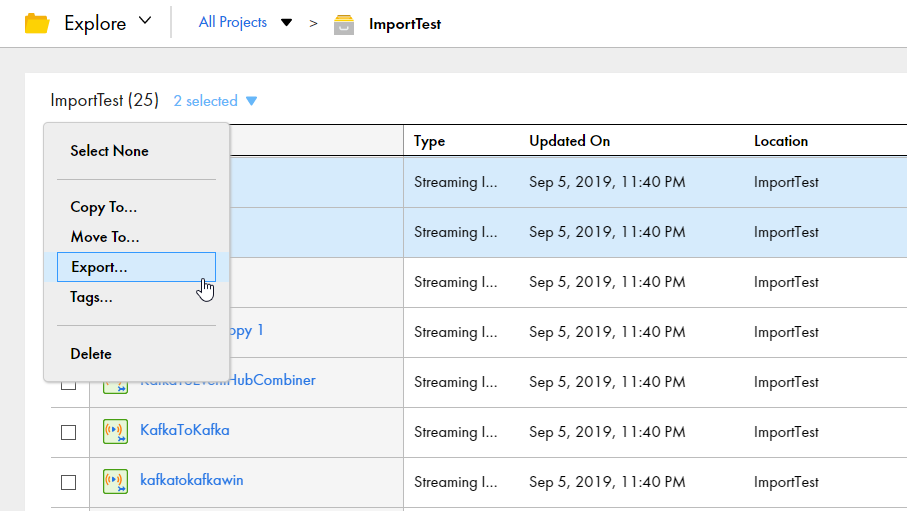
To export multiple assets, select the check box to the left of each asset to export. Or, select the check box for each project or folder that contains the assets to export. From the Actions menu, select Export.
The following image shows the selection menu with multiple assets selected:
4On the Export Assets page, change the job name or leave the default.
5Select whether to include dependent objects for the assets.
6Click Export.
7To see the progress of the job, select My Import/Export Logs from the navigation bar and then select Export from the menu at the top of the page. Click the name of the log to open the log details page.
Asset import
You can import all of the assets in an export file or select the assets that you want to import.
When you import assets, you specify the following information:
•The assets in the export file that you want to import and the projects in which to import them.
•Whether to overwrite assets in the target project with the assets in the export file when there is a name conflict.
•Whether to merge tags when you overwrite assets in the target project.
•The connections and runtime environments to use for the imported assets.
To import an asset, you need the following privileges and permissions:
•Your user role must have privileges to import assets.
•If you import an asset into the target project as a new asset, you must have create, update, and read permissions on the asset.
•If you overwrite an asset in the target project, you must have update and read permissions on the asset.
Note:
To overwrite a source-controlled asset in the target project, the asset must be checked out.
The Import Assets page lists the assets that are in the export file. You can select which assets you want to import, and then specify which project to import the assets to. You can accept the default project, which is the same project name as the source project, or you can select a different project. If the project does not exist in the target organization, IDMC creates it.
Asset name conflicts
You can specify how IDMC handles asset name conflicts when the export file contains assets with the same name as assets in the target project. You can choose whether to overwrite the assets in the target project or use the existing assets in the target project.
To see how the import handles any asset name conflicts before you start the import job, you can test the import on the Import Assets page before you import the assets. The import action displays in the Status column for each asset. You can filter the list of assets by asset name, asset type, or status.
The following image shows a list of assets and the import action to be performed when overwriting existing assets is enabled:
If the target organization has connections or runtime environments with the same name as those in the export file, Data Ingestion uses the connections or runtime environments that exist in the target organization. Data Ingestion does not overwrite the connections or runtime environments in the target organization.
Runtime environment and connection selection
If the export file contains dependent objects, the target connection and runtime environment fields show the connection and runtime environments from the export file as the default. You can accept the default or select a different connection or runtime environment.
If the export file doesn't include dependent objects and the connections or runtime environments that are used by the assets in the export file don't exist in the target organization, you must select a target connection or runtime environment.
When you select a connection or runtime environment that exists in the target organization, the connector type and version must be the same as the connector type and version that the asset used in the source organization.
Importing asset tags
Asset tags are included in the export file and imported with the asset to the target project. When you overwrite existing assets, you can choose to merge tags in the target project with tags in the export file or keep only the tags in the export file.
When you import a new asset, its tags are also imported to the target project. When you overwrite existing assets in the target project, you can choose to merge tags. When you merge tags, after import, both export and target project tags are assigned to the asset.
You can choose to merge tags for all assets or for some assets in the export file. You can only merge tags when you overwrite existing assets in the target project.
If you choose to merge tags and the asset in the export file does not have tags but the asset in the target project does, after import, the asset will retain tags from the target project. To remove the target project tags, navigate to the asset on the Explore page and remove the tags.
The following table shows how IDMC merges tags when you overwrite existing assets on import:
Asset name
Export file tags
Target project tags
Merge tags
Tags after import
Asset_1
Tag_1, Tag_2
Tag_3
Yes
Tag_1, Tag_2, Tag_3
Asset_2
Tag_1, Tag_2
Tag_4, Tag_5
No
Tag_1, Tag_2
Asset_3
Tag_1, Tag_2
-
Yes
Tag_1, Tag_2
Asset_4
-
Tag_5, Tag_6
Yes
Tag_5, Tag_6
Asset_5
-
Tag_5, Tag_6
No
Tag_5, Tag_6
Importing assets with persisted values
When you import a shared sequence or a mapping task that contains in-out parameters or sequences, you can choose to retain, reset, or overwrite persisted values.
The actions you can take for persisted values depends on whether or not the asset exists in the target project and if you choose to overwrite existing assets.
The following table describes the actions you can take when you import new assets or choose not to overwrite existing assets:
Setting
Description
Reset to default values
Default. IDMC creates a new asset in the target location with default in-out parameter values and initial sequence values.
Retain persisted values
IDMC creates a new asset with the persisted in-out parameter and sequence values .
The following table describes the actions you can take when you overwrite existing assets:
Setting
Description
Retain persisted values in the target
Default. IDMC ignores values coming from the export file and retains the values persisted in the target project.
Reset persisted values to default values
IDMC resets persisted values to the default in-out parameter value and initial sequence value.
Overwrite persisted values in the target with source values
IDMC overwrites values in the target with persisted values in the export file.
Importing assets
Import assets from an IDMC export file.
1 Log in to the target organization.
2On the Explore page, navigate to All Projects and click Import.
3On the Import Assets page, navigate to the export file and click Open, or drag the zip file from the Downloads folder in Windows.
The Import Assets page lists the assets in the file.
4Optionally, change the import job name.
5Choose whether to overwrite existing assets with the assets in the import.
- If you choose to overwrite existing assets, when an asset has the same name as an asset in the target project, the asset replaces the existing asset in the target project.
- If you do not choose this option, if an asset with the same name exists in the target project, the asset is not imported.
6Select the assets to import.
If the export file contains a project and you want to import the entire project, select all of the assets. IDMC creates the project in the target organization.
7Select the target project or accept the default.
8Click Test to see the potential results of the import.
In the Select Assets area, the status for each asset shows the action that the service performs when you import the files.
9If necessary, revise your selections to resolve any issues in the test results.
10Click Import.
You can see the progress of the import on the Import tab of the My Import/Export Logs page. When the import process is complete, a message appears in Notifications. Click the link in the message to open the log details page and see the results of the import.
Post-import tasks
To complete the migration process you need to perform certain tasks based on the types of assets that you imported.
Perform the following tasks after you import assets:
•Configure connection passwords and security tokens. IDMC does not include connection passwords and security tokens in imports for security reasons.