Creating an intelligent structure model using Claire engine
Create an intelligent structure model using the Claire engine, based on input that represents the data that you expect the model to parse at run time.
1Click New > Components > Intelligent Structure Model, and then click Create.
2On the Intelligent Structure Model page, enter a name for the intelligent structure model.
The name can contain alphanumeric characters and underscores.
3Navigate to the project and folder where you want to save the model, or use the default location.
You can change the name or location after you save the intelligent structure model in the Explore page.
4Under AI-powered Model, select Claire Engine.
5 Based on the type of file, perform one of the following steps:
- To use a JSON sample file, first choose whether to base the model on a file sampling or on the entire file. Select the file and then click Discover Structure.
- To use an XML sample file, first choose whether to base the model on a file sampling or on the entire file. Select the file, choose how you want to define the output groups, and then click Discover Structure.
- To use a PDF file, first choose whether to base the model on a file sampling or on the entire file. Select the file, choose how you want to define the output groups, and then click Discover Structure.
- To use an Avro schema file or any other type of sample file, select the file and click Discover Structure.
- To use an XSD schema file, first choose whether to base the model on a file sampling or, if the schema is larger than 1.5 MB, to base the model on the entire schema. Select the file, verify that the schema root is selected, choose how you want to define the output groups, and click Discover Structure. If you intend to use the model in a Structure Parser transformation, you can click Upload XML Sample and select an XML sample file to attach to the model.
- To use a Cobol copybook, select the copybook. If required, modify the values of File organization and Code Page to use at run time. Click Discover Structure.
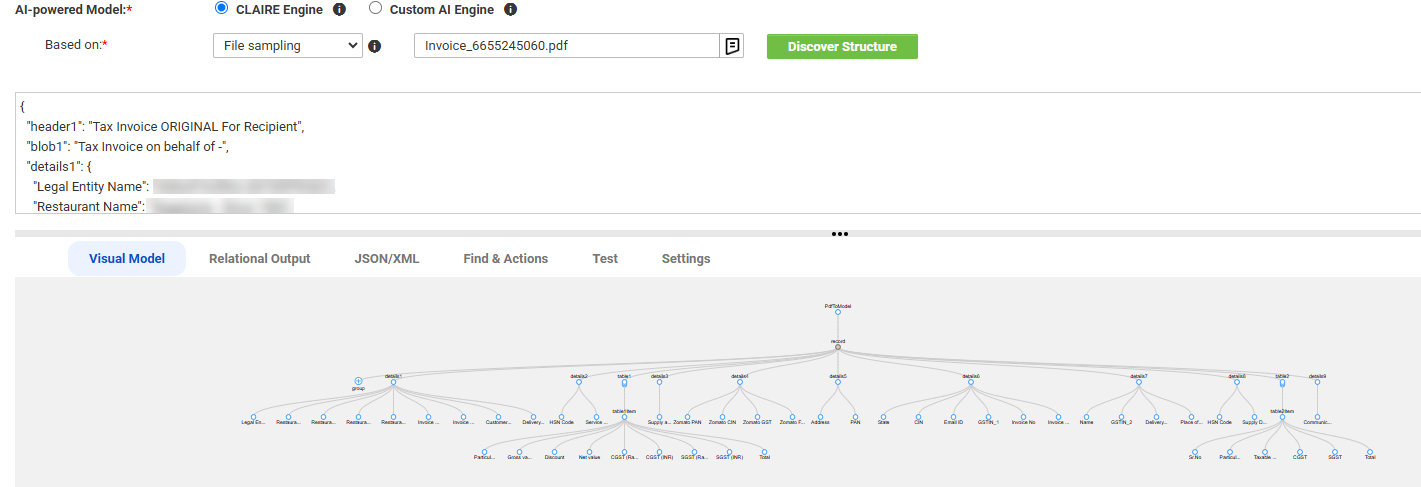
After you click Discover Structure, Intelligent Structure Discovery deciphers the data in the input and discovers the patterns expressed in the data. The following image shows an example of discovered structure on the Visual Model tab:
Intelligent Structure Discovery creates nodes with unique names. If Intelligent Structure Discovery discovers instances of the same type of data, it adds a number suffix to the node names. For example, if the input contains timestamps in two tables, Intelligent Structure Discovery names them timestamp1 and timestamp2.
6When you base the model on an Avro, ORC, or Parquet file, Intelligent Structure Discovery discovers both the data elements and the elements of the file schema. By default, Intelligent Structure Discovery excludes elements that appear only in the schema from the model. To add schema elements to the output, include them in the structure of the model. For more information, see Performing actions on multiple nodes.
For a model that you create for an Excel worksheet, Intelligent Structure Discovery creates metadata nodes with sheet index and name. By default, Intelligent Structure Discovery excludes those nodes from the structure of the model. To add the nodes to the output, include them in the structure. For more information, see Edit the structure of Microsoft Excel input.
7Refine the structure so that when you use the model in production, the output meets your requirements. For more information, see Refining intelligent structure models.
8Click Save.
Intelligent Structure Discovery generates an intelligent structure model and saves the model in the selected location.
Inputs for intelligent structure models
The input that you base an intelligent structure model on can be a sample file, an XSD schema, an Avro schema, or a Cobol copybook, based on the input that you expect to use the model for at run time.
Input files can be up to 1 MB in size. An input file can contain up to 30,000 simple fields. If the file contains more than 30,000 simple fields, Intelligent Structure Discovery creates the model without groups and ports. The number of levels in the hierarchy isn't limited.
To achieve optimal parsing results, ensure that the input that you provide when you create the model is broad enough and covers all the data elements that you expect the model to receive at run time. If the input is too limited, the parsing output will include unidentified data. If the input contains rows, it must contain at least three lines of data.
Use simplified input to generate the model. For example, if the input data has tables, provide a table with just a few sample rows rather than many rows of data. If you use a JSON input file that contains repeating groups of data, limit the number of repetitions.
If the model does not match the runtime input data, or only partially matches the input data, there might be a large amount of unidentified data and data loss. However, some variations will still be parsed.
Verify that the length of each combination of group name and field name doesn't exceed 255 characters. For example, if the name of the group that a field belongs to is group, the field name can't exceed 250 characters. If a combination of group name and field name exceeds 255 characters, mappings that use the model fail to run.
Discover structure from an entire XML or JSON sample file
By default, Intelligent Structure Discovery discovers the structure of the data based on the first portion of the input file. When you base a model on an XML or JSON file, you can choose to discover the structure of the data based on the entire file, up to 30 MB. Use this option if the first portion of the file doesn't represent all the input that you expect to use the model for at run time.
Note that when Intelligent Structure Discovery discovers the structure of the data based on the entire file, the discovery process might take a few minutes to complete.
Discover structure from a Microsoft Excel file
You can base a model on the following types of Microsoft Excel files: xla, xlam, xls, xlsm, xlsx, xlt, xltm, and xltx.
Discover structure from PDF files
You can base a model on tables, name-value pairs, and headers and footers in PDF files. You can also use the model to extract data from scanned PDF files. However, form-based PDF files are extracted as large text that require further processing.
Before you use the model to read scanned or image-based PDF files, enable the Python Integration service for the Secure Agent group.
Consider the following rules and guidelines when you extract data from scanned or image-based PDF files:
•Data is extracted only from files that are in the English language.
•Data is not extracted from files with small or cluttered text, a large number of characters, colored content, or cursive handwritten files.
Using ORC files
You can use the model to read ORC files through a flat file connection in Data Integration. You can't use the model for ORC streaming.
Using multiple sample files in a model
After you create a model based on a JSON, XML, ORC, AVRO, or PARQUET sample file, you can use additional sample files to enrich the structure with fields that exist in the new samples. The additional files must be of the same file type as the type of file that the model is based on.
Using multi-file XSD schemas
Consider the following guidelines when you use an XSD schema that contains multiple XSD files as the model input:
•The schema files must be compressed.
•If the XSD files reside in a directory structure, to preserve the structure, the parent directory must be compressed.
Discover structure from large XSD schemas
When you base a model on an XSD schema, by default, Intelligent Structure Discovery can discover the structure of the data from schemas that are up to 1.5 MB in size. To use a larger file, perform one of the following actions:
•Choose to discover the structure of the data based on the entire schema, up to 30 MB.
•Zip the schema file and select the zip file as the input for the model.
If you use a large schema without taking one of these actions, Intelligent Structure Discovery treats the input as XML and discovers the structure based on partial data.
Using XML sample files in XSD-based models
When you create an XSD-based model to use in a Structure Parser transformation, you can attach an XML sample file to the model. The names and contents of the groups in the model appear in the Intelligent Structure Model page. When you associate the model with the Structure Parser transformation, use this information to decide which group to connect to the target. Attaching a sample file to the model doesn't affect or change the structure of the model.
Parsing JSON-encoded Avro messages
You can use models that are based on an Avro schema to parse JSON-encoded Avro messages.
Character encoding in XSD schemas
XSD schemas that you use as model inputs can use either UTF-8 or UTF-16 character encoding.