Lineage views are named configurations that save your specific lineage settings. Lineage views ensure that after you create a lineage configuration you can return to it instantly without reconfiguring the same settings again. The views highlight critical data dependencies and other details that are relevant to your requirements.
From the Lineage views list on the Lineage page, you can access all views.
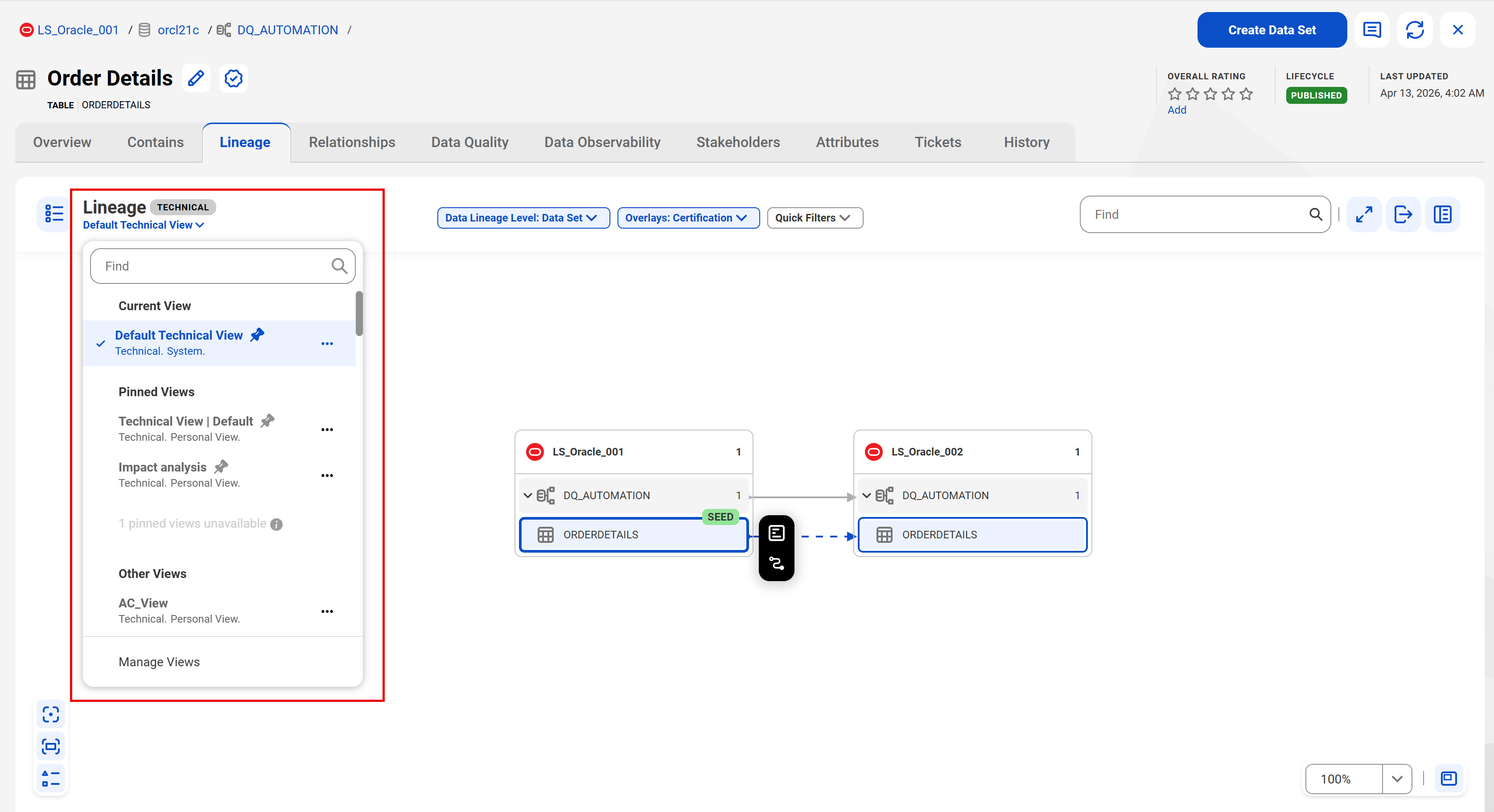
The following image highlights the Lineage views list and shows its four distinct sections:
The Lineage views list organizes all views into the following categories:
•Current View. The view that is applied to the asset.
•Pinned Views. The views that are pinned for quick access.
•Other Views. All other views that are either created by you or shared with you.
•Manage Views. Opens the Manage Views page that lets you organize and manage all your saved views, views shared with you, and default system views.
System and custom views
Data Governance and Catalog provides predefined system views, that serve as default business or technical views for the asset. Default Technical View focuses on technical data elements, transformations, and detailed system flows. Default Business View focuses on high-level data set flows and business context. You can't delete or share these predefined system views, but you can use them as the foundation for creating custom views.
To focus on data insights that are most relevant to you, you can create custom lineage views and share them with others in your organization. You can pin views for quick access, and also edit, clone and delete custom views.
Data Governance and Catalog clearly distinguishes between personal or custom views that you create and the system views that are provided by default.
Note:
After you upgrade to the April 2026 release, previously saved lineage preferences are automatically migrated to lineage views known as Converted Lineage Views. These views include a description clarifying that they were converted from your original lineage preferences.
Creating and sharing lineage views
You can create custom views to save specific, tailored configurations of the lineage graph that address your unique technical or business needs. You can also share this created view with other users in your organization.
The Lineage views list on the Lineage page displays the predefined business or technical view for the asset. You can use the predefined view as the foundation for creating custom views. Alternatively, you can create and share an entirely new view from the Manage Views page. For more information, see Manage lineage views.
1From the Lineage views list on the Lineage page, select any view that you want to modify and save as a new custom view.
2Open the Manage Configuration hub.
3Configure the data lineage levels, filters, rules, and overlays in the configuration hub, and click Apply. For more information about configuring lineage, see Lineage configuration.
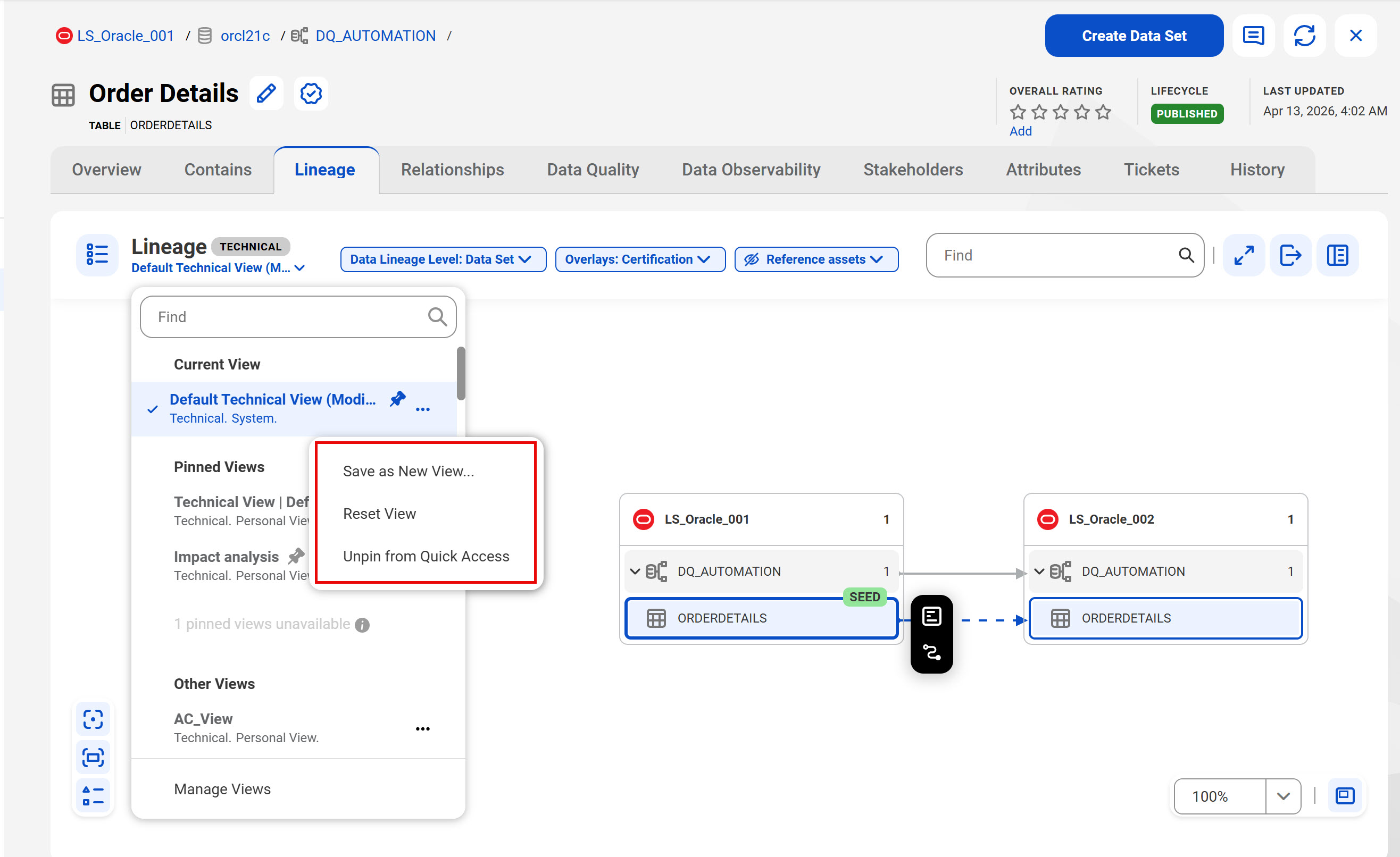
When you apply configuration changes to a view, the name of the view is appended with the term 'modified'. You can click Reset View from the action menu to return the lineage configuration to its original state.
4Click the Lineage views list and click the Action menu for the selected view.
5Select Save as New View....
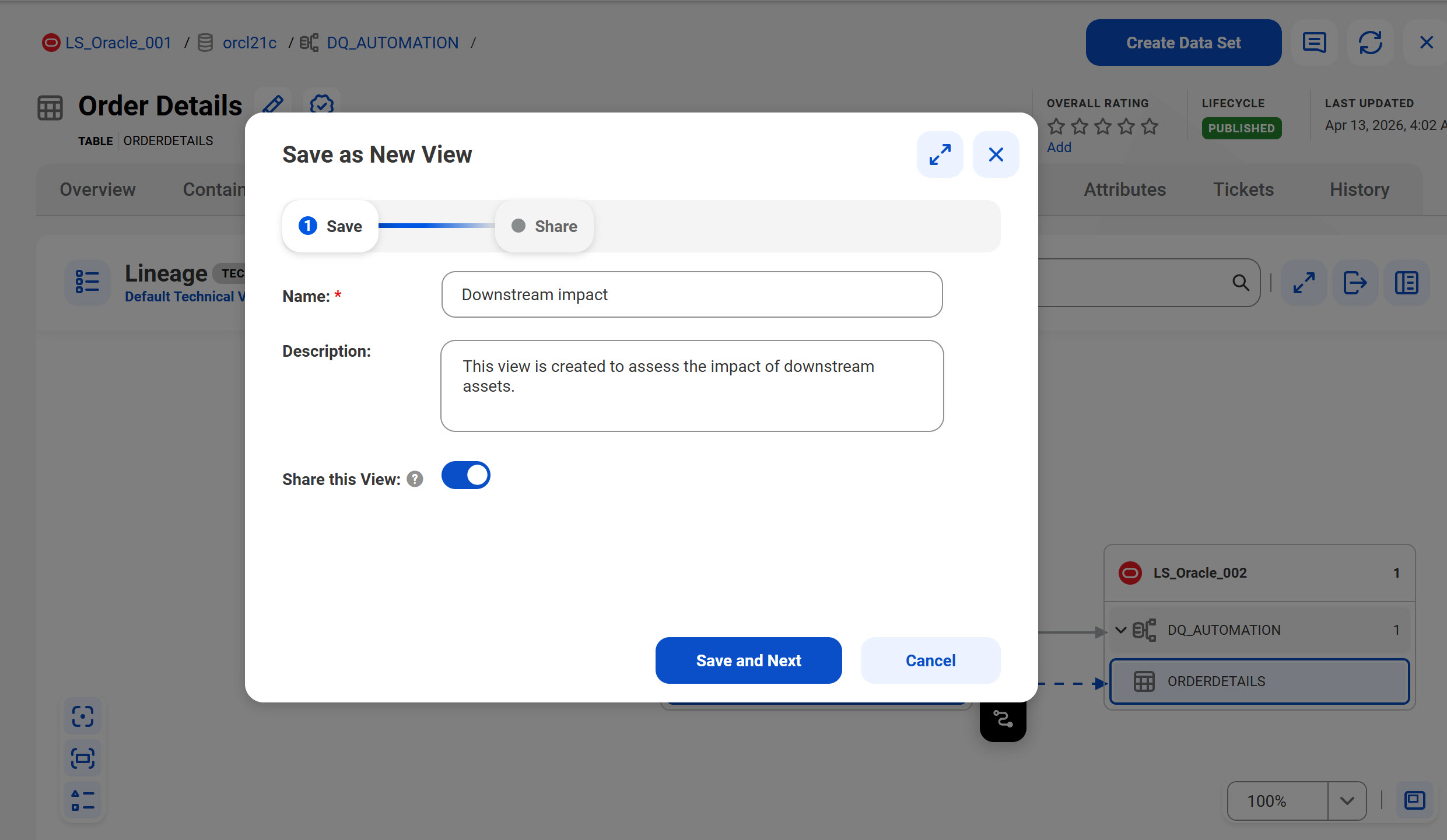
6Enter a unique name and description for the view.
7Toggle the Share this View button and click Save and Next.
8On the Share dialog box, choose whether to keep the view private, share it with other users, user groups, or roles, or share it with all users in the organization. While sharing the lineage view, specify the view or edit permission that you want to assign to the recipients of the lineage view.
9Click Save.
The saved view appears in your list of views under the My Views tab on the Manage Views page.
When you create a new view based on a pinned view or the current view, the new view is automatically pinned by default. You can add upto five pinned views.
You can manage and share your lineage views from the Manage Views page. You can pin or unpin views for quick access. For more information about managing your lineage views, see Manage lineage views.
Manage lineage views
Organize and manage your lineage views from the Manage Views page.
Click the Manage Views option from the Lineage views list to see all your saved views and views that are shared with you.
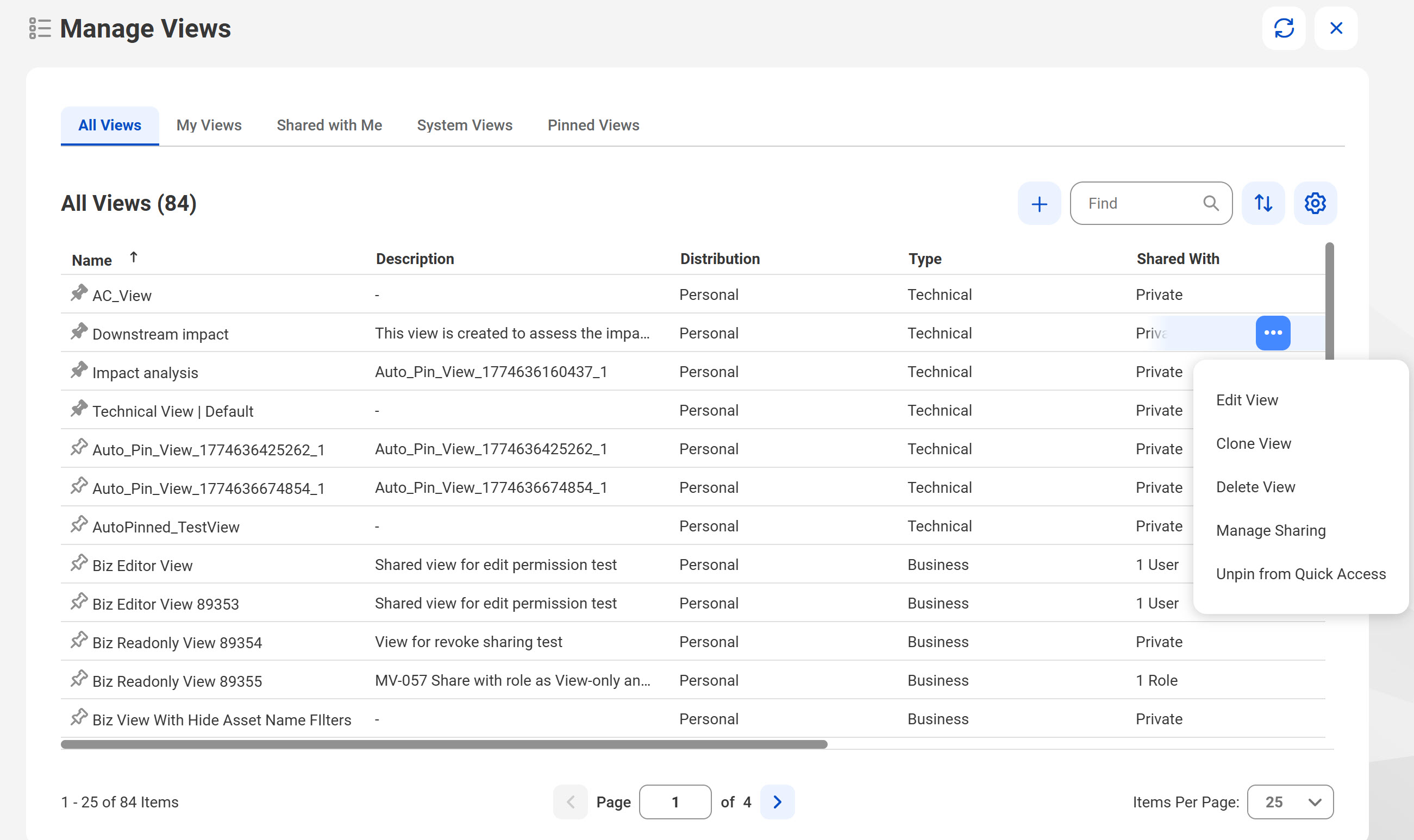
The following image shows the Manage Views page:
You can perform the following actions for lineage views from the Manage Views page:
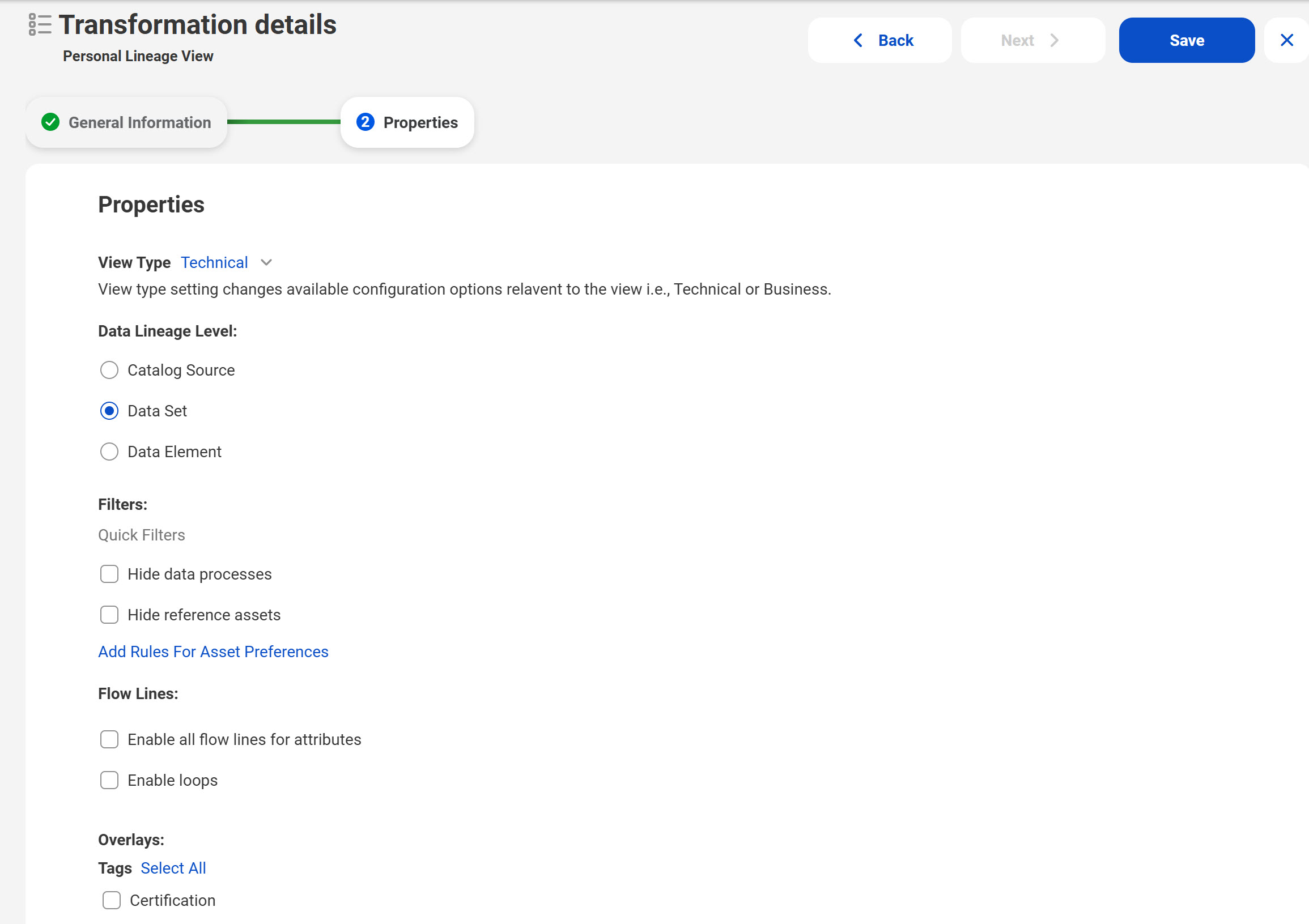
•Create View. Click the Add icon on the top of the page to create an entirely new view. Enter the name, description and the properties of the lineage view configuration including the data lineage level, filters, rules, and overlays.
The following image shows the Create View page for entering the configuration properties for a new sample lineage view called 'Transformation Details':
•Edit View. Update the name, description, or lineage configuration of a view that you have created or is shared with you with the edit permission. You can't edit system views that Data Governance and Catalog provides by default.
•Clone View. Use a custom or system view, including views that are shared with you, as a template to create a new lineage view.
•Delete View. Permanently remove custom views that you created. You can't delete system views or views that are shared with you.
•Manage Sharing. Manage access to your lineage view, and assign view or edit permissions while sharing the view with others. You can't share system views and views that are shared with you.
•Pin for Quick Access or Unpin from Quick Access. Pin your most frequently used views to the top of the Lineage views list on the Lineage page for instant access. Unpin views that are infrequently used. You can pin a maximum of five views at a time. If you exceed this limit, a warning message appears asking you to unpin a view from the list.
•Assign Owner. If an owner of a shared view becomes inactive or is deleted from the system, a user with the Manage Access Control permission can reassign the view to another user.