You can link catalog sources with each other to generate data lineage that are based either on the rules that you specify or are generated automatically by using CLAIRE.
Due to limitations or constraints in your source data, you might not always see complete lineage after ingesting metadata into the catalog. In such cases, you can link catalog sources in Metadata Command Center to generate lineage by using one of the following linking methods:
•Rule-based linking. Define rules that include name-based matching rules or inclusion rules with expressions.
•Automated linking. CLAIRE recommends links that you can curate. You can set a threshold limit based on which the CLAIRE recommended catalog source links are automatically accepted.
For information about linking catalog sources to generate lineage, see the Administration help in Metadata Command Center.
View catalog source links
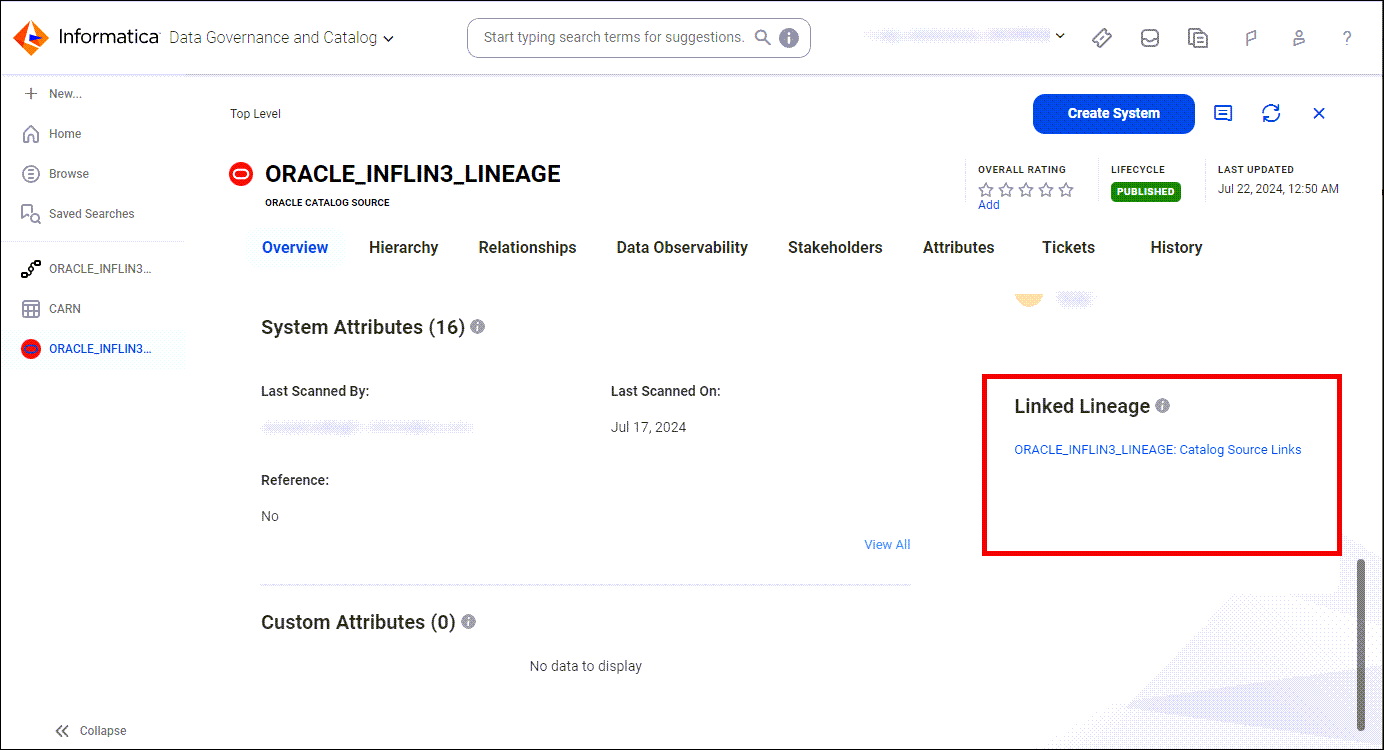
If the links are generated for the catalog source after the successful completion of the linking job in Metadata Command Center, you can view the links on the Overview tab of the source and target catalog sources in Data Governance and Catalog. You can view the generated links only if you're the stakeholder of the source or the target catalog source.
The following image shows the link generated for a catalog source:
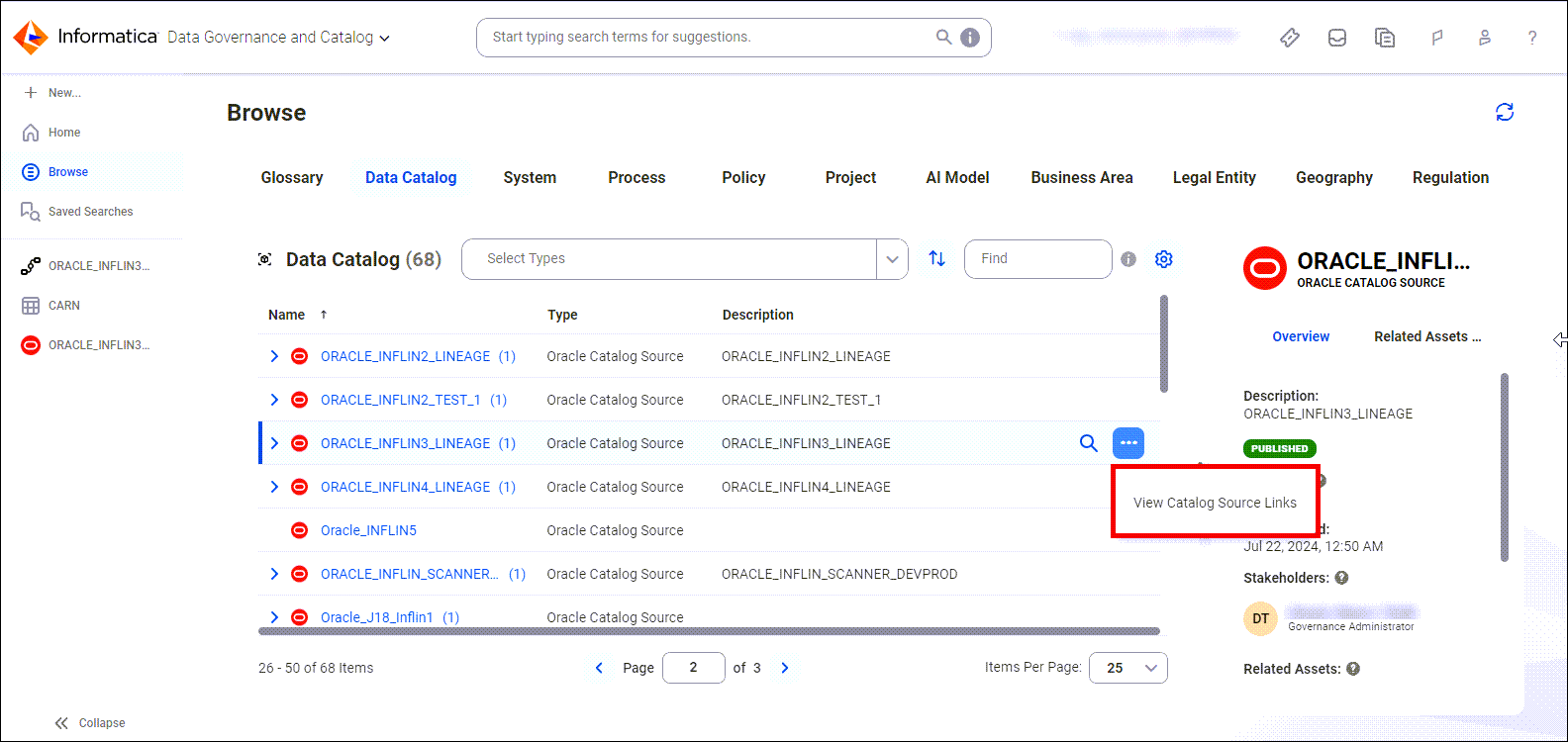
Alternatively, you can access the catalog source links from the Browse page. Select the Data Catalog tab and click the action menu for the catalog source to see the View Catalog Source Links option. The following image shows the View Catalog Source Links option on the Data Catalog tab of the Browse page:
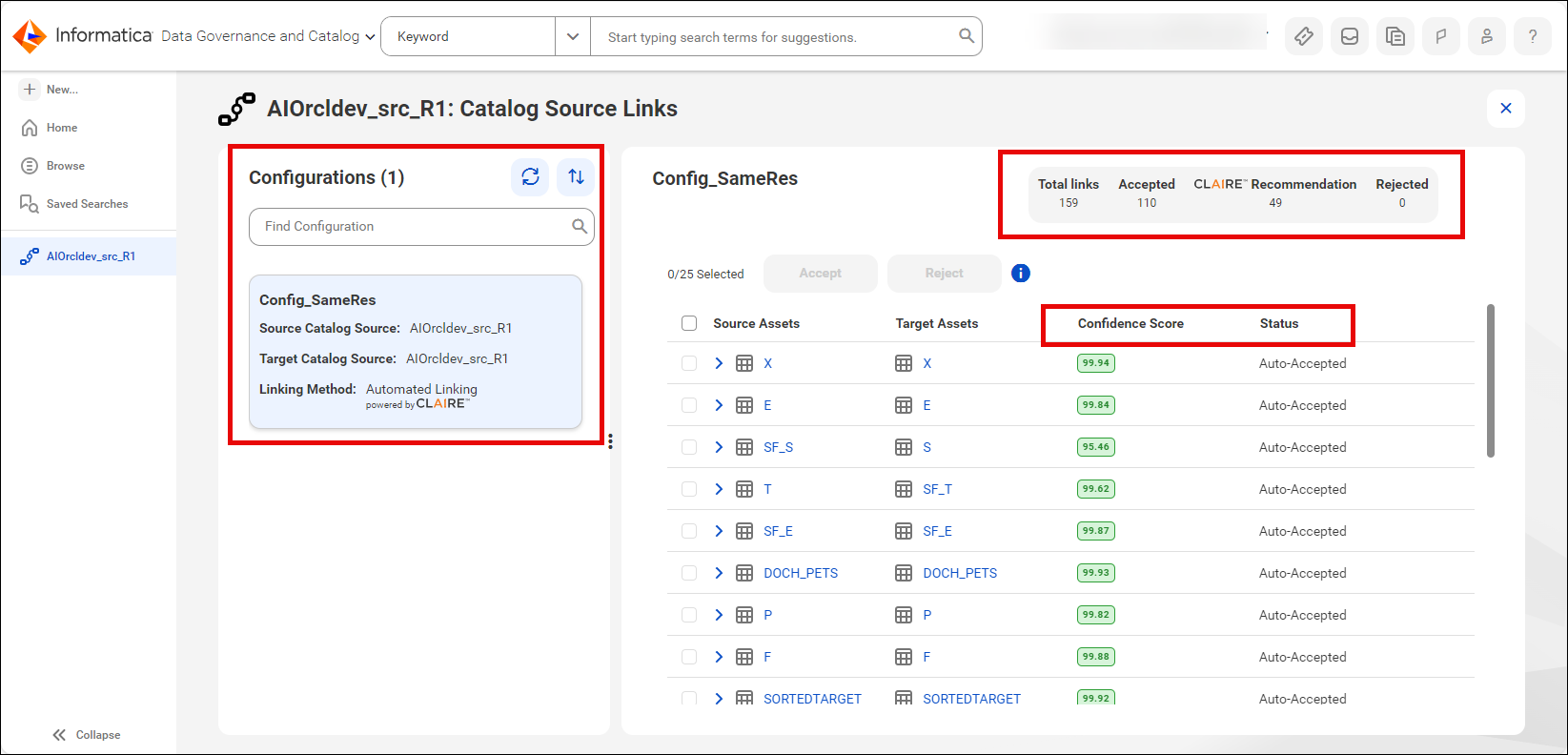
When you click the generated link for a catalog source, the Catalog Source Links page opens. This page displays the Configurations panel, which lists all the configurations created in Metadata Command Center for the catalog source where the catalog source is either the source or the target.
For each configuration, you can view the following information:
•The source and target catalog sources that are linked to generate lineage
•The linking method, which is either rule-based linking or automated linking
•The total number of links generated between the assets of the source and target catalog sources
•The number of accepted and rejected links
•The number of catalog source links recommended by CLAIRE. If the confidence score threshold is set in Metadata Command Center for the auto acceptance of CLAIRE recommended links, then you can view the confidence score threshold for each link.
The following image shows the Catalog Source Links page with the highlighted information that is available for each configuration:
Curate catalog source links
If you're a stakeholder of the source or the target catalog source, you can curate the links generated between the source and target assets of the catalog sources.
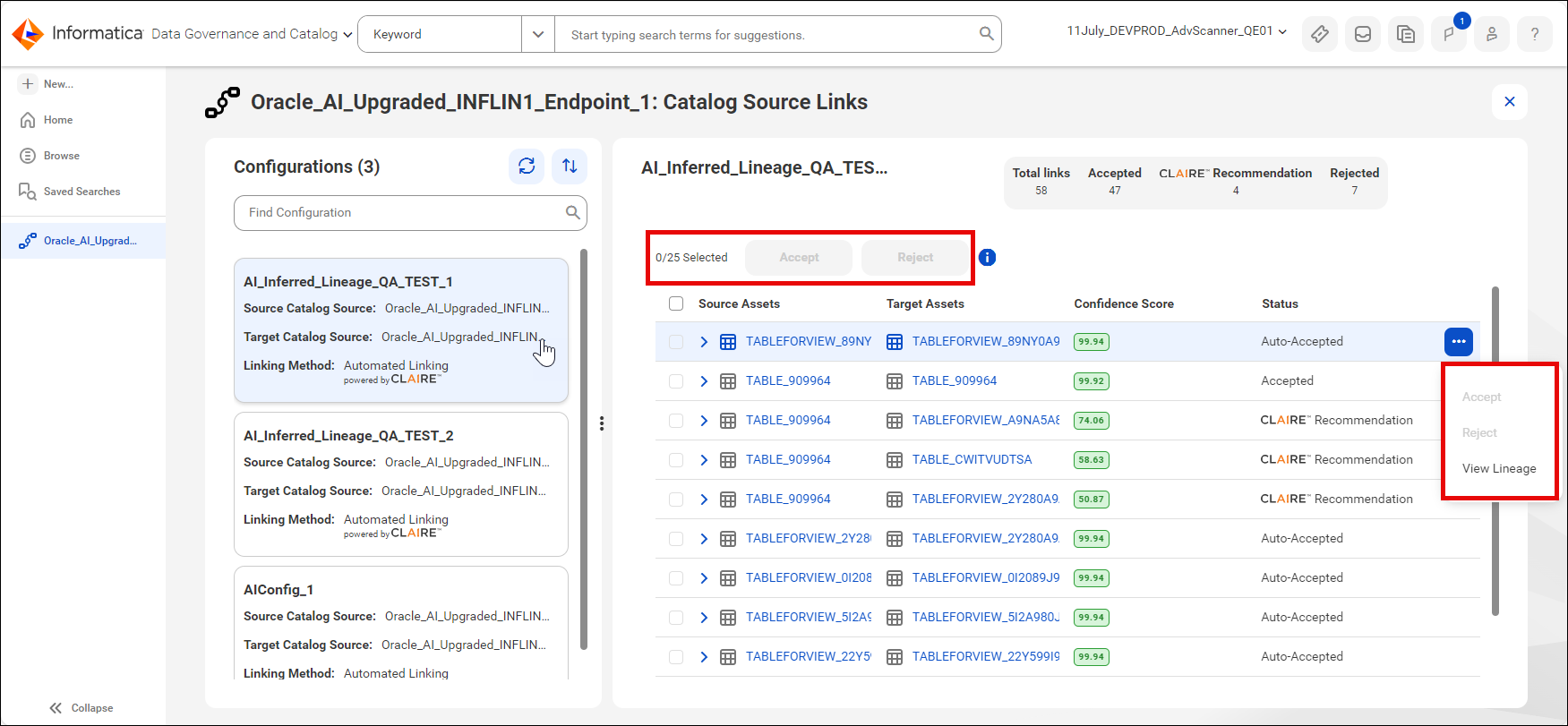
You can individually accept or reject each catalog source link or select multiple links to accept or reject them in bulk. Consider the following scenarios for accepting or rejecting the catalog source links:
•The rule-based catalog source links between the source and target assets are auto-accepted by default. You can reject the auto-accepted links after reviewing them.
•The CLAIRE recommended catalog source links that have a confidence score lesser than the specified threshold or don't have a confidence score threshold specified appear as CLAIRE Recommendation. You can accept or reject the auto-accepted links after reviewing them.
•If the CLAIRE recommended catalog source links have a confidence score that is higher than the specified threshold limit, the recommended catalog source links are auto-accepted. You can accept the auto-accepted links to help CLAIRE improve and learn better, or reject the links after reviewing them.
To accept or reject the catalog source links for a data set, accept or reject the links for all the data elements within that data set. If you initially reject the catalog source links and later accept them, they are marked again as accepted.
After you curate the catalog source links, you can see the complete linked lineage. For information about viewing linked lineage, see View linked lineage.
The following image shows the Catalog Source Links page for a catalog source highlighting the options to curate the catalog source links generated for the assets in the selected configuration:
View linked lineage
You can view the linked lineage between assets of the source and target catalog sources before or after curating the catalog source links.
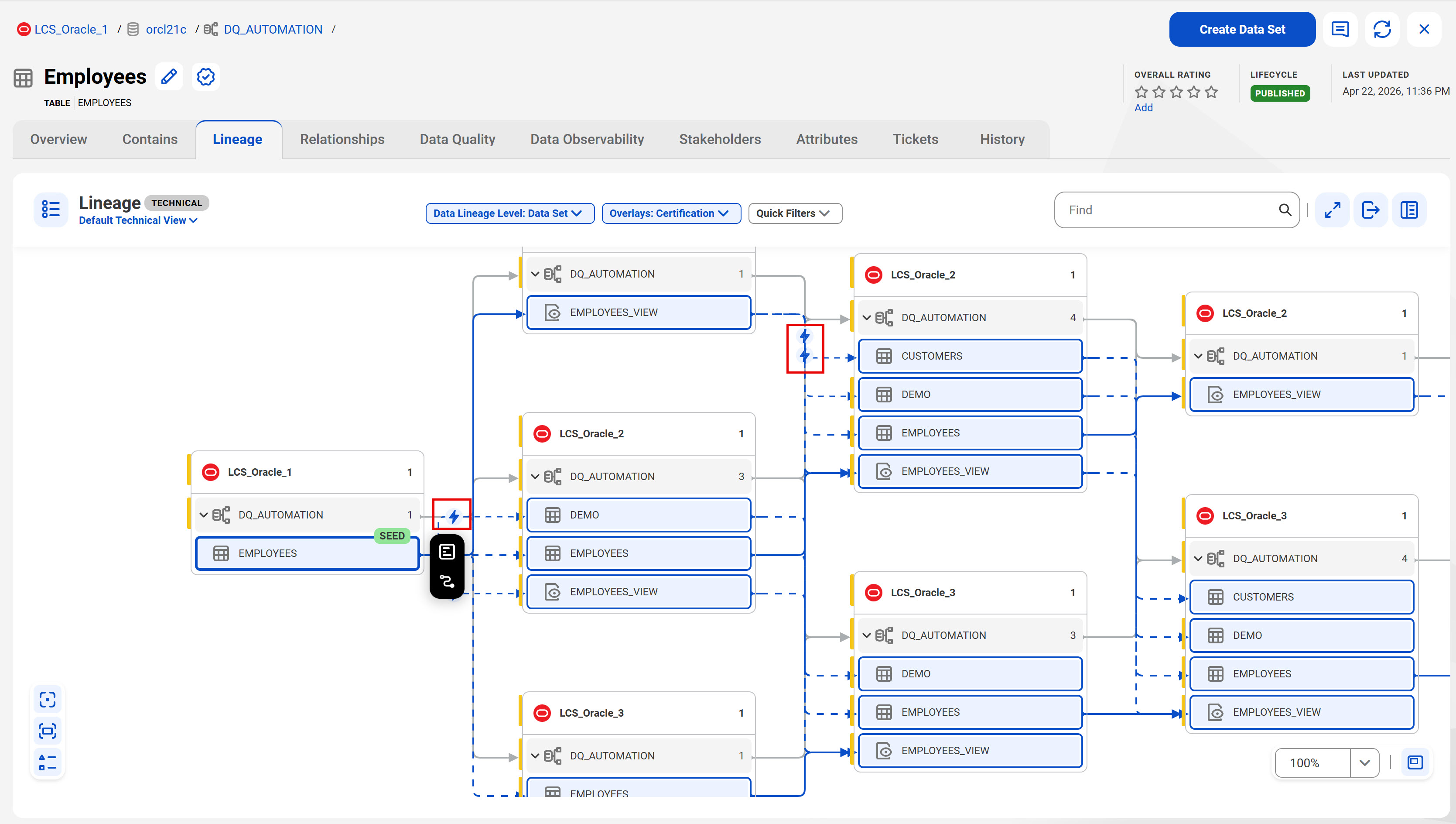
To view lineage for the linked assets, either go directly to the Lineage tab of the asset or access the lineage from the View Lineage option on the action menu of the linked assets on the Catalog Source Links page. The lineage for the linked assets appear with blue dotted lines.
If you're a stakeholder of the source or the target catalog source, the linked lineage displays the CLAIRE recommended links between the assets. Users who are not stakeholders can view only the accepted links between the assets in the linked lineage.
The following image shows the linked lineage between the data elements of two different catalog sources, and highlights the CLAIRE recommended links in the linked lineage at the data set level: