Usage analytics dashboards serve as a centralized view of asset and user trends from Data Governance and Catalog and Metadata Command Center. Over a period of time, you can monitor trends and changes of activities in your organization.
To activate the dashboards, an administrator enables usage analytics on the Configure page in Metadata Command Center. Administrators can grant dashboard access through privileges to Data Governance and Catalog users and user groups.
Usage analytics dashboards contain widgets that display a range of metrics. The predefined metrics configured for these widgets vary depending on the dashboard type. When you configure a widget, you can select the metric that you want to visualize for a specific usage trend.
After activation, usage analytics collects data and displays the changes in data through different metrics on dashboard widgets. Over time, you can view the change in data by time using the Time Range filter. You can use the filters to access metric data up to the last 12 months or view data for a specific date or date range. Depending on the Time Range filter you select, the summary widgets indicate the rate of difference in metric data.
Note:
For filters such as Last Week, Last Month, and Last 12 Months, no data is displayed if the filters refer to periods before data collection.
You can customize usage analytics dashboards by cloning the dashboards. On the cloned dashboards, you can add and configure widgets to show metric data for specific asset and user operations such as user count, asset curation trends, and login trends.
You can mange and access the following system-generated usage analytics dashboards from the Manage Dashboards menu in Data Governance and Catalog:
•Asset Dashboard
•User Adoption Dashboard
In Metadata Command Center, administrators can control the metrics that are visible to users. When you select a metric to restrict from display, the widget configured with that metric is only visible to users who have the View Restricted Metrics privilege.
The following table lists the metrics that administrators can restrict from display in Metadata Command Center:
Metric
Metric Type
Description
Assets by Lifecycle
Asset
Number of assets for each lifecycle
Assets within Asset Groups
Asset
Number of assets within asset groups
Assets with Stakeholders
Asset
Number of assets linked to stakeholders
Average Task Resolution Time
Asset
Average time to resolve tasks
Average Ticket Resolution Time
Asset
Average time to resolve tickets
Data Classifications with Sensitivity
Asset
Number of data elements classified for sensitivity
Deleted Users
User Adoption
Number of deleted users
New Users
User Adoption
Number of new users
User Activities
User Adoption
Number of user activities performed
Consider the following rules and guidelines for usage analytics dashboards:
•Users who have dashboard privileges can share dashboards with other users, roles, and groups.
•Metric data is collected from the time of activation. If you disable usage analytics, a job is initiated to purge the collected metric data and deactivate the dashboards.
•A scheduled job to collect metric data runs daily. Dashboard data updates only after the job completes each day.
Asset dashboard
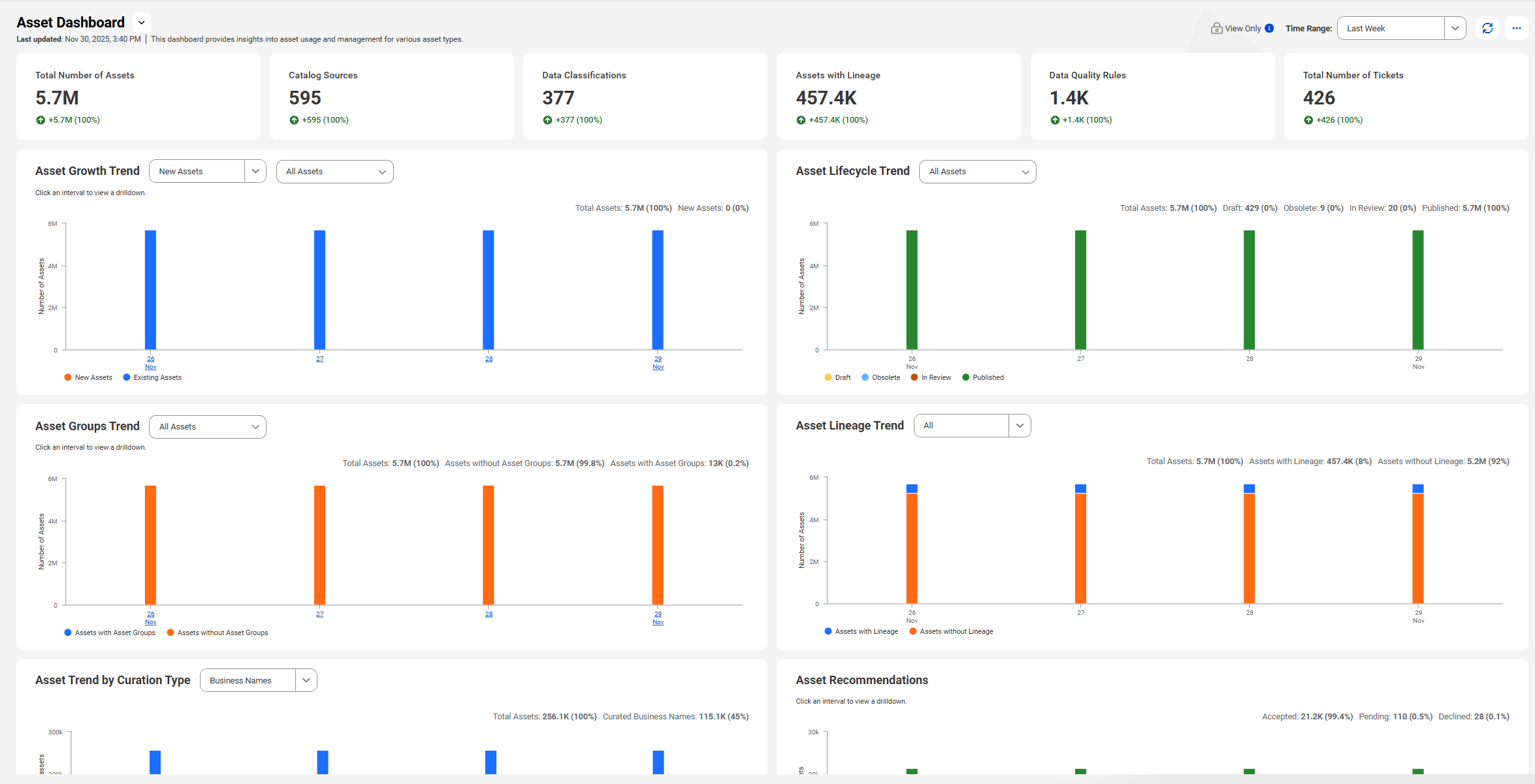
The Asset dashboard is a system-generated dashboard that displays data on asset usage across Metadata Command Center and Data Governance and Catalog.
The widgets within this dashboard display metrics that focus on asset discovery, management, and curation for different asset types. You can customize an asset widget to display data for asset metrics such as asset count, data quality, and data classifications.
For more information about asset widgets, see Asset widget.
The following table lists the preconfigured Asset widgets:
Widget Name
Description
Total Number of Assets
Shows the total number technical and business assets in Data Governance and Catalog.
Catalog Sources
Shows the number of catalog sources configured in Metadata Command Center.
Data Classifications
Shows the number of classifications created in Metadata Command Center.
Assets with Lineage
Shows the number of assets for which you can view lineage.
Data Quality Rules
Shows the number of rule occurrences present in the system.
Total Number of Tickets
Shows the number of tickets created in Data Governance and Catalog to track changes to assets.
Asset Growth Trend
Shows the count of total, new, and deleted assets.
Asset Lifecycle Trend
Shows a count of assets based on the lifecycle status.
Asset Groups Trend
Shows the number of assets with and without asset groups.
Asset Lineage Trend
Shows the number of assets with or without lineage.
Asset Trend by Curation Type
Shows a count of assets based on curation type.
Asset Recommendations
Shows a count of Glossaries and Classifications based on recommendation status.
Data Element Classifications Sensitivity Trend
Shows a count of assets based on sensitivity level.
Data Observability Trend
Shows a count of assets based on data observability operation status.
Assets with Data Observability
Shows the number of assets with data observability enabled.
Stakeholder Trend
Shows the number of assets with and without stakeholders.
Tickets Trend
Shows a count of tickets based on ticket status.
Average Time for Ticket Resolution
Shows the average time for different ticket operations.
Task Trend
Shows a count of tasks based on task status.
Average Time for Task Resolution
Shows the average time taken to resolve a task.
Job Execution Trend
Shows a count of jobs based on job status.
Scheduled Jobs Trend
Shows the number of manual and scheduled jobs.
Catalog Source Sync
Shows a count of catalog sources based on different syncing operations.
The following image shows a sample Asset dashboard with preconfigured widgets:
User Adoption dashboard
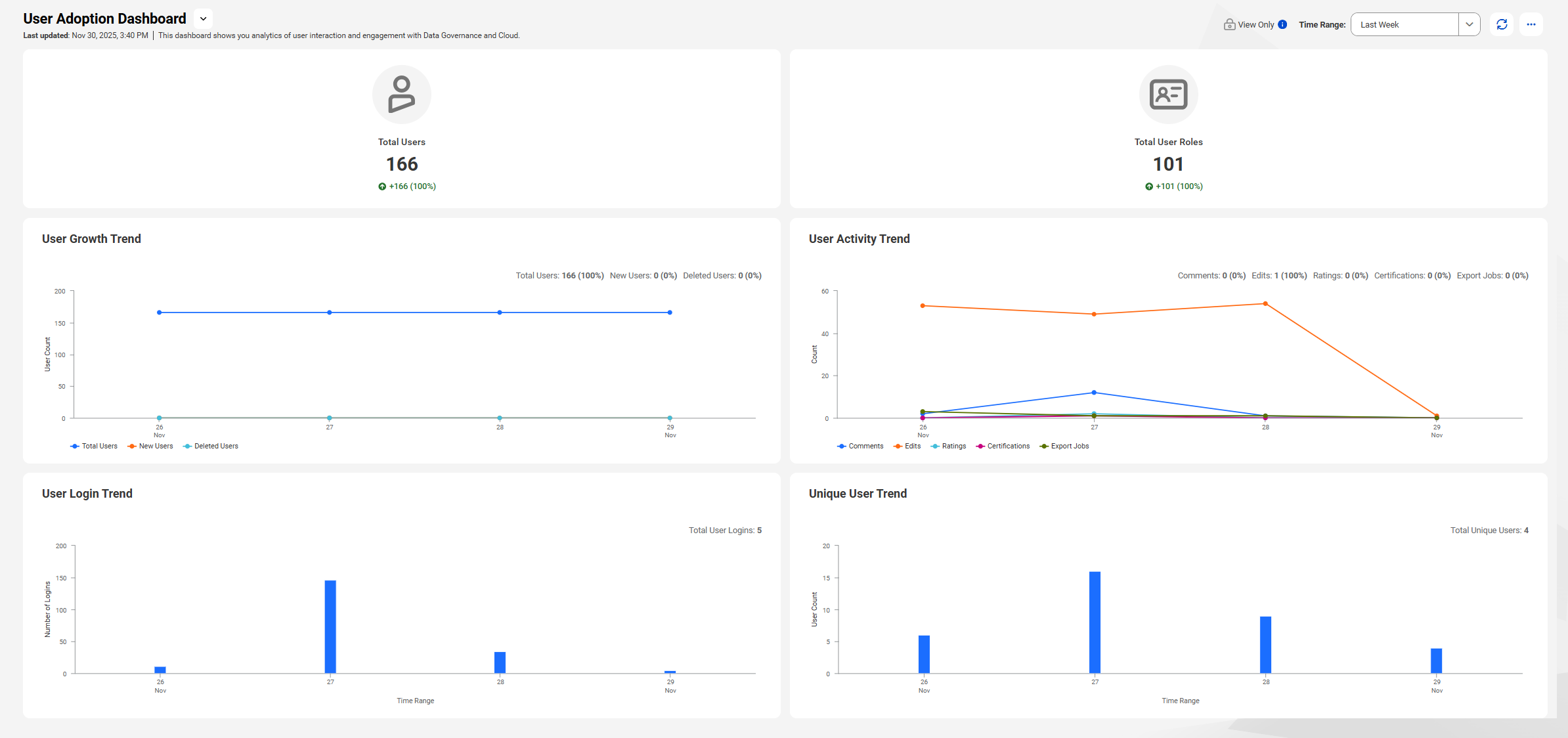
The User Adoption dashboard is a system-generated dashboard that displays metrics of user interactions with Data Governance and Catalog. The widgets on the dashboard visualize metric data on users' engagement with assets, operations, and user roles.
On the dashboard, you can view different preconfigured widgets that display data on a range of metrics. You can customize the widgets to help you track the impact of governance on different user metrics such as total users, user activities, and roles.